Question

Block manual DNS option

  • January 17, 2024
  • 14 replies
  • 173 views

Forum|alt.badge.img+5

Hello everyone,

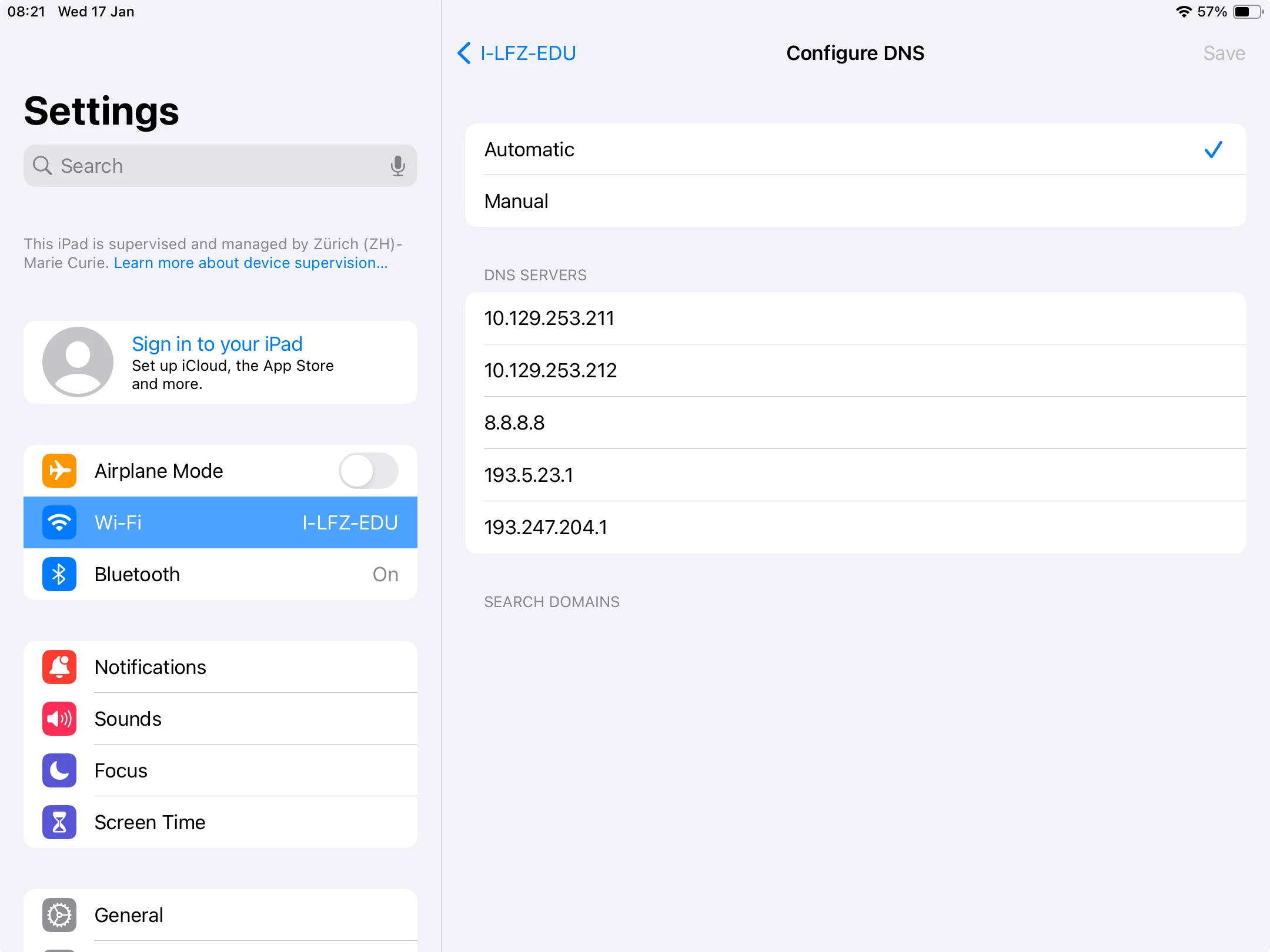
We're having problems with students changing the DNS configuration to access forbidden sites.

Is it possible to block the Manual DNS option in JAMF Pro? See screenshot below
Thank you in advance for your help.

14 replies

Forum|alt.badge.img+16
  • Contributor
  • January 17, 2024

No, but a web filter that uses a DNS Proxy could help here. When configured it will send any DNS traffic through it first so any student could change their DNS address to 8.8.8.8 all day long and they'll still get filtered. PAC filters also work in much the same way as well.

If the devices never leave your campus network then you could also block any offending DNS addresses at that level too.


Forum|alt.badge.img+15
  • Esteemed Contributor
  • January 18, 2024

You could run a script occasionally that sets your DNS servers back to a default/empty state.

networksetup -setdnsservers "Wi-Fi" empty

EmreU
Forum|alt.badge.img+6
  • Contributor
  • January 22, 2024

To change DNS settings they need admin right. But any way, it's better to fix it via shell script
Option-1 
Run script below on the target devices with an ongoing trigger. In this way, JAMF Server will apply default DNS addresses with every check-in. 
-----------

#!/bin/bash

#check DNS

CurrentDNS=$(scutil --dns | grep 'nameserver*' | sort -u | grep -oE "\\b([0-9]{1,3}\\.){3}[0-9]{1,3}\\b" | tr "\\n" " ")

#Specify Default DNS

DefaultDNS1="192.168.1.5"

DefaultDNS2="192.168.1.5"

#Create Array for Default DNS

DefaultDNSList=(''$DefaultDNS1'' ''$DefaultDNS2'')

echo "Default DNS Addresses : ""${DefaultDNSList[@]}"

#Create Array for Current DNS

ActiveDNSList=()

ActiveDNSList+=("$CurrentDNS")

echo "Active DNS Addresses : " "${ActiveDNSList[@]}"

if [[ "${DefaultDNSList[@]}" =~ "$ActiveDNSList" ]]; then

echo "do nothing"

exit 0

else

echo "Illegal DNS"

#networksetup -setdnsservers "Wi-Fi" empty

#networksetup -setdnsservers "ethernet" empty

exit 0

fi

-----------

Option-2

If there are too many computers and if you apply with ongoing trigger, in this case you may have performance issue on JAMF so it's better to run script with launch daemon. In this way, JAMF server will deploy script and launch daemon then launch daemon automatically will run with specified time. - In my sample (every 30 minutes)
For this solution you can copy and paste script below on JAMF and apply target devices. 
------------

#!/bin/bash
DNScript'#!/bin/bash

#check DNS

CurrentDNS=$(scutil --dns | grep 'nameserver*' | sort -u | grep -oE "\\b([0-9]{1,3}\\.){3}[0-9]{1,3}\\b" | tr "\\n" " ")

#Specify Default DNS

DefaultDNS1="192.168.1.5"

DefaultDNS2="192.168.1.5"

#Create Array for Default DNS

DefaultDNSList=(''$DefaultDNS1'' ''$DefaultDNS2'')

echo "Default DNS Addresses : ""${DefaultDNSList[@]}"

#Create Array for Current DNS

ActiveDNSList=()

ActiveDNSList+=("$CurrentDNS")

echo "Active DNS Addresses : " "${ActiveDNSList[@]}"

if [[ "${DefaultDNSList[@]}" =~ "$ActiveDNSList" ]]; then

echo "do nothing"

exit 0

else

echo "Illegal DNS"

#networksetup -setdnsservers "Wi-Fi" empty

#networksetup -setdnsservers "ethernet" empty

exit 0

fi

'

launchDaemon'<?xml version="1.0" encoding="UTF-8"?>

<!DOCTYPE plist PUBLIC "-//Apple//DTD PLIST 1.0//EN" "http://www.apple.com/DTDs/PropertyList-1.0.dtd">

<plist version="1.0">

<dict>

<key>Label</key>

<string>com.yourorgname.CheckDNS</string>

<key>ProgramArguments</key>

<array>

<string>/Library/Scripts/DNSControl.sh</string>

</array>

<key>StartInterval</key>

<integer>1800</integer>

<key>RunAtLoad</key>

<true/>

</dict>

</plist>

'


tee /Library/LaunchDaemons/com.yourorgname.CheckDNS.plist  << EOF

$(echo "$launchDaemon")

EOF

tee /Library/Scripts/DNSControl.sh  << EOF

$(echo "$DNScript")

EOF

chmod u+x /Library/Scripts/DNSControl.sh

chown root:wheel /Library/LaunchDaemons/com.yourorgname.CheckDNS.plist

chmod 644 /Library/LaunchDaemons/com.yourorgname.CheckDNS.plist

launchctl bootstrap system /Library/LaunchDaemons/com.yourorgname.CheckDNS.plist

--------------------


If you also want warn users 😁 add line below to the if statement

/Library/Application\\ Support/JAMF/bin/jamfHelper.app/Contents/MacOS/jamfHelper -icon "/System/Library/CoreServices/CoreTypes.bundle/Contents/Resources/AlertStopIcon.icns" -description "Your DNS settings have been changed to default. Please do not change it again." -title "Warning" -windowType hud -button1 "OK" -lockHUD


Forum|alt.badge.img+16
  • Contributor
  • January 22, 2024

Based off the screenshot this looks like iPadOS so MacOS shell scripting won't help the OP.


EmreU
Forum|alt.badge.img+6
  • Contributor
  • January 22, 2024

oh i didnt paid attention it's mobile device - apologies

have you tried to disable network settings with configuration profile ? 


Forum|alt.badge.img+5
  • Author
  • New Contributor
  • January 23, 2024

Precisely, I can't find the configuration to block only to prevent the modification of DNS options for WiFi


Forum|alt.badge.img+5

Anyone have any luck blocking or locking the proxy settings in your wifi configfuration?


djs9812
Forum|alt.badge.img+4
  • Contributor
  • February 28, 2024

Has anyone figured out how to do this on ipads?


Forum|alt.badge.img+5
  • Author
  • New Contributor
  • March 4, 2024

Hello everyone!

With the help of Umbrella support, we've found the solution to block search domains.


Here's their answer :

This is a known issue with the IOS, domains added to the SearchDomains settings are treated as internal domains, bypassing Umbrella and directed to local resolvers for resolution.

To resolve this we have a workaround which involves you preventing the ability for users to add SearchDomains via your MDM:

You can use your MDM to set a flag file and deploy the setting to your end users:

  • Flag file is "ignoreSearchDomains" with a value of true.

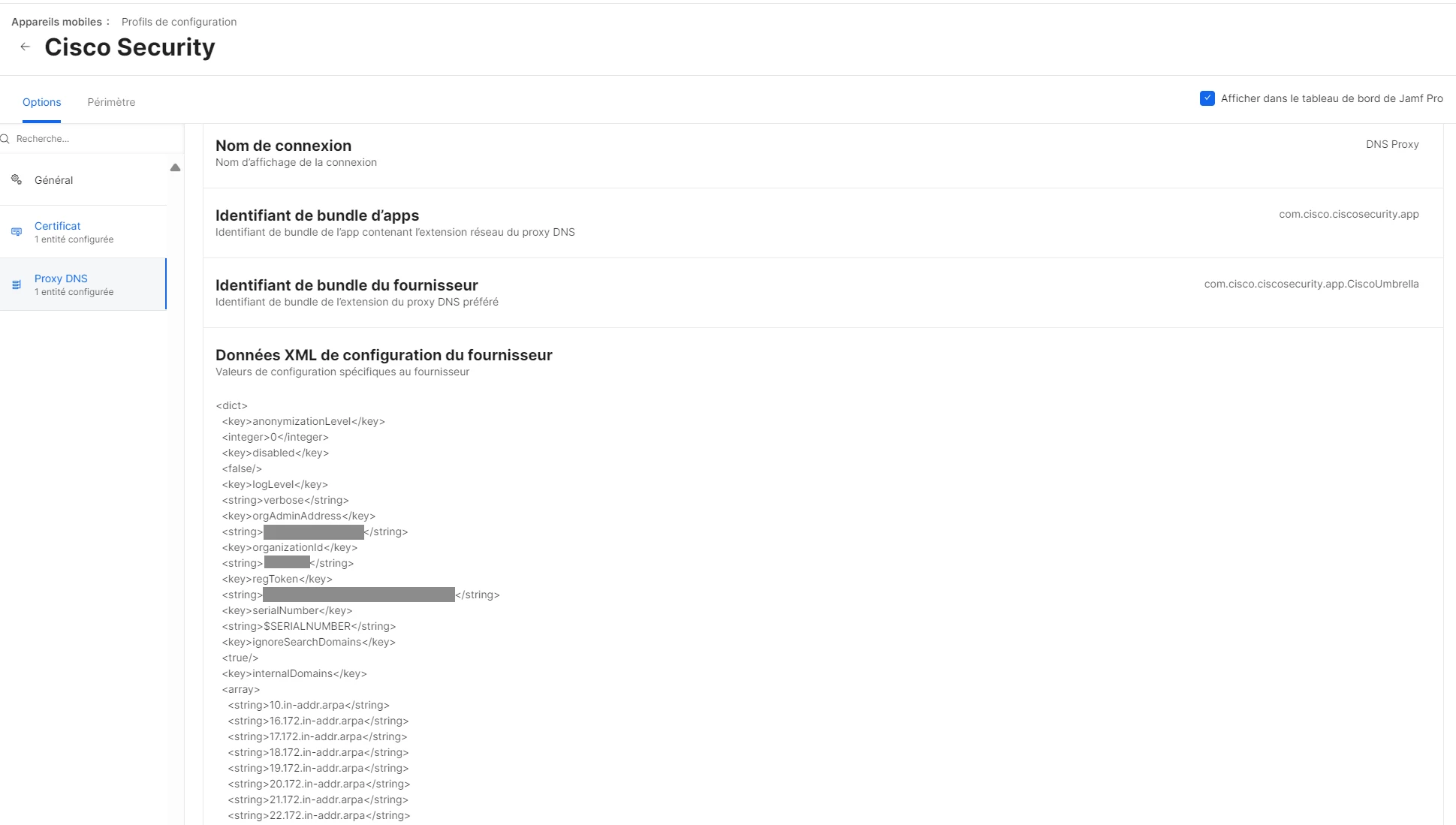
Here is an XML example of the deployed setting : 


<key>serialNumber</key>

<string>$SERIALNUMBER</string>

<key>ignoreSearchDomains</key>

<true/>

<key>internalDomains</key>


By adding this flag file, it works 👍


Forum|alt.badge.img+14
  • Valued Contributor
  • March 4, 2024

How would this be implemented in Jamf?


Forum|alt.badge.img+5
  • Author
  • New Contributor
  • March 5, 2024

In fact, I should point out that in our school we use Cisco Umbrella to enforce security rules and block inappropriate activity on students' iPads.


However, students had found a way around Umbrella by entering manual search domains to access blocked sites.
To avoid this, it is necessary to modify the Cisco Umbrella configuration profile, configured on Jamf Pro.

In this configuration profile, we define the DNS Proxy (configured for Umbrella) and edit the XML provider configuration data.

But this is specific to use with Umbrella.
We haven't found a solution to block the menu on the iPad.


djs9812
Forum|alt.badge.img+4
  • Contributor
  • March 5, 2024

In fact, I should point out that in our school we use Cisco Umbrella to enforce security rules and block inappropriate activity on students' iPads.


However, students had found a way around Umbrella by entering manual search domains to access blocked sites.
To avoid this, it is necessary to modify the Cisco Umbrella configuration profile, configured on Jamf Pro.

In this configuration profile, we define the DNS Proxy (configured for Umbrella) and edit the XML provider configuration data.

But this is specific to use with Umbrella.
We haven't found a solution to block the menu on the iPad.


Could you share how you modified the config profile please?


Forum|alt.badge.img+5
  • Author
  • New Contributor
  • March 6, 2024

Could you share how you modified the config profile please?


Here, the configuration profile with the XML data to be modified (add ignoreSearchDomains)


iOllie
Forum|alt.badge.img+3
  • New Contributor
  • September 10, 2024

@EmreU 

It looks like there's a small issue with the script.

The script doesn't take any action when the condition falls under else. Below is the corrected portion:

# Clear DNS for Wi-Fi networksetup -setdnsservers "Wi-Fi" empty # Clear DNS for Ethernet networksetup -setdnsservers "Ethernet" empty


Alternatively, you could set default DNS values:

networksetup -setdnsservers "Wi-Fi" $DefaultDNSList networksetup -setdnsservers "Ethernet" $DefaultDNSList