
Question

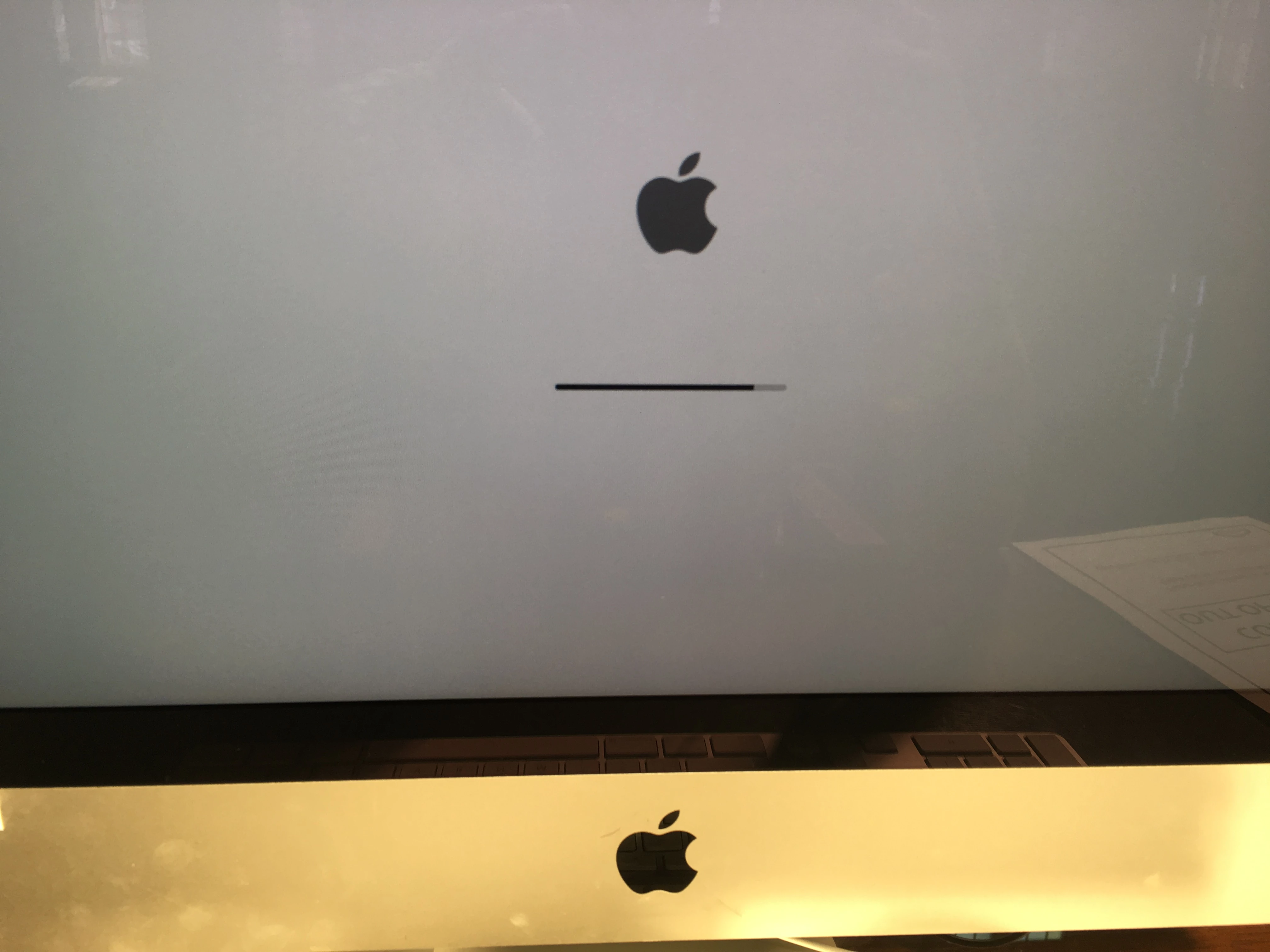
Bricked iMac!?

  • August 29, 2018
  • 8 replies
  • 32 views

Forum|alt.badge.img+4

Not really JAMF related... but...

after starting a policy to upgrade to High Sierra I never regained control of the machine. When I get on sight to check it out I notice the boot progress bar is stuck stuck at around 90%.

Try reboot from Recovery and USB macOS install - same thing instantly happens. Impossible to boot from any device. Did the firmware update brick my machine? (Firmware password is on...)

iMac13,1
iMac Intel (21.5-inch, Late 2012)
8 replies

Forum|alt.badge.img+16
  • Honored Contributor
  • 330 replies
  • August 29, 2018

Did you try internet recovery?


Forum|alt.badge.img+4
  • Author
  • Contributor
  • 22 replies
  • August 30, 2018

Yes "Try reboot from Recovery and USB macOS install"

No options would boot it, not even USB-stick.

Decided to just dump the machine, not worth more time.


Forum|alt.badge.img+16
  • Valued Contributor
  • 1002 replies
  • August 31, 2018

SMS and PRAM resets? Boot info should be stored in PRAM.
Leave the power out for a few minutes then hold Command+Option+P+R on reboot and wait for it to chime 3 times (it if gets that far).


Forum|alt.badge.img+6
  • Contributor
  • 14 replies
  • August 31, 2018

Can you put it in target disk mode? Then you can attach it to another Mac and wipe the drive.


Forum|alt.badge.img+4
  • Author
  • Contributor
  • 22 replies
  • August 31, 2018

@Look Tried this before, did not work

@leeskade I forgot to test that one... machine already in storage, if I get the energy I will pull it out and test

Cheers


Forum|alt.badge.img+17
  • Contributor
  • 570 replies
  • September 1, 2018

@haggan

If you boot it in verbose mode, do you see a repeating message of, "Too many corpses being created."?

If so, it's a bad cache file; boot into recovery mode and do the following (courtesy of a GSX notification I got at my Mac repair job; this can be a thing that started with 10.13.4, but we've seen it in the shop all the way up to the latest High Sierra update):

  1. Restart your Mac and hold down Command-R to start up from macOS Recovery.

  2. If the startup drive has FileVault turned on, open Disk Utility and proceed with the next step. If FileVault is off, skip to step 5.

  3. Select the startup drive and click Mount in the Disk Utility toolbar. When prompted, select a login name and enter the password. Then click Unlock to mount the startup drive.

  4. Quit Disk Utility.

  5. Choose Utilities > Terminal from the menu bar.

Type this command in Terminal: cd /Volumes/Macintosh HD/var/db/caches/opendirectory/

Modify the command to reflect the name of the startup volume if it's not Macintosh HD. Remember to use an escape character before each white space in the command path.

  1. Press Return.

  2. Type this command in Terminal: mv ./mbr_cache ./mbr_cache-old

The mv Terminal command is safer than the rm command. Errant white space in an rm command can destroy the user's data.

  1. Press Return.

  2. Quit Terminal.

  3. Choose Apple menu > Restart.

The first startup after running these commands takes longer than usual as the cache is recreated. Subsequent startups will take the normal amount of time.


Forum|alt.badge.img+1
  • New Contributor
  • 4 replies
  • September 12, 2018

Boot Internet Recovery. Use Disk Utility
Erase drive - Repartition drive - heck...erase it again....
Quit Disk Utiltiy
Now choose the Reinstall OS


Forum|alt.badge.img+13
  • Valued Contributor
  • 291 replies
  • September 12, 2018

I'll uh... I'll come by and pick it up. Thanks.