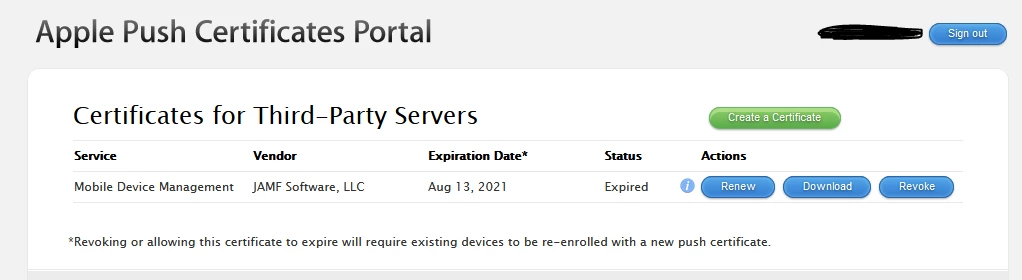
In case anyone else runs into this problem in future and happens onto this thread:
We were able to figure this out in the end by enabling remote management on each machine using the below script (Thanks to @tuinte on this thread):
#!/bin/sh
# Declare global variables to improve readability.
kickstart="/System/Library/CoreServices/RemoteManagement/ARDAgent.app/Contents/Resources/kickstart"
privs="-all"
targetUser="adminuser"

# Add targetUser to SSH Access user group.
dseditgroup -o edit -a "${targetUser}" -t user com.apple.access_ssh
# Set Remote Login to On, in case this is set to Off on the local machine.
/usr/sbin/systemsetup -f -setremotelogin on
# Enable kickstart and configure for targetUser to be granted all privileges, then restart the agent to apply changes.
"${kickstart}" -activate -configure -allowAccessFor -specifiedUsers
"${kickstart}" -configure -access -on -privs "${privs}" -users "${targetUser}" -clientopts -setmenuextra -menuextra yes
"${kickstart}" -restart -agent
From there, we were able to run sudo jamf reenroll -prompt and run with our JAMF credentials and the local admin credentials.
Note that at this stage, the user will need to approve the MDM profile before it is fully implemented on the target machine. We found it easier for a prompt to appear via jamfhelper for UX reasons, using the below script:
#!/bin/sh
# Declare Global Functions
message(){
  # Define local variables.
  local message="${1}"
  local title='IT Support'
  local jamfHelper='/Library/Application Support/JAMF/bin/jamfHelper.app/Contents/MacOS/jamfHelper'
  local iconPath='/path/to/icon.png'

  # Data Validation
  [[ -z "${message}" ]] && message='Press OK to continue'

  # Display dialog box message if application is running, otherwise continue silently.
  if [[ -e "${jamfHelper}" ]]; then
    if ! "${jamfHelper}"
    -windowType hud
    -title "${title}"
    -heading "MDM Approval"
    -icon "${iconPath}"
    -button1 'OK'
    -description "${message}"
    -defaultButton 1
    -lockHUD &>/dev/null
    then
      printf '%s
' "${cancelMessage}" 1>&2
      exit 1
    fi
  fi
}

function sendToLog (){
  printf '%s
' "${1}"
}

# Main function to perform
message "In order to maintain security configurations, your device has been re-enrolled in JAMF and you will be required to manually approve the MDM profile - Please do so by following these steps:
1 - Select MDM Profile on the left-hand side.
2 - Click Approve under the profile title.
3 - Close out of the System Preferences window once complete.

If you encounter any issues, please contact IT through the preferred channels."

sendToLog "Opening Profiles pane in System Preferences."
open -b com.apple.systempreferences /System/Library/PreferencePanes/Profiles.prefPane

sendToLog "Sleeping for 30 seconds and then checking and updating records on JAMF."
sleep 30
sendToLog `sudo jamf recon`

exit 0
Once the user has approved the MDM Profile, we can check this in JAMF under the User Approved MDM tag. We also used this tag to automate the second part of the process so any devices we have where User Approved MDM is No, they receive the above prompt.
From what we've seen, this has sorted our issue, but there's still the manual effort behind remoting into each device and running the above commands. If anyone has any clue as to why the sudo jamf reenroll -invitation ${invitiationID} wouldn't work and instead stalls, I'd greatly appreciate the feedback!