Hi Paul,
When you say "need to push a system preference that is not part of one of Casper's Templates or Configuration Profiles." are you talking about a PreferencePane or do you actually mean something like a preference setting? As in an MCX setting?
If you mean a preference setting and not an actual Preference Pane, (which I assume is what you mean) we are currently still using only MCX, not Configuration Profiles here, though I suspect we will need to take the dive into those sooner rather than later.
As for figuring out how to set up a custom setting not part of the JSS template, first thing I do is use Google. Seriously, almost everything you may want to set is already out there or in the very least there are threads where someone is asking the same question and someone has answered it (if its possible to do).
If that fails me, next thing I do is, if I'm sure its stored in a regular plist file, but not sure what file is being modified when the changes occur, I just use the Finder open to the Preferences folder sorted by the Date Modified column, make the change in System Preferences and watch which file jumps to the top of the list. You can also use Composer to do a snapshot using the "Monitor File System Changes" option, change the setting manually in System Preferences or whichever other application you need, then capture it and see what got modified. In either case, If I see plist files being changed, I next examine those in Terminal, XCode or a Text editor, whichever gives me the most readable results.
Sometimes i do the above procedure using a "before" and "after" approach and copy both files to separate folders (so they don't overwrite each other). See what the difference is in the plist files that seems to control that setting to narrow in on it. You can actually use something like 'diff' to compare the two files if they have a ton of settings in them as well.
In most cases they are things you can plug into an MCX setting or a Configuration Profile and push out.
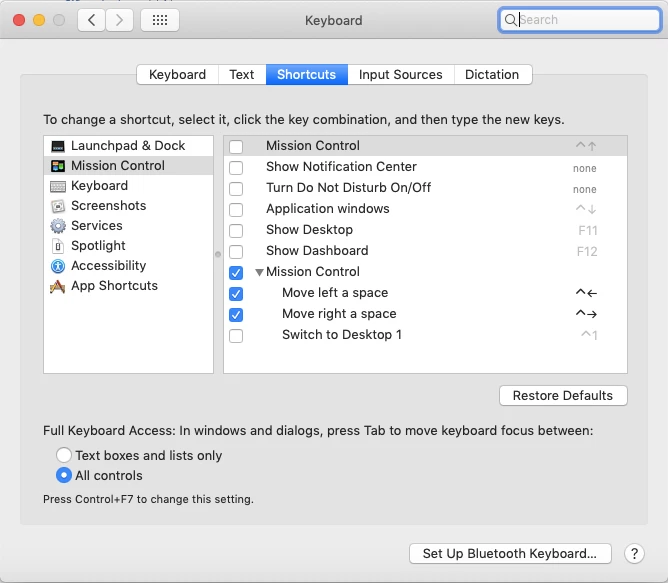
So, to make this a bit more 'real world', I used the above process to capture the settings you're looking to change under Keyboard > Mission Control and I can see that they get stored in a file at ~/Library/Preferences/com.apple.symbolichotkeys.plist. The keyboard shortcuts have a corresponding "enabled" key with a boolean value assigned to them of "true" or "false", or "0" or "1" if viewed with the defaults command.
Its all stored in a big array that includes other keyboard shortcuts, not just the Mission Control ones, so you may have better luck simply opening the file and copying the entire dict array that shows up as:
<dict>
    <key>AppleSymbolicHotKeys</key>
. . . . (all settings here)
</dict>
into a custom MCX or Configuration Profile. The only thing is, this is in the user space (~/Library/Preferences/) and I don't know if the setting can be enforced. Could be one of those "At every login" type of things, so if you were looking to lock it out form the students, I honestly don't know if it can be done, for that setting at least.
You can try doing something like pushing the setting, then changing the permissions on the file to read only for your users, so anything they try to change in that preference won't get written back to the file. But test test test before doing anything like that.
Hope the above helps.