Question

How to enroll a Mac VM running macOS High Sierra hosted by Parallels Desktop Pro

  • April 30, 2018
  • 39 replies
  • 293 views

Show first post

39 replies

KyleEricson
Forum|alt.badge.img+17
  • Valued Contributor
  • July 16, 2019

@cwaldrip Make sure it didn't create a fake device record in Jamf. Sometimes it will do this and you have to remove the record under Mobile Drives or Unmanaged Macs.


gskibum
Forum|alt.badge.img+13
  • Valued Contributor
  • July 16, 2019

@cwaldrip

Exactly what @kericson said. I was getting hung up by failed macOS enrollment attempts appearing as incomplete records in mobile devices.


Forum|alt.badge.img+17
  • Valued Contributor
  • July 16, 2019

@kericson Well, damn. It didn't even occur to me to look under Mobile Devices, even with it being mentioned previously. 🤦🏼‍♂️ We don't manage mobile devices so that's a dusty corner of the server for me.

Found, removed, and it works now. 😁


donmontalvo
Forum|alt.badge.img+36
  • Hall of Fame
  • December 9, 2019

For anyone who came to their senses and dropped crappy Parallels for more enterprise capable VMware Fusion...

Script to "sysprep" a VMware Fusion virtual machine


Forum|alt.badge.img
  • New Contributor
  • December 30, 2019

All this got rather hard to follow, so I thought I'd add a summary (which I've just tested successfully with Parallels 15 Pro, Catalina, and Jamf Pro 10.17.1).

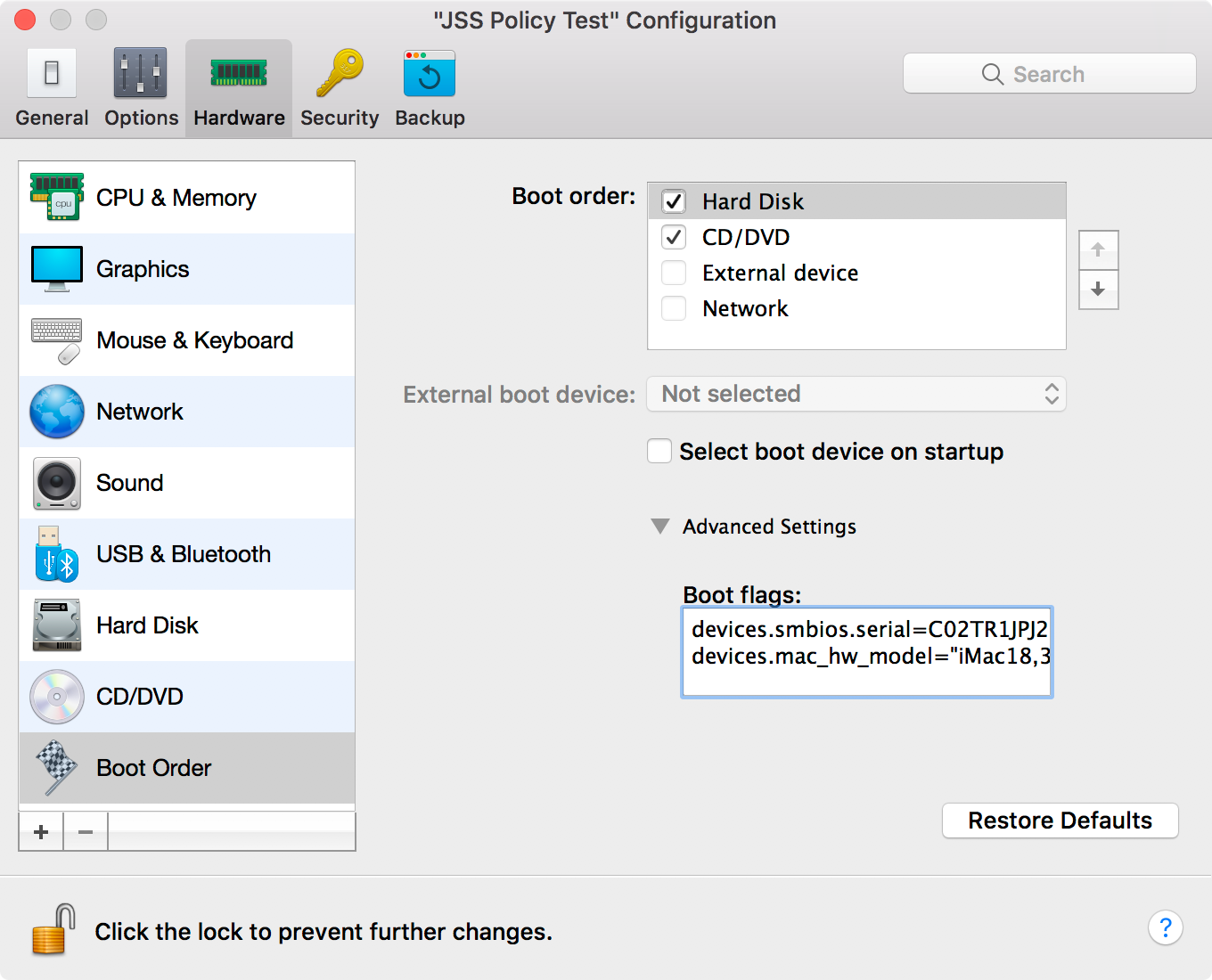
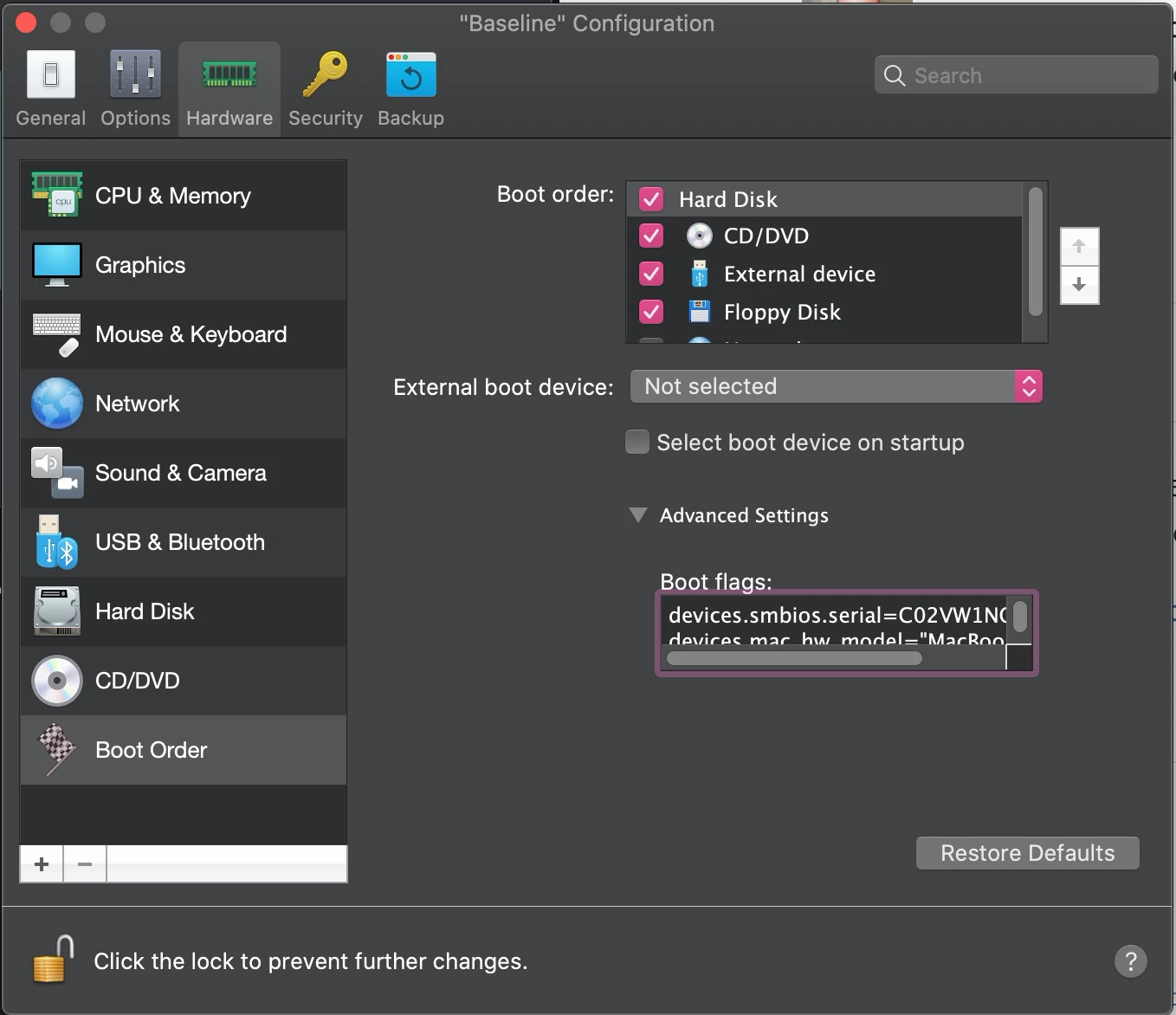
A. You need to set 2 Boot Flags for the VM in Parallels > (target VM) > Settings > Hardware > Boot Order > Advanced Settings:
1. The VM's Serial Number. By default, it will be the same as your host machine's serial (or that of the VM you might have cloned to get your current one). So for each new VM you want to enrol, you need a new serial number. Incrementing the last digit seems to be a reasonable approach; eg:
devices.smbios.serial=C02VW1NQHTD1

  1. The VM's Hardware Model. By default it will say something like "Parallels 15,1". I suggest you use the same as your host machine; eg: devices.mac_hw_model="MacBookPro14,3"

(the quotes don't seem to make a difference)

Here's a screenshot of my working VM's settings:

B. If you're reading this, you've probably tried to install MDM and failed already, one or more times (like I did), probably because you didn't have the Boot Flags sorted first.

The result of that is that in Jamf Pro, you will have one or more dodgy items in your Inventory, which you need to delete first.

Go look in:
1. Computers > Search Inventory (all): most likely it will have a Name = {serial number of your host machine}. 2. Devices > Search Inventory (all): it will probably just be called "Mobile Device".

You must delete any of these dodgy zombie machines before you can successfully install MDM on the VM. Possibly, before you can install MDM on any new machine, although I have not confirmed that.


Forum|alt.badge.img+8
  • Contributor
  • February 12, 2020

Thank you @pivotwealth! Finding all the necessary info in one place and explained worked like a charm. One extra tidbit to know, is that if you plan on reverting to snapshots constantly while conducting your testing, you'll want to take a snapshot AFTER you make the necessary serial number and hardware changes or else reverting will lose those changes and you'll have to start over again with removing all of the zombie entries (don't ask me how I learned this, it was a D'oh! moment).


Forum|alt.badge.img
  • New Contributor
  • June 15, 2020

Parallels 15.1.4 and Catalina 10.15.5.
The boot flags work without quotes, and with made up values:
devices.mac_hw_model=MacVM
devices.smbios.serial=ReeseVM0001

As reported from JAMF Pro: Model: MacVM
Model Identifier:MacVM
Serial Number:ReeseVM0001

It took me a few rounds to determine that quotes around the values were causing problems. Once I took off the quotes it worked.


Forum|alt.badge.img+1

I was able to use the boot flags technique (Using quotes around the serial number and model number) to modify a Mac OS 10.13 VM today. I had to upgrade to Parallels Pro Desktop for Mac (doesn't work in the standard edition) to get to change the serial number. However, Jamf Pro thinks the Mac VM is an iOS device! Does anyone know how to get Jamf to recognize my Mac VM as Mac and not an iPhone?


howie_isaacks
Forum|alt.badge.img+23
  • Author
  • Esteemed Contributor
  • February 4, 2021

Sadly, I ran into major issues with my Mac VMs running in Parallels after I upgraded to macOS Big Sur. Parallels support could never find the cause. So I was faced with not being able to get work done, so I switched to VMware Fusion. The interface for VMware isn't as easy to use as Parallels, but it still works really well, and in some ways is more robust. Maybe I will go back to Parallels someday.


Forum|alt.badge.img

@us47700868309 What do you have set for the devices.mac_hw_model? I believe it needs to reflect a real hardware model. For example: devices.mac_hw_model="MacBookPro15,1". You probably need to delete the device from Jamf and re-enroll after too.

@howie_isaacks Are you using the Parallels Desktop version 1.6.1 from the App Store, or did you download the latest version 16.1.3 from the Parallels website? I was running into a similar issue for my Catalina VM, and I think running version 16.1.3 from the Parallels website fixed my issue. My host OS is on BigSur. Using boot flags worked correctly for my BigSur VM but not for my Catalina VM until I switched to v16.1.3.


Forum|alt.badge.img+1

I was using the standard edition of Parallels 16, which could not create VMs that worked with Jamf. I upgraded to Parallels Pro v16.1.3.

But that was not all: I had to recreate the VMs with the Pro edition. I now have a Catalina VM and a Mojave VM enrolled in Jamf Pro. For the hw model I just use the same model as my host computer, and change the last digit of the serial number so each device in Jamf has a different serial number.

I had trouble gettin a High Sierra VM to enroll in Jamf until I discovered that there were 2 bogus iOS devices (that had Parallels info in their profiles) that were on Jamf Pro. After deleting those artifacts I was able to enroll the High Sierra VM properly.


howie_isaacks
Forum|alt.badge.img+23
  • Author
  • Esteemed Contributor
  • June 8, 2022

Just an FYI to anyone who may still be following this thread... I just went back to using Parallels after having to use VMware Fusion for just over a year. This is still working as of Parallels 17. According to the Parallels support article I referenced above, this works only with the Business and Pro editions of Parallels.


Forum|alt.badge.img+17
  • Valued Contributor
  • June 9, 2022

If you're using an Apple Silicon machine there are some caveats to be aware of. You can't run older OS versions that that installed on the host machine (at least nothing that won't run on the machine natively like Mojave). And by default at the moment (17.1.2) you get a default disk image size that's not resizable and most of the hardware settings aren't changeable. There is a way to create a VM of whatever size you'd like...
1. Open Terminal (Applications > Utilities > Terminal) and execute the following command:

/Applications/Parallels\\ Desktop.app/Contents/MacOS/prl_macvm_create --getipswurl

2. A URL will be generated. Download ipsw file available at the link.
3. Once downloaded, execute the following command:

/Applications/Parallels\\ Desktop.app/Contents/MacOS/prl_macvm_create <path_to_ipsw> <path_to_macVM> --disksize <bytes>

e.g.

/Applications/Parallels\\ Desktop.app/Contents/MacOS/prl_macvm_create ~/Downloads/UniversalMac_12.0_21A5294g_Restore.ipsw ~/Parallels/macOS.macvm --disksize 80000000000

4. As a result, “macOS.macvm” will be created in the defined folder (in case of the example above -- with a disk size of 80GB).
5. Register the virtual machine by opening Parallels Desktop and clicking File > Open and selecting the generated macVM file.


howie_isaacks
Forum|alt.badge.img+23
  • Author
  • Esteemed Contributor
  • June 10, 2022

If you're using an Apple Silicon machine there are some caveats to be aware of. You can't run older OS versions that that installed on the host machine (at least nothing that won't run on the machine natively like Mojave). And by default at the moment (17.1.2) you get a default disk image size that's not resizable and most of the hardware settings aren't changeable. There is a way to create a VM of whatever size you'd like...
1. Open Terminal (Applications > Utilities > Terminal) and execute the following command:

/Applications/Parallels\\ Desktop.app/Contents/MacOS/prl_macvm_create --getipswurl

2. A URL will be generated. Download ipsw file available at the link.
3. Once downloaded, execute the following command:

/Applications/Parallels\\ Desktop.app/Contents/MacOS/prl_macvm_create <path_to_ipsw> <path_to_macVM> --disksize <bytes>

e.g.

/Applications/Parallels\\ Desktop.app/Contents/MacOS/prl_macvm_create ~/Downloads/UniversalMac_12.0_21A5294g_Restore.ipsw ~/Parallels/macOS.macvm --disksize 80000000000

4. As a result, “macOS.macvm” will be created in the defined folder (in case of the example above -- with a disk size of 80GB).
5. Register the virtual machine by opening Parallels Desktop and clicking File > Open and selecting the generated macVM file.


Thanks for the helpful info! For the most part, I have mainly used Parallels and VMware only for running macOS VMs and sometimes Linux.