

Question

Inventory Will Not Complete but Policy Run Fine

  • January 14, 2026
  • 4 replies
  • 23 views

jamiesmithJAX
Forum|alt.badge.img+9


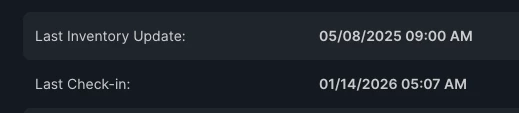
I have a single machine that is active and online and running policy, but the inventory has not completed for any policy since May.  I am unable to remotely access this machine to re-enroll and I am unable to tell who is using it as the stale inventory record only shows the account of one of our local techs, who I have confirmed does not have the machine.

Any ideas?



4 replies

leonkaesmann
Forum|alt.badge.img+5
  • Jamf Heroes
  • January 14, 2026

I’m not entirely sure what is causing this, but this might help you:


https://github.com/mannconsulting/JNUC2024


h1431532403240
Forum|alt.badge.img+3
  • New Contributor
  • January 14, 2026

Hi ​@jamiesmithJAX,

This is a frustrating situation - the device is checking in but the inventory recon is failing with that "Invalid Message - The message could not be parsed" error. I've seen this issue reported in several scenarios over the years, and there are a few potential causes and workarounds to explore.

Understanding the issue: The error typically occurs when the Jamf binary tries to submit inventory data to Jamf Pro, but something in the XML payload can't be parsed by the server. Based on community reports, common causes include:

  • Missing or blank Reported IP Address in the inventory submission
  • Missing hardware serial number
  • Corrupted computer record in Jamf Pro
  • Extension Attribute returning malformed data
  • Stale MDM profile that cannot be replaced

Remote troubleshooting options (since you can't physically access the device):

  1. Try the "Redeploy Jamf Management Framework" command - If MDM commands are still working (which they appear to be since policies run fine), you can send this command from Jamf Pro:
    • Navigate to the computer record > Management tab > Management Commands
    • Send "Redeploy Jamf Management Framework"
    • This reinstalls the Jamf binary via MDM and may resolve corruption in the client-side components
  2. Check for "no_name" ghost records - There's a known edge case where a computer's serial number accidentally creates a mobile device record. Search your Mobile Device inventory for any records with your Mac's serial number or titled "no_name" and delete them if found.
  3. Delete and re-create the computer record - From Jamf Pro, delete the existing computer record completely, wait 30 minutes for caching to clear, then rely on the next check-in to re-enroll. This can clear server-side record corruption.
  4. Review Extension Attributes - If you have any custom Extension Attributes that might be returning malformed data on this specific machine, consider temporarily excluding this computer from their scope to test.
  5. Identify the actual user - Since inventory is stale, try using a policy with a custom trigger to run a script that reports back identifying information:
#!/bin/bash
# Script to identify current user and report back
currentUser=$(stat -f "%Su" /dev/console)
ipAddress=$(ipconfig getifaddr en0)
hostname=$(hostname)
echo "Current User: $currentUser"
echo "IP Address: $ipAddress"
echo "Hostname: $hostname"

Set this policy to run with a custom trigger and use "Send Blank Push" to execute it. View results in policy logs.

If all else fails: The nuclear option if you can identify the user is to have them run User-Initiated Enrollment from your enrollment URL after you've deleted the computer record from Jamf Pro. This creates a fresh enrollment without requiring a wipe.

Reference:

Hope this helps get you moving forward. Let me know if any of these approaches work or if you discover additional details about the machine's state.


leonkaesmann
Forum|alt.badge.img+5
  • Jamf Heroes
  • January 14, 2026

Hi ​@jamiesmithJAX,

This is a frustrating situation - the device is checking in but the inventory recon is failing with that "Invalid Message - The message could not be parsed" error. I've seen this issue reported in several scenarios over the years, and there are a few potential causes and workarounds to explore.

Understanding the issue: The error typically occurs when the Jamf binary tries to submit inventory data to Jamf Pro, but something in the XML payload can't be parsed by the server. Based on community reports, common causes include:

  • Missing or blank Reported IP Address in the inventory submission
  • Missing hardware serial number
  • Corrupted computer record in Jamf Pro
  • Extension Attribute returning malformed data
  • Stale MDM profile that cannot be replaced

Remote troubleshooting options (since you can't physically access the device):

  1. Try the "Redeploy Jamf Management Framework" command - If MDM commands are still working (which they appear to be since policies run fine), you can send this command from Jamf Pro:
    • Navigate to the computer record > Management tab > Management Commands
    • Send "Redeploy Jamf Management Framework"
    • This reinstalls the Jamf binary via MDM and may resolve corruption in the client-side components
  2. Check for "no_name" ghost records - There's a known edge case where a computer's serial number accidentally creates a mobile device record. Search your Mobile Device inventory for any records with your Mac's serial number or titled "no_name" and delete them if found.
  3. Delete and re-create the computer record - From Jamf Pro, delete the existing computer record completely, wait 30 minutes for caching to clear, then rely on the next check-in to re-enroll. This can clear server-side record corruption.
  4. Review Extension Attributes - If you have any custom Extension Attributes that might be returning malformed data on this specific machine, consider temporarily excluding this computer from their scope to test.
  5. Identify the actual user - Since inventory is stale, try using a policy with a custom trigger to run a script that reports back identifying information:
#!/bin/bash
# Script to identify current user and report back
currentUser=$(stat -f "%Su" /dev/console)
ipAddress=$(ipconfig getifaddr en0)
hostname=$(hostname)
echo "Current User: $currentUser"
echo "IP Address: $ipAddress"
echo "Hostname: $hostname"

Set this policy to run with a custom trigger and use "Send Blank Push" to execute it. View results in policy logs.

If all else fails: The nuclear option if you can identify the user is to have them run User-Initiated Enrollment from your enrollment URL after you've deleted the computer record from Jamf Pro. This creates a fresh enrollment without requiring a wipe.

Reference:

Hope this helps get you moving forward. Let me know if any of these approaches work or if you discover additional details about the machine's state.


Thanks for the suggestions, but what kind of AI user is this? 😅


h1431532403240
Forum|alt.badge.img+3
  • New Contributor
  • January 14, 2026


Thanks for the suggestions, but what kind of AI user is this? 😅

Power for Claude Opus 4.5 Thinking Mode and my writing Agents Skills with docs 😊