


UPDATE: I have added this script to my gitHub repo. You can find the freshest of the fresh here...
Hey everyone! It's been awhile since I've contributed anything to Jamf Nation.
I have a script / workflow that I've been sitting on since 2019 that I am finally ready to share...
I'm certain many of you use jamfHelper and for the most part, the jamfHelperGUI app is all but a dinosaur sitting on a couple of forked gitHubs out on the interwebs.
That being said, I got tired of writing jamfHelper pop-up windows for every workflow that needed one. I wanted something a bit more cookie-cutter... something I could drop into my Jamf Pro Scripts repository and call from within a policy by leveraging Jamf Pro's Scripts "Options" features.
So I set out to write a one-size fits all script to assist with the daily grind of pop-up communications.
So without further ado, I give you my latest iteration of jamfMessenger... version 3.x... oooh! shiny!
#!/bin/sh


##############################################################################
#
# FILENAME: jamfMessenger.sh
#
##############################################################################
#
# DESCRIPTION
#	Jamf Messenger is a script that allows a Jamf Admin to send pop-up messages
#	to end users/devices by leveraging the jamfHelper GUI application.
#
##############################################################################
#
# CHANGE CONTROL
#	v3.1 - 2022-05-25
#		Updated by Caine Hörr
#			Added a simplistic debug mode (more to come?)
#			Added examples for use with Jamf Script Options
#				Identified need for {} with values above 9 for Jamf Script Options
#			Added "Known Issues" section
#
#	v3.0 - 2022-05-24
#		Updated by Caine Hörr
#			Added ability to use UNICODE characters within pop-up windows
#			Added ability to use URL for pop-up icon image
#			Added countdownPrompt message
#			Added Message_Body_Line_4 message
#			Resolved issue with -lockHUD not being recognized
#			Resolved issue with -countdown not being recognized
#			Resolved issue with -fullScreenIcon not being recognized
#
#	v2.0 - 2021-08-10
#		Updated by Caine Hörr
#			Changed shebang from "bash" to "sh" to support zsh
#			Added additional lines for message body to support line breaks
#			Expanded code to utilize all features of jamfHelper
#
#	v1.0 - 2019-08-20
#		Written by Caine Hörr
#			Original script creation (jamf_Messenger.sh)
#
##############################################################################
#
# KNOWN ISSUES
#
#	UNICODE characters don't pass from Jamf Script Options to the final output
#		Currently requires hardcoding. <insert sad face here>.
#		I won't give up trying to make this happen!
#
#	Jamf Script Options are limited from ${4} through ${11}. You can't pass
#		ALL THE THINGS this way. I have a few ideas about how to get around
#		this limitation. Version 4.x perhaps?
#
##############################################################################

# Enable/Disable Debug Mode
# Enabled provides verbose logging output to Jamf
# Comment to disable
debugMode="true"

##############################################################################
#
# Unicode Characters for added impact
#
#	For additional symbols: https://unicode-table.com/en/
#
##############################################################################

green_square_white_check_mark_UTF8=$(echo '\\xE2\\x9C\\x85') # UTF-8 (HEX)
green_square_white_check_mark_UTF32BE=$(echo '\\U00002705') # UTF-32BE (HEX)

red_cross_mark_UTF8=$(echo '\\xE2\\x9D\\x8C') # UTF-8 (HEX)
red_cross_mark_UTF32BE=$(echo '\\U0000274C') # UTF-32BE (HEX)

large_orange_diamond_UTF8=$(echo '\\xF0\\x9F\\x94\\xB6') # UTF-8 (HEX)
large_orange_diamond_UTF32BE=$(echo '\\U0001F536') # UTF-32BE (HEX)

large_green_circle_UTF8=$(echo '\\xF0\\x9F\\x9F\\xA2') # UTF-8 (HEX)
large_green_circle_UTF32BE=$(echo '\\U0001F7E2') # UTF-32BE (HEX)

large_yellow_circle_UTF8=$(echo '\\xF0\\x9F\\x9F\\xA1') # UTF-8 (HEX)
large_yellow_circle_UTF32BE=$(echo '\\U0001F7E1') # UTF-32BE (HEX)

large_red_circle_UTF8=$(echo '\\xF0\\x9F\\x94\\xB4') # UTF-8 (HEX)
large_red_circle_UTF32BE=$(echo '\\U0001F534') # UTF-32BE (HEX)

##############################################################################
#
# The jamfHelper man page can be found here...
#
# 	/Library/Application\\ Support/JAMF/bin/jamfHelper.app/Contents/MacOS/jamfHelper -help
#
# Want more examples...
#	https://apple.lib.utah.edu/jamfhelper/
#
##############################################################################

##############################################################################
#
# USER CONFIGURABLE SECTION - PART 1
# 	jamfHelper Pop-Up Window Look & Feel
#		This section configures all the various elements of the
#		jamfHelper pop-up window
#
##############################################################################
#
# NOTICE
#	If using this script with Jamf Pro Script Options:
#		* Do not use $1, $2, and $3 as they are reserved.
#		* You may use ${4} through ${11}
#			* {} Are required for values 10 and 11 - Some Jamf bug
#				* https://community.jamf.com/t5/jamf-pro/problem-assigning-parameter-10-11-in-script/m-p/128772
#
##############################################################################

windowType="hud" # [ hud | utility | fs ]
	# hud: creates an Apple "Heads Up Display" style window - Header will be BOLD in HUD mode
	# utility: creates an Apple "Utility" style window - All text is plain
		# WARNING: utility mode seems to be limited to the amount of text you can display
	# fs: creates a full screen window that restricts all user input
		# WARNING: Remote access or multiple monitors must be used to unlock machines in this mode - USE AT YOUR OWN RISK

lockHUD="true" #[ true | false ]
	# true = Remove the ability to exit the HUD window type by selecting the "x" button
	# false = Allow the ability to exit the HUD window type by selecting the "x" button
	# If no value is provided, the behavior defaults to "false"

windowPosition="" # [ ur | ul | lr | ll ]
	# Positions window in the upper right, upper left, lower right, or lower left of the user's screen
	# If no value is provided, the window defaults to the center of the screen

title="jamfMessenger v3.0"
	# Sets the window's title to the specified string

heading="You got to get your mind right"
# heading=${4} # <-- Uncomment to use with Jamf Script Options. Comment line above.
	# Sets the heading of the window to the specified string


alignHeading="left" # [ right | left | center | justified | natural ]
	# Aligns the heading to the specified alignment
	# If no value is provided, the position defaults to "left"

Message_Body_Line_1="Because... This is the way..."
# Message_Body_Line_1=${5} # <-- Uncomment to use with Jamf Script Options. Comment line above.

Message_Body_Line_2="	${large_green_circle_UTF8} No sleep till Brooklyn"
# Message_Body_Line_2=${6} # <-- Uncomment to use with Jamf Script Options. Comment line above.

Message_Body_Line_3="	${large_yellow_circle_UTF8} Walk 500 miles and roll 500 more"
# Message_Body_Line_3=${7} # <-- Uncomment to use with Jamf Script Options. Comment line above.

Message_Body_Line_4="	${large_red_circle_UTF8} Nuke 'em from orbit"
# Message_Body_Line_4=${8} # <-- Uncomment to use with Jamf Script Options. Comment line above.

alignDescription="" # [ right | left | center | justified | natural ]
	# Aligns the description to the specified alignment
	# If no value is provided, the position defaults to "left"
	# The left and natural values appear to behave the same. YMMV!

# icon="/path/to/some/icon.png"
icon="https://upload.wikimedia.org/wikipedia/commons/thumb/2/24/Warning_icon.svg/1153px-Warning_icon.svg.png"
# icon=${9} # <-- Uncomment to use with Jamf Script Options. Comment line above.
	# Sets the pop-up window's image file to the image located at the specified path
	# Image Types Supported: ICNS, PNG, JPG/JPEG, TIFF, PDF, and GIF (GIFs will not animate)
	# Setting to a URL only supports PNG, JPG, and GIF formats

tempDirectory="/tmp"
	# Set the tempDirectory when using an image url

iconSize="128"
	# Changes the image frame to the specified pixel size
	# Pixel sizes are in integers
	# If no value is provided, the image will be shown with it's default height and width values

fullScreenIcon="" #[ true | false ]
	# Scales the "icon" to the full size of the window
	# Note: Only available in full screen mode
	# If no value is provided, the image will be shown with it's default height and width values

button1="Die"
# button1=${10} # <-- Uncomment to use with Jamf Script Options. Comment line above.
	# Creates a button with the specified label
	# Button 1 is positioned to the right

button2="Ride"
# button2=${11} # <-- Uncomment to use with Jamf Script Options. Comment line above.
	# Button 2 is positioned to the left

defaultButton="2" #[ 1 | 2 ]
	# Sets the default button of the window to the specified button. The Default Button will respond to "return"
	# If no value is provided, no default will be set

cancelButton="1" #[ 1 | 2 ]
	# Sets the cancel button of the window to the specified button. The Cancel Button will respond to "escape"
	# If no value is provided, the default value is 2 unless lockHUD="true"

showDelayOptions="0, 13, 46800, 7862400"
	# Enables the "Delay Options Mode"
	# The window will display a dropdown with the integer values passed through the string
	# Integers must be comma separated (i.e. int, int, int,...)
	# Common Values: 0 sec = "Start Now" | 60 sec = 1 min | 300 sec = 5 min | 600 sec = 10 min | 900 sec = 15 min | 1800 sec = 30 min | 2700 sec = 45 min | 3600 sec = 1 hr

timeout="151200"
	# Causes the window to timeout after the specified amount of seconds in integers
	# Note: The timeout will cause the default button, button 1 or button 2 to be selected (in that order)
	# Common Values: 60 sec = 1 min | 300 sec = 5 min | 600 sec = 10 min | 900 sec = 15 min | 1800 sec = 30 min | 2700 sec = 45 min | 3600 sec = 1 hr
	# If no value is provided, no timeout value will be provided

countdown="true" #[ true | false ]
	# Displays a string notifying the user when the window will time out
	# If no value is provided, value will be false
	# NOTE: "countdown" can only be used in conjunction with "timeout".

countdownPrompt="Countdown to Adventure:"
	# Displays a custom countdown message
	# If left blank, displays default message

alignCountdown="left" # [right | left | center | justified | natural]
	# Aligns the countdown to the specified alignment
	# If no value is provided, the position defaults to "left"


##############################################################################
#
# THERE ARE NO USER SERVICABLE PARTS IN THE FOLLOWING SECTION
# SCROLL TO THE BOTTOM SECTION ENTITLED "USER CONFIGURABLE SECTION - PART 2"
#
##############################################################################

main(){
	run_as_root
	function_debug_mode
	function_validate_icon
	function_jamfHelper_Binary
	function_jamfHelper_Message
	function_User_Interaction
}

run_as_root(){
    # Check for admin/root permissions
    # This is used for local testing in case you need to call sudo for any
    if [ "$(/usr/bin/id -u)" != "0" ]; then
    	echo ""
        echo "[ERROR]: Script must be run as root or with sudo."
        echo ""
        exit 1
    fi
}

function_debug_mode(){
	if [[ "${debugMode}" == "true" ]]; then
		echo "DEBUG MODE ENABLED"
	fi
}

function_validate_icon(){
	if [[ "${icon}" == *"http://"* ]]; then
		echo "[ERROR]: Icon settings attempting to use a non-SSL (Port 80) Web URL."
		echo "${icon}"
		exit 1
	elif [[ "${icon}" == *"https://"* ]]; then
		echo "Icon settings attempting to use an SSL (Port 443) Web URL."
		echo "${icon}"
		if [[ "${icon}" == *".png"* ]] || [[ "${icon}" == *".PNG"* ]]; then
			fileFormat="png"
		elif [[ "${icon}" == *".jpg"* ]] || [[ "${icon}" == *".JPG"* ]] || [[ "${icon}" == *".jpeg"* ]] || [[ "${icon}" == *".JPEG"* ]]; then
			fileFormat="jpg"
		elif [[ "${icon}" == *".gif"* ]] || [[ "${icon}" == *".GIF"* ]]; then
			fileFormat="gif"
		else
			echo "[ERROR] Format not currently supported."
			exit 1
		fi

		/usr/bin/curl ${icon} -o ${tempDirectory}/jamfMessengerPopupIcon.${fileFormat}
		icon="${tempDirectory}/jamfMessengerPopupIcon.${fileFormat}"
	else
		echo "Icon uses local file path"
		echo "${icon}"
	fi
}


function_jamfHelper_Binary(){
	# Set the path to the jamfHelper binary
	PATH=$PATH:/Library/Application\\ Support/JAMF/bin/jamfHelper.app/Contents/MacOS
}

function_jamfHelper_Message(){
	# Compose final description (message body text)
	whiteSpace=" "

	description="${Message_Body_Line_1}
${whiteSpace}
${Message_Body_Line_2}

${Message_Body_Line_3}

${Message_Body_Line_4}
${whiteSpace}"

	# Set the lockHUD value accordingly
	if [[ "${lockHUD}" == "true" ]]; then
		lockHUD="-lockHUD"
	else
		lockHUD=""
	fi

	# Set the countdown value accordingly
	if [[ "${countdown}" == "true" ]]; then
		countdown="-countdown"
	else
		countdown=""
	fi

	# Set the fullScreenIcon value accordingly
	if [[ "${fullScreenIcon}" == "true" ]]; then
		fullScreenIcon="-fullScreenIcon"
	else
		fullScreenIcon=""
	fi

	# Determine if the dropdown should be used or not
	if [[ -z "${showDelayOptions}" ]]; then
		function_jamfHelper_without_Dropdown
	else
		function_jamfHelper_with_Dropdown
	fi
}

function_jamfHelper_with_Dropdown(){
	userSelection=$(jamfHelper \\
		-windowType ${windowType} \\
		${lockHUD} \\
		-windowPosition ${windowPosition} \\
		-title "${title}" \\
		-heading "${heading}" \\
		-alignHeading ${alignHeading} \\
		-description "${description}" \\
		-alignDescription ${alignDescription} \\
		-icon "${icon}" \\
		-iconSize ${iconSize} \\
		-fullScreenIcon \\
		-button1 "${button1}" \\
		-button2 "${button2}" \\
		-defaultButton ${defaultButton} \\
		-cancelButton ${cancelButton} \\
		-showDelayOptions "${showDelayOptions}" \\
		-timeout ${timeout} \\
		${countdown} \\
		-countdownPrompt "${countdownPrompt} " \\
		-alignCountdown ${alignCountdown})

	if [[ "${debugMode}" == "true" ]]; then
		echo "jamfHelper Syntax:"
		echo "jamfHelper -windowType ${windowType} ${lockHUD} -windowPosition ${windowPosition} -title "${title}" -heading "${heading}" -alignHeading ${alignHeading} -description "${description}" -alignDescription ${alignDescription} -icon "${icon}" -iconSize ${iconSize} -fullScreenIcon -button1 "${button1}" -button2 "${button2}" -defaultButton ${defaultButton} -cancelButton ${cancelButton} -showDelayOptions "${showDelayOptions}" -timeout ${timeout} ${countdown} -countdownPrompt "${countdownPrompt} " -alignCountdown ${alignCountdown})"
		echo
	fi
}

function_jamfHelper_without_Dropdown(){
	userSelection=$(jamfHelper \\
		-windowType ${windowType} \\
		${lockHUD} \\
		-windowPosition ${windowPosition} \\
		-title "${title}" \\
		-heading "${heading}" \\
		-alignHeading ${alignHeading} \\
		-description "${description}" \\
		-alignDescription ${alignDescription} \\
		-icon "${icon}" \\
		-iconSize ${iconSize} \\
		-fullScreenIcon \\
		-button1 "${button1}" \\
		-button2 "${button2}" \\
		-defaultButton ${defaultButton} \\
		-cancelButton ${cancelButton} \\
		-timeout ${timeout} \\
		${countdown} \\
		-countdownPrompt "${countdownPrompt} " \\
		-alignCountdown ${alignCountdown})

	if [[ "${debugMode}" == "true" ]]; then
		echo "jamfHelper Syntax:"
		echo "jamfHelper -windowType ${windowType} ${lockHUD} -windowPosition ${windowPosition} -title "${title}" -heading "${heading}" -alignHeading ${alignHeading} -description "${description}" -alignDescription ${alignDescription} -icon "${icon}" -iconSize ${iconSize} -fullScreenIcon -button1 "${button1}" -button2 "${button2}" -defaultButton ${defaultButton} -cancelButton ${cancelButton} -timeout ${timeout} ${countdown} -countdownPrompt "${countdownPrompt} " -alignCountdown ${alignCountdown})"
		echo
	fi
}


##############################################################################
#
# USER CONFIGURABLE SECTION - PART 2
#
# jamfHelper will print the following return values to stdout
# 	0 - Button 1 was clicked
# 	1 - The Jamf Helper was unable to launch
# 	2 - Button 2 was clicked
#	9 - ESC Button was pressed
# 	XX1 - Button 1 was clicked with a value of XX seconds selected in the drop-down
# 	XX2 - Button 2 was clicked with a value of XX seconds selected in the drop-down
# 	239 - The exit button was clicked
# 	243 - The window timed-out with no buttons on the screen
# 	250 - Bad "-windowType"
# 	255 - No "-windowType"
#
# WRITE YOUR SCRIPT BELOW THIS LINE
#
##############################################################################

function_User_Interaction(){
	# Identify which button was clicked...
	user_input_return_value="${userSelection:$i-1}"
	echo "jamfHelper User Input Return Value = ${user_input_return_value}"

	# If using showDelayOptions, aquire the time chosen...
	timeChosen="${userSelection%?}"

	if [[ -z "${timeChosen}" ]]; then
		echo "Delay Time Chosen: 0 seconds"
	else
		echo "Delay Time Chosen: ${timeChosen} seconds"
	fi

	# Identify which button was clicked
	if [[ "${user_input_return_value}" == "0" ]]; then
		echo "Button 1 was clicked"
		# Do something here...
	elif [[ "${user_input_return_value}" == "1" ]]; then
		echo "Button 1 was clicked"
		# Do something here...
	elif [[ "${user_input_return_value}" == "2" ]]; then
	    echo "Button 2 was clicked"
	    # Do something here...
	elif [[ "${user_input_return_value}" == "9" ]]; then
	    echo "The Close Button was clicked"
	    # Do something here...
	fi
}

main

exit
As you can see, it's quite lengthy...
There's a lot of meat in this one.
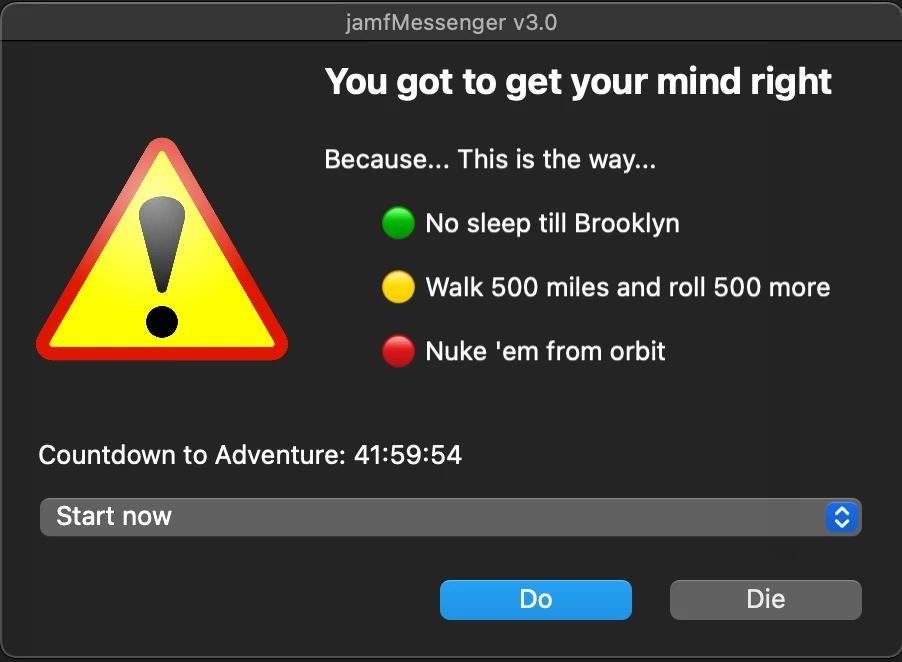
Here's a screen capture of one of the pop-ups generated using some of the cool features contained therein...
Feel free to use it, hack it, whatever...
I just hope you find it useful...
Questions? Ask em if ya got em! I'll do my best to answer!
Until then... be well Jamf friends!
