
Answer

Mac can't connect with Printer Queue. Any pointers?

  • April 1, 2019
  • 4 replies
  • 76 views

Forum|alt.badge.img+10

Hi all,

Need some pointers as to how to diagnose network error when connecting to network printers.

I've been give a printer queue location. But no matter what I try, when trying to add this printer, I get the following error:
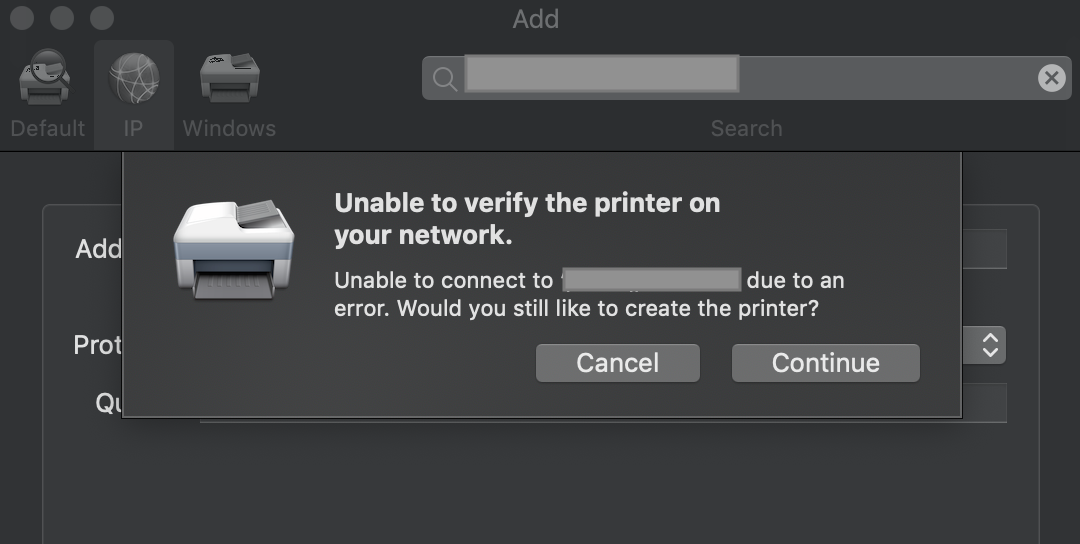
From Finder, I also tried connecting via
smb://server hostname/printer queue
ipp://server hostname/printer queue

Within the same company's network, when trying from a Windows laptop, the printer connection works.

So, I'm guessing it's a Mac thing. But what exactly is it that is blocking macOS from connecting to a Printer? So far I have tried to manually setup the network printer via System Preferences > Printers. I also tried JAMF Pro's Printer settings.

Best answer by tjhall

Can you connect to the queues via SMB?

Open “System Preference/Printers and Scanners”
Add printer by clicking the + sign
Alt click on printer menubar, select “Customise Menubar” and drag “Advanced” to menu bar.

Click “Advanced”
Type: Windows printer via spools
Device: Another Device
URL: smb://(queue Name)
Name: Ricoh_Col
Location: Use: select software;
Click “Add”

In Terminal:
sudo lpadmin -p "printername from above" -o auth-info-required=username,password

4 replies

Forum|alt.badge.img+10
  • Contributor
  • Answer
  • April 1, 2019

Can you connect to the queues via SMB?

Open “System Preference/Printers and Scanners”
Add printer by clicking the + sign
Alt click on printer menubar, select “Customise Menubar” and drag “Advanced” to menu bar.

Click “Advanced”
Type: Windows printer via spools
Device: Another Device
URL: smb://(queue Name)
Name: Ricoh_Col
Location: Use: select software;
Click “Add”

In Terminal:
sudo lpadmin -p "printername from above" -o auth-info-required=username,password


Forum|alt.badge.img+10
  • Author
  • Valued Contributor
  • April 2, 2019

Wow! Thanks a lot @tjhall

Going through the Advance setting indeed made a successful printer connection.

Obviously this is manually setting up the printer queue.
How do I go about setting this up as a JAMF Pro policy?

Update:

JAMF Pro setting turned out to be easy as well.
Navigate to JAMF Pro > Management Settings > Computer Management > Printers.
type in all the things associated with Printer settings.
Create a policy around it.
And it worked after testing installation via Self Service.

Thanks again :)


Forum|alt.badge.img+10
  • Contributor
  • April 2, 2019

Glad it worked.
I just added the printers via "Jamf Admin", added the ppd.pkg then created a script which ran afterwards to authenticate the user (sudo lpadmin -p "printername from above" -o auth-info-required=username,password
sudo lpadmin -p "printername from above" -o auth-info-required=username,password).


Forum|alt.badge.img+10
  • Author
  • Valued Contributor
  • April 3, 2019

Thanks again , @tjhall

To top it off, I found the command line to turn on Duplex Printing Unit (IE: two-side printing to save paper).

It is

lpadmin -p <Printer name you have created> -o APOptionalDuplexer=True

Add this as the last Files and Processes executable.