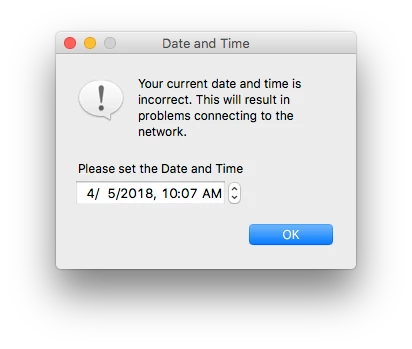
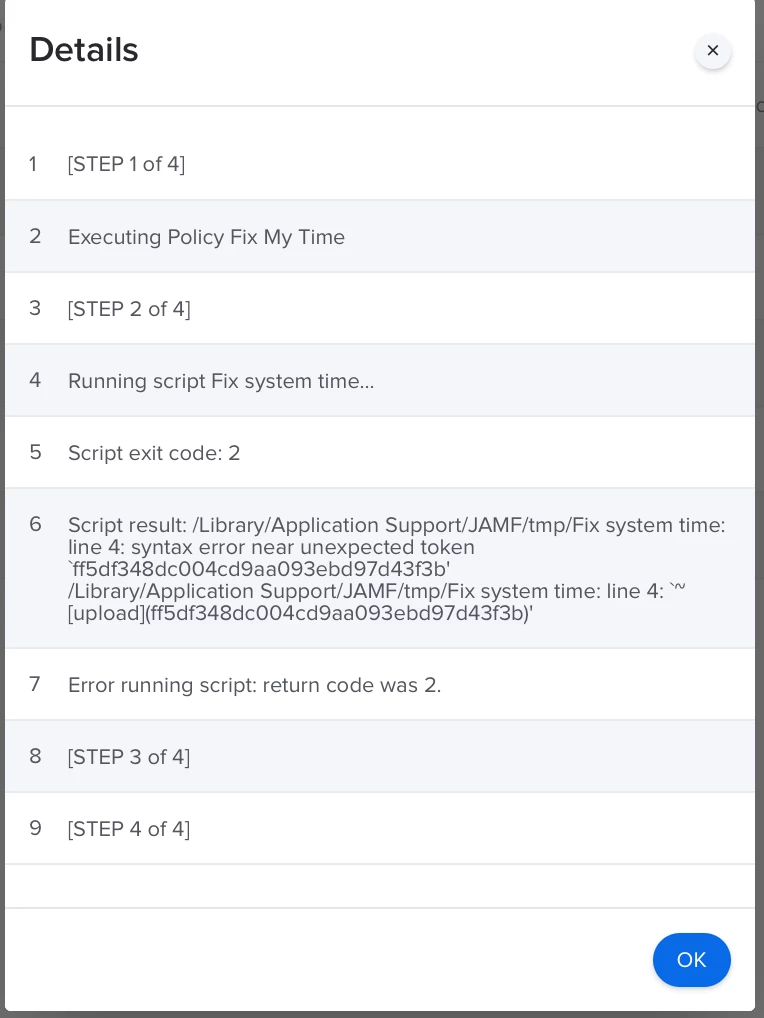
After coming back from spring break on Monday and finding 5-6 people who left their MacBook Air unplugged and on, I found myself with users who couldn't connect to the 802.1X because of date and time issues. The users do not have admin rights. Nothing like setting the clock manually for people and rebooting.
I decided to try tackling the problem in the form of a script. Said script would be triggered at login on an ongoing basis (in offline mode as the JSS itself may very well be unreachable at that point). It would be scoped to an all MacBooks smart group or any other relevant targets that the admin sees fit.
It would work something like this below. I was actually able to find a file whose date is updated but otherwise not changed by the end user in the form of the XProtect definitions bundle. Any feedback or enhancements are welcome. I've tried it out on a computer by manually setting it's clock backward and it does seem to work. I haven't actually tried it using my JSS though.
Hope this helps someone
#!/bin/bash

REFERENCEDATE=`date -r /System/Library/CoreServices/XProtect.bundle +%Y%m%d`
CURRENTSYSTEMDATE=`date +%Y%m%d`

if [ "$CURRENTSYSTEMDATE" -ge "$REFERENCEDATE" ]
then exit 0
else echo "Going into one-time clock set..."

UserSetDate=$(osascript -e 'tell application "SystemUIServer"
    set myUserSetDate to text returned of (display dialog "The current clock set on your computer is set to " & (current date) & ".

Please consult your nearest functional calendar and insert the date as MM:DD:YY" default answer "" with title "Set the Proper Date" buttons {"Submit"} default button 1 with icon caution)
end tell')

UserSetClock=$(osascript -e 'tell application "SystemUIServer"
    set myUserSetDate to text returned of (display dialog "The current clock set on your computer is set to " & (current date) & ".

Please consult your nearest functional clock and insert the time in military time format as HH:MM:SS.

2:04 PM would be written as 14:04:00.
7:30 AM would be written as 07:30:00.

You can guess on the amount of seconds" default answer "" with title "Set the Proper Clock" buttons {"Submit"} default button 1 with icon caution)
end tell')

systemsetup -setusingnetworktime off
systemsetup -setdate $UserSetDate
systemsetup -settime $UserSetClock
shutdown -r NOW
fi