Solved

Mojave In-Place Upgrade

  • October 22, 2018
  • 26 replies
  • 92 views

Forum|alt.badge.img+6

Howdy,

I am testing the process for updating the computers to Mojave for my end users, but I'm running into an issue. No one seems to be talking about it, so hopefully it is an easy fix.

I've been following this process: https://github.com/kc9wwh/macOSUpgrade Which I remember working fine for High Sierra, but when I run the process now, it only works for users that have admin rights. For non-admin users, it gets to the fullscreen splash and gives a prompt asking for admin rights.

I've tried a few things, but I can't get around this issue. The issue was also raised on the Github page, but I was hoping one of yall would be able to help me out, or at least show me an alternative update method that I can push down to non-admin users.

Best answer by brndnwds6

Hi @hcgtexas I believe someone posted a script to resolve this issue in this thread.

26 replies

Forum|alt.badge.img+10
  • Valued Contributor
  • October 22, 2018

I have not tried Mojave yet but have a modified verison of the script you mention in a Self Service policy for Sierra and High Sierra. Are you running yours in Self Service?


Forum|alt.badge.img+6
  • Author
  • Contributor
  • October 23, 2018

Correct, I have been running it through Self Service.

Now that you mention it, I will try just pushing it down to see if that changes anything.

EDIT: Same behavior when run at check-in.


Forum|alt.badge.img+8
  • Contributor
  • January 14, 2019

Found a solution for this. Let me know if you are still stuck, i'll share what we did.


Forum|alt.badge.img+10
  • Valued Contributor
  • January 14, 2019

@mack525 I would be interested in hearing about your solution.


Forum|alt.badge.img+10
  • Valued Contributor
  • January 14, 2019

Just push the installer with VPP/Package and then call the startosinstall binary with a script in self-service.


Forum|alt.badge.img+8
  • Contributor
  • January 14, 2019

What we did in our environment was use two policies:

1) Create a dmg that has the "Install macOS Mojave.app" located in /Applications/. At this point, it should already be cached to your devices, but we did deleted what was there previously and to ensure all computers updated to 10.14.2

2) In Self Service we have an upgrade button that runs the following command

/Applications/Install macOS Mojave.app/Contents/Resources/startosinstall --applicationpath "/Applications/Install macOS Mojave.app" --rebootdelay 1 --nointeraction --agreetolicense

Forum|alt.badge.img+7
  • New Contributor
  • January 15, 2019

I think that's going to run into the same problem of needing administrative privileges to begin the installation. I'm not really sure what your options are without administrative privileges to be honest.

One thing that comes to mind is a macOS provisioning tool that would make an "upgrade" disk our Apple engineer has told us about, but that does mean touching all the computers.


cdenesha
Forum|alt.badge.img+14
  • Honored Contributor
  • January 15, 2019

I'm testing the --startosinstall command for the first time. I've cached the Mojave installer to Waiting Room and am running the command manually before I create a policy. I'm getting an error that "--applicationpath is deprecated in 10.14 and greater. Please remove it from your invocation". When I run the command with --usage, --applicationpath is not listed. Has the required command changed?


cdenesha
Forum|alt.badge.img+14
  • Honored Contributor
  • January 16, 2019

I was able to install mojave with the following command, i.e. the --applicationpath switch appears to no longer be needed.

/Applications/Install macOS Mojave.app/Contents/Resources/startosinstall --nointeraction --agreetolicense

Forum|alt.badge.img+8
  • Contributor
  • Answer
  • January 16, 2019

Hi @hcgtexas I believe someone posted a script to resolve this issue in this thread.


msample
Forum|alt.badge.img+9
  • Valued Contributor
  • January 17, 2019

@mack525 I saw your response and wanted to just ask what your solution was for the in-place upgrade? I'm running into issues with this.


Forum|alt.badge.img+8
  • Contributor
  • January 17, 2019

@msample @m.donovan By using and following Joshua Roskos macOSUpgrade and this Jamf Self Service upgrade pdf guide walkthrough really made this less painful for us.

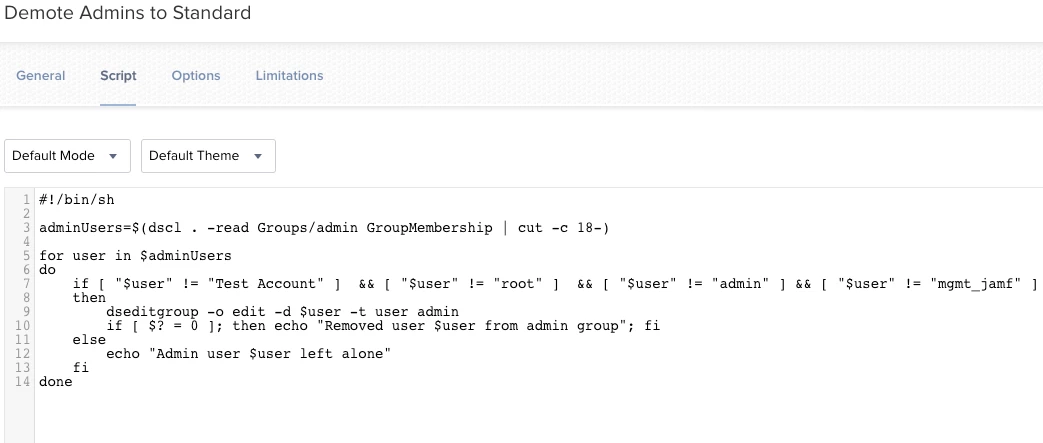
Since the majority of our users are not admins, we also used this temporary admin script to grant temp admin access that runs before the installmacos installer app gets placed. Once the OS installation is finished and the machine logs in/checks in/logs out, user would be demoted.

This has worked for High Sierra 10.3.6 and Mojave 14.1 so far. Let me know if any of you get stuck.


msample
Forum|alt.badge.img+9
  • Valued Contributor
  • January 18, 2019

@mack525 ..Nice. Thanks, this very helpful. I've got Josh' script connected in along with the policy for the in-place upgrade. However with the test runs it kept throwing up an error. So this is where we got stuck, but looks as if the Jamf Self Service upgrade pdf guide you've shared my give us an alternative approach for resolving the task of in-place upgrading. The test macs I have are already running 10.13.6, so no worries there. I'm not sure we'll need to grant the end-users temp access, because techs here will handle the task of self-service initiations. I'll definitely review the pdf and run test.


Forum|alt.badge.img+8
  • Contributor
  • January 18, 2019

@msample Nice! Once you've configured all the parameters within JAMF, its as easy as creating a composer package with the installmacos installer in the /Applications folder and you should be all set.


msample
Forum|alt.badge.img+9
  • Valued Contributor
  • January 24, 2019

@mack525 I know you aforementioned that your temp admin script runs before the macosinstaller initiates, but did I miss where you placed the script in sequence? Or is it added independently as along with the policy? Just curious.


Forum|alt.badge.img+8
  • Contributor
  • January 25, 2019

@msample Ahh sorry i did not mention this. If you are following this Jamf Self Service upgrade pdf guide You'll see that there are two policies needed for the script to work properly. What we do is add the temp admin script in that download policy and set the priority of the temp admin script to "before". So to answer your question, it's added independently.


Forum|alt.badge.img+5
  • Contributor
  • February 11, 2019

Heres what I did to get around the admin prompt. (https://www.jamf.com/jamf-nation/discussions/31006/upgrading-to-macos-mojave-without-ss-and-100)


Forum|alt.badge.img+5
  • Contributor
  • February 11, 2019

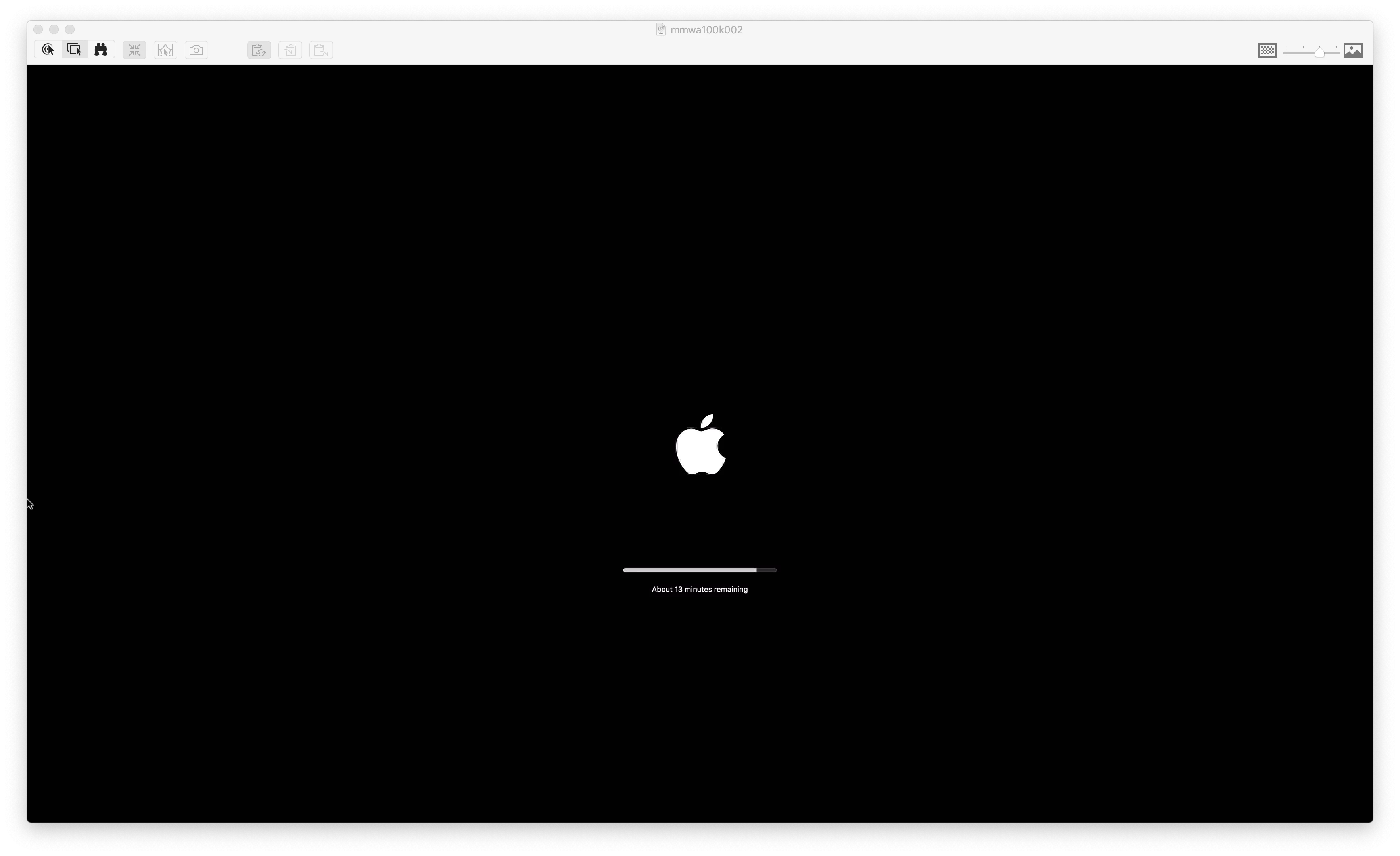
Only issue I'm having is after the update starts it installs for about 30minutes then the login screen appears but when you login it continues the installation for another 10-12minutes. Anyone knows why that happens


Forum|alt.badge.img+13
  • Valued Contributor
  • February 11, 2019

Just grant the end user admin access as part of the process, then strip the admin access away after the upgrade. Works.


Forum|alt.badge.img+5
  • Contributor
  • February 11, 2019

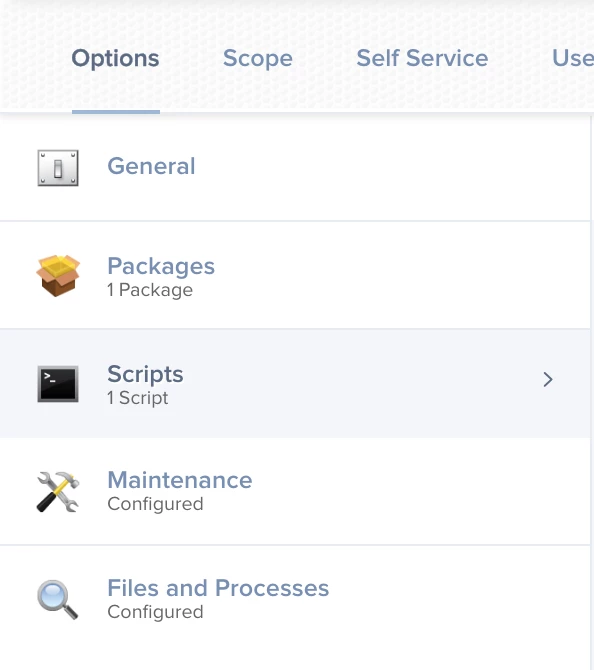
Well in my scenario I did not grant anyone admin access. I ran the OS install by using the "File and Processes" section and running the command "/Applications/Install macOS Mojave.app/Contents/Resources/startosinstall" --rebootdelay 60 --nointeraction --agreetolicense &" which will be ran as the root user.

The installation runs as expected but after 30min it goes back to the login screen and when you login it completes the installation for another 10-12 minutes. this is the part I'm trying to understand whits doing this.


Forum|alt.badge.img+14
  • Valued Contributor
  • February 11, 2019

@kroberts1 I haven't yet tested Mojave but saw the same behavior with High Sierra where the first user to login after thinking I was done with the upgrade had another 13 min for the installation. I was hoping this was gone with Mojave but apparently not. The odd thing is that not all of my High Sierra upgrades did this and, unfortunately, I didn't document them to try figuring out why some did and some didn't. Also, subsequent user logins by other user accounts didn't trigger this installation behavior when the first login had done this.


szultzie
Forum|alt.badge.img+11
  • Valued Contributor
  • March 11, 2019

@cdenesha I was able to also use the command

#!/bin/sh
/Applications/Install macOS Mojave.app/Contents/Resources/startosinstall --nointeraction --agreetolicense

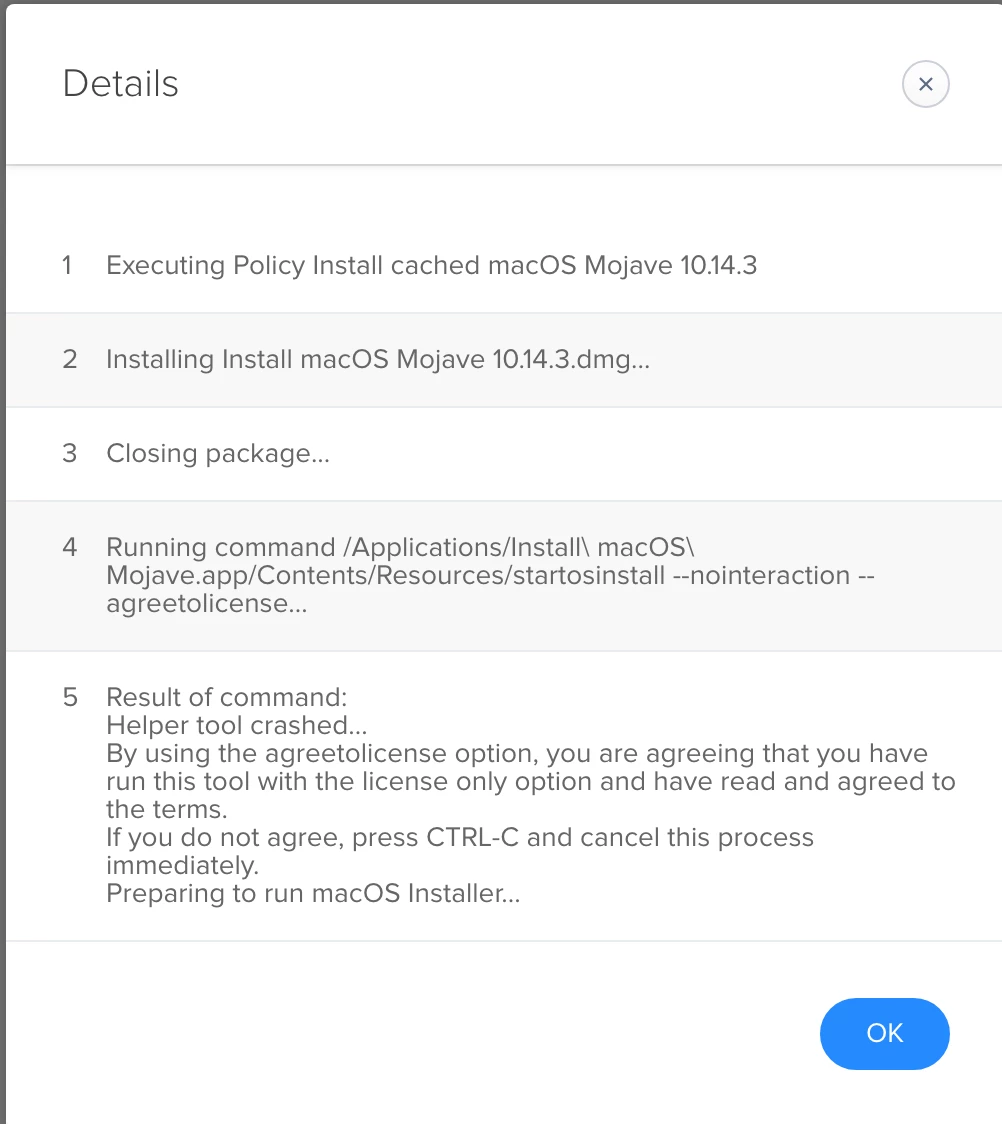
but it only works in a self service scenario. When i try to push it via a policy at check-in with no user logged in (Lab deployment scenario)

I get the following in the Logs.

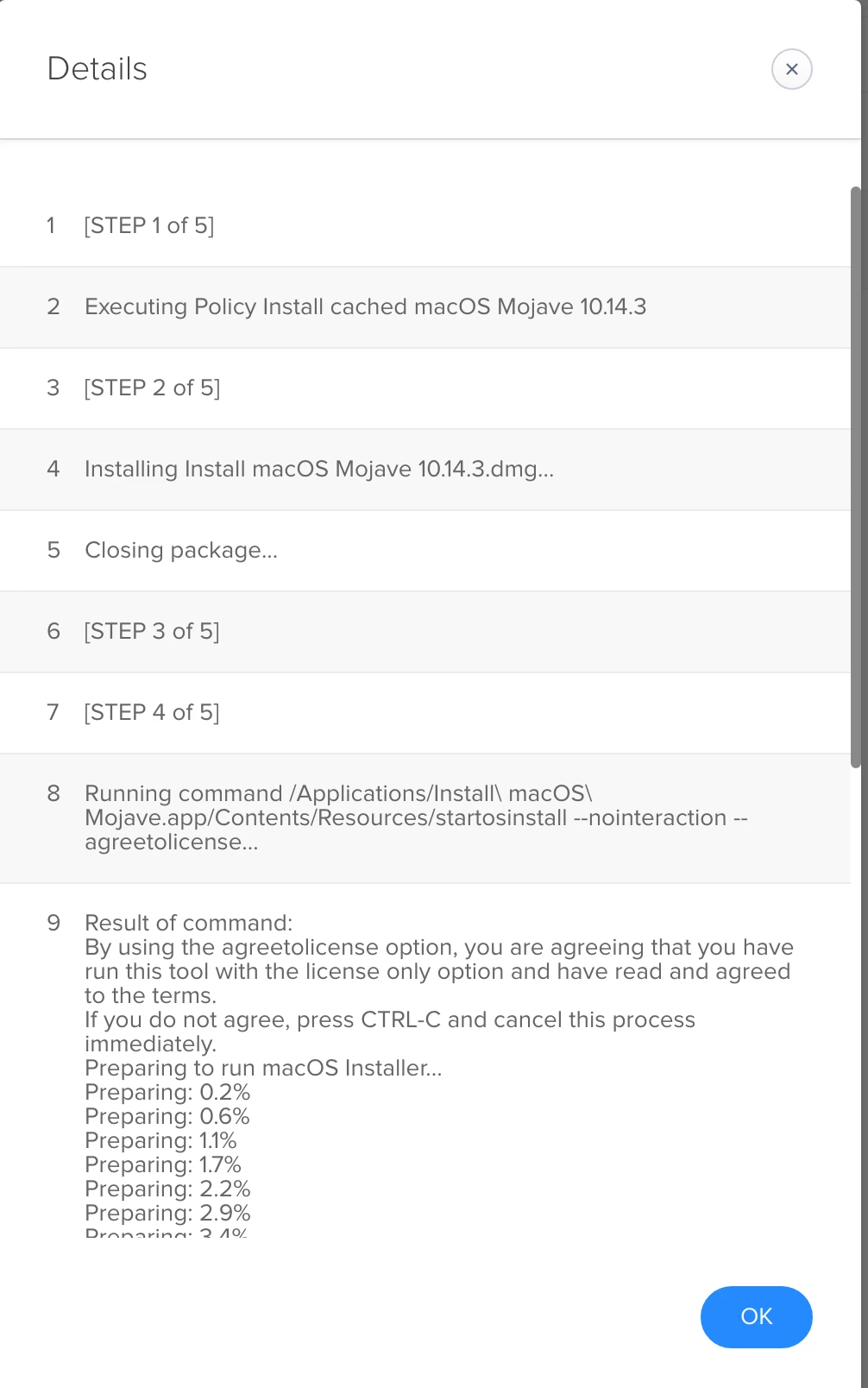
Here is the log when it works from Self Service for coparison

Also @kroberts1 and @jhuls the 13 minute screen is also in Mojave 10.14.3 after first log in, just tested it :/


szultzie
Forum|alt.badge.img+11
  • Valued Contributor
  • March 11, 2019

Just thought of testing it with a user logged in and noticed my restriction for 10.14.3 blocked it. Wonder why using Self Service didn't stop it.

I removed the restriction and it seems to be working with out a user logged in now =)

-Peter


Forum|alt.badge.img+5
  • Contributor
  • March 14, 2019

@szultzie yes, i also did a few more testing and got that stupid 13min remaining after log in. Idk what the machines are doing at this stage which is very frustrating. Is anyone else experiencing this with other MDM platforms?


szultzie
Forum|alt.badge.img+11
  • Valued Contributor
  • April 12, 2019

So update, no user logged in doesn't work anymore. Not sure what i did. lol