

Question

OneDrive Enable Extension erro

  • April 11, 2018
  • 28 replies
  • 132 views

KyleEricson
Forum|alt.badge.img+17

This is the error I get:

Running script OneDrive Finder Extension...
Script exit code: 1
Script result: match: Connection invalid
Error running script: return code was 1.

This is my script:

#!/bin/sh
loggedInUser=`python -c 'from SystemConfiguration import SCDynamicStoreCopyConsoleUser; import sys; username = (SCDynamicStoreCopyConsoleUser(None, None, None) or [None])[0]; username = [username,""][username in [u"loginwindow", None, u""]]; sys.stdout.write(username + "
");'`

#enables Finder Extension for current user
pluginkit -e use -i com.microsoft.OneDrive-mac.FinderSync
28 replies

Forum|alt.badge.img+4
  • Contributor
  • April 11, 2018

I messed around with this as well, however never found a workable solution.

It is something to do with the context you run your script in. You have to run it as the user being logged in, if I understand it correctly. (I might not)...


KyleEricson
Forum|alt.badge.img+17
  • Author
  • Valued Contributor
  • April 11, 2018

Can't you have JAMF run scripts as login user or could this be added via composer to a .pkg file as post install script?


Forum|alt.badge.img+4
  • Contributor
  • April 11, 2018

I honestly dont know. Which is why I never found a workable solution.
I can see you have read the same thread that I did. So you have the same info as me.

Cant really offer more than this, just wanted to point you in a direction...
Ill monitor this thread in hopes that someone will provide better advice :-)


Forum|alt.badge.img+7
  • Contributor
  • April 11, 2018

You're obtaining the logged in user's name and putting into a variable but then never using the variable.

To run this in the logged in user context the script should be:

#!/bin/sh

loggedInUser=`python -c 'from SystemConfiguration import SCDynamicStoreCopyConsoleUser; import sys; username = (SCDynamicStoreCopyConsoleUser(None, None, None) or [None])[0]; username = [username,""][username in [u"loginwindow", None, u""]]; sys.stdout.write(username + "
");'`

#enables Finder Extension for current user
su $loggedInUser -c 'pluginkit -e use -i com.microsoft.OneDrive-mac.FinderSync'

exit 0

Hope that helps.


KyleEricson
Forum|alt.badge.img+17
  • Author
  • Valued Contributor
  • April 11, 2018

I changed it and I get this error now.

Script result: 2018-04-11 09:55:47.699 pluginkit[21325:8247234] Communications error: <OS_xpc_error: <error: 0x108e19c90> { count = 1, contents = "XPCErrorDescription" => <string: 0x108e19f78> { length = 18, contents = "Connection invalid" }
}>
match: Connection invalid


Forum|alt.badge.img+7
  • Contributor
  • April 11, 2018

That looks like an error from your command. If you run the original command in Terminal when logged in as the current user manually do you receive the same error?


KyleEricson
Forum|alt.badge.img+17
  • Author
  • Valued Contributor
  • April 18, 2018

I ran it locally and no error.


KyleEricson
Forum|alt.badge.img+17
  • Author
  • Valued Contributor
  • April 18, 2018

My script

#!/bin/sh

loggedInUser=`python -c 'from SystemConfiguration import SCDynamicStoreCopyConsoleUser; import sys; username = (SCDynamicStoreCopyConsoleUser(None, None, None) or [None])[0]; username = [username,""][username in [u"loginwindow", None, u""]]; sys.stdout.write(username + "
");'`

#enables Finder Extension for current user
su $loggedInUser -c 'pluginkit -e use -i com.microsoft.OneDrive-mac.FinderSync'

exit 0

Forum|alt.badge.img+7
  • Contributor
  • April 19, 2018

OK, I have run into certain scripts that when run through Jamf error and never seemed to get to the bottom of it. However, you can work around it by modifying your Jamf script to this:

#!/bin/sh

#Create empty file in temp directory
touch /tmp/script1.sh

#Write the script we actually want to run locally into the file
echo '#!/bin/sh

loggedInUser=`python -c 'from SystemConfiguration import SCDynamicStoreCopyConsoleUser; import sys; username = (SCDynamicStoreCopyConsoleUser(None, None, None) or [None])[0]; username = [username,""][username in [u"loginwindow", None, u""]]; sys.stdout.write(username + "
");'`

#enables Finder Extension for current user
su $loggedInUser -c 'pluginkit -e use -i com.microsoft.OneDrive-mac.FinderSync'

exit 0' > /tmp/script1.sh

#Make the script executable 
chmod a+x /tmp/script1.sh

#Run the script
/bin/sh /tmp/script1.sh

#If shell exit code was not 0, inform of error
if [ $? -ne 0 ]; then
   echo "Script exited with an error!"
fi

#Delete script from temp folder
rm -f /tmp/script1.sh

exit 0

This way you create the script locally, run it, then delete it again.

I hope that helps!


KyleEricson
Forum|alt.badge.img+17
  • Author
  • Valued Contributor
  • April 26, 2018

Fails

Executing Policy OneDrive Extension enable
Running script OneDrive 2.0...
Script exit code: 2
Script result: /Library/Application Support/JAMF/tmp/OneDrive 2.0: line 9: syntax error near unexpected token `('
/Library/Application Support/JAMF/tmp/OneDrive 2.0: line 9: loggedInUser=python -c 'from SystemConfiguration import SCDynamicStoreCopyConsoleUser; import sys; username = (SCDynamicStoreCopyConsoleUser(None, None, None) or [None])[0]; username = [username,""][username in [u"loginwindow", None, u""]]; sys.stdout.write(username + " ");'`'

Error running script: return code was 2.


Forum|alt.badge.img+7
  • Contributor
  • April 27, 2018

OK try this modified version. It's in bash instead of shell which is a bit more forgiving, I've also changed the syntax of the command that errored.

I'd be shocked if this didn't work!...

Good luck.

#!/bin/bash

#Create empty file in temp directory
touch /tmp/script1.sh

#Write the script we actually want to run locally into the file
echo '#!/bin/bash

loggedInUser=$(python -c 'from SystemConfiguration import SCDynamicStoreCopyConsoleUser; import sys; username = (SCDynamicStoreCopyConsoleUser(None, None, None) or [None])[0]; username = [username,""][username in [u"loginwindow", None, u""]]; sys.stdout.write(username + "
");')

#enables Finder Extension for current user
su $loggedInUser -c 'pluginkit -e use -i com.microsoft.OneDrive-mac.FinderSync'

exit 0' > /tmp/script1.sh

#Make the script executable 
chmod a+x /tmp/script1.sh

#Run the script
/bin/bash /tmp/script1.sh

#If bash exit code was not 0, inform of error
if [ $? -ne 0 ]; then
   echo "Script exited with an error!"
fi

#Delete script from temp folder
rm -f /tmp/script1.sh

exit 0

KyleEricson
Forum|alt.badge.img+17
  • Author
  • Valued Contributor
  • April 27, 2018

New error: Script result: /Library/Application Support/JAMF/tmp/OneDrive 2.0: line 9: syntax error near unexpected token `('
/Library/Application Support/JAMF/tmp/OneDrive 2.0: line 9: `loggedInUser=$(python -c 'from SystemConfiguration import SCDynamicStoreCopyConsoleUser; import sys; username = (SCDynamicStoreCopyConsoleUser(None, None, None) or [None])[0]; username = [username,""][username in [u"loginwindow", None, u""]]; sys.stdout.write(username + " ");')'


Forum|alt.badge.img+7
  • Contributor
  • May 2, 2018

OK that's weird, I think I know what might be happening though, sometimes copied and pasted text from websites into bash scripts have incorrectly replaced unicode characters in, meaning there might be two different ( symbols, but only one is recognised by the shell.

To fix this, download and/or open Text Wrangler, paste my script in there, then goto the 'Text' menu, and select the 'Zap Gremlins' option, this produces a pop-up dialog, ensure the top three boxes are checked under the search for heading, and under the 'and then..' heading, select the 'Replace with code' option and check 'Use ASCII equivalent' box. Then copy the script from Text Wrangler, into Jamf. This should work!

I have my fingers crossed for you!


KyleEricson
Forum|alt.badge.img+17
  • Author
  • Valued Contributor
  • May 2, 2018

I tried that and same error:
Script result: /Library/Application Support/JAMF/tmp/OneDrive 2.0: line 9: syntax error near unexpected token `('
/Library/Application Support/JAMF/tmp/OneDrive 2.0: line 9: `loggedInUser=$(python -c 'from SystemConfiguration import SCDynamicStoreCopyConsoleUser; import sys; username = (SCDynamicStoreCopyConsoleUser(None, None, None) or [None])[0]; username = [username,""][username in [u"loginwindow", None, u""]]; sys.stdout.write(username + " ");')'


Forum|alt.badge.img+7
  • Contributor
  • May 3, 2018

OK. This is strange. Replace the line beginning with "loggedInUser=$(..." with:

loggedInUser=$(ls -l /dev/console | awk '{print $3}')

I would also strongly recommend that you type that in and do not copy and paste it. (Note there's a capital 'i' and 'u' but a lower case 'L' in 'loggedInUser')

If you get another error, change the she-bang at the top of your script from '#!/bin/bash' to '#!/bin/bash -x' and it will give you more output to paste back here if necessary. Although, if this still doesn't work, depending on the error you may need to flatten this machine, I presume this is happening on one particular machine not all in your estate?

Once again, good luck.


KyleEricson
Forum|alt.badge.img+17
  • Author
  • Valued Contributor
  • May 3, 2018

New error.

Executing Policy OneDrive Extension enable
Running script OneDrive 2.0...
Script exit code: 0
Script result: awk: syntax error at source line 1 context is >>> <<< awk: illegal statement at source line 1 missing }
su: illegal option -- c
usage: su [-] [-flm] [login [args]]
Checking for patches...
No patch policies were found.


KyleEricson
Forum|alt.badge.img+17
  • Author
  • Valued Contributor
  • May 3, 2018

This happens on all machines.


KyleEricson
Forum|alt.badge.img+17
  • Author
  • Valued Contributor
  • May 3, 2018

I got this now

Executing Policy OneDrive Extension enable
Running script OneDrive 2.0...
Script exit code: 0
Script result: touch /tmp/script1.sh
echo '#!/bin/bash

loggedInUser=$(ls -l /dev/console | awk {print' 'kericson})

enables Finder Extension for current user

su $loggedInUser -c pluginkit' -e use -i 'com.microsoft.OneDrive-mac.FinderSync

exit 0'
chmod a+x /tmp/script1.sh
/bin/bash /tmp/script1.sh
awk: syntax error at source line 1 context is >>> <<< awk: illegal statement at source line 1 missing }
su: illegal option -- c
usage: su [-] [-flm] [login [args]]
'[' 0 -ne 0 ']'
rm -f /tmp/script1.sh
+ exit 0


Forum|alt.badge.img+7
  • Contributor
  • May 3, 2018

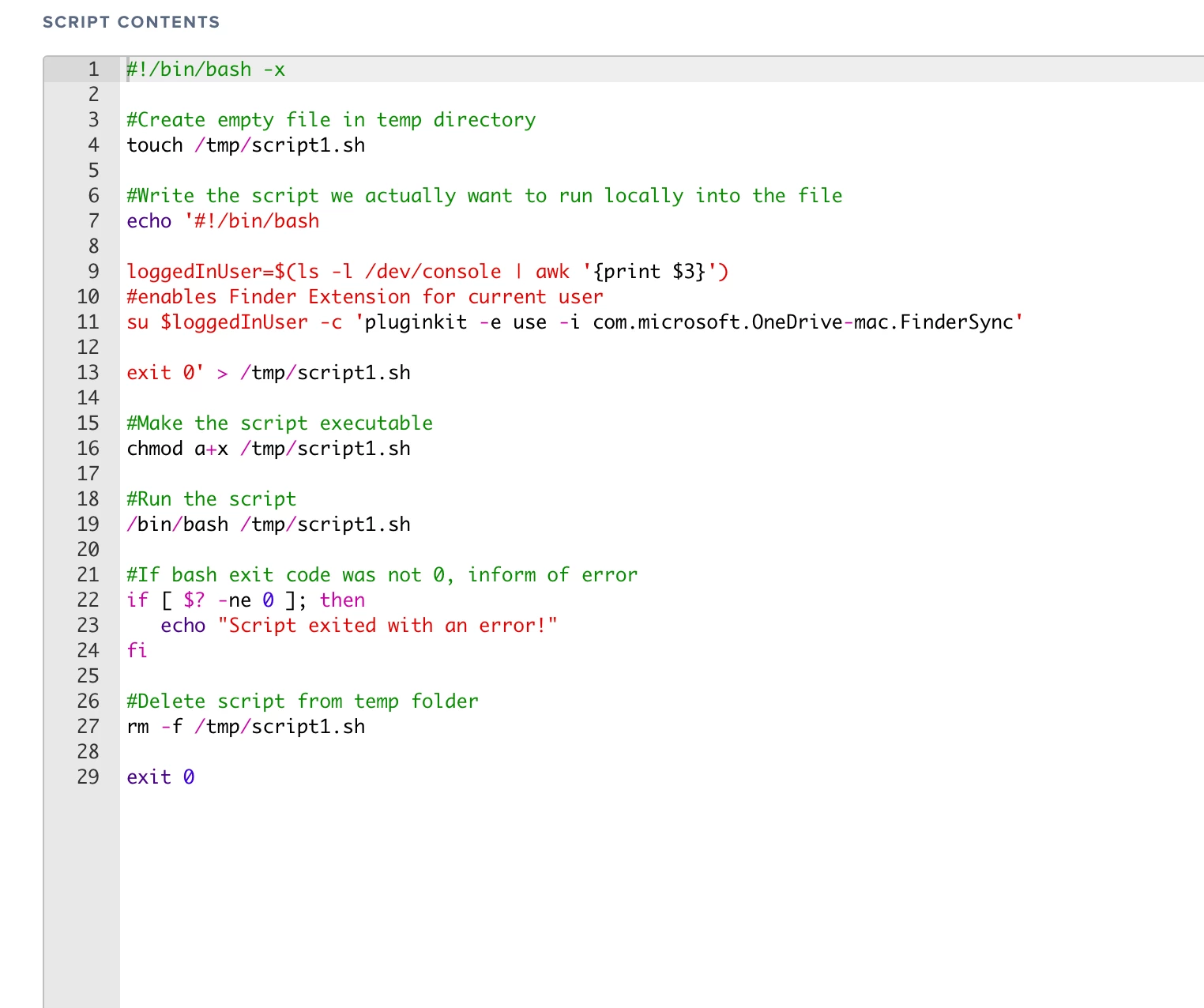
Wow. Can you screenshot the script as it is input in your JSS? There must be an incorrect character somewhere, I just tested this on my test lab environment and ran successfully on 10.13, 10.12, 10.11 and 10.10 so I can't see why this wouldn't work providing the correct details are in.

Quick couple of questions..

Do you have a non English language OS or keyboard layout setup on your machine? Also, what OS are you running this against?

Thanks and good luck.


KyleEricson
Forum|alt.badge.img+17
  • Author
  • Valued Contributor
  • May 3, 2018

no and running on 10.13.4


KyleEricson
Forum|alt.badge.img+17
  • Author
  • Valued Contributor
  • May 3, 2018


Forum|alt.badge.img+17
  • Valued Contributor
  • May 3, 2018

Hi All,
I had an idea on how to use this method from @cddwyer so did a quick re-write which is working well for me:

#!/bin/bash

# Idea from cddwyer on jamfnation: https://www.jamf.com/jamf-nation/discussions/27792/onedrive-enable-extension-erro

# Name of Script
scriptName="script1.sh"

# Create Empty Script
touch /tmp/"$scriptName"

# Create the script lcoally we we want to run
cat << 'EOF' > /tmp/"$scriptName"
#!/bin/bash

# Find the currently logged in user
loggedInUser=$(python -c 'from SystemConfiguration import SCDynamicStoreCopyConsoleUser; import sys; username = (SCDynamicStoreCopyConsoleUser(None, None, None) or [None])[0]; username = [username,""][username in [u"loginwindow", None, u""]]; sys.stdout.write(username + "
");')

do the stuff here

exit 0
EOF

# Make the script executable 
chmod a+x /tmp/"$scriptName"

# Run the script
/bin/bash /tmp/"$scriptName"

# If bash exit code was not 0, inform of error
if [ $? -ne 0 ]; then
   echo "Script exited with an error!"
fi

# Delete script from temp folder
rm -f /tmp/"$scriptName"

exit 0

Thanks!
Matt


KyleEricson
Forum|alt.badge.img+17
  • Author
  • Valued Contributor
  • May 3, 2018

@mbezzo I tried your idea and back to my original error:

Executing Policy OneDrive Extension enable
Running script OneDrive 2.0...
Script exit code: 0
Script result: match: Connection invalid
Checking for patches...
No patch policies were found.


Forum|alt.badge.img+17
  • Valued Contributor
  • May 3, 2018

Are you using the App Store version of OneDrive, or the standalone? I believe the domain com.microsoft.OneDrive-mac is for the App Store version - com.microsoft.OneDrive is for the Stand alone app. It's been a long time since I was dealing with this, but I believe (could be wrong...) that the App Store version doesn't support the Finder add-ins? Only the stand alone version? Worth checking out anyway!

Thanks
Matt


KyleEricson
Forum|alt.badge.img+17
  • Author
  • Valued Contributor
  • May 3, 2018

I’m using stand alone. I know that both versions support the add-ins.