Question

“Reinstall a Clean macOS with One Button” webinar resource page

  • November 1, 2019
  • 115 replies
  • 635 views

Show first post

115 replies

Forum|alt.badge.img+3
  • New Contributor
  • March 29, 2021

@Strannik Thank you for that. Didnt know that was added.


Forum|alt.badge.img+5
  • Contributor
  • March 30, 2021

Does this method work on Big Sur?

many thanks in advance


Forum|alt.badge.img+8
  • Contributor
  • March 30, 2021

@PE2000 Yes, Big Sur is macOS 11


Forum|alt.badge.img+10
  • Valued Contributor
  • April 2, 2021

@talkingmoose Thank you for all your wisdom in this process. Is there an updated script for Big Sur clean install?
We have many devices to prep for retirement and with the OS install stick taking over 1 hr, and sometimes fails, that is a load of work. It would be great if there were a script that could be added to Self Service and all we need to do is select it and walk away... well checking it periodically too, but mostly hands off until after the prompt screen shows up.
Thanks loads for all your work on this blog chain.


Forum|alt.badge.img+10
  • Valued Contributor
  • April 2, 2021

@talkingmoose I was able to use the scripts for Big Sur install.... BUT
I could run them from the command line fine anyway but not using JAMF Pro to push them out.
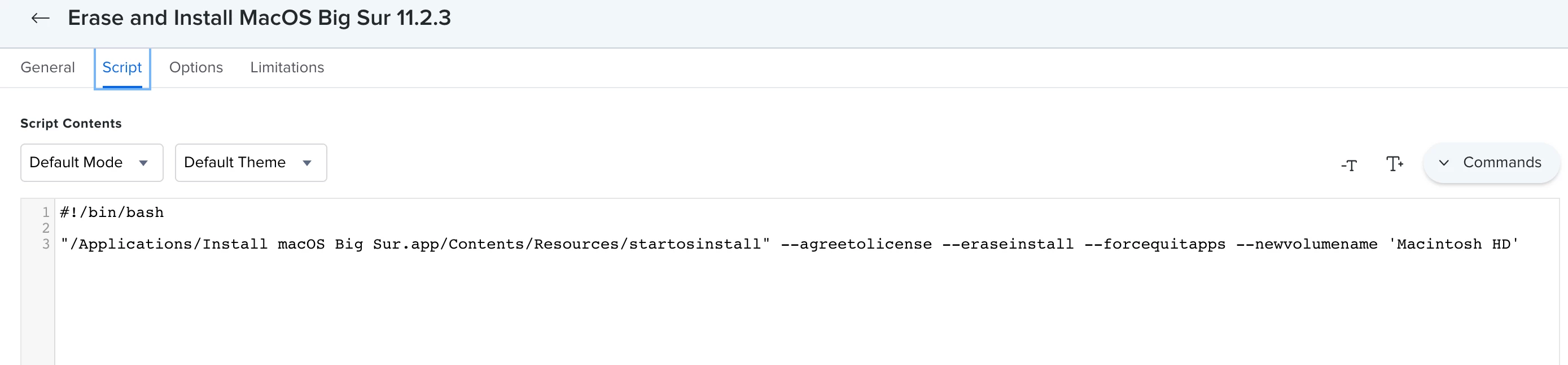
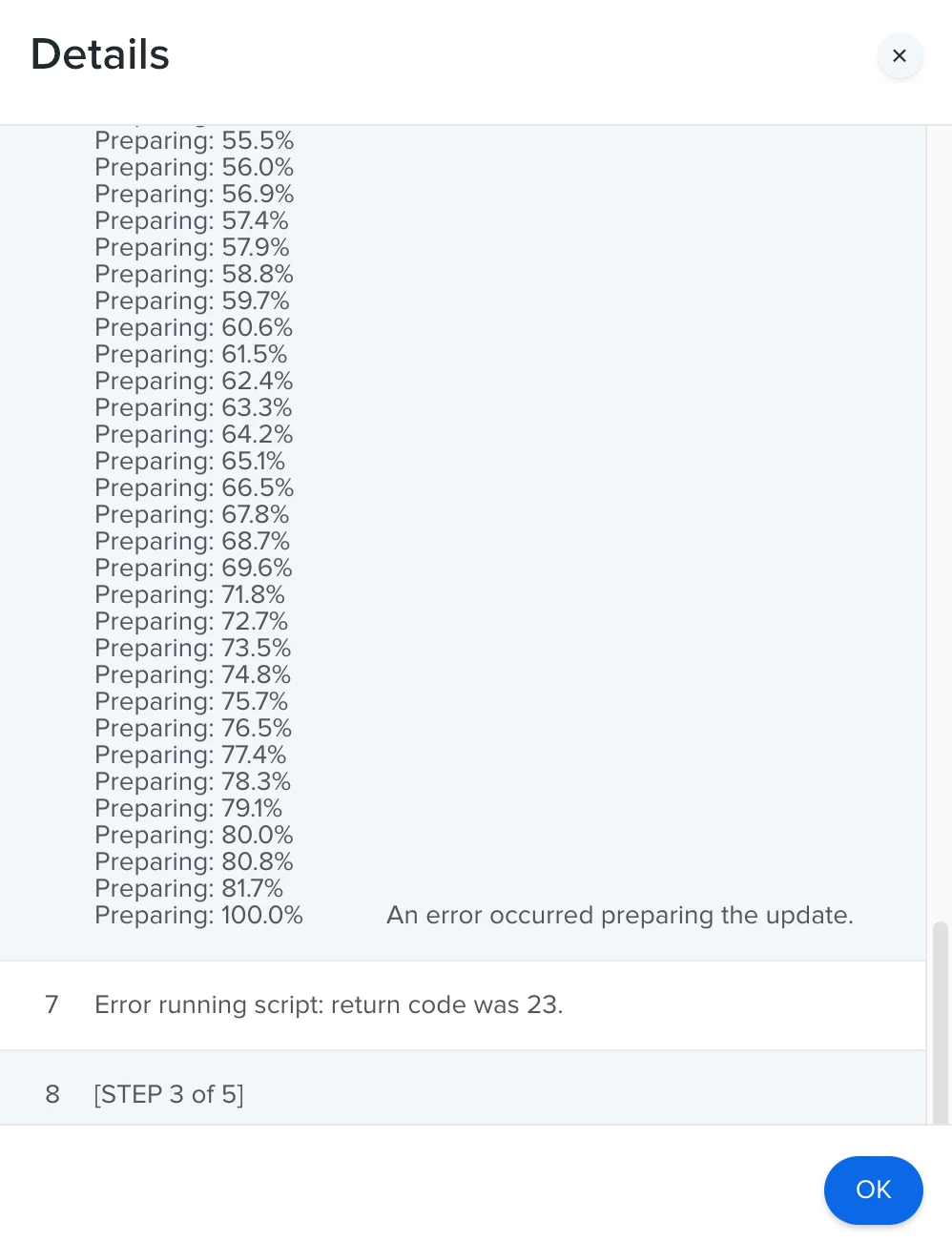
Attached is the script and the results.
Any help is greatly appreciated. I was able to get the upgrade only, from Catalina 15.x to 11.2.3, to work just fine, so am thinking it has to do with either the --newvolumename or the --forcequitapps switches.

AHHHH made it to 100% though. But does not wipe the drive, but that same command works in Terminal with sudo and the admin password.

Thanks all.


talkingmoose
Forum|alt.badge.img+36
  • Author
  • Community Manager
  • April 2, 2021

@rhooper, running the command either in a policy's Execute Command field or as a script put into Self Service should work. I like that workflow. You've definitely got the right command with no errors or else it wouldn't even start.

One of the problems with running a policy that executes something else that'll restart the Mac is the Mac will restart while the policy is running. Try adding an ampersand & at the end of the startosinstall command to put it in the background. It may seem to finish very quickly, but the command should still be running in the background and eventually restart the Mac.


Forum|alt.badge.img+10
  • Valued Contributor
  • April 5, 2021

@talkingmoose That worked! Guess there was a timing issue occurring. What does the & do? In google and office it concatenates. Scripting is not my forte.
You also mentioned setting up a caching server. Which we have done, but it seems to take just as long to download the Installer with it than it did without it.
Is there a method to see if it is actually working like it should? Or maybe I missed something, a video to set one up?
Thanks for all your expertise.


Forum|alt.badge.img+10
  • Valued Contributor
  • April 5, 2021

I wonder if it is possible to add in the WiFi and password into the script and have it create this on the new image. A script just runs line by line until completed, right? But the fresh install may trump that script. Please correct me if I am overthinking this or if I am not thinking about it in terms of reimaging.


talkingmoose
Forum|alt.badge.img+36
  • Author
  • Community Manager
  • April 5, 2021

@rhooper, glad to hear!

Normally, scripts are sequential. One command has to finish before the script will continue to the next. The ampersand & takes the command that it follows and spins it into its own process apart from the script running it. That allows the rest of the script to continue although the process may not yet be complete. In this case, it's allowing the policy to come to completion before the startosinstall command restarts the Mac.

Content Caching servers are great for speeding up deployments. I discussed them a little in the webinar how to enable it and determine how well it's working for you.

For lots of documentation and advanced configuration information, refer to Apple's pages.

There may be a way to initiate Wi-Fi using a script in a package that you deploy with the startosinstall command, but if you need your Mac connected to a network after erasing and installing, a wired connection would be a lot more reliable and easier to do.


Forum|alt.badge.img+5
  • Contributor
  • April 6, 2021

@rhooper

Hi are you able to share working script?

Many thanks!!!


beeboo
Forum|alt.badge.img+7
  • Contributor
  • April 6, 2021

you can also add something like this to your script if you want better validation, where you output the process result to a file and just read a line or the file after X time like i did.
Part of my issue was that I wasn't sure when the installer would be all good and ready and didnt want the script to just finish like a cliffhanger.

This has worked out pretty well for me as an additional check.

An alternative i could see happened in is to do a check of the osinstaller or osinstallersetup or whatever the process is called and once the installer had finished you could echo a statement back, but when i wrote my script about a year ago there was some confusion/issues with the name of the process not being consistent, cutting in and out, or something to that effect, so I deemed it (at the same) not a viable and ideal solution to my problem.

Reading the file also lets me know if the installer hangs - I did a bunch of a tests and 10 minutes was roughly about 80-90% completion, if not fully completed. We had cases where, for some reason, the installer would hang on something or a user would forcible (knowingly or unknowingly) break the process. Showing the user the result of the script or seeing it as admins would help us narrow down or identify the issue at hand.

You can also apple the same process to the downloading of the installer too if you wanted.
I prefer not to cache the file (especially when the final release/builds arent out) as it leads to more checking and uploading to JSS.
Untested, but theoretically possible and i see no reason for this not to work, you can run the full fetch installer command to get, say, 10.15.7 directly from Apple then follow up with the script, eliminating the need for composer and caching.

/Applications/Install macOS Catalina.app/Contents/Resources/startosinstall --agreetolicense --forcequitapps --nointeraction --rebootdelay=120 >> /private/tmp/catalinaUPGRADElog.txt 2>&1 &
                        sleep 10
                        if [[ -e /private/tmp/catalinaUPGRADElog.txt ]]; then
                            sleep 600
                            echo "Preview of log, 10 minutes in"
                            cat /private/tmp/catalinaUPGRADElog.txt | grep "Preparing:" | tail -1
                        else
                            echo "No log file found"
                            { /bin/kill "${caffeinatePID}"; } 2>/dev/null
                            { /usr/bin/killall jamfHelper; } 2>/dev/null
                            exit 1
                        fi

Forum|alt.badge.img+10
  • Valued Contributor
  • April 6, 2021

@PE2000 This is a 2-step process; download the install macOS Big Sur and then a clean install.

The script we use to download the Install macOS Big Sur.app that worked for us is #!/bin/bash
softwareupdate --fetch --full-installer-version 11.2.3

The script to install it #!/bin/bash
"/Applications/Install macOS Big Sur.app/Contents/Resources/startosinstall" --agreetolicense --eraseinstall --forcequitapps --newvolumename 'Macintosh HD' &

By removing the two switches --eraseinstall and --newvolumename 'enter name here' we were able to perform an OS update while retaining the users data.

After each of these policies is run we perform an "Update Inventory" maintenance.

@talkingmoose After the Install MacOS.app downloads into the Applications folder. the next policy, "erase and Install" seems to take over 2 hrs to complete. I have been timing it with a User Interaction message, "Erase and install started", and timing it from that notification message on. Is this normal? not as fast as an image stick, but still less time spent touching every device.


Forum|alt.badge.img+5
  • Contributor
  • April 6, 2021

@rhooper

Thank you Very Much. I will give that a go and see what kinds of results I get.


talkingmoose
Forum|alt.badge.img+36
  • Author
  • Community Manager
  • April 6, 2021

@rhooper, two hours to complete? Seems pretty long.

Should take just a few seconds to create the temporary partition. Then a couple of minutes to copy the installer to the temporary partition.

From there, I've seen the installer take about 20-30 minutes depending on the hardware.

You can troubleshoot by taking Jamf completely out of the mix. Run the command in Terminal without the ampersand & and watch the output. That may give you an idea where the process is slowing.


Forum|alt.badge.img+10
  • Valued Contributor
  • April 6, 2021

@talkingmoose talkingHaha, that is exactly what i did, took about 28 minutes complete. So now it begs the question, why? I agonna try it again qithout the ampersand and see if goes. Ithere are any ideas please post it.
Thanks all
~r