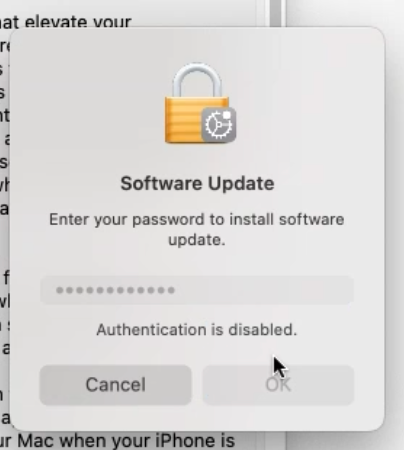
Sorry, I did get a solution to this. It’s not always enough to enable the Secure Token. The secure token can have a password that is different to the logon password. For example if you have Microsoft AD bound Mac’s and change the user passwords on a system that is not the Mac’s i.e. a special server for password changes. Mac OS doesn’t play well with that method of changing the password when it comes to Secure Tokens. When the password is changed externally, the Secure Token will still have the previous password. This behaviour is different for keychains - in that case the machine recognises the password change at next logon and prompts for the old password, then changes the logon keychain password to be the new logon password. Unfortunately the same thing is not done for Secure Token hence it prompts when trying to do something like run updates that requires a Secure Token as the Secure Token password is now different to the logon password.
The only way out is if you have another account on the machine that has a valid secure token and the password is known. You can use that in conjunction with the user who must enter their new password.
This is the script I’ve developed and it runs via a Self Service policy
#!/bin/bash
# refreshSecureToken.bash
# some ideas from suggestion by Mauricio Pellizzon https://www.jamf.com/jamf-nation/discussions/32795/script-best-way-to-request-user-input
# and brunerd in https://www.jamf.com/jamf-nation/discussions/31837/jamf-wants-access-to-control-system-events
# other snippets from all over
# ChatGPT not employed
# Purpose: To solve the issue with AD binding, Mobile Accounts and Secure Tokens not being synced with new password when user changes password via external system
# David London
# 2023-12-12

admin=$4
adminpassword=$5

iconFile="/Library/Application Support/JAMF/bin/jamfHelper.app/Contents/Resources/Message.png"

Message() {
    /Library/Application\ Support/JAMF/bin/jamfHelper.app/Contents/MacOS/jamfHelper -windowType utility -icon "$iconFile" -title "University IT" -heading "$1" -description "$2" -button1 "OK"
}

userName=$(ls -la /dev/console | cut -d " " -f 4)

user_entry=""

validateResponce() {
    case "$user_entry" in
        "noinput" ) echo "empty input" & askInput ;;
        "cancelled" ) echo "time out/cancelled" & exit 1 ;;
        * ) #echo "$user_entry"  ;;
    esac
}

askInput() {
user_entry=$(sudo -u "$userName" osascript <<EOF
use AppleScript version "2.4" -- Yosemite (10.10) or later
use scripting additions
set theTextReturned to "nil"
try
set theResponse to display dialog "Please enter your login password" with title "Get User Login Password" buttons "Save" default button "Save" default answer "" with hidden answer
set theTextReturned to the text returned of theResponse
end try
if theTextReturned is "nil" then
return "cancelled"
else if theTextReturned is "" then
return "noinput"
else
return theTextReturned
end if
EOF
)
validateResponce "$user_entry"
}


# Check that the admin account passed as $4 is an account on the machine
adminExists=$(dscl . -list /Users 2>&1 |grep "$4")
if [[ -z $adminExists ]]; then
    Message "Error" "The admin user $4 passed in by the management system does not exist on your computer so exiting.

Please contact the IT Service Desk on PHONE NUMBER HERE and report the problem."
    exit 2
else
    echo "The admin user $4 exists on the system so continuing"
fi


# check the admin account has a secure token
# Potentially comment this out as the script will add a secure token
adminSecureTokenStatus=$(sysadminctl -secureTokenStatus "$4" 2>&1 | grep ENABLED)
if [ -z "$adminSecureTokenStatus" ]; then
    Message "Error" "It looks like the user $4 does NOT have a secure token.

Please contact the IT Service Desk on PHONE NUMBER HERE and report the problem."
    exit 2
else
    echo "$4 has a secure token so continuing"
fi


# Check the user is an admin
if id -Gn "$userName" | grep -q -w admin; then
    echo "User $userName is an admin so continuing";
else
    Message "Error" "It looks like you are not an Administrator so this won't help.

Please contact the IT Service Desk on PHONE NUMBER HERE and report the problem."
    exit 2
fi


# get the user password
valid="xx"
while [ -n "$valid" ]
do
    askInput "$userName"
    valid=$(dscl /Local/Default -authonly $userName "$user_entry")
    if [[ -n "$valid" ]]; then
        # display pop up if wrong password here
        Message "Oops" "It looks like you mistyped your password, please try again"
    fi
done


# now use the password from the user ...

echo "Turning OFF Secure Token for $userName"
sysadminctl -secureTokenOff "$userName" -password "$user_entry" -adminUser "$admin" -adminPassword "$adminpassword"
# check the secure token status of the user
sysadminctl -secureTokenStatus "$userName"

echo "Turning ON Secure Token for $userName"
sysadminctl -secureTokenOn "$userName" -password "$user_entry" -adminUser "$admin" -adminPassword "$adminpassword"
# check the secure token status of the user
sysadminctl -secureTokenStatus "$userName"

exit 0