Hello All,
I have been trying to deploy Adobe Creative Cloud updates to our Mac clients with no luck. I have followed the packaging and deployment instructions from the following discussion (https://jamfnation.jamfsoftware.com/article.html?id=161). However, I am not sure if the script that I am using is the most up-to-date one or if anyone else has figured out how to get this to work.
I have been able to package the updates in a DMG file as instructed but I am running into issues with the script.
Here is the script that I am running (installPKGfromDMG.sh):
#!/bin/sh
####################################################################################################
#
# Copyright (c) 2011, JAMF Software, LLC.  All rights reserved.
#
#       Redistribution and use in source and binary forms, with or without
#       modification, are permitted provided that the following conditions are met:
#               * Redistributions of source code must retain the above copyright
#                 notice, this list of conditions and the following disclaimer.
#               * Redistributions in binary form must reproduce the above copyright
#                 notice, this list of conditions and the following disclaimer in the
#                 documentation and/or other materials provided with the distribution.
#               * Neither the name of the JAMF Software, LLC nor the
#                 names of its contributors may be used to endorse or promote products
#                 derived from this software without specific prior written permission.
#
#       THIS SOFTWARE IS PROVIDED BY JAMF SOFTWARE, LLC "AS IS" AND ANY
#       EXPRESS OR IMPLIED WARRANTIES, INCLUDING, BUT NOT LIMITED TO, THE IMPLIED
#       WARRANTIES OF MERCHANTABILITY AND FITNESS FOR A PARTICULAR PURPOSE ARE
#       DISCLAIMED. IN NO EVENT SHALL JAMF SOFTWARE, LLC BE LIABLE FOR ANY
#       DIRECT, INDIRECT, INCIDENTAL, SPECIAL, EXEMPLARY, OR CONSEQUENTIAL DAMAGES
#       (INCLUDING, BUT NOT LIMITED TO, PROCUREMENT OF SUBSTITUTE GOODS OR SERVICES;
#       LOSS OF USE, DATA, OR PROFITS; OR BUSINESS INTERRUPTION) HOWEVER CAUSED AND
#       ON ANY THEORY OF LIABILITY, WHETHER IN CONTRACT, STRICT LIABILITY, OR TORT
#       (INCLUDING NEGLIGENCE OR OTHERWISE) ARISING IN ANY WAY OUT OF THE USE OF THIS
#       SOFTWARE, EVEN IF ADVISED OF THE POSSIBILITY OF SUCH DAMAGE.
#
#####################################################################################################
#
# SUPPORT FOR THIS PROGRAM
#
#       This program is distributed "as is" by JAMF Software, LLC's Resource Kit team. For more
#       information or support for the Resource Kit, please utilize the following resources:
#
#               http://list.jamfsoftware.com/mailman/listinfo/resourcekit
#
#               http://www.jamfsoftware.com/support/resource-kit
#
#       Please reference our SLA for information regarding support of this application:
#
#               http://www.jamfsoftware.com/support/resource-kit-sla
#
#####################################################################################################
#
# ABOUT THIS PROGRAM
#
# NAME
#   installPKGfromDMG.sh -- Install a PKG wrapped inside a DMG
#
# SYNOPSIS
#   sudo installPKGfromDMG.sh
#
# DESCRIPTION
#   This script will mount a DMG and install a PKG file wrapped inside.  The script assumes that
#   the DMG has been previously cached to the machine to:
#
#       /Library/Application Support/JAMF/Waiting Room/
#
#   This is the default location that a package will be cached to when selecting the "Cache"
#   option within a policy or Casper Remote.
#
#   To use this script, please follow the following workflow:
#
#   Step 1: Wrap a PKG inside a DMG
#       1.  Open Disk Utility. #        2.  Navigate to File > New > Disk Image from Folder. #        3.  Select the PKG and click the Image button. #        4.  Name the package after the original PKG. #      5.  Choose a location for the package and then click Save. #
#   Step 2: Upload the DMG and installPKGfromDMG.sh script to Casper Admin:
#       1.  Open Casper Admin and authenticate.
#       2.  Drag the DMG you created in the previous procedure to the Package pane in Casper Admin. #       3.  Drag the installPKGfromDMG.sh script to the Package pane in Casper Admin. #     4.  Save your changes and quit the application. #
#   Step 3: Create a policy to install the DMG:
#       1.  Log in to the JSS with a web browser.
#       2.  Click the Management tab.
#       3.  Click the Policies link.
#       4.  Click the Create Policy button.
#       5.  Select the Create policy manually option and click Continue.
#       6.  Configure the options on the General and Scope panes as needed. #       7.  Click the Packages button, and then click the Add Package link. #       8.  Across from DMG, choose “Cache” from the Action pop-up menu and then click the
#           "Add Packages" button.
#       9.  Click the Scripts button, and then click the Add Script link.
#       10. Across from the installPKGfromDMG.sh script, choose “Run After” from the Action pop-up menu.
#       11. Enter the name of the original PKG in the Parameter 4 field. #          Note: You must enter the exact name of the PKG in the Parameter 4 field. If you need
#           to verify the name of the PKG, you can mount the DMG that it is wrapped inside. #       12. Click Save.
#
####################################################################################################
#
# HISTORY
#
#   Version: 1.0
#
#   - Created by Nick Amundsen on July 22, 2011
#
####################################################################################################
#
# DEFINE VARIABLES & READ IN PARAMETERS
#
#####################################################################################################
#
# HARDCODED VALUES SET HERE
#
# Variables set by Casper - To manually override, remove the comment for the given variable
# targetDrive=""  # Casper will pass this parameter as "Target Drive" if left commented out
# computerName=""  # Casper will pass this parameter as "Computer Name" if left commented out
# userName=""  # Casper will pass this parameter as "User Name" if left commented out. Usernames
#                  can only be passed if the script is triggered at login, logout, or by Self Service

# Variables used for logging
logFile="/private/var/log/installPKGfromDMG.log"

# Variables used by this script.
dmgName=""


# CHECK TO SEE IF A VALUE WERE PASSED IN FOR PARAMETERS AND ASSIGN THEM
if [ "$1" != "" ] && [ "$targetDrive" == "" ]; then
    targetDrive="$1"
fi

if [ "$2" != "" ] && [ "$computerName" == "" ]; then
    computerName="$2"
fi

if [ "$3" != "" ] && [ "$userName" == "" ]; then
    userName="$3"
fi

if [ "$4" != "" ] && [ "$dmgName" == "" ]; then
    dmgName="$4"
fi


####################################################################################################
#
# LOGGING FUNCTION
#
####################################################################################################

log () {
    echo $1
    echo $(date "+%Y-%m-%d %H:%M:%S: ") $1 >> $logFile
}

####################################################################################################
#
# VARIABLE VERIFICATION FUNCTION
#
####################################################################################################

verifyVariable () {
eval variableValue=$$1
if [ "$variableValue" != "" ]; then
    echo "Variable "$1" value is set to: $variableValue"
else
    echo "Variable "$1" is blank.  Please assign a value to the variable."
    exit 1
fi
}

####################################################################################################
#
# SCRIPT CONTENTS - DO NOT MODIFY BELOW THIS LINE
#
####################################################################################################

# Verify Variables
verifyVariable dmgName

# Mount the DMG
log "Mounting the DMG $dmgName..."
mountResult=`/usr/bin/hdiutil mount -private -noautoopen -noverify /Library/Application Support/JAMF/Waiting Room/$dmgName -shadow`
mountVolume=`echo "$mountResult" | grep Volumes | awk '{print $3}'`
mountDevice=`echo "$mountResult" | grep disk | head -1 | awk '{print $1}'`

if [ $? == 0 ]; then
    log " DMG mounted successfully as volume $mountVolume on device $mountDevice."
else
    log "There was an error mounting the DMG. Exit Code: $?"
fi

# Find the PKG in the DMG
packageName=`ls $mountVolume | grep "pkg"`

# Install the PKG wrapped inside the DMG
log "Installing Package $packageName from mount path $mountVolume..."
/usr/sbin/jamf install -path $mountVolume -package $packageName

if [ $? == 0 ]; then
    log " Package successfully installed."
else
    log "There was an error installing the package. Exit Code: $?"
fi

# Unmount the DMG
echo "Unmounting disk $mountDevice..."
hdiutil detach "$mountDevice" -force

# Delete the DMG
/bin/rm /Library/Application Support/JAMF/Waiting Room/$dmgName
After uploading the script I then added the name of the package in Parameter 4 as instructed:
ACCUP50416.dmg
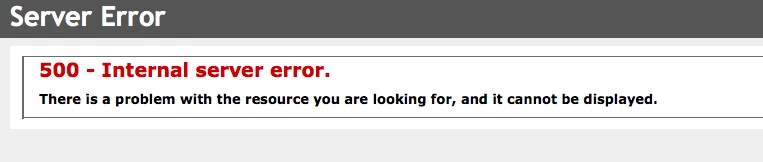
When running the policy on one of my Macs I am presented with the following error: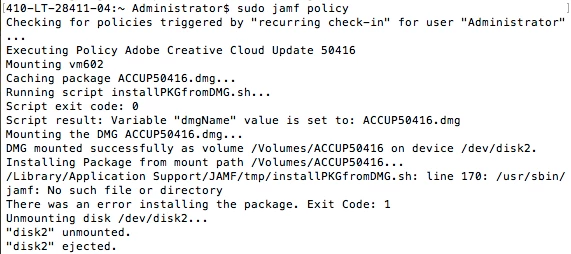
Would anyone have any idea on how to get this to work or what I am doing wrong?
Thank-you,
Anthony)