Solved

Allow Apps in Security & Privacy -> Privacy -> Accessibility in Mojave (Bomgar)

  • October 9, 2018
  • 41 replies
  • 246 views

Show first post

41 replies

Forum|alt.badge.img+6
  • New Contributor
  • March 27, 2019

so can someone confirm that they are using Mojave and they are able to use Bomgar on a User that does not have Admin rights? I keep getting the popup asking for them to allow mac_service_helper.sh which they can't do without admin rights. I have the config profile for the bomgar app in /users/shared setup using the pppc app. Is there something else I'm missing?

Thanks for any light you can shine on this issue.


Forum|alt.badge.img+3
  • New Contributor
  • May 3, 2019

I was told you can only use PPPC on machines that are 10.14 and higher... is there a way to allow the same (allowing Bomgar (or any other app) access to SysPreferences > Security & Privacy > Accessibility) for machines that are less than 10.14.X. I have several machines that are 10.13.6 ,10.12.X, and 10.11.X.


Forum|alt.badge.img+6
  • New Contributor
  • May 14, 2019

For anyone still trying to get Bomgar added to PPPC, here's how I did it. This thread helped me down the path, but I wasn't able to find the exact steps I've outlined below, so hopefully this will help someone still looking for the answer.

To set the stage, we use Bomgar by logging into the console app, having the user go to our Bomgar website, and kick off a session there. We don't pre-install anything on our machines.

I grabbed the PPPC utility from Jamf's Github page, linked in this thread by @sshort. I then started a remote session in Bomgar as a user would. I connected the session and got the prompt. While the session was still active, I went to UsersSharedomgar-scc-XXXXX (where XXXX is a timestamp). Drag the Bomgar Support Client to the PPPC utility and give it the Allow permission for Accessibility. Save, upload, and test.

You have to grab the file while the remote session is active because once you disconnect, it deletes it. After I did this, I tested on a few machines and after the initial config profile gets applied, nothing shows up under Privacy. Upon the first subsequent connection, however, it will show up, but it will not be checked. However I've confirmed that I didn't get prompted to allow it. Additionally, after the subsequent session ends, the Bomgar icon will revert to a blank "unknown" type of icon. Still works, though. Hope this helps.


Forum|alt.badge.img+20
  • Valued Contributor
  • May 15, 2019

@klindas

What version of Bomgar Server are you running ?


Forum|alt.badge.img+6
  • New Contributor
  • May 17, 2019

@ClassicII 18.2.9.


Forum|alt.badge.img+20
  • Valued Contributor
  • May 17, 2019

@klindas

Thanks for the confirmation. It looks like we need at least version 18.2.6 to get PPPC TCC controls working.


Forum|alt.badge.img+4
  • Contributor
  • June 11, 2019

Does anyone know how to use this to grant an application Full Disk Access?


Hugonaut
Forum|alt.badge.img+15
  • Esteemed Contributor
  • June 11, 2019

PPPC Utility - https://github.com/jamf/PPPC-Utility

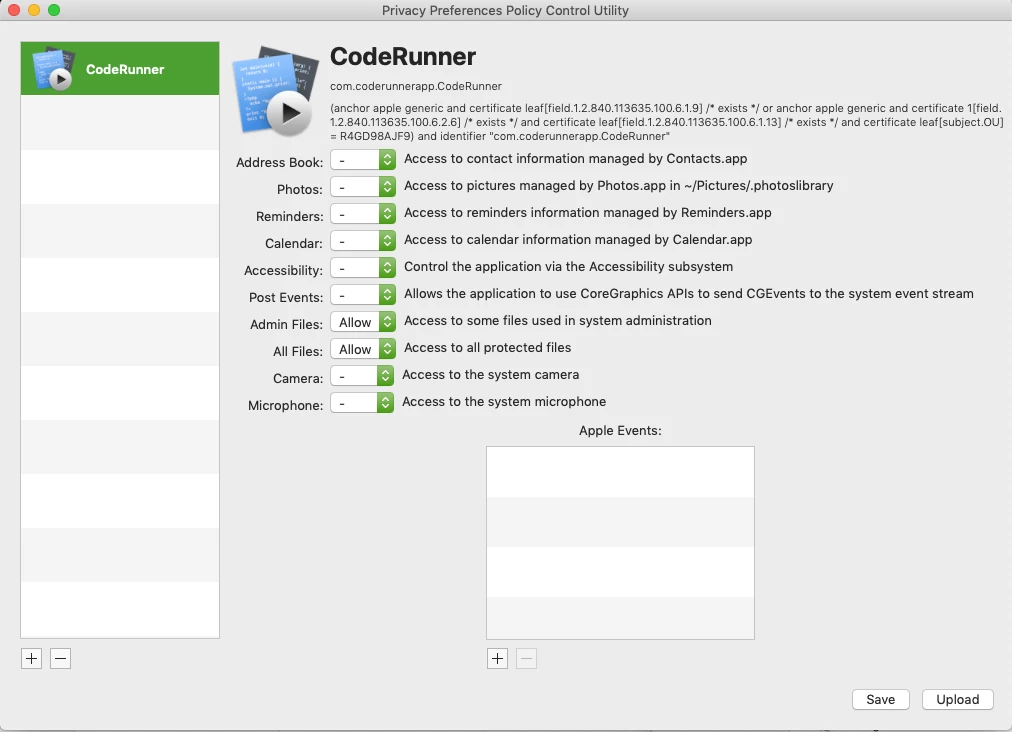
Pretty sure all you need to do is drag your application into the section on the left of the PPPC Utilitys Window pane, then in the right section allow for "All Files"

I dragged coderunner into the pppc utility pane & selected all files as a visual for you


Forum|alt.badge.img+4
  • Contributor
  • June 13, 2019

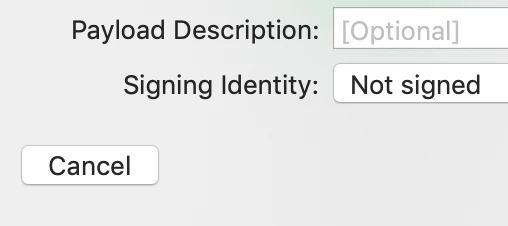
@Hugonaut Is a Signing Entity required in the window after clicking Save?


Forum|alt.badge.img+4
  • Contributor
  • July 29, 2019

@ dennisnardi I am having the same issue with Bomgar - remoting into standard user accounts on Mac computers and not being able to elevate access control privileges! Can you provide me a step by step guide how to create a Privacy Preferences Policy Control profile for Bomgar and Jamf? This would be helpful! Thanks!


dennisnardi
Forum|alt.badge.img+15
  • Author
  • Jamf Heroes
  • July 29, 2019

@jcshofner I'd start by downloading the Jamf PPPC utility at: https://github.com/jamf/PPPC-Utility

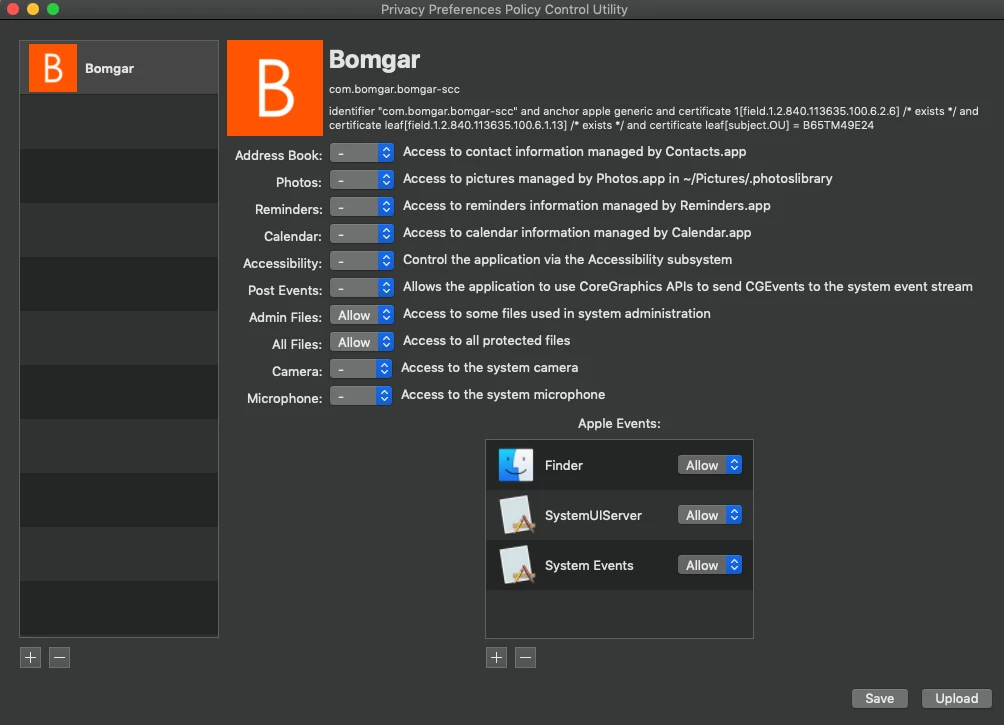
After that navigate to /Users/Shared/bomgar-scc-xxxxxx-xxxxx and you should have a "Bomgar Support Client" application if you have Bomgar a jump client installed. If you do not have a jump client installed you may want to install it quick or open a temporary Bomgar session on your compute to create this/

Open up the PPPC utility and drag the Bomgar Support Client app in. You need to allow access to the Admin Files and All Files I believe. I'm unsure if you need to Allow the 3 different default Apple Events (Finder, SystemUIServer, and System Events) but I have enabled them in my environment.

You can then hit Upload in this tool and plug in your Jamf Pro info to upload this as a config profile. You can then scope out the profile to computers where it's necessary (10.13.2+ I believe).

Hopefully that's helpful!


Forum|alt.badge.img+5
  • Contributor
  • July 29, 2019

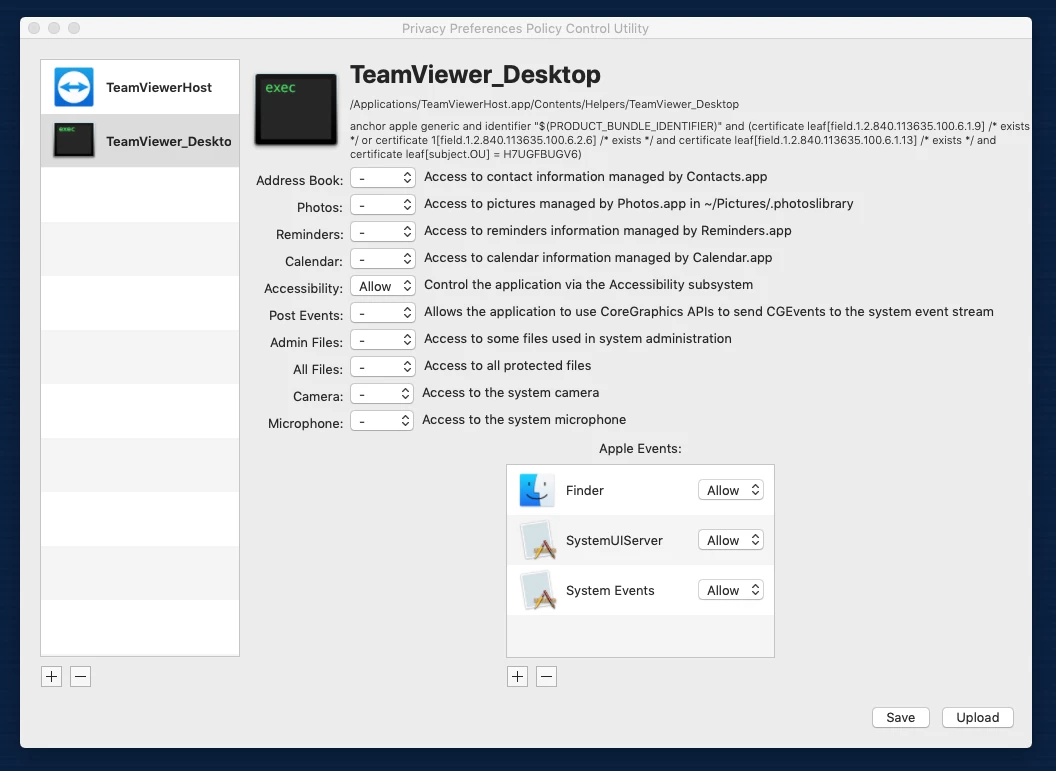
In order for my TeamViewer PPPC to work I had to add both the TeamViewer Host & TeamViewer_Desktop in the Privacy Preferences Policy Control Utility

Only wasted 4 hours to get it working :)


Forum|alt.badge.img+5
  • Contributor
  • August 26, 2019

Hi

Any one having issue with or Got it working with Google File Stream ?

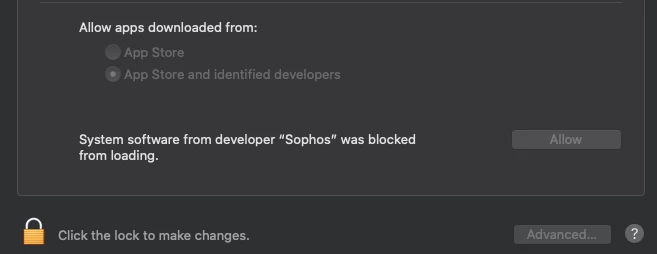
I ran the same set up using PPPC and got a System Software from developer * , was blocked from loading.

Thanks.


Forum|alt.badge.img+1
  • New Contributor
  • November 4, 2019

Hello,

Is there a way through the PPPC Utility or other means to have Jamf "Click" on 'Allow' to have an application load?

Thanks


Forum|alt.badge.img+17
  • Valued Contributor
  • November 4, 2019

@tvargas - perhaps your question may asked in a different thread, but in short, yeah, I believe you need to create a Configuration Profile with a Approved Kernel Extensions payload to whitelist the app..


Forum|alt.badge.img+3
  • New Contributor
  • November 6, 2019

@tvargas

You can use this to find the kext. Link for Kext excel sheet
Then make a config profile with the Team ID. Try with that