Question

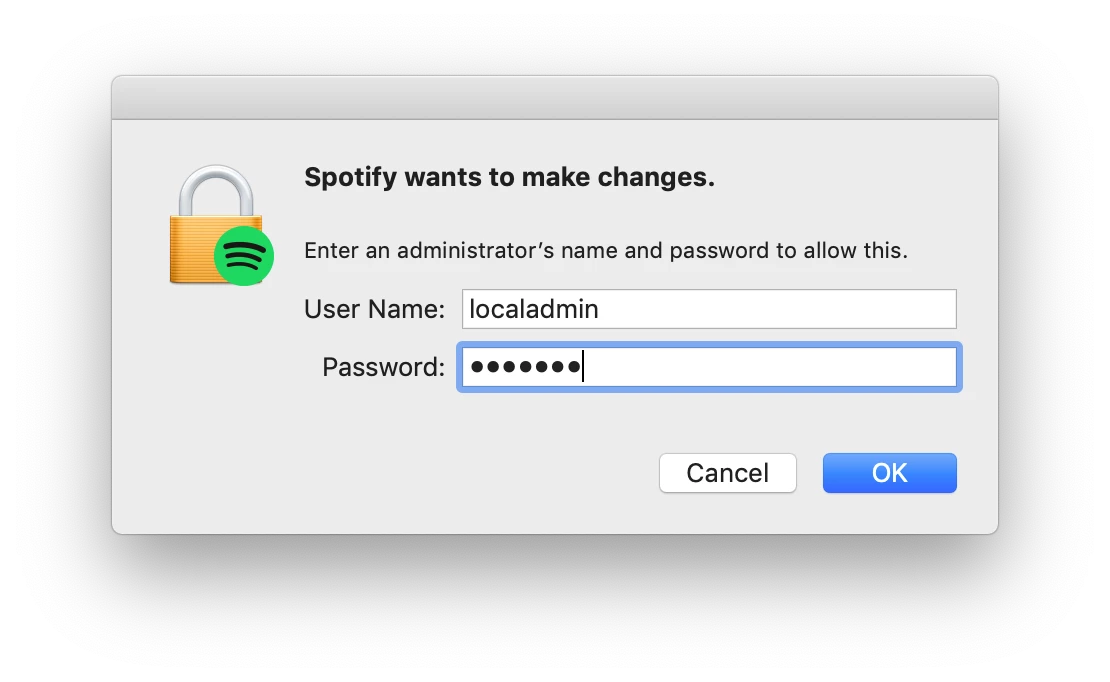
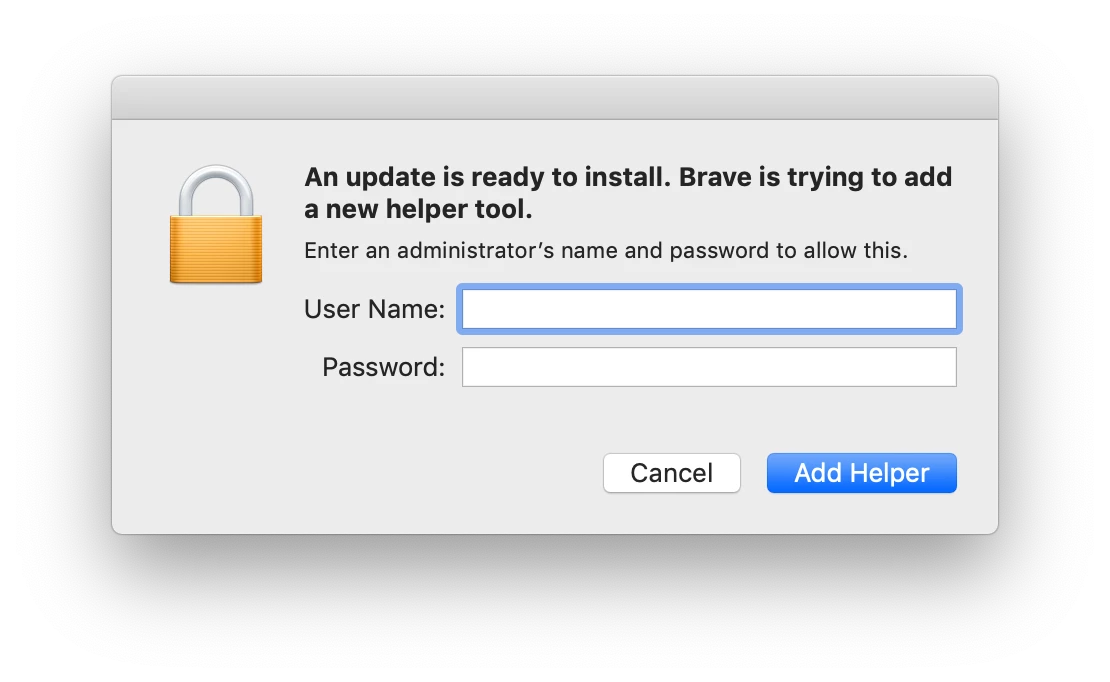
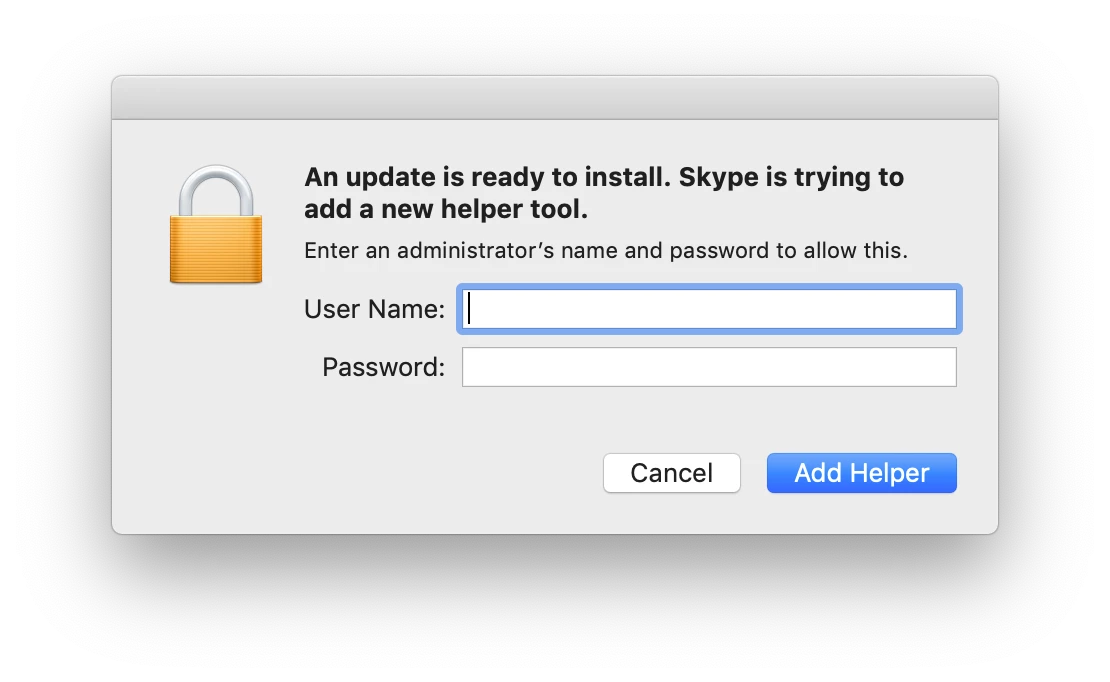
Applications trying to add new helper tools?

  • July 6, 2019
  • 10 replies
  • 214 views

Forum|alt.badge.img+1

Hi all,

After upgrading several of our Macs from older versions of the OS, we have started getting pop-up dialogs asking users to provide admin credentials to add helper tools for various apps (Skype, Brave Browser, Spotify, etc). Most users just click Cancel to dismiss the boxes but I'm concerned we're not staying updated. Also it's pretty annoying.

Google led me down a rabbit hole with Skype that didn't fix the problem, and this seems to be happening to several applications. Has anyone seen these pop-ups and if so, what's the fix?

Thanks!
10 replies

Cayde-6
Forum|alt.badge.img+22
  • Honored Contributor
  • July 7, 2019

I don't think there is a fix tbh, these are prompts to update the software.

You could look at using Autopkg to update these apps automatically perhaps.


Forum|alt.badge.img+16
  • Valued Contributor
  • August 22, 2019

We have a group of Non-Admins who constantly have this issue with slack. We make the newest version available in self service but every-time there is an update we get a slew of questions from users who have this prompt.


Forum|alt.badge.img+4

Was this issue resolved? I am having the same issue


Forum|alt.badge.img+10
  • Valued Contributor
  • August 18, 2020

I'm having this issue also for some apps. I wonder if there is a configuration profile that can be used for this?


josh_miller
Forum|alt.badge.img+5
  • Contributor
  • August 18, 2020

A lot of these applications use what is called the Squirrel framework to update. You can disable this by creating a launchAgent. The only downfall is that if the user has any of these apps running at startup they will still see the prompt. I created a LaunchAgent that you should be able to copy and paste:

<?xml version="1.0" encoding="UTF-8"?>
<!DOCTYPE plist PUBLIC "-//Apple//DTD PLIST 1.0//EN" "http://www.apple.com/DTDs/PropertyList-1.0.dtd">
<plist version="1.0">
<dict>
<key>Label</key>
<string>edu.psu.disable-squirrel-updates</string>
<key>ProgramArguments</key>
<array>
<string>/bin/launchctl</string>
<string>setenv</string>
<string>DISABLE_UPDATE_CHECK</string>
<string>1</string>
</array>
<key>RunAtLoad</key>
<true/>
<key>Version</key>
<string>1.2</string>
</dict>
</plist>

In particular:

/bin/launchctl setenv DISABLE_UPDATE_CHECK 1

Basically, the command turns this off for each user. The purpose of the launchagent is that it does not persist after logout. You can complain about this functionality to squirrel here: https://github.com/Squirrel/Squirrel.Mac/issues/192. The developer doesn't seem to be responsive to this at all. For additional reference you can do it just for certain applications by following this guide: https://macops.ca/disabling-squirrel-updates/


Forum|alt.badge.img
  • New Contributor
  • September 1, 2020

@josh.miller Which LaunchAgent location where you putting this into? I have copied and pasted the script into bbedit and saved it as a .plist and then dropped it into /Library/LaunchAgents and also tried it in ~/Library/LaunchAgents and had no luck. Is there something I am missing?

Tia!


josh_miller
Forum|alt.badge.img+5
  • Contributor
  • September 8, 2020

@Francesco I believe it needs to be in the top level Library and you can't have any of the applications attempting to run at login because they will launch most likely BEFORE the environment fires off so you will still see the prompt.


mm2270
Forum|alt.badge.img+24
  • Legendary Contributor
  • September 8, 2020

@Francesco

I have copied and pasted the script into bbedit and saved it as a .plist and then dropped it into /Library/LaunchAgents and also tried it in ~/Library/LaunchAgents and had no luck.

If you manually added the plist file to those directories, you need to make sure the permissions on the plist is correct. Launchd plists should have POSIX permissions of 644 on them, and the owner:group should be root:wheel, typically. Without the correct permissions on the plist, it won't run.

If you're not certain how to adjust these, just modify these lines to add the correct plist name and copy/paste them into Terminal and run them.

sudo chown root:wheel /Library/LaunchAgents/<plist file name>
sudo chmod 644 /Library/LaunchAgents/<plist file name>

Forum|alt.badge.img+1
  • New Contributor
  • September 16, 2020

Thanks for posting this @josh.miller Would you be able to please explain why you would not want this setting to persist after logout?


Forum|alt.badge.img
  • New Contributor
  • June 8, 2021

I'm not claiming that this will fix ALL of the issues, but what we ended up doing for slack was modifying our existing download script chowning the app to the logged in user and placing the app on their desktop via script.