Question

Big Sur Screen Recording Access Requires Admin Rights

  • June 26, 2020
  • 23 replies
  • 150 views

Forum|alt.badge.img+12

Starting in Big Sur, only admin users can enable screen recording access. This change essentially removes the ability for a standard user to share their screen for remote support or videoconferencing tools such as WebEx, Zoom, or Google Meet.

The screen recording preference pane is completely grayed out and an admin user must first authenticate to unlock the pane before being able to enable recording access. Apple responded by saying this behavior is "working as expected."

File feedback now if this is a breaking change for your organization. Your ASM or ABM account can log into AppleSeed and use feedback assistant to voice your opinion. Upvote and reply to this developer forum post as well. https://developer.apple.com/forums/thread/651579

23 replies

Forum|alt.badge.img+12
  • Valued Contributor
  • June 26, 2020

This is not good. Feeding back now.

Edit: Appleseed seems to be down for updates.


Forum|alt.badge.img+5
  • Contributor
  • June 26, 2020

Also, technically Big Sur discussion is likely NDA'd...


bpavlov
Forum|alt.badge.img+18
  • Esteemed Contributor
  • June 26, 2020

@T.Armstrong He's only discussing what's publicly linked and viewable. Feel free to discuss further in the Apple Developer Forum discussion link.


bwoods
Forum|alt.badge.img+14
  • Honored Contributor
  • July 29, 2020

It's official, Apple hates us.


Forum|alt.badge.img+3
  • New Contributor
  • December 8, 2020

Ouch, I would say this is a show stopping issue for us. After some initial testing I released Big Sur to our users via Self Service since it seemed to work fine and some people requested it. Thankfully only 4 people did it before we realized this flaw. Teachers were suddenly unable to share their screens when teaching via Google Meet (remote learning right now...)

This is what I submitted on Apple Seed:
Problem:
-Apps such as Google Chrome require the "Screen Recording" permission in order to share a screen on services such as Google Meet
-The "Screen Recording" permission requires admin rights, teachers do not have admin rights
-Teachers cannot share screens unless a tech manually unlocks the panel and checks the box

Solution:
-Standard Users need ability to allow screen recording permission
-Enterprise Technology Administrators need ability to allow screen recording permission for specific apps via the Privacy Preferences Control profile

Scope:
-Critical Issue affecting all teachers that upgrade to Big Sur. We've pulled back the ability of our users to install Big Sur until this is fixed as they won't be able to effectively teach without IT manually intervening on each machine.


Forum|alt.badge.img+7
  • Contributor
  • December 8, 2020

This was "fixed" in the beta.
You can now deploy a PPPC to allow standard users to enable Screen Recording per application.


Forum|alt.badge.img+3
  • New Contributor
  • December 8, 2020

Thank you, just discovered that a moment ago and pushed it out.

Still would love the ability to push "allow" instead of just "let the user do it"...

I'm not sure how Apple sees this as a good workflow. User clicks screen share button. Congratulations! You need to go open this thing in settings! Now you need to restart your program! User has now wasted 15 minutes of their life and has probably contacted IT to do it for them anyway.


bradtchapman
Forum|alt.badge.img+20
  • Valued Contributor
  • May 18, 2021

Raising awareness of this awesome PPPC profile compiled by @eholtam. It was posted on reddit, but I couldn't find it on JamfNation:

https://github.com/poundbangbash/community-screenrecording-pppc-profile

The profile currently contains a list of 55 app entitlements to permit non-admins to allow screen recording (ScreenCapture).


bwoods
Forum|alt.badge.img+14
  • Honored Contributor
  • May 19, 2021

@bradtchapman what preference domain should I use for this profile?


sdagley
Forum|alt.badge.img+25
  • Jamf Heroes
  • May 19, 2021

@bwoods That's a PPPC, not Applications & Custom Settings, payload so you shouldn't need to specify a preferences domain. You should probably not deploy it as is, but extract the apps appropriate for your environment.


bwoods
Forum|alt.badge.img+14
  • Honored Contributor
  • May 20, 2021

@sdagley Thanks, so it's best not to upload this profile; but to "import" the apps one by one using the PPPC payload. Just clarifying for anyone else that sees this.


geoff_widdowson
Forum|alt.badge.img+8

@bwoods If you upload this rather than create a new profile, you don't have to do anything more, it's good to go you just needs scope it. I did it the other day and all the settings are done for you on the PPPC payload.


bwoods
Forum|alt.badge.img+14
  • Honored Contributor
  • May 20, 2021

@geoff.widdowson I was copying the xml and trying to paste it into Jamf Pro. lol I downloaded the zip and uploaded the entire profile as you suggested. Thanks!


Forum|alt.badge.img+2
  • New Contributor
  • August 26, 2021

@bwoods  did you resolved the issue by pasting the plist in Jamf Pro?


geoff_widdowson
Forum|alt.badge.img+8

@bwoods  did you resolved the issue by pasting the plist in Jamf Pro?


If you download the profile from https://github.com/poundbangbash/community-screenrecording-pppc-profile

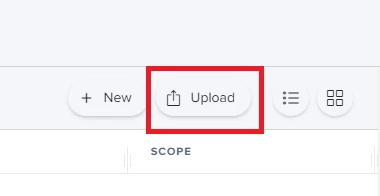
You can just Upload it directly into your JSS from the Configuration Profile page, using the Upload button. No need to create a New profile and upload within the profile, just Upload to begin.


Forum|alt.badge.img+2
  • New Contributor
  • August 27, 2021

Geoff, Thank you so much for your help. It works!


Forum|alt.badge.img+4
  • New Contributor
  • October 12, 2021

We have implemented @eholtam PPPC. It works well. Except for Screencast-O-Matic. It stays greyed out for the user. We can only enable it after unlocking the preferences with an Admin account.

We don't have a ton of users, but it would be great if we could make it work as well. I'm wondering if some of the settings have changed in newer versions of Screencast-O-Matic. 

Except that assumption doesn't make much sense when you look up the version of the installed application. The user has two copies installed. One in the Applications folder and one in the User's/Application folder. They are both v1.0.

Security & Privacy sees it as version 2.0 though

Has anyone come across this and found a way to fix it? 

Thank you.


Forum|alt.badge.img+4
  • New Contributor
  • October 14, 2021

We have implemented @eholtam PPPC. It works well. Except for Screencast-O-Matic. It stays greyed out for the user. We can only enable it after unlocking the preferences with an Admin account.

We don't have a ton of users, but it would be great if we could make it work as well. I'm wondering if some of the settings have changed in newer versions of Screencast-O-Matic. 

Except that assumption doesn't make much sense when you look up the version of the installed application. The user has two copies installed. One in the Applications folder and one in the User's/Application folder. They are both v1.0.

Security & Privacy sees it as version 2.0 though

Has anyone come across this and found a way to fix it? 

Thank you.


Update: When you call up HELP the version number displayed is v2.12.2

I decided to look for the field codes and ended up finding them in the Code Source folder. The string seems to have changed a little bit. But even copying and pasting it to the Config Profile in JAMF didn't change anything to the scoped computer. Screencast-O-Matic is still greyed out to the Standard user. 

I tried it with quotes around  "libapplauncher" and "VB5E2TV963", without any luck. 

This is reverse engineering is unfortunately failing me. Does anyone know how to make it work? @eholtam ? I've included the Code Source below. 

Thank you. 

Dietrich

<?xml version="1.0" encoding="UTF-8"?>
<!DOCTYPE plist PUBLIC "-//Apple//DTD PLIST 1.0//EN" "http://www.apple.com/DTDs/PropertyList-1.0.dtd">
<plist version="1.0">
<dict>
<key>files</key>
<dict>
<key>Resources/Screencast-O-Matic v2.0.icns</key>
<data>
mhB+Zz42RQS5Z2SjqWx8lBpJGhc=
</data>
</dict>
<key>files2</key>
<dict>
<key>MacOS/libapplauncher.dylib</key>
<dict>
<key>cdhash</key>
<data>
iw98gxyg5iGS01j1IR1Kd40dTPA=
</data>
<key>requirement</key>
<string>identifier libapplauncher and anchor apple generic and certificate 1[field.1.2.840.113635.100.6.2.6] /* exists */ and certificate leaf[field.1.2.840.113635.100.6.1.13] /* exists */ and certificate leaf[subject.OU] = VB5E2TV963</string>


lmathews
Forum|alt.badge.img+4
  • Contributor
  • November 17, 2021

Raising awareness of this awesome PPPC profile compiled by @eholtam. It was posted on reddit, but I couldn't find it on JamfNation:

https://github.com/poundbangbash/community-screenrecording-pppc-profile

The profile currently contains a list of 55 app entitlements to permit non-admins to allow screen recording (ScreenCapture).


I used this as a profile (NEWB to Jamf Pro fyi) and when we try to share screen through cisco webex meetings app, it tells us to open sys prefs- with in screen recording Webex Meetings is there and checked, but the share button on the meeting is still greyed out and tells us to open sys prefs to enable??!! Any thoughts on this? Thanks!


lmathews
Forum|alt.badge.img+4
  • Contributor
  • November 17, 2021


If you download the profile from https://github.com/poundbangbash/community-screenrecording-pppc-profile

You can just Upload it directly into your JSS from the Configuration Profile page, using the Upload button. No need to create a New profile and upload within the profile, just Upload to begin.


I used this as a profile (NEWB to Jamf Pro fyi) and when we try to share screen through cisco webex meetings app, it tells us to open sys prefs- with in screen recording Webex Meetings is there and checked, but the share button on the meeting is still greyed out and tells us to open sys prefs to enable??!! Any thoughts on this? Thanks!


Forum|alt.badge.img+6
  • Contributor
  • February 8, 2022


If you download the profile from https://github.com/poundbangbash/community-screenrecording-pppc-profile

You can just Upload it directly into your JSS from the Configuration Profile page, using the Upload button. No need to create a New profile and upload within the profile, just Upload to begin.


thank you! That worked for me!🙏


lmathews
Forum|alt.badge.img+4
  • Contributor
  • February 10, 2022

thank you! That worked for me!🙏


(disregard- found it)

where do you 'download' the profile from that link? I dont see a download button?


Forum|alt.badge.img+4
  • New Contributor
  • February 10, 2022

(disregard- found it)

where do you 'download' the profile from that link? I dont see a download button?


Click on the green CODE button and select DOWNLOAD ZIP at the bottom of the drop down list.