Solved

Deleting Printer

  • October 25, 2016
  • 28 replies
  • 343 views

Forum|alt.badge.img+5

Is there a way that we can delete printer that user added? we have a open directory that teacher can pick what printer they want to add. now we have new system that only uses one virtual printer, and we already push that one using LPD. what we want to happen is to remove all printer that they add and only printer one printer will stay the one that we push.

Best answer by franton

Removing all printers from a Mac before adding new ones can be done with this script.

#!/bin/bash

lpstat -p | awk '{print $2}' | while read printer
do
echo "Deleting Printer:" $printer
lpadmin -x $printer
done
28 replies

Forum|alt.badge.img+23
  • Esteemed Contributor
  • Answer
  • October 25, 2016

Removing all printers from a Mac before adding new ones can be done with this script.

#!/bin/bash

lpstat -p | awk '{print $2}' | while read printer
do
echo "Deleting Printer:" $printer
lpadmin -x $printer
done
Forum|alt.badge.img+5
  • Author
  • Contributor
  • October 25, 2016

@franton how about deleting specific printer like not all the printer only the one that they added using our open directory?


Forum|alt.badge.img+23
  • Esteemed Contributor
  • October 25, 2016

@jamfmdm Well as long as you know the name of it, that's a simple "lpadmin -x printername" on it's own. That assumes the printer isn't in Casper already, otherwise you could use a policy scoped to that machine to remove it.


Forum|alt.badge.img+5
  • Author
  • Contributor
  • October 25, 2016

@franton

Tried this and it work it deleted all the printer

!/bin/bash

lpstat -p | awk '{print $2}' | while read printer
do
echo "Deleting Printer:" $printer
lpadmin -x $printer
done

When i tried this it did not delete the printer that i want

!/bin/bash

lpstat -p | awk '{print $2}' | while read printer
do
echo "Deleting Printer:" UASD-PRINTER-SF-3111-Xerox-4112
lpadmin -x UASD-PRINTER-SF-3111-Xerox-4112
done


Forum|alt.badge.img+23
  • Esteemed Contributor
  • October 25, 2016

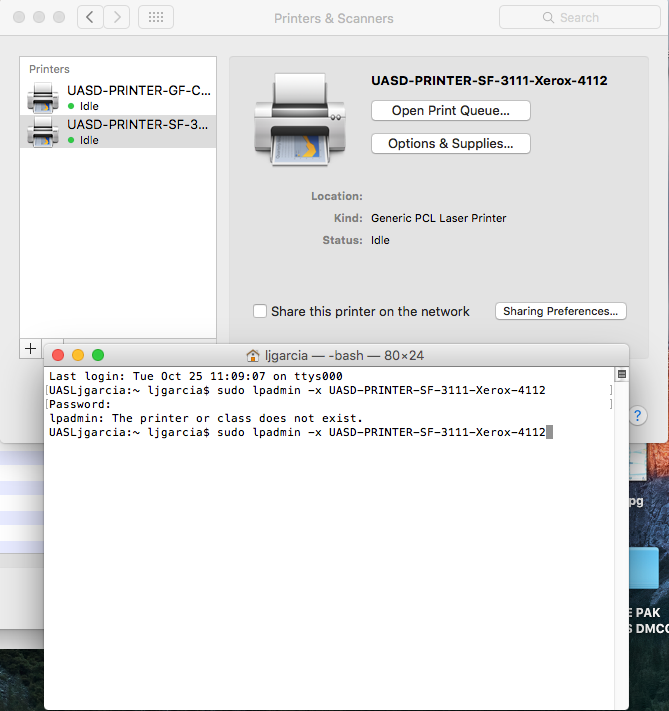
@jamfmdm Ok what happens if you just run this on a terminal window?

sudo lpadmin -x UASD-PRINTER-SF-3111-Xerox-4112

Forum|alt.badge.img+5
  • Author
  • Contributor
  • October 25, 2016

@franton This is what happen.


Forum|alt.badge.img+23
  • Esteemed Contributor
  • October 25, 2016

Ok interesting. What's the output from

sudo cat /etc/cups/printers.conf

Forum|alt.badge.img+5
  • Author
  • Contributor
  • October 25, 2016

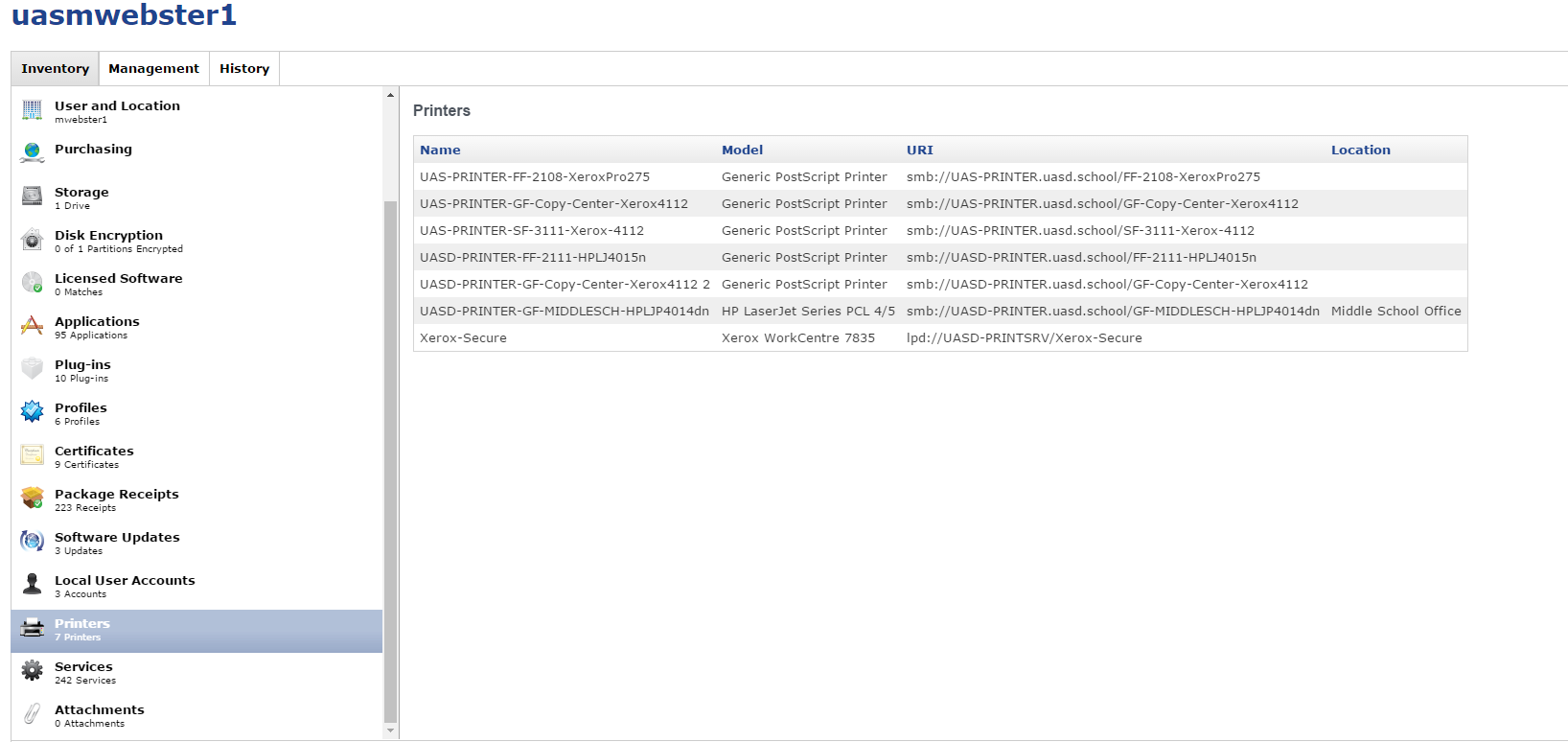
@franton i got it. it should be GF_Printer_SF_3111_Xerox_4112 for the printer name


Forum|alt.badge.img+23
  • Esteemed Contributor
  • October 25, 2016

Excellent. I had a feeling it was something like that.


Forum|alt.badge.img+5
  • Author
  • Contributor
  • October 26, 2016

@franton hello i have one more question. i made the script something like this

lpadmin -x UASD_PRINTER_GF_Copy_Center_Xerox4112
lpadmin -x UASD_PRINTER_SF_3111_Xerox_4112
lpadmin -x UASD_PRINTER_FF_2108_XeroxPro275
lpadmin -x UASD_PRINTER_SF_312A_HPLJ4014
lpadmin -x UASD_PRINTER_MPH_M12_Xerox5845
lpadmin -x UASD_PRINTER_GF_Copy_Center_SharpColor_MX_5110n

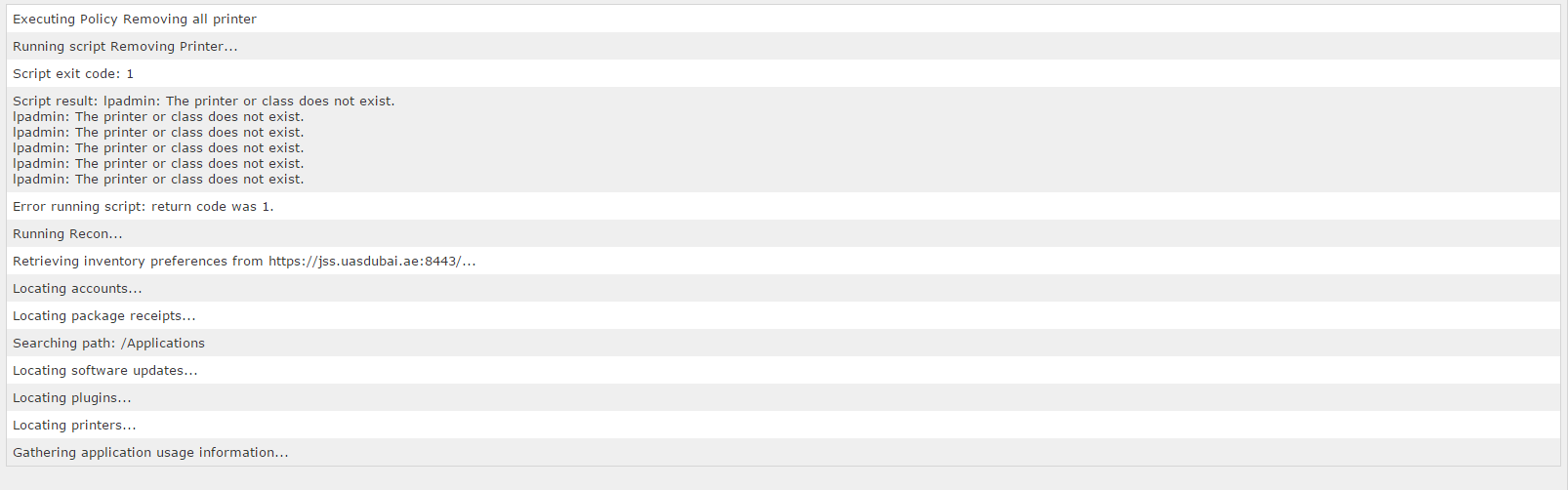
this is the printer we want to remove to all the teacher, but some printers are not installed to teacher laptop and some are installed, but for some reason when i push the policy most of the macbook is failed and this is the error message that is showing.


Forum|alt.badge.img+23
  • Esteemed Contributor
  • October 26, 2016

Yes that will happen if you attempt to remove a printer that doesn't exist on the system. You will have to script around this.


Forum|alt.badge.img+5
  • Author
  • Contributor
  • October 26, 2016

@franton so there is wrong with my script right that why it's not working? but for some are working not sure why.


Forum|alt.badge.img+5
  • Author
  • Contributor
  • October 26, 2016

@franton so there is wrong with my script right that why it's not working? but for some are working not sure why.


Forum|alt.badge.img+23
  • Esteemed Contributor
  • October 26, 2016

It depends entirely on how those printers were originally created on those macs. You've already found that the display name of the printer doesn't always match the CUPS name with the _ instead of - . Hardcoding the printer names will produce uneven results because if they were manually created, then human error during creation will produce different results.

That's why I recommended removing all printers before adding your replacement printer queue.


Forum|alt.badge.img+23
  • Esteemed Contributor
  • October 26, 2016

If you go back to a Mac where your script failed on, and run:

lpstat -p | awk '{print $2}'

That will give you a list of all the CUPS printer names on the Mac. You can then compare to your script. I'm almost certain you will find differences in the names.


mallej
Forum|alt.badge.img+4
  • Contributor
  • April 26, 2017

hello, i don´t know if this wasn't before, but

lpstat -p | awk '{print $2}'

will output the Queue Name in quotes and that results in not finding that printer when using

#!/bin/bash

lpstat -p | awk '{print $2}' | while read printer
do
echo "Deleting Printer:" $printer
lpadmin -x $printer
done

with Sierra.

Anyone having the same problem?
Anyone with enough awk skills to remove the quotes?


Forum|alt.badge.img+8
  • Valued Contributor
  • May 30, 2018

@jensm We had some „ and “ and used successfully:

lpstat -p | cut -d' ' -f2 | tr -d „ | tr -d “ | xargs -I{} lpadmin -x {}


stevewood
Forum|alt.badge.img+38
  • Hall of Fame
  • May 30, 2018

You can also use wildcards to remove the printers:

printers=($(lpstat -p | awk '{print $2}' | sed '/^$/d'))

for i in "${printers[@]}"
do

    if [[ ${i} == *"2831 C9"* ]]; then
        lpadmin -x ${i}
    elif [[ ${i} == *"2831_C9"* ]]; then
        lpadmin -x ${i}
    fi

done

Forum|alt.badge.img+5
  • Contributor
  • January 9, 2020

Franton... Thank you. Your input on this subject helped me tremendously!


Forum|alt.badge.img+5
  • Contributor
  • January 28, 2021

@stevewood, I like what you posted but I'm guessing (because I'm not great at scripting) that your snippet is only looking for 1 instance of the printer name containing "2831 c9". How could I adapt this to loop through and delete all printers with "2831 c9" in their name?


stevewood
Forum|alt.badge.img+38
  • Hall of Fame
  • January 28, 2021

@palmna

Actually, the wildcards before and after each of those should match any printer with that in the name. So, this line:

if [[ ${i} == "2831 C9" ]]; then

Is saying "if the printer name contains 2831 C9, then you may proceed". And this line:

elif [[ ${i} == "2831_C9" ]]; then

is saying "otherwise (else) if the printer name contains 2831_C9, then you may proceed".

The asterisk before and after those names means match anything that contains the value in quotes. If you had an asterisk only at the front it would match names that end with the pattern, and if the asterisk was only at the end it would match names that start with the pattern.

Make sense?


Forum|alt.badge.img+5
  • Contributor
  • January 29, 2021

@stevewood Makes sense. Thanks for the explaination.


Forum|alt.badge.img+23
  • Esteemed Contributor
  • August 25, 2021

Follow up to my original answer. If I just want to nuke all printers, i'm now running this:

/System/Library/Frameworks/ApplicationServices.framework/Frameworks/PrintCore.framework/Versions/A/printtool -f --reset

scottb
Forum|alt.badge.img+18
  • Valued Contributor
  • August 25, 2021

Follow up to my original answer. If I just want to nuke all printers, i'm now running this:

/System/Library/Frameworks/ApplicationServices.framework/Frameworks/PrintCore.framework/Versions/A/printtool -f --reset

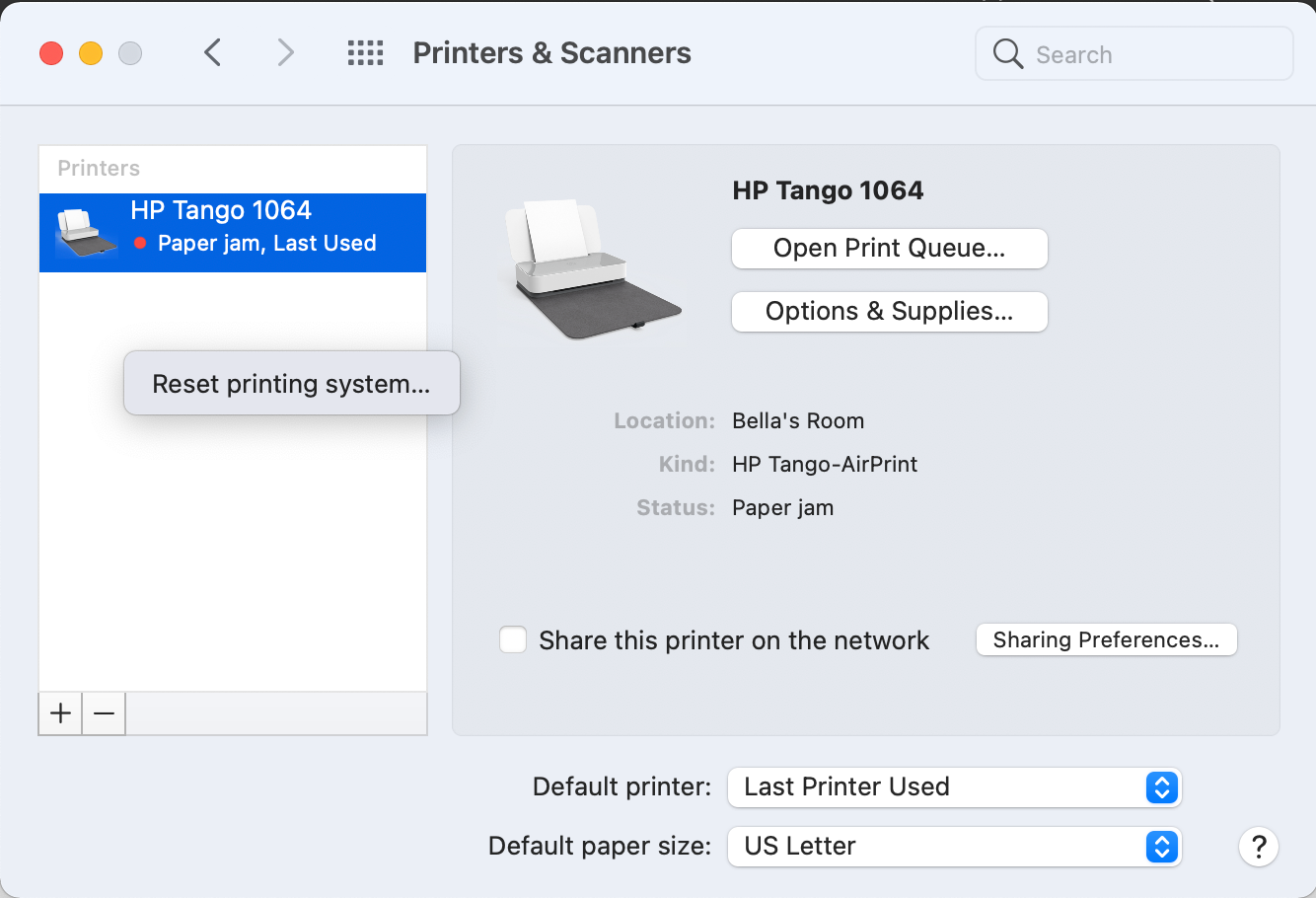
@franton - is this the same as Control-Clicking within the Printers section of "Printers & Scanners" and selecting "Reset printing system..."?


Forum|alt.badge.img+23
  • Esteemed Contributor
  • August 25, 2021

@franton - is this the same as Control-Clicking within the Printers section of "Printers & Scanners" and selecting "Reset printing system..."?


Precisely that!