Question

Enable Location Services Programmatically - 10.13+

  • February 12, 2018
  • 35 replies
  • 238 views

Forum|alt.badge.img+4

Is there no way to do this? As far as I'm aware this is being stopped by SIP.

There was this script to enable them but it's no longer working.

#!/bin/bash

## Unload locationd
launchctl unload /System/Library/LaunchDaemons/com.apple.locationd.plist

## Write enabled value to locationd plist
defaults write /var/db/locationd/Library/Preferences/ByHost/com.apple.locationd LocationServicesEnabled -int 1

## Fix Permissions for the locationd folder
chown -R _locationd:_locationd /var/db/locationd

## Reload locationd
launchctl load /System/Library/LaunchDaemons/com.apple.locationd.plist

exit 0

35 replies

Forum|alt.badge.img+4
  • Contributor
  • March 8, 2018

Looking for something that works with SIP enabled in HighSierra, does not look promising though..


gda
Forum|alt.badge.img+8
  • Contributor
  • March 9, 2018

I simply use this script. No load or unload of the LaunchDaemon is necessary:

#!/bin/bash

# write enabled key
sudo -u _locationd /usr/bin/defaults -currentHost write com.apple.locationd LocationServicesEnabled -int 1

# enable icon in menu bar
/usr/bin/defaults /Library/Preferences/com.apple.locationmenu "ShowSystemServices" -bool YES

exit 0

rqomsiya
Forum|alt.badge.img+12
  • Honored Contributor
  • March 9, 2018

Hi @gda.. your script is working except in the "enable icon menu bar" you forgot the write command.. but yes.. this works....

Well i've only tested on 10.13.3. Does it work with 10.12.x?

#!/bin/bash

# write enabled key
sudo -u _locationd /usr/bin/defaults -currentHost write com.apple.locationd LocationServicesEnabled -int 1

# enable icon in menu bar
/usr/bin/defaults write /Library/Preferences/com.apple.locationmenu "ShowSystemServices" -bool YES

exit 0

gda
Forum|alt.badge.img+8
  • Contributor
  • March 9, 2018

@rqomsiya Thx for fixing it. 😆Being in a WebEx and filtering scripts is not a good combination.

But yes, I use this script since 10.12.3.


rqomsiya
Forum|alt.badge.img+12
  • Honored Contributor
  • March 9, 2018

Not a problem! haha..

And awesome.. thanks for verifying its working on 10.12.6. Do you push this out as part of an imaging workflow or part of a login hook?


gda
Forum|alt.badge.img+8
  • Contributor
  • March 9, 2018

I used it in the imaging workflow. But you can use it as a checkin policy also.


rqomsiya
Forum|alt.badge.img+12
  • Honored Contributor
  • March 9, 2018

Awesome.. Thanks for confirming!


Forum|alt.badge.img+1
  • New Contributor
  • May 8, 2018

@rqomsiya When I run the script I get this on enabling the icon on the menu bar

Could not write domain /Library/Preferences/com.apple.locationmenu; exiting


Forum|alt.badge.img+5
  • New Contributor
  • September 19, 2018

@loza8454 Running this with elevated permissions with sudo made this successful for me.

@rqomsiya Thanks for that script! Can confirm it works on 10.12.6 as well as 10.13.6. Saves us a step in the First Run Setup process, now we can hide the option for Location Services!


Forum|alt.badge.img+4

Getting "Could not write domain com.apple.locationd; exiting" as well.

executed the following: sudo -u _locationd /usr/bin/defaults -currentHost write com.apple.locationd LocationServicesEnabled -int 1


Forum|alt.badge.img+15
  • Valued Contributor
  • October 26, 2018

This works for me in High Sierra + Mojave

/usr/bin/defaults write /var/db/locationd/Library/Preferences/ByHost/com.apple.locationd LocationServicesEnabled -int 1

Forum|alt.badge.img+4

Thank you @sshort, finally got it to work with the line you provided. Confirm the preference can be set on 10.13.6 and 10.14


Forum|alt.badge.img+7
  • Contributor
  • October 27, 2018

@sateshb Can you share what you did to get it to work? I have tried "/usr/bin/defaults write /var/db/locationd/Library/Preferences/ByHost/com.apple.locationd LocationServicesEnabled -int 1" with sudo and sudo -u _locationd with no luck, Still getting 2018-10-27 17:31:33.409 defaults[5798:171447] Could not write domain /var/db/locationd/Library/Preferences/ByHost/com.apple.locationd; exiting


Forum|alt.badge.img+18
  • Honored Contributor
  • October 29, 2018

Why this is not part of the MDM spec BOGGLES THE MIND.


Forum|alt.badge.img+4

@csa, not sure why its not working for you, here is a snippet from my script

#!/bin/sh

#Turning on location services
if [[ $locationStatus = 1 ]]; then
    echo "Location Service is turned on"
    else
        echo "Enabling location Service"
        sudo /usr/bin/defaults write /var/db/locationd/Library/Preferences/ByHost/com.apple.locationd LocationServicesEnabled -int 1
        if [[ $locationStatus = 1 ]]; then
            echo "Location Service has been turned on"
        fi
fi

Forum|alt.badge.img+4


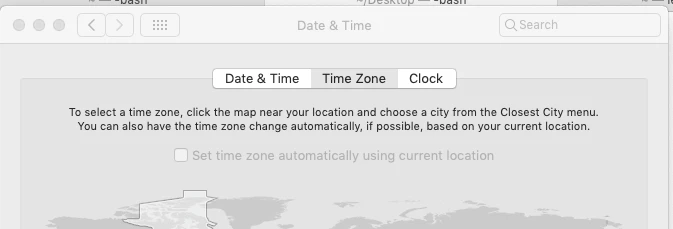
I'm going to pose an additional question here as well. I am working with my Jamf Buddy but can anyone share how to enable Set time zone automatically using current location in System PreferencesData & TimeTime Zone?


Forum|alt.badge.img+15
  • Valued Contributor
  • November 2, 2018

@sateshb you can use this:

/usr/bin/defaults write /Library/Preferences/com.apple.timezone.auto Active -bool true

Forum|alt.badge.img+4

Thanks for getting back to me Steve, I tried that but didn't make a difference. Ran Composer to take a before and after snapshot and don't see the com.app.timezone.auto plist in the list. Can't imagine where this preference is hiding.


Forum|alt.badge.img+5
  • New Contributor
  • February 1, 2019

Hi, I was able to configure Location Services and configure automatic timezone using the following lines.
A restart is required because restarting the related launchdaemons is no longer possible because of SIP.

enabling location services

/usr/bin/defaults write /var/db/locationd/Library/Preferences/ByHost/com.apple.locationd LocationServicesEnabled -int 1

uuid=/usr/sbin/system_profiler SPHardwareDataType | grep "Hardware UUID" | cut -c22-57
/usr/bin/defaults write /var/db/locationd/Library/Preferences/ByHost/com.apple.locationd.$uuid LocationServicesEnabled -int 1

configure automatic timezone

/usr/bin/defaults write /Library/Preferences/com.apple.timezone.auto Active -bool YES
/usr/bin/defaults write /private/var/db/timed/Library/Preferences/com.apple.timed.plist TMAutomaticTimeOnlyEnabled -bool YES
/usr/bin/defaults write /private/var/db/timed/Library/Preferences/com.apple.timed.plist TMAutomaticTimeZoneEnabled -bool YES

/usr/sbin/systemsetup -setusingnetworktime on
/usr/sbin/systemsetup -gettimezone
/usr/sbin/systemsetup -getnetworktimeserver


Forum|alt.badge.img+13
  • Valued Contributor
  • May 9, 2019

Hey Fabian, thank you for this. One minor tweak is on your line with uuid=

uuid=$(/usr/sbin/system_profiler SPHardwareDataType | grep "Hardware UUID" | cut -c22-57)

added $( )

Works great, thanks!


sdagley
Forum|alt.badge.img+25
  • Jamf Heroes
  • May 9, 2019

My attempt at fixing the formatting on @fabianhartmann's script...

#!/bin/bash

# enabling location services

/usr/bin/defaults write /var/db/locationd/Library/Preferences/ByHost/com.apple.locationd LocationServicesEnabled -int 1

uuid=$(/usr/sbin/system_profiler SPHardwareDataType | grep "Hardware UUID" | cut -c22-57)
/usr/bin/defaults write /var/db/locationd/Library/Preferences/ByHost/com.apple.locationd.$uuid LocationServicesEnabled -int 1

# configure automatic timezone

/usr/bin/defaults write /Library/Preferences/com.apple.timezone.auto Active -bool YES
/usr/bin/defaults write /private/var/db/timed/Library/Preferences/com.apple.timed.plist TMAutomaticTimeOnlyEnabled -bool YES
/usr/bin/defaults write /private/var/db/timed/Library/Preferences/com.apple.timed.plist TMAutomaticTimeZoneEnabled -bool YES

/usr/sbin/systemsetup -setusingnetworktime on
/usr/sbin/systemsetup -gettimezone
/usr/sbin/systemsetup -getnetworktimeserver

Forum|alt.badge.img+8
  • Valued Contributor
  • June 3, 2019

@sdagley This worked Flawlessly! Mojave 10.14.5

Thank You!


sdagley
Forum|alt.badge.img+25
  • Jamf Heroes
  • June 3, 2019

@CorpIT_eB Thanks for the confirmation. Credit goes to @fabianhartmann though. I just put his script into a code block to make it readable on the forum.


Forum|alt.badge.img+8
  • Valued Contributor
  • June 3, 2019

@fabianhartmann Thanks for the code and @sdagley thanks for adding it to a proper block.


Forum|alt.badge.img+23
  • Esteemed Contributor
  • July 15, 2019

Suggestion: don't use system_profiler command inside a script. It takes a ridiculously long time to work and outputs in a not nice way to parse later. The cut command used is evidence of that. What you can do instead is this:

uuid=$( /usr/sbin/ioreg -d2 -c IOPlatformExpertDevice | awk -F" '/IOPlatformUUID/{print $(NF-1)}' )

This runs in a fraction of the time.