When Docker installs on a machine, it asks the user for root privileges to finish its installation process after you start it the first time. In our environment, we decided that it's best users don't need to enter any sort of credentials to finish the installation of an application. So, via a trail of troubleshooting steps I found online and some trial & error, I was able to put together an installer that does not need root privileges to finish its installation.
Use the following directions to create a version of the installer that does not require Admin Rights. If you are already familiar with making JSS policies and using Composer, check out the TLDR section at the bottom.
- Download Docker For Mac
- Mount the Docker DMG
- Open Composer
- Click on New
- Select Normal Snapshot
- Click Next
- Name the Snapshot and click next
- Once the Snapshot has finished creating, drag the Docker application into the root Applications folder
- Open Applications, and then open Docker
- Docker will post an introductory window, click OK
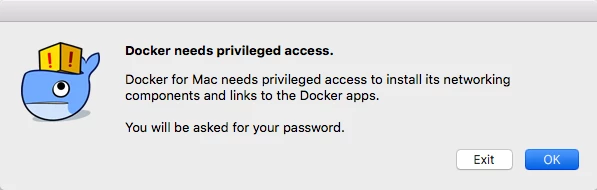
- Docker will ask for privileged access, click OK
- Enter your Admin credentials and click okay
- Docker will run its final installation steps
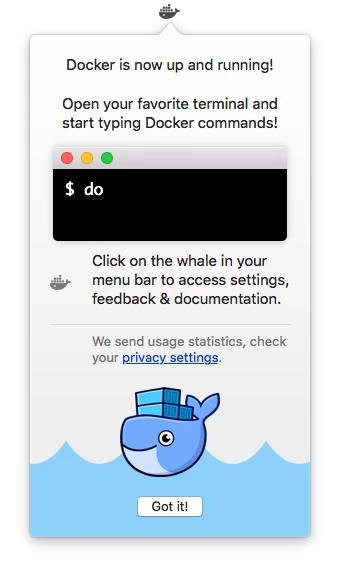
- Click Got It after Docker has finished running its post-installation
- In Composer, click Create Package Source
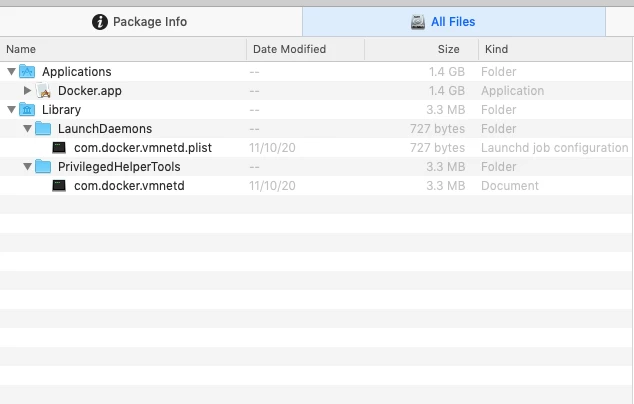
- Drill down Library>LaunchDaemons
- Select the com.docker.vmnetd.plist file
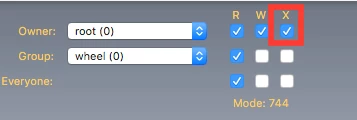
- Ensure that the file's owner is root, and group is wheel.
- Check the box for X (execute) on the Owner row. Verify that it states Mode: 744 (not 644)
- Drill down Users>{username}>Library>Containers>com.docker.docker
- Delete the Data folder within the com.docker.docker folder
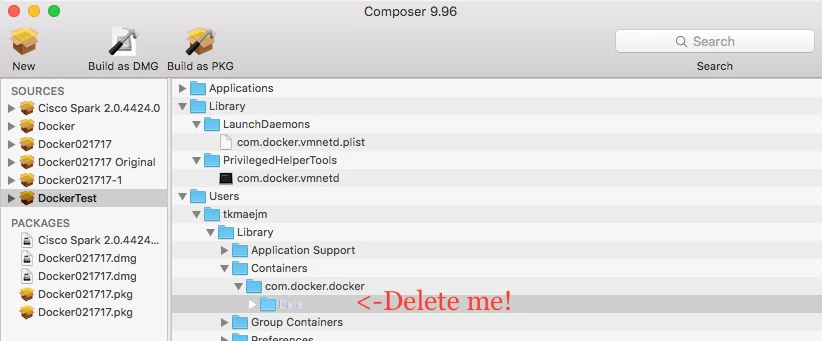
- Ensure there are no additional folders unrelated to the Docker installation in the package source. In my case I removed the Saved Application State folder.
- Once you've done this, click on Build as DMG and save to your package build location
- Open Casper Admin and drag the DMG into Casper Admin to upload.
- Change the settings on the DMG to turn on FEU (Fill Existing User Template)
- Categorize the file
- Save
- Log into the JSS and Create the Docker policy.
- Place the DMG in the policy
- Set the policy to restart after install (Restart Options>User Logged In Action> Restart)
- Add Files and Processes, add the following one liner to Execute Command: /bin/launchctl load -Fw /Library/LaunchDaemons/com.docker.vmnetd.plist
- Setup to install from Self Service
TLDR Version;
Install using a composer snapshot as normal.
The only major differences are as follows:
Change /Library/LaunchDaemon/com.docker.vmnetd.plist to 744 and root:wheel
Delete the Data folder found in Users/{username}/Library/Containers/com.docker.docker
Save as DMG, place on Casper Admin with FEU enabled
In Policy: Ensure that the computer restarts after install. Add the following one liner in Execute Command:
/bin/launchctl load -Fw /Library/LaunchDaemons/com.docker.vmnetd.plist