Question

Printing "on hold for authentication" first time only

  • July 17, 2015
  • 18 replies
  • 95 views

Forum|alt.badge.img+3

Having a problem with my image where the first time a user goes to print the job is held in the local queue for authentication. This happens even though the correct information is already stored in the keychain access. The CUPS popup for authentication never appears. If I go to the print queue and click the refresh button the CUPS authentication window appears with the correct information already filled in and works. It also works normally for all subsequent print jobs beyond the first one. Normally this would not be a problem after the first print except my labs use Deep Freeze so the setting is reset each night and the process begins again. Does anyone have an idea of a way I can fix this on my entire site without printing a job from each computer?

18 replies

Forum|alt.badge.img+6
  • Contributor
  • July 20, 2015

I'm running into exactly the same issue, only in my case I am attempting to deploy printers to individual machines via policy and/or Self Service. The printers are served up via a Windows print server. I have installed them on my Mac and then used Casper Admin to load them into our distribution point. Under normal circumstances, sending a print job to the printer should give me an authentication window, at which point I enter my AD credentials and away we go.

Deploying the printers to both Mavericks and Yosemite machines creates exactly the same result as the described above. The first time I attempt to print, the printer job halts with a "Hold for Authentication" message, but the login prompt never comes up. Looking at that print job I can cancel the job, or I can hit the refresh button, which will then bring up the login prompt. If I cancel, I can start the job again, and it will prompt me for my credentials as expected. From then on, I don't run into the issue again, printing behaves as expected.

This behavior only happens when the printers are deployed from Casper. Installing these printers manually does not cause the "Hold for Authentication" message.

Rebooting the machine immediately after deployment did not seem to have an effect on the issue. The first print job still hangs. I also attempted to add the printer in Casper Admin without ever doing a test print to it, just on the off chance that the first add of the printer had somehow managed to associate itself to my credentials (I realize it's extremely unlikely, but I have to hit every angle).

Obviously, this isn't the end of the world. The workarounds described above are easy, and the whole thing is a minor annoyance for me personally. That being said, I want deployment to be transparent to my customers, not something where I have to immediately present a required workaround.


Forum|alt.badge.img+7
  • Contributor
  • July 28, 2015

Hi Guys,

I ran into the same problem as I was using a printing through a print server in an AD environment with PaperCut.

I resolved the issue this script.

!/bin/bash

################

## A Script which polls for configured SMB printers.

For each smb printer found, we will change the authentication

type to "negotiate" to facilitate SSO/Kerb authentication.

Cups will then use the Kerb authentication token when printing

Written by Beau Hunter

24/02/15

############################################

declare -x BUILD=2011022409
export PATH="/usr/bin:/bin:/usr/sbin:/sbin"

our vars

declare -x MYNAME="configureCUPSKerb.sh"

declare -x LOGGERTAGS="-s -t "${MYNAME}""

Executable vars

declare -x awk="/usr/bin/awk"
declare -x grep="/usr/bin/grep"
declare -x logger="/usr/bin/logger"
declare -x lpadmin="/usr/sbin/lpadmin"
declare -x lpstat="/usr/bin/lpstat"
declare -x mkdir="/bin/mkdir"
declare -x perl="/usr/bin/perl"

Setup our logging

"$mkdir" /var/log/deployment &> /dev/null
exec >> /var/log/deployment/configureCUPSKerb.log
exec 2>&1

"$logger" $LOGGERTAGS "Started on $(/bin/date). Build: $BUILD"

Get a list of our SMB printers

declare -x SMBPRINTERS="$("$lpstat" -v | "$grep" smb | "$perl" -p -e 's/device for (.): smb./$1/g')"
OLDIFS="$IFS"
IFS=$' '
for SMBPRINTER in $SMBPRINTERS; do echo "Configuring printer: $SMBPRINTER for use with Kerberos authentication!" "$lpadmin" -p "$SMBPRINTER" -o auth-info-required=negotiate

done


Forum|alt.badge.img+3
  • New Contributor
  • July 28, 2015

If the script doesn't work for you, there is a refresh button to the right of where it says holding for authentication. If the user simply clicks on that it prompts for the AD credentials and will push the print job through to the paper cut server.


davidacland
Forum|alt.badge.img+18
  • Valued Contributor
  • July 28, 2015

If you are printing to SMB print queues in OS X and want the process to be seamless, kerberos authentication should really be used. We've blogged about this here: http://www.amsys.co.uk/2015/blog/enable-single-sign-printing-os-x/#.VbgH63gXcrk with the script that can kerberize the print queues (and a guide on our other Mac printing scripts and tricks).

Credit due to Beau Hunter on this jamfnation thread (not sure if that was the original copy of it): https://jamfnation.jamfsoftware.com/discussion.html?id=4075#responseChild19315

From what I've seen, adding items into the users keychain would be a problematic way to get SSO working for printing, but if its working for you then ignore me ;)


Forum|alt.badge.img+3
  • Author
  • New Contributor
  • July 29, 2015

Thanks for all the responses. Currently we are using the refresh button in the queue to force authentication. Printing a second job works as well. Once one job has asked for authentication one time it works thereafter. I don't believe that this script will work as the computers are using a local account, not a domain account.


Forum|alt.badge.img+7
  • Contributor
  • July 30, 2015

you can also run this command if the machine is bound to Active Directory, the printer will use the user's AD credentials when sending print jobs.

lpadmin -p SecurePrint1 -E -v smb://myserver/myprinter -m mom.ppd -o auth-info-required=negotiate


davidacland
Forum|alt.badge.img+18
  • Valued Contributor
  • July 31, 2015

The OP mentioned that they're using local accounts so it wouldn't work in this case. Bit of a difficult situation as Macs in Windows heavy environments really need to be joined to AD to get past these types of issues.


Forum|alt.badge.img+3
  • Author
  • New Contributor
  • July 31, 2015

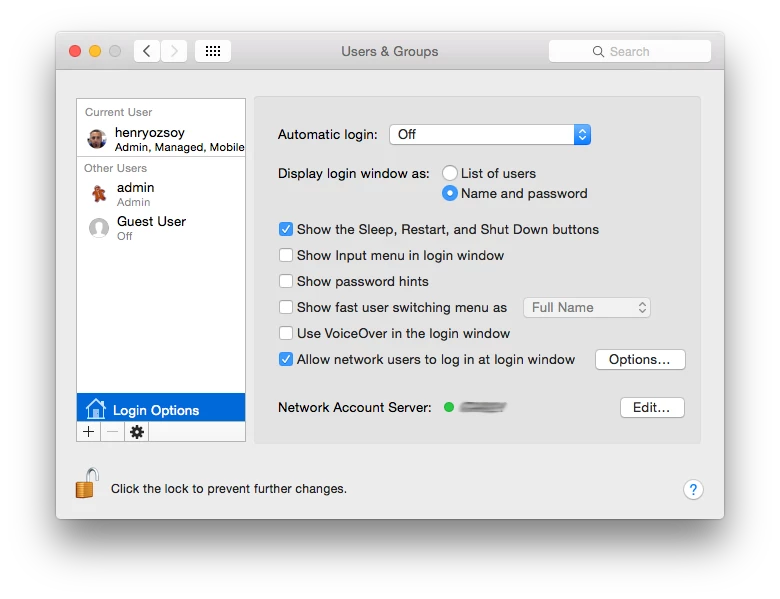
To clarify, the computers are joined to a domain but use a local account.


davidacland
Forum|alt.badge.img+18
  • Valued Contributor
  • July 31, 2015

The option will try and use Kerberos SSO for printing and as the local account won't have a Kerberos ticket it's not going to work unfortunately.


Forum|alt.badge.img+7
  • Contributor
  • August 4, 2015

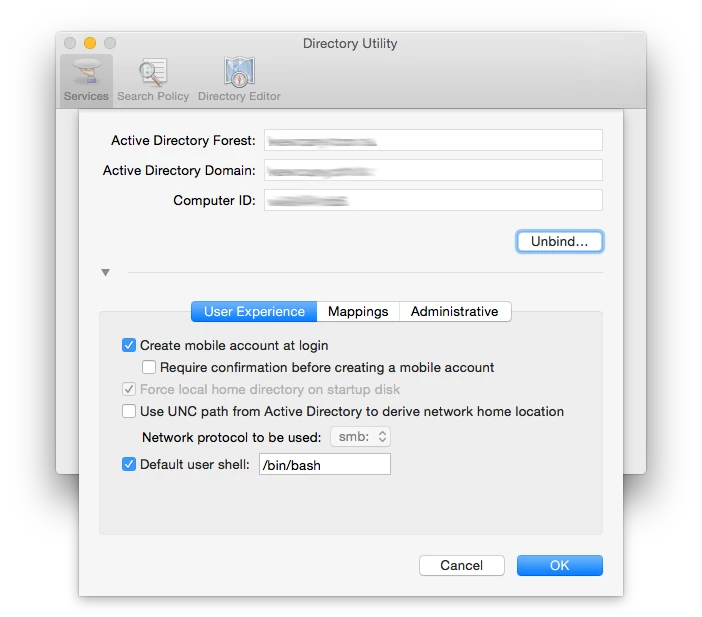
if you use their ad credentials to logon to the machine and force to machine to change the account to a mobile local account then your issue will be resolved.


Forum|alt.badge.img+17
  • Valued Contributor
  • August 12, 2015

I have been working with this script and I get this error in the policy log.

Each printer has the script to run after - Printer name = "DO_Techcenter_HP4250N" and has no spaces. 10.10.4 machines.

Executing Policy DO_Techcenter_HP4250N
[STEP 1 of 2]
Deleting PRINTSVR_01_DO_TechCenter_HP4250N...
Stopping CUPS...
Deleting PPD...
Starting CUPS...
Stopping CUPS...
Mapping Printer PRINTSVR_01_DO_TechCenter_HP4250N...
Starting CUPS...
[STEP 2 of 2]
Running script 10.10 SMB Printing Script...
Script exit code: 0
Script result: lpadmin: Printer name can only contain printable characters.


Forum|alt.badge.img+6
  • Contributor
  • August 12, 2015

I would try changing the underscores in the printer name to dashes or getting rid of them altogether. I've had nothing but problems using underscores in file and device names and have given up on using them for anything.


bpavlov
Forum|alt.badge.img+18
  • Esteemed Contributor
  • August 12, 2015

@bwiessne Could you try posting the script? I use underscores and don't have this problem.


Forum|alt.badge.img+12
  • Contributor
  • June 16, 2016

Bringing this post back. I had the same exact issue with pushing a printer from a windows print server.

You can run a single line command below. For our environment, it auto authenticates and prints.. no more "hold for authentication" or entering AD credentials.

lpadmin -p printername -o auth-info-required=negotiate

You can find the printer name by doing a "lpstat -p" in terminal.


Forum|alt.badge.img+10
  • Contributor
  • August 16, 2016

Using @bbot's line above I created a script to pull all mapped printers and apply the authentication. Not perfect but works for what I need it to do.

#!/bin/sh

# Authenticate all mapped printers

#get the list of mapped printers and copy to temp file
#all network printer names in caps - filter non-printer text
lpstat -p | awk '{print $2}' | grep [A-Z] > /private/tmp/authPrinterList.txt

#read through mapped printer list and apply authentication
while read printerName
do
    lpadmin -p $printerName -o auth-info-required=negotiate
done < /private/tmp/authPrinterList.txt

exit 0

Forum|alt.badge.img
  • New Contributor
  • May 19, 2017

I have somewhat the same issue with a smb
problem as i see it is that even though the secondary domain is specified in the keychain user@domain
he always tries to authenticate using the primary domain

when i mount the smb share he authenticates without trouble.


Forum|alt.badge.img+4
  • Contributor
  • October 26, 2017

Great thread! The first script is overly complicated and unreliable, and the second script doesn't check whether or not it's an SMB printer. Here's what I'm using instead:

for PRINTER in `lpstat -v | grep 'smb://' | awk '{print $3}' | tr -d :`
do
    lpadmin -p $PRINTER -o auth-info-required=negotiate
done

Forum|alt.badge.img+5

Anyone here using nomad to avoid AD binding but still have printers authenticate to print? We are using paper cut to log print jobs.