Question

Problem Renaming or Moving Folders on SMB Share

  • January 7, 2014
  • 57 replies
  • 474 views

Show first post

57 replies

Forum|alt.badge.img+3
  • New Contributor
  • January 7, 2019

Often due to incompatible folder/filenames.

There's a long list of incompatible characters that are allowed on the Mac, but not Windows that may be the cause here.

One of the most insidious, is a space at the end of the filename or folder name. Some users just get into a habit of typing a space after everything they type, including when naming a file.

The Mac lets this happen, Windows just has real issues with it.

Characters to avoid —

pound/hash

% percent
& ampersand
{ left curly bracket
} right curly bracket
back slash
[ left square bracket
] right square bracket
< left angle bracket
> right angle bracket
* asterisk
• bullets
? question mark
/ forward slash blank spaces
$ dollar sign
! exclamation point
' single quotes
" double quotes
‘ ” curly quotes
: colon
@ at sign
| pipe vertical line
= equals
~ tilde
` tick
+ plus

The following file names are also reserved under Windows:
com1, com2, com3, com4, com5, com6, com7, com8, com9, lpt1, lpt2, lpt3, lpt4, lpt5, lpt6, lpt7, lpt8, lpt9, con, nul, aux and prn
(in upper or lowercase)

Don't use underscores _ at the very start or end of your filename
Don't place a period right at the end of the name
Don't place a period at the start (this hides the file on a Mac)
Don’t start or end your filename with a space, period, hyphen, or underline.
Keep your filenames and folders to a reasonable length and be sure they are under 31 characters.
Some operating systems are case sensitive; always use lowercase to avoid confusion.
Don't change the files extension ie .jpg, unless you know what you are doing.

Please let me know if you have found any other examples or characters to avoid, or weird situations where normally legal characters cause issues.


Forum|alt.badge.img
  • New Contributor
  • February 13, 2019

We've been struggling with this since we migrated to our RHEL server back in August.

Has anyone had any luck with running these commands on clients?

defaults write com.apple.desktopservices DSDontWriteNetworkStores true

defaults write com.apple.finder AppleShowAllFiles -bool TRUE
defaults write com.apple.desktopservices DSDontWriteNetworkStores -bool TRUE
reboot

Has this solved the issue?


Forum|alt.badge.img
  • New Contributor
  • June 13, 2019

I had this problem the last 2 years and it is now solved!!!
My configuration :
- synology nas with smb, afp disabled
- problem : sometimes i cannot drag and drop files and folders around from 2 of my mac's, sometimes I cannot delete files or folders
- setup of the macs : latest version of Mojave (10.14.5)
- no special configurations (terminal commands) on the mac clients
This has been driving me crazy for the last 2 years

So I made a test setup with a new synology share with a few folders, subfolders and files and tried to repeat the problem.
This share is on a newly installed synology nas, so there is no problem to be expected from that side.
Trying to drag around files and folders I discover that I have the drag and drop problem on 2 macs but not on a third mac.
The mac where everything works flawlessly is configured exactly like the other 2 : Mojave (10.14.5). On this third mac I can drag and drop files and folders on an SMB share without any problem.

The only difference I can think off between these macs is the following : - the 2 macs that have the problem were installed/migrated from previous mac backups from a time capsule backup 3 years ago...
- that third mac was a clean install

So I thought : maybe the user profile is corrupt :
I created a new user : same problem

So I thought : maybe I should reinstall the mac and I reinstalled but the hard disk was not formatted so my user and files were still present.
same problem

So I formatted the whole hard disk and did a clean install on a newly formatted disk :
PROBLEM SOLVED!!!!!!!!!!!!!!!!!!!!!!!!!!!!!!!!!!
Dragging and dropping files is working perfectly now.

I hope this helps a few people that have had the problem for as long as I did...

I will now let this newly installed mac run for a week and if no problems surface, I will also reformat and reinstall the other bad mac


Forum|alt.badge.img+4
  • Contributor
  • April 15, 2020

Hi All,

Sorry to reopen an old thread, but my company is still having this issue.
SMB Shares, Windows Server 2012R2. It occurs on MacOS 10.14.6 or 10.15.*. Binding to AD
I've been doing some research and it seems this might've been fixed for a lot of people in El Capitan or Sierra, but it still continues to be an issue for us!
This forum has a great video of the issue:
https://www.synology.com/en-global/dsm

Any solutions that don't involve getting new software or hardware?
Otherwise - any recommendations on software?

Thanks,

Mike


Forum|alt.badge.img+7
  • Contributor
  • July 20, 2020

Hi Mike,
I don't know if this will work for you with SMB but I switched to Acronis Files Connect and AFP after beating my head against the Windows SMB issues. Acronis started having some issues after a while and it turns out that the SYSTEM, ADMINISTRATORS and CREATER OWNER needed permissions on the shared folder for the system to be able to effectively allow writing of Mac Office temp files, etc... Now the article I am posting is talking about NFS, but once I added the SYSTEM and CREATOR OWNER all the AFP permission issues went away. I was really curious, if having the same permissions on an SMB folder would fix. Its worth a try https://kb.acronis.com/content/47135

The only other issue I ran into with SMB was the slow directory redraws but was able to fix that by running defaults write com.apple.desktopservices DSDontWriteNetworkStores -bool TRUE as the logged in user.

Good luck!
Ray


Forum|alt.badge.img+12
  • Valued Contributor
  • October 16, 2020

We use Acronis and it doesnt solve any of the issues. I have also done all of the troubleshooting here at various times and it hasnt fixed anything.
Our two main issues:
We have users unable to move folders because of open files - which are open for no apparent reason under the logged in user on server (monitored by Acronis Files Connect Admin).
We have temp folders that appear and disappear and some that stay shown which confuse staff.

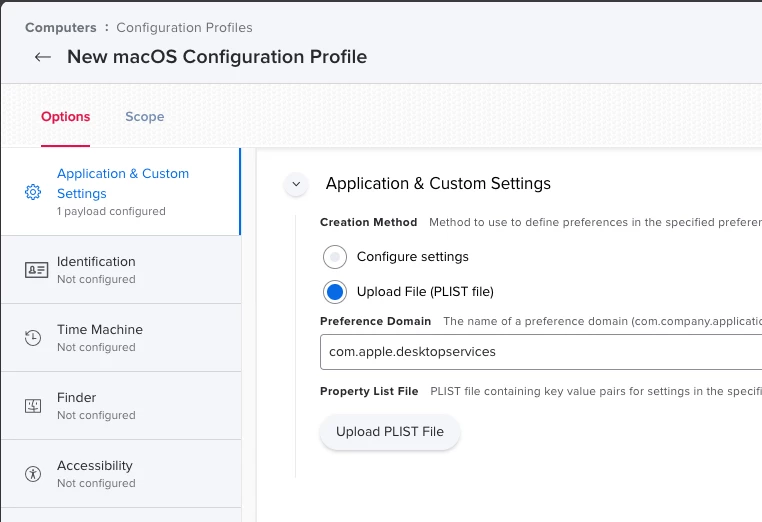
In limited testing it looks like the Apple SMB solution helps so I'd like to roll it out to staff via JAMF yet need help sending the command to clients.
How do I efficiently run the following command for logged in users so it edits their plist instead of the system's:

defaults write com.apple.desktopservices DSDontWriteNetworkStores -bool TRUE

Any help is greatly appreciated.


Forum|alt.badge.img+9
  • Contributor
  • October 21, 2020

@llitz123 you should be able to add the domain com.apple.desktopservices to your application settings in the config profile and deploy to all ![optional image ALT text](

)