I wanted to make a popup window that users had to click on to acknowledge they were getting an update that would close their open application.
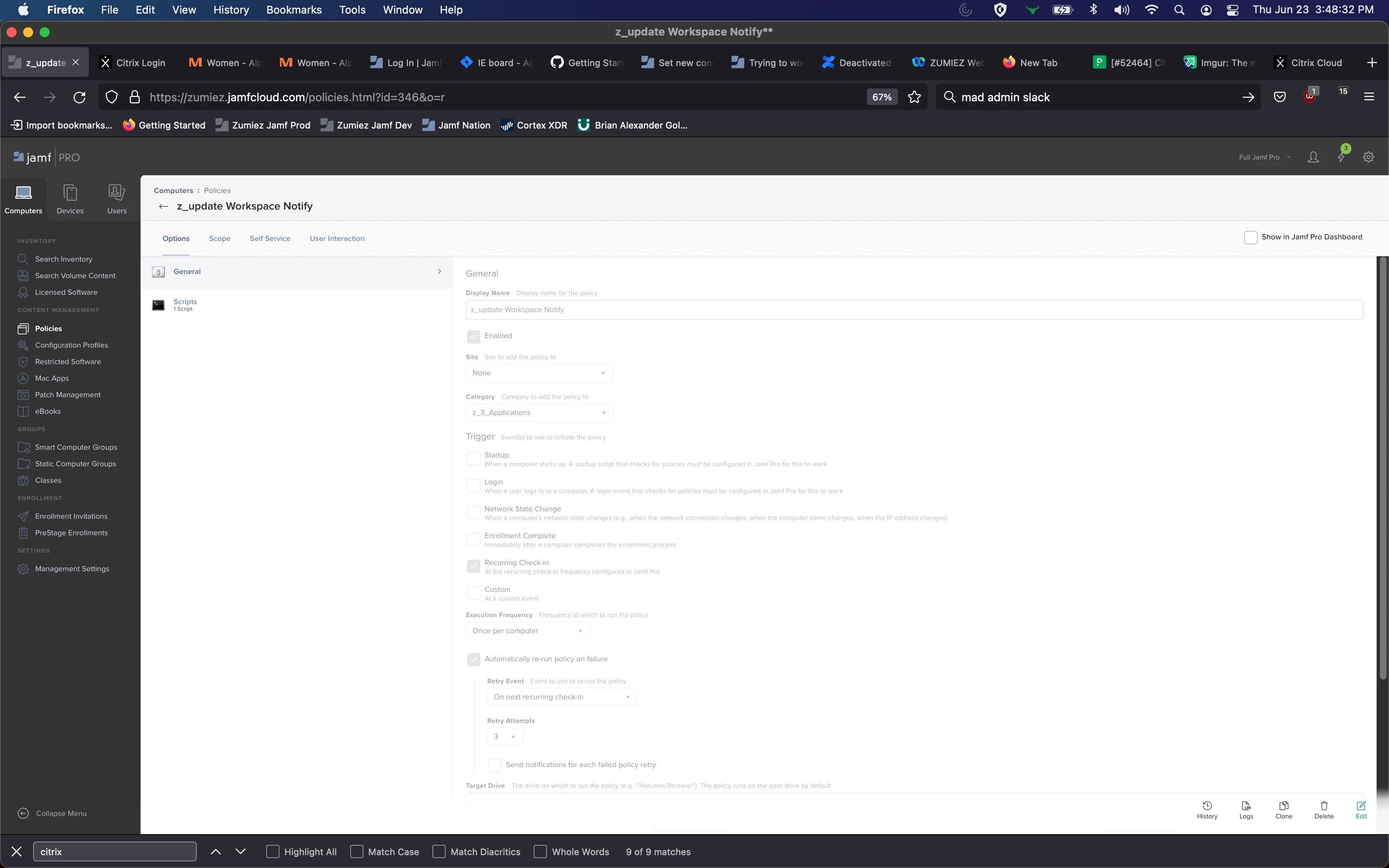
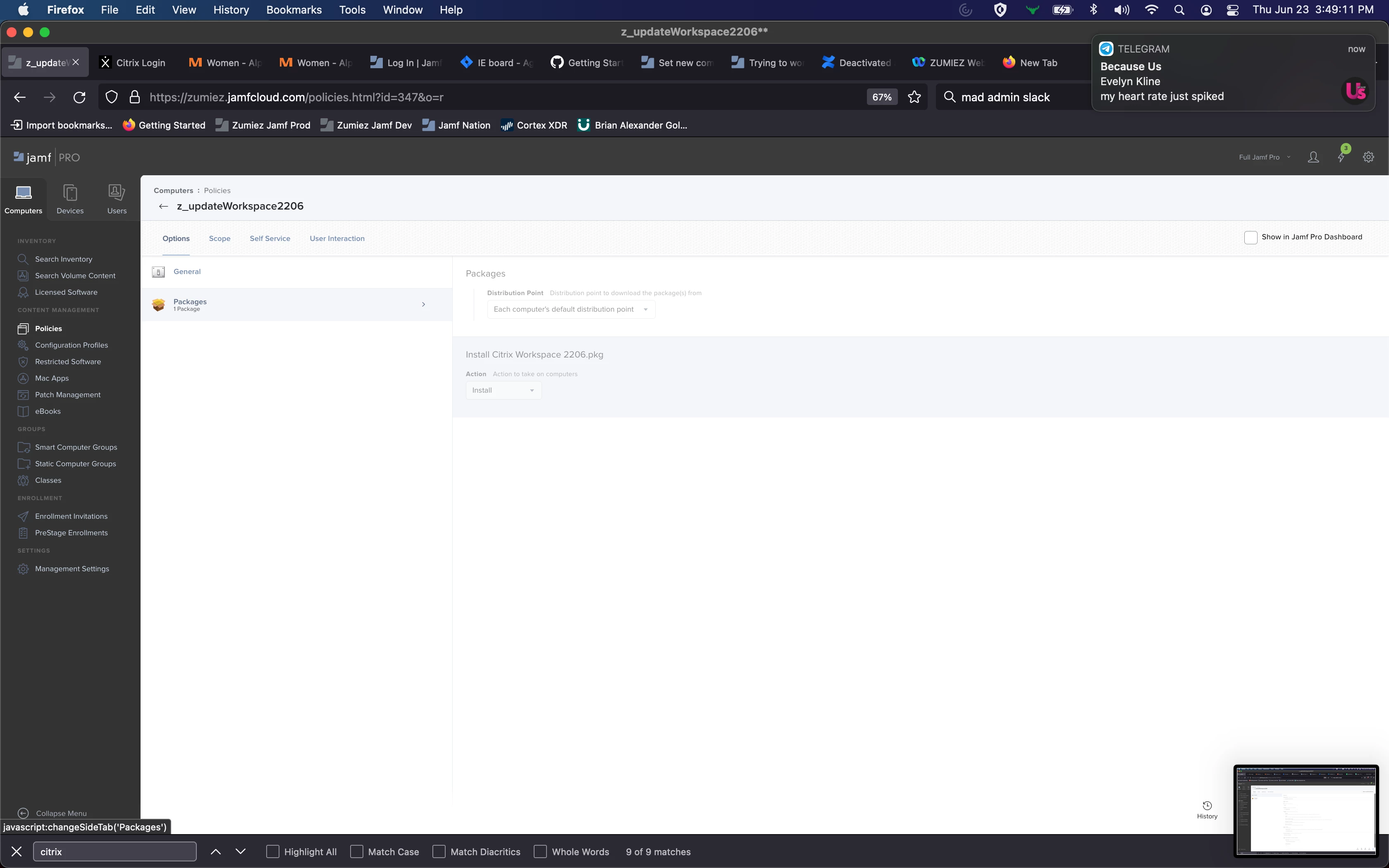
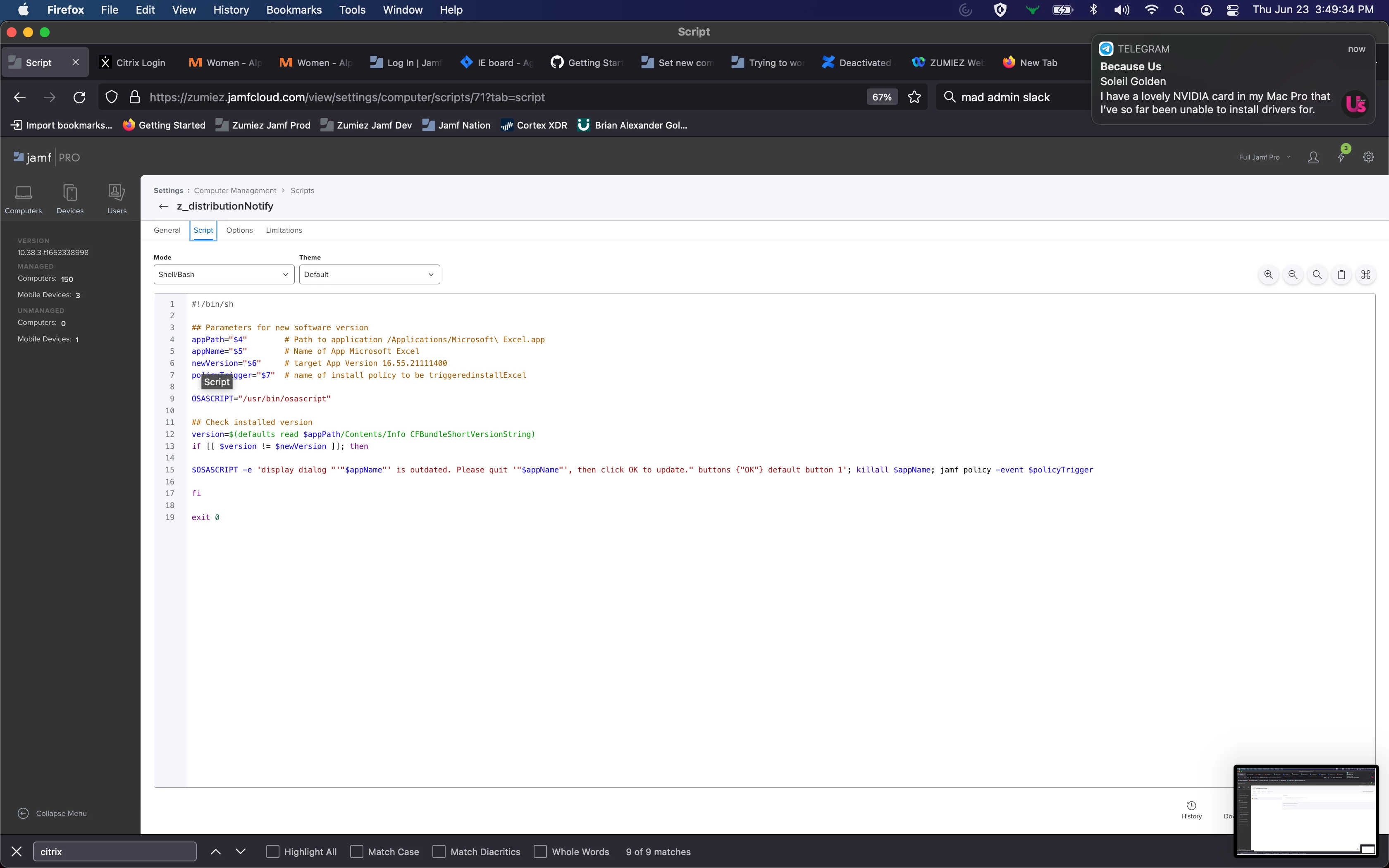
I created a notifyScript , a notifyPolicy, and a updatePolicy.
notifyPolicy is set to enabled, recurring check-in, automatically rerun, on next.
notifyPolicy is set to enabled. notifyPolicy passes the name of updatePolicy into notifyScript as an argument
notifyScript uses updatePolicy name as a custom event trigger to call update Policy
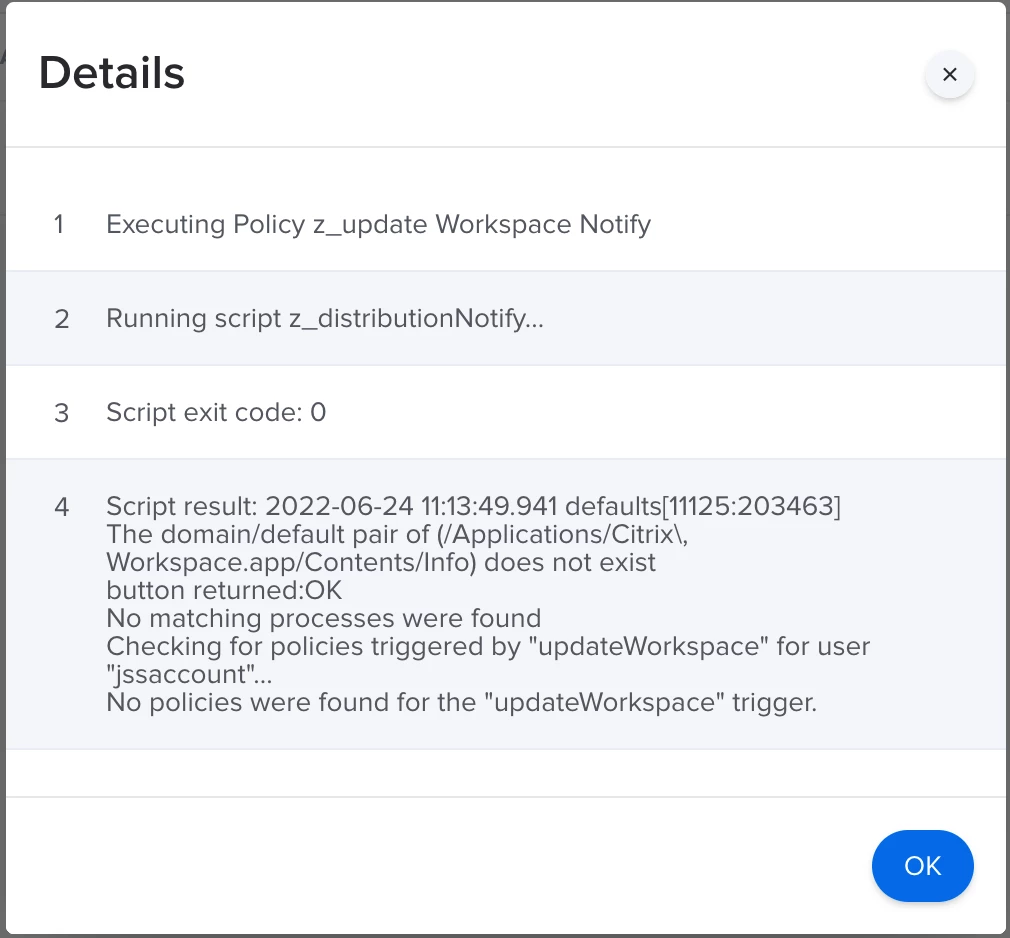
When notifyPolicy runs, i get the following:
"No policies were found for the "updatePolicy" trigger.
Where am i going wrong?
Best answer by mm2270
You're not wasting your time, but you might be trying to use the wrong tool for the job. See my post above in response to Steve for some alternatives you might want to look at. Trying to get the OS to show Applescript dialogs to the logged in user when called as root is a PITA and becomes more so with each new OS release from Apple.
Looking at all the scripts you've posted, since all you want to do is pop up a basic dialog with an OK button, I suggest moving over to use jamfHelper or one of the 3rd party tools I mention. There's no reason to wrestle with osascript for something this simple.
Try this script, which was modified to use jamfHelper. See if you get what you want.
#!/bin/sh

# uncomment the next line to enable debugging
#set -x

## Parameters for new software version
appPath="$4"		# Path to application, escape spaces, no quotes
appName="$5" 		# Name of App
newVersion="$6"		# target App Version
policyTrigger="$7"	# name of install policy to be triggered

jamfHelperPath="/Library/Application Support/JAMF/bin/jamfHelper.app/Contents/MacOS/jamfHelper"

# get the currently logged in user
currentUser=$( echo "show State:/Users/ConsoleUser" | scutil | awk '/Name :/ { print $3 }' )

# get version of installed appName
version=$( /usr/bin/defaults read "$appPath/Contents/Info" CFBundleShortVersionString )

# Get the application's icon icns path
appIcon=$(/usr/bin/defaults read "$appPath/Contents/Info" CFBundleIconFile)

## path to icon for dialog
iconPath="$appPath/Contents/Resources/$appIcon"

# global check if there is a user logged in
if [ -z "$currentUser" -o "$currentUser" = "loginwindow" ]; then
  echo "no user logged in, cannot proceed"
  exit 1
fi

# now we know a user is logged in

# main code starts here
if [[ $version != $newVersion ]]
then
	notifyText="$appName is outdated. Please quit $appName, then click OK to Update."
    "$jamfHelperPath" -windowType utility -description "$notifyText" -button1 "OK" -defaultButton 1 -icon "$appIcon"
#	pgrep "$appName" | xargs kill -15
#	/usr/local/bin/jamf policy -event "$policyTrigger"
else
	echo "*** $appName versions match "
   	exit 0
fi

exit 0
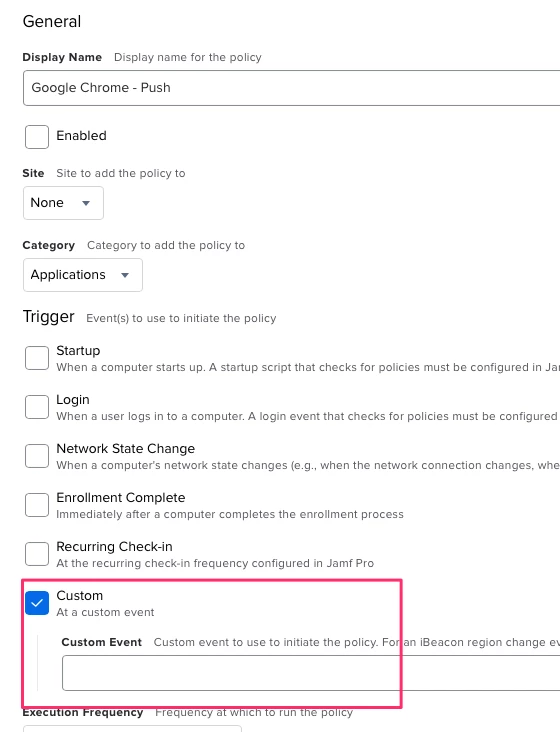
What is the scoping on the "updatePolicy"? Also, if you are trying to trigger using "updatePolicy" as the trigger, did you set "Custom Event" in the updatePolicy? You do not use the name of the policy, you use the value you put in the "Custom Event" field after selecting "Custom".
Thanks for replying! notifyPolicy is currently scoped to a single computer for testing/building. I want the "notifyPolicy" policy to execute first so that a user gets a popup to acknowledge. The acknoledgement then is supposed to trigger the "updatePolicy" policy which is what actually installs the .pkg i feel like i'm really close to getting this working.
Thanks for replying! notifyPolicy is currently scoped to a single computer for testing/building. I want the "notifyPolicy" policy to execute first so that a user gets a popup to acknowledge. The acknoledgement then is supposed to trigger the "updatePolicy" policy which is what actually installs the .pkg i feel like i'm really close to getting this working.
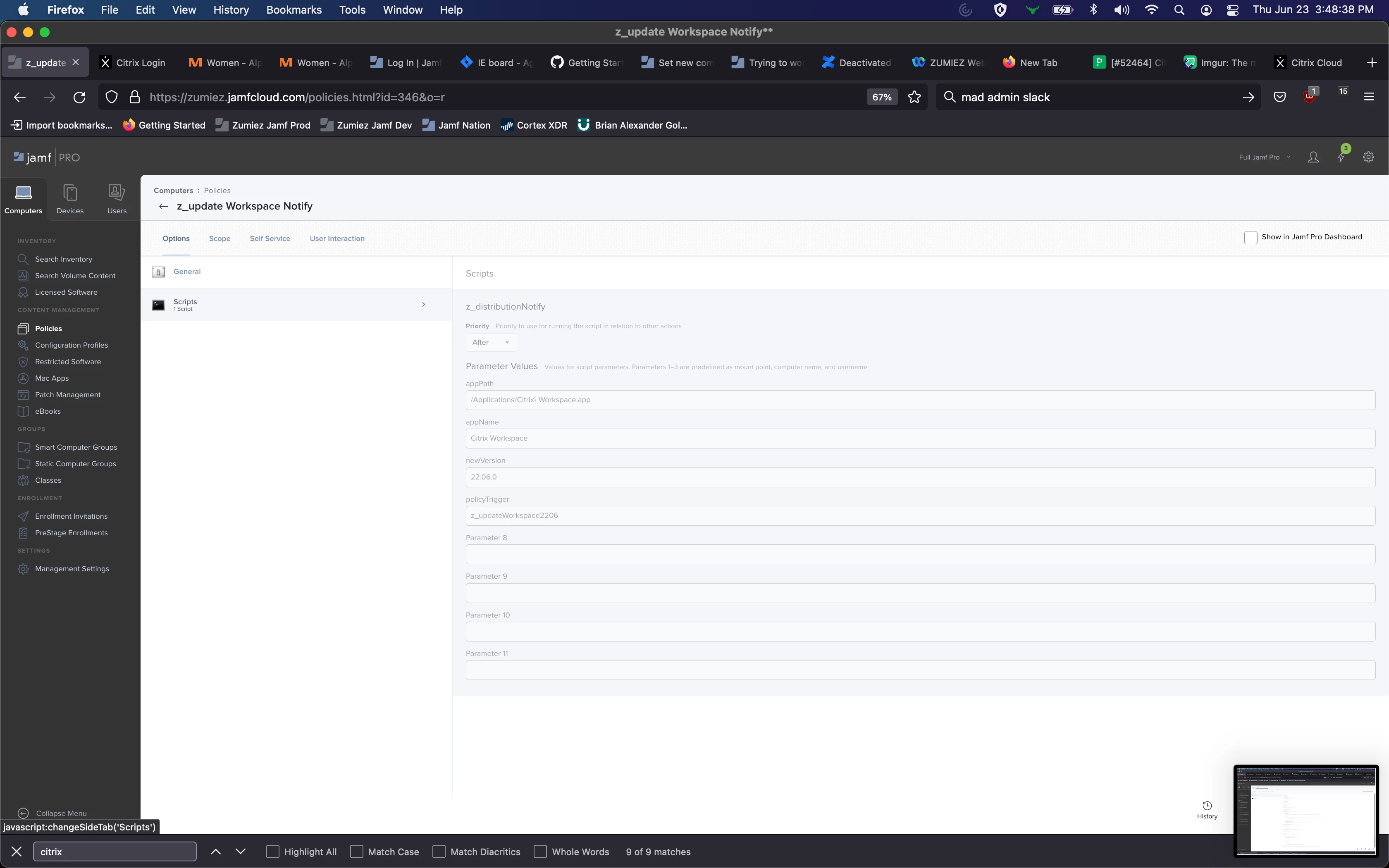
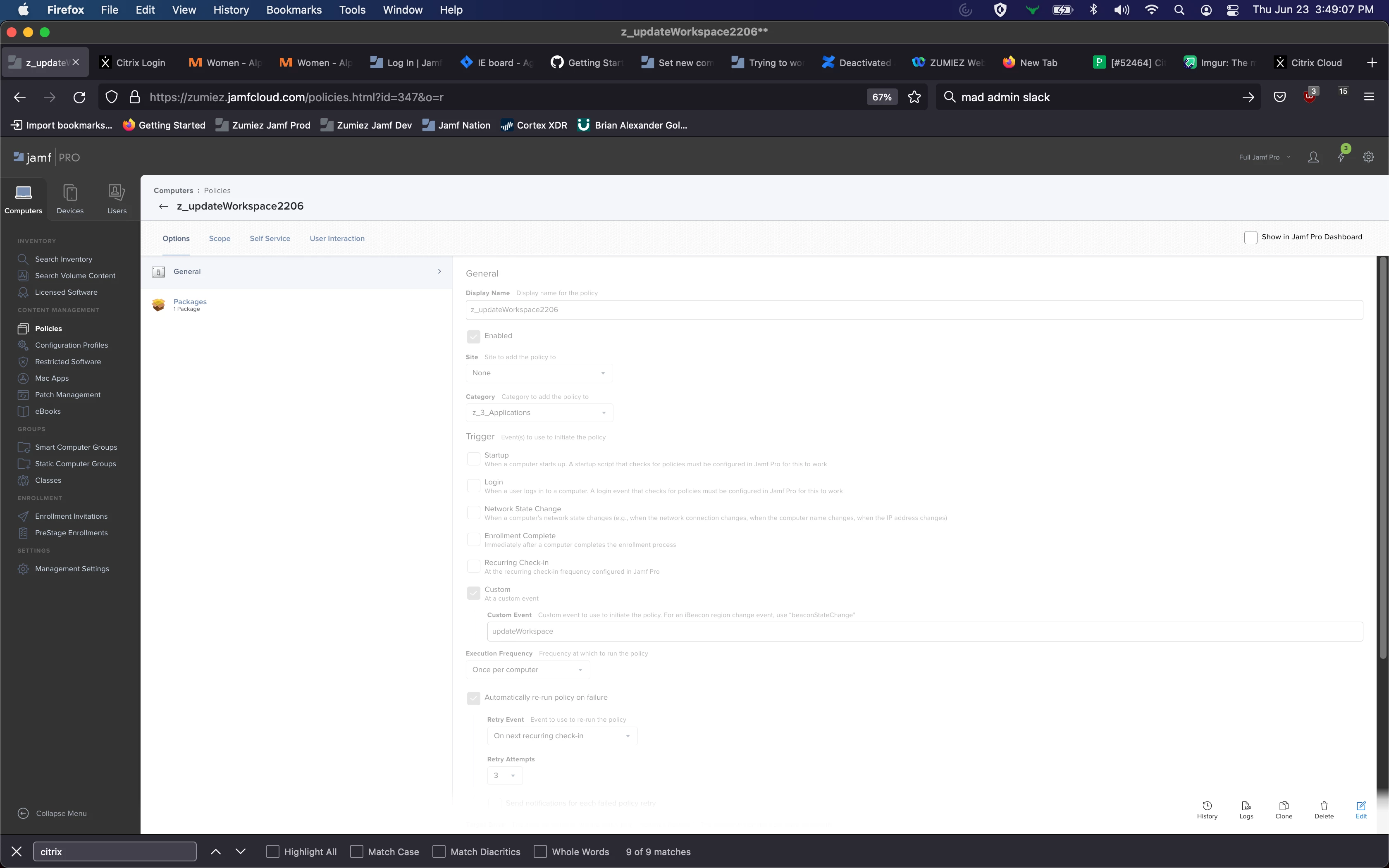
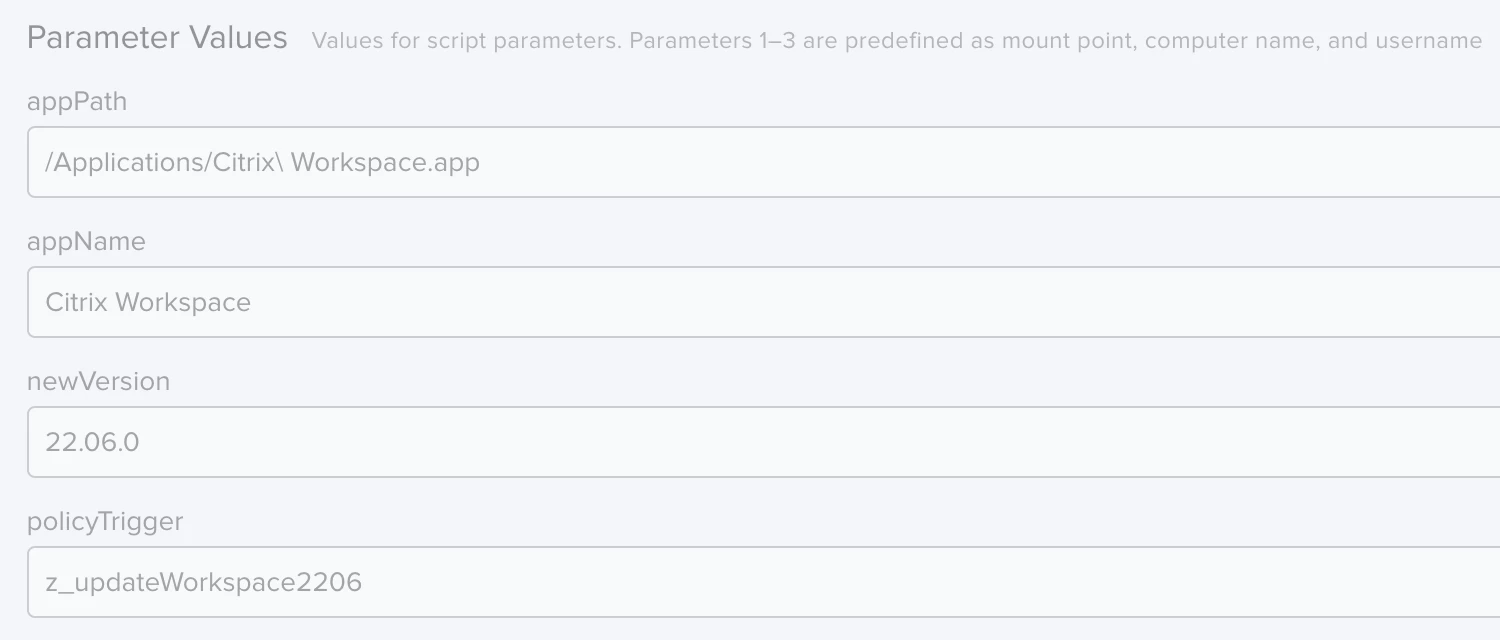
Like Steve pointed out, you need to use the custom trigger string that you’ve set instead of the name of the policy. Your policyTrigger parameter needs to be set to “updateWorkspace”.
Yeah, I strongly recommend using "control scripts" with logic that calls various policy triggers when you need to control the timing of events. Once you get the hang of it, it's very effective.
Okay, I changed the parameter to "updateWorkspace" but now Jamf is giving me this error message: I did get the popup I wanted, which is nice! But I'm still not getting the activation of the update policy. what gives?
Okay, I changed the parameter to "updateWorkspace" but now Jamf is giving me this error message: I did get the popup I wanted, which is nice! But I'm still not getting the activation of the update policy. what gives?
Since "Citrix Workspace.app" has a space in it, you should update the script to contain the path to the Info.plist or at least the app path itself in double quotes and remove the \\ character in your parameter. I would make this adjustment to it
Okay, I changed the parameter to "updateWorkspace" but now Jamf is giving me this error message: I did get the popup I wanted, which is nice! But I'm still not getting the activation of the update policy. what gives?
How do you have the "Scope" tab configured on hte "Update Workspace" policy? The "No policies were found" error indicates that the device, or user, were not in scope for that policy.
How do you have the "Scope" tab configured on hte "Update Workspace" policy? The "No policies were found" error indicates that the device, or user, were not in scope for that policy.
the updateWorkspace policy is currently scoped to Specific computers, Specific users, but has no targets. Since i didn't want it to kick off unless specifically triggered by machines that got scoped in the updateNotify policy
the updateWorkspace policy is currently scoped to Specific computers, Specific users, but has no targets. Since i didn't want it to kick off unless specifically triggered by machines that got scoped in the updateNotify policy
Well, that's what the problem is. You have to have computers in scope for it to work. So if you're testing with a specific computer or user, scope to that (computer or user).
Or, since you are only able to trigger with the custom trigger, you can scope to All Computers and know that it will not run unless you call it using the trigger.
Well, that's what the problem is. You have to have computers in scope for it to work. So if you're testing with a specific computer or user, scope to that (computer or user).
Or, since you are only able to trigger with the custom trigger, you can scope to All Computers and know that it will not run unless you call it using the trigger.
That helped! I did sudo jamf policy on my test target machine, and everything worked! I rolled the version back and forced another check-in, and it worked! I even got the popup window I wanted!
Then I rolled the version back, flushed the logs, and waited for the regular schedule checkin
No popup window, and the package installed. Not the behaviour i'm looking for.
Since "Citrix Workspace.app" has a space in it, you should update the script to contain the path to the Info.plist or at least the app path itself in double quotes and remove the \\ character in your parameter. I would make this adjustment to it
That should avoid the error you're seeing in the policy log.
Make sure to change your script parameter in the policy for appPath to just /Applications/Citrix Workspace.app
This helped clear up that error! thank you so much for the assistance! @stevewood helped out with scoping, but when I leave the machines alone for the regular checkin to work, The popup window doesn't show up and i get new errors! details further down
That helped! I did sudo jamf policy on my test target machine, and everything worked! I rolled the version back and forced another check-in, and it worked! I even got the popup window I wanted!
Then I rolled the version back, flushed the logs, and waited for the regular schedule checkin
No popup window, and the package installed. Not the behaviour i'm looking for.
Looks like there was an error thrown by the 'osascript' line. Not sure what but I'd dig into that.
Not sure if it will help or not, but you might try breaking your 'osascript' line out and also not chaining the kill and jamf commands. Something like these lines:
#!/bin/bash

appPath="$4"
appName="$5"
newVersion="$6"
policyTrigger="$7"

version=$( /usr/bin/defaults read "$appPath/Contents/INfo CFBundleShortVersionString" )

if [[  $version != $newVersion ]]; then

	notifyUser="display dialog \\"$appName is outdated. Please quit $appName, then click OK to Update.\\" buttons {\\"OK\\"} default button 1"
	displayDialog=$( /usr/bin/osascript -e "$notifyUser" )
	pgrep "$appName" | xargs kill -15
	/usr/local/bin/jamf policy -event "$policyTrigger"

fi
exit 0
That helped! I did sudo jamf policy on my test target machine, and everything worked! I rolled the version back and forced another check-in, and it worked! I even got the popup window I wanted!
Then I rolled the version back, flushed the logs, and waited for the regular schedule checkin
No popup window, and the package installed. Not the behaviour i'm looking for.
It's possible the issue is that when the policy gets run by the check-in trigger, it's not liking that your script is calling an Applescript (osascript) command and attempting to present a dialog to the logged in user. You see, when a policy gets run by Recurring Check-in, there's a LaunchDaemon that runs that, and anything called from a LaunchDaemon by default (unless otherwise specified) runs as root and within a root context.
By contrast when you do something like sudo jamf policy in a Terminal window, you're escalating privileges with the sudo, but it's still running in the logged in user's context.
What I'm getting at is, take a look at this blog post by Armin Briegel for some tips on how to get commands to run as the logged in user, which can help get around these OS restrictions.
So, i came up with this as a new option for my notify policy
#!/bin/sh

# variable and function declarations
export PATH=/usr/bin:/bin:/usr/sbin:/sbin

# get the currently logged in user
currentUser=$( echo "show State:/Users/ConsoleUser" | scutil | awk '/Name :/ { print $3 }' )

# global check if there is a user logged in
if [ -z "$currentUser" -o "$currentUser" = "loginwindow" ]; then
  echo "no user logged in, cannot proceed"
  exit 1
fi
# now we know a user is logged in

# get the current user's UID
uid=$(id -u "$currentUser")

# convenience function to run a command as the current user
# usage:
#   runAsUser command arguments...
runAsUser() {
  if [ "$currentUser" != "loginwindow" ]; then
    launchctl asuser "$uid" sudo -u "$currentUser" "$@"
  else
    echo "no user logged in"
    # uncomment the exit command
    # to make the function exit with an error when no user is logged in
    # exit 1
  fi
}

## Parameters for new software version
appPath="$4"		# Path to application, escape spaces, no quotes
appName="$5" 		# Name of App
newVersion="$6"		# target App Version
policyTrigger="$7"	# name of install policy to be triggered

# main code starts here
OSASCRIPT="/usr/bin/osascript"

runAsUser $OSASCRIPT -e 'display dialog "'"$appName"' is outdated. Please quit '"$appName"', then click OK to update." buttons {"OK"} default button 1'; killall $appName; jamf policy -event $policyTrigger

fi

exit 0
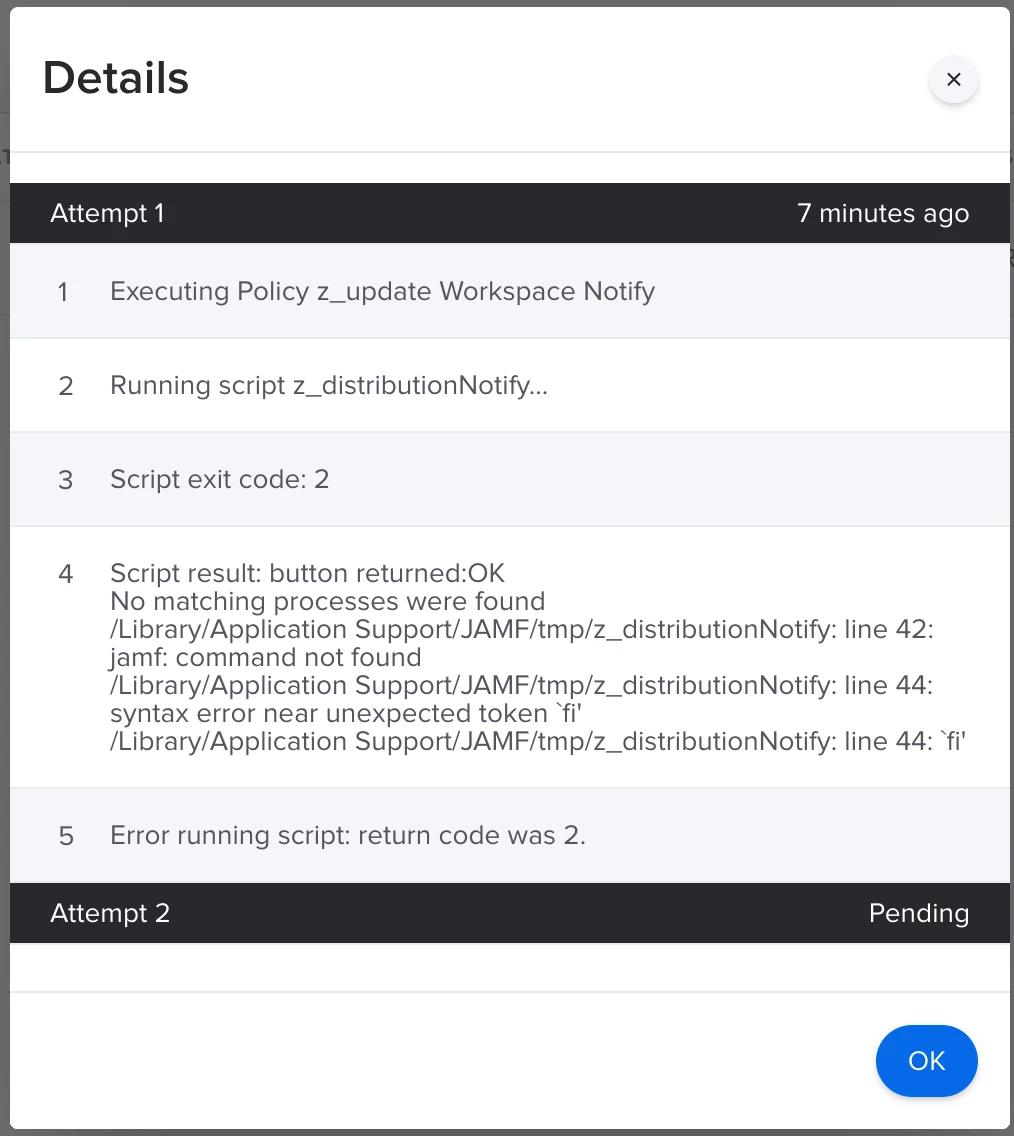
and after I get it to run, i get this in the Jamf logs
Not sure if I have too many fi statements or whatever.
i have also created this to try and follow @stevewood 's advice:
#!/bin/sh

# variable and function declarations
export PATH=/usr/bin:/bin:/usr/sbin:/sbin

# get the currently logged in user
currentUser=$( echo "show State:/Users/ConsoleUser" | scutil | awk '/Name :/ { print $3 }' )

# global check if there is a user logged in
if [ -z "$currentUser" -o "$currentUser" = "loginwindow" ]; then
  echo "no user logged in, cannot proceed"
  exit 1
fi
# now we know a user is logged in

# get the current user's UID
uid=$(id -u "$currentUser")

# convenience function to run a command as the current user
# usage:
#   runAsUser command arguments...
runAsUser() {
  if [ "$currentUser" != "loginwindow" ]; then
    launchctl asuser "$uid" sudo -u "$currentUser" "$@"
  else
    echo "no user logged in"
    # uncomment the exit command
    # to make the function exit with an error when no user is logged in
    # exit 1
  fi
}

## Parameters for new software version
appPath="$4"		# Path to application, escape spaces, no quotes
appName="$5" 		# Name of App
newVersion="$6"		# target App Version
policyTrigger="$7"	# name of install policy to be triggered

# main code starts here
OSASCRIPT="/usr/bin/osascript"
if [[  $version != $newVersion ]]; then

	notifyUser="display dialog \\"$appName is outdated. Please quit $appName, then click OK to Update.\\" buttons {\\"OK\\"} default button 1"
	runAsUser displayDialog=$( /usr/bin/osascript -e "$notifyUser" )
	pgrep "$appName" | xargs kill -15
	/usr/local/bin/jamf policy -event "$policyTrigger"

exit 0
So, i came up with this as a new option for my notify policy
#!/bin/sh

# variable and function declarations
export PATH=/usr/bin:/bin:/usr/sbin:/sbin

# get the currently logged in user
currentUser=$( echo "show State:/Users/ConsoleUser" | scutil | awk '/Name :/ { print $3 }' )

# global check if there is a user logged in
if [ -z "$currentUser" -o "$currentUser" = "loginwindow" ]; then
  echo "no user logged in, cannot proceed"
  exit 1
fi
# now we know a user is logged in

# get the current user's UID
uid=$(id -u "$currentUser")

# convenience function to run a command as the current user
# usage:
#   runAsUser command arguments...
runAsUser() {
  if [ "$currentUser" != "loginwindow" ]; then
    launchctl asuser "$uid" sudo -u "$currentUser" "$@"
  else
    echo "no user logged in"
    # uncomment the exit command
    # to make the function exit with an error when no user is logged in
    # exit 1
  fi
}

## Parameters for new software version
appPath="$4"		# Path to application, escape spaces, no quotes
appName="$5" 		# Name of App
newVersion="$6"		# target App Version
policyTrigger="$7"	# name of install policy to be triggered

# main code starts here
OSASCRIPT="/usr/bin/osascript"

runAsUser $OSASCRIPT -e 'display dialog "'"$appName"' is outdated. Please quit '"$appName"', then click OK to update." buttons {"OK"} default button 1'; killall $appName; jamf policy -event $policyTrigger

fi

exit 0
and after I get it to run, i get this in the Jamf logs
Not sure if I have too many fi statements or whatever.
i have also created this to try and follow @stevewood 's advice:
#!/bin/sh

# variable and function declarations
export PATH=/usr/bin:/bin:/usr/sbin:/sbin

# get the currently logged in user
currentUser=$( echo "show State:/Users/ConsoleUser" | scutil | awk '/Name :/ { print $3 }' )

# global check if there is a user logged in
if [ -z "$currentUser" -o "$currentUser" = "loginwindow" ]; then
  echo "no user logged in, cannot proceed"
  exit 1
fi
# now we know a user is logged in

# get the current user's UID
uid=$(id -u "$currentUser")

# convenience function to run a command as the current user
# usage:
#   runAsUser command arguments...
runAsUser() {
  if [ "$currentUser" != "loginwindow" ]; then
    launchctl asuser "$uid" sudo -u "$currentUser" "$@"
  else
    echo "no user logged in"
    # uncomment the exit command
    # to make the function exit with an error when no user is logged in
    # exit 1
  fi
}

## Parameters for new software version
appPath="$4"		# Path to application, escape spaces, no quotes
appName="$5" 		# Name of App
newVersion="$6"		# target App Version
policyTrigger="$7"	# name of install policy to be triggered

# main code starts here
OSASCRIPT="/usr/bin/osascript"
if [[  $version != $newVersion ]]; then

	notifyUser="display dialog \\"$appName is outdated. Please quit $appName, then click OK to Update.\\" buttons {\\"OK\\"} default button 1"
	runAsUser displayDialog=$( /usr/bin/osascript -e "$notifyUser" )
	pgrep "$appName" | xargs kill -15
	/usr/local/bin/jamf policy -event "$policyTrigger"

exit 0
and I'm waiting to see if that helps
In your script, you have an extra "fi" on line 44. Not sure why the 'jamf' command on 42 is not functioning. Might want to put the full path to the binary: /usr/local/bin/jamf
And on my script, you have a missing "fi" before the "exit 0". Might be my mistake, but that last "if" block is not closed so you'll get an error.
In your script, you have an extra "fi" on line 44. Not sure why the 'jamf' command on 42 is not functioning. Might want to put the full path to the binary: /usr/local/bin/jamf
And on my script, you have a missing "fi" before the "exit 0". Might be my mistake, but that last "if" block is not closed so you'll get an error.
so, i thought i got it right, but its still not happy
#!/bin/sh

# variable and function declarations
export PATH=/usr/bin:/bin:/usr/sbin:/sbin

# get the currently logged in user
currentUser=$( echo "show State:/Users/ConsoleUser" | scutil | awk '/Name :/ { print $3 }' )

# global check if there is a user logged in
if [ -z "$currentUser" -o "$currentUser" = "loginwindow" ]; then
  echo "no user logged in, cannot proceed"
  exit 1
fi
# now we know a user is logged in

# get the current user's UID
uid=$(id -u "$currentUser")

# convenience function to run a command as the current user
# usage:
#   runAsUser command arguments...
runAsUser() {
  if [ "$currentUser" != "loginwindow" ]; then
    launchctl asuser "$uid" sudo -u "$currentUser" "$@"
  else
    echo "no user logged in"
    # uncomment the exit command
    # to make the function exit with an error when no user is logged in
    # exit 1
  fi
}

## Parameters for new software version
appPath="$4"		# Path to application, escape spaces, no quotes
appName="$5" 		# Name of App
newVersion="$6"		# target App Version
policyTrigger="$7"	# name of install policy to be triggered

# main code starts here
OSASCRIPT="/usr/bin/osascript"
if [[  $version != $newVersion ]]; then
	{
	notifyUser="display dialog \\"$appName is outdated. Please quit $appName, then click OK to Update.\\" buttons {\\"OK\\"} default button 1"
	runAsUser displayDialog=$( /usr/bin/osascript -e "$notifyUser" )
	pgrep "$appName" | xargs kill -15
	/usr/local/bin/jamf policy -event "$policyTrigger"}
   fi

exit 0
Okay. I have a new notify script, works great when I run it manually (sudo jamf policy)
#!/bin/sh

# variable and function declarations
export PATH=/usr/bin:/bin:/usr/sbin:/sbin

# get the currently logged in user
currentUser=$( echo "show State:/Users/ConsoleUser" | scutil | awk '/Name :/ { print $3 }' )

# global check if there is a user logged in
if [ -z "$currentUser" -o "$currentUser" = "loginwindow" ]; then
  echo "no user logged in, cannot proceed"
  exit 1
fi
# now we know a user is logged in

# get the current user's UID
uid=$(id -u "$currentUser")

# convenience function to run a command as the current user
# usage:
#   runAsUser command arguments...
runAsUser() {
  if [ "$currentUser" != "loginwindow" ]; then
    launchctl asuser "$uid" sudo -u "$currentUser" "$@"
  else
    echo "no user logged in"
    # uncomment the exit command
    # to make the function exit with an error when no user is logged in
    # exit 1
  fi
}

## Parameters for new software version
appPath="$4"		# Path to application, escape spaces, no quotes
appName="$5" 		# Name of App
newVersion="$6"		# target App Version
policyTrigger="$7"	# name of install policy to be triggered

# main code starts here
OSASCRIPT="/usr/bin/osascript"
if [[ $version != $newVersion ]]
then
	notifyUser="display dialog \\"$appName is outdated. Please quit $appName, then click OK to Update.\\" buttons {\\"OK\\"} default button 1"
	runAsUser displayDialog=$( /usr/bin/osascript -e "$notifyUser" )
	pgrep "$appName" | xargs kill -15
	/usr/local/bin/jamf policy -event "$policyTrigger"
fi

exit 0
when i let the computer check in, this is what shows up in the logs:
Okay. I have a new notify script, works great when I run it manually (sudo jamf policy)
#!/bin/sh

# variable and function declarations
export PATH=/usr/bin:/bin:/usr/sbin:/sbin

# get the currently logged in user
currentUser=$( echo "show State:/Users/ConsoleUser" | scutil | awk '/Name :/ { print $3 }' )

# global check if there is a user logged in
if [ -z "$currentUser" -o "$currentUser" = "loginwindow" ]; then
  echo "no user logged in, cannot proceed"
  exit 1
fi
# now we know a user is logged in

# get the current user's UID
uid=$(id -u "$currentUser")

# convenience function to run a command as the current user
# usage:
#   runAsUser command arguments...
runAsUser() {
  if [ "$currentUser" != "loginwindow" ]; then
    launchctl asuser "$uid" sudo -u "$currentUser" "$@"
  else
    echo "no user logged in"
    # uncomment the exit command
    # to make the function exit with an error when no user is logged in
    # exit 1
  fi
}

## Parameters for new software version
appPath="$4"		# Path to application, escape spaces, no quotes
appName="$5" 		# Name of App
newVersion="$6"		# target App Version
policyTrigger="$7"	# name of install policy to be triggered

# main code starts here
OSASCRIPT="/usr/bin/osascript"
if [[ $version != $newVersion ]]
then
	notifyUser="display dialog \\"$appName is outdated. Please quit $appName, then click OK to Update.\\" buttons {\\"OK\\"} default button 1"
	runAsUser displayDialog=$( /usr/bin/osascript -e "$notifyUser" )
	pgrep "$appName" | xargs kill -15
	/usr/local/bin/jamf policy -event "$policyTrigger"
fi

exit 0
when i let the computer check in, this is what shows up in the logs:
So, something is going wrong with all the "run as" stuff, i think? This is so hard to follow!
You're over complicating the script. First, you do not need the "EXPORT" line since the path you are exporting is the standard path on most machines. Also, if you use the full path to binaries that you are running, you shouldn't need to do that anyway.
The "RunAs" function that you put in is wrong, and unnecessary. If you go back to the Scripting OS X article that Mike listed, the "launchctl asuser" method is for loading and unloading LaunchDaemons or LaunchAgents. You will want to use the "sudo -u "$currentUser"" functionality to run the "osascript" command.
There was a typo or two in the script I posted, so I cleaned that up. I tested the below in my Jamf Pro server using Google Chrome as the example. This worked fine without throwing any errors that would prevent execution (there is a warning about fonts if you look at the debug of the script, but it's not important).
You can use the command "set -x" to have the script output each command as it is being run. This gets logged in the Policy Log so you can see what is going on on the computer.
The script:
#!/bin/sh

# uncomment the next line to enable debugging
#set -x

## Parameters for new software version
appPath="$4"		# Path to application, escape spaces, no quotes
appName="$5" 		# Name of App
newVersion="$6"		# target App Version
policyTrigger="$7"	# name of install policy to be triggered

# get the currently logged in user
currentUser=$( echo "show State:/Users/ConsoleUser" | scutil | awk '/Name :/ { print $3 }' )

# get version of installed appName
version=$( /usr/bin/defaults read "$appPath/Contents/Info" CFBundleShortVersionString )

# global check if there is a user logged in
if [ -z "$currentUser" -o "$currentUser" = "loginwindow" ]; then
  echo "no user logged in, cannot proceed"
  exit 1
fi

# now we know a user is logged in

# main code starts here
OSASCRIPT="/usr/bin/osascript"
if [[ $version != $newVersion ]]
then
	notifyUser="display dialog \\"$appName is outdated. Please quit $appName, then click OK to Update.\\" buttons {\\"OK\\"} default button 1"
    displayDialog=$( sudo -u "$currentUser" /usr/bin/osascript -e "$notifyUser" )
	pgrep "$appName" | xargs kill -15
	/usr/local/bin/jamf policy -event "$policyTrigger"
else
	echo "*** $appName versions match "
   	exit 0
fi

exit 0
And the policy log when I had debugging on:
Script result: + appPath='/Applications/Google Chrome.app'
+ appName='Google Chrome'
+ newVersion=103.0.5060.53
+ policyTrigger=googlechrome
++ echo 'show State:/Users/ConsoleUser'
++ scutil
++ awk '/Name :/ { print $3 }'
+ currentUser=jamfdemo
++ /usr/bin/defaults read '/Applications/Google Chrome.app/Contents/Info' CFBundleShortVersionString
+ version=97.0.4692.99
+ '[' -z jamfdemo -o jamfdemo = loginwindow ']'
+ OSASCRIPT=/usr/bin/osascript
+ [[ 97.0.4692.99 != 103.0.5060.53 ]]
+ notifyUser='display dialog "Google Chrome is outdated. Please quit Google Chrome, then click OK to Update." buttons {"OK"} default button 1'
++ sudo -u jamfdemo /usr/bin/osascript -e 'display dialog "Google Chrome is outdated. Please quit Google Chrome, then click OK to Update." buttons {"OK"} default button 1'
2022-06-27 21:56:12.942 osascript[64607:1793974] XType: failed to connect - Error Domain=NSCocoaErrorDomain Code=4099 "The connection to service named com.apple.fonts was invalidated: failed at lookup with error 3 - No such process." UserInfo={NSDebugDescription=The connection to service named com.apple.fonts was invalidated: failed at lookup with error 3 - No such process.}
2022-06-27 21:56:12.942 osascript[64607:1793974] Font server protocol version mismatch (expected:5 got:0), falling back to local fonts
2022-06-27 21:56:12.942 osascript[64607:1793974] XType: unable to make a connection to the font daemon!
2022-06-27 21:56:12.942 osascript[64607:1793974] XType: XTFontStaticRegistry is enabled as fontd is not available.
+ displayDialog='button returned:OK'
+ pgrep 'Google Chrome'
+ xargs kill -15
+ /usr/local/bin/jamf policy -event googlechrome
Checking for policies triggered by "googlechrome" for user "jamfdemo"...
Executing Policy Install - Google Chrome
Submitting log to <your jamf server>
+ exit 0
You're over complicating the script. First, you do not need the "EXPORT" line since the path you are exporting is the standard path on most machines. Also, if you use the full path to binaries that you are running, you shouldn't need to do that anyway.
The "RunAs" function that you put in is wrong, and unnecessary. If you go back to the Scripting OS X article that Mike listed, the "launchctl asuser" method is for loading and unloading LaunchDaemons or LaunchAgents. You will want to use the "sudo -u "$currentUser"" functionality to run the "osascript" command.
There was a typo or two in the script I posted, so I cleaned that up. I tested the below in my Jamf Pro server using Google Chrome as the example. This worked fine without throwing any errors that would prevent execution (there is a warning about fonts if you look at the debug of the script, but it's not important).
You can use the command "set -x" to have the script output each command as it is being run. This gets logged in the Policy Log so you can see what is going on on the computer.
The script:
#!/bin/sh

# uncomment the next line to enable debugging
#set -x

## Parameters for new software version
appPath="$4"		# Path to application, escape spaces, no quotes
appName="$5" 		# Name of App
newVersion="$6"		# target App Version
policyTrigger="$7"	# name of install policy to be triggered

# get the currently logged in user
currentUser=$( echo "show State:/Users/ConsoleUser" | scutil | awk '/Name :/ { print $3 }' )

# get version of installed appName
version=$( /usr/bin/defaults read "$appPath/Contents/Info" CFBundleShortVersionString )

# global check if there is a user logged in
if [ -z "$currentUser" -o "$currentUser" = "loginwindow" ]; then
  echo "no user logged in, cannot proceed"
  exit 1
fi

# now we know a user is logged in

# main code starts here
OSASCRIPT="/usr/bin/osascript"
if [[ $version != $newVersion ]]
then
	notifyUser="display dialog \\"$appName is outdated. Please quit $appName, then click OK to Update.\\" buttons {\\"OK\\"} default button 1"
    displayDialog=$( sudo -u "$currentUser" /usr/bin/osascript -e "$notifyUser" )
	pgrep "$appName" | xargs kill -15
	/usr/local/bin/jamf policy -event "$policyTrigger"
else
	echo "*** $appName versions match "
   	exit 0
fi

exit 0
And the policy log when I had debugging on:
Script result: + appPath='/Applications/Google Chrome.app'
+ appName='Google Chrome'
+ newVersion=103.0.5060.53
+ policyTrigger=googlechrome
++ echo 'show State:/Users/ConsoleUser'
++ scutil
++ awk '/Name :/ { print $3 }'
+ currentUser=jamfdemo
++ /usr/bin/defaults read '/Applications/Google Chrome.app/Contents/Info' CFBundleShortVersionString
+ version=97.0.4692.99
+ '[' -z jamfdemo -o jamfdemo = loginwindow ']'
+ OSASCRIPT=/usr/bin/osascript
+ [[ 97.0.4692.99 != 103.0.5060.53 ]]
+ notifyUser='display dialog "Google Chrome is outdated. Please quit Google Chrome, then click OK to Update." buttons {"OK"} default button 1'
++ sudo -u jamfdemo /usr/bin/osascript -e 'display dialog "Google Chrome is outdated. Please quit Google Chrome, then click OK to Update." buttons {"OK"} default button 1'
2022-06-27 21:56:12.942 osascript[64607:1793974] XType: failed to connect - Error Domain=NSCocoaErrorDomain Code=4099 "The connection to service named com.apple.fonts was invalidated: failed at lookup with error 3 - No such process." UserInfo={NSDebugDescription=The connection to service named com.apple.fonts was invalidated: failed at lookup with error 3 - No such process.}
2022-06-27 21:56:12.942 osascript[64607:1793974] Font server protocol version mismatch (expected:5 got:0), falling back to local fonts
2022-06-27 21:56:12.942 osascript[64607:1793974] XType: unable to make a connection to the font daemon!
2022-06-27 21:56:12.942 osascript[64607:1793974] XType: XTFontStaticRegistry is enabled as fontd is not available.
+ displayDialog='button returned:OK'
+ pgrep 'Google Chrome'
+ xargs kill -15
+ /usr/local/bin/jamf policy -event googlechrome
Checking for policies triggered by "googlechrome" for user "jamfdemo"...
Executing Policy Install - Google Chrome
Submitting log to <your jamf server>
+ exit 0
Give that a try.
Pasted that code snip in and waited for check-in to fire. After it did, the update did not run, and my installed version hasn;t changed. This is what the logging said:
Executing Policy z_update Workspace Notify
Running script z_distributionNotify...
Script exit code: 0
Script result: + appPath='/Applications/Citrix Workspace.app' + appName='Citrix Workspace' + newVersion=22.06.0 + policyTrigger=updateWorkspace ++ echo 'show State:/Users/ConsoleUser' ++ scutil ++ awk '/Name :/ { print $3 }' + currentUser=jssaccount ++ /usr/bin/defaults read '/Applications/Citrix Workspace.app/Contents/Info' CFBundleShortVersionString + version=22.04.0 + '[' -z jssaccount -o jssaccount = loginwindow ']' + OSASCRIPT=/usr/bin/osascript + [[ 22.04.0 != 22.06.0 ]] + notifyUser='display dialog "Citrix Workspace is outdated. Please quit Citrix Workspace, then click OK to Update." buttons {"OK"} default button 1' ++ sudo -u jssaccount /usr/bin/osascript -e 'display dialog "Citrix Workspace is outdated. Please quit Citrix Workspace, then click OK to Update." buttons {"OK"} default button 1' 0:133: execution error: No user interaction allowed. (-1713) + displayDialog= + pgrep 'Citrix Workspace' + xargs kill -15 + /usr/local/bin/jamf policy -event updateWorkspace Checking for policies triggered by "updateWorkspace" for user "jssaccount"... No policies were found for the "updateWorkspace" trigger. + exit 0
Is this just because I have the computer signed in as the jssaccount? would i get something different if I was signed in as a different user that wasn't the jssaccount:
Pasted that code snip in and waited for check-in to fire. After it did, the update did not run, and my installed version hasn;t changed. This is what the logging said:
Executing Policy z_update Workspace Notify
Running script z_distributionNotify...
Script exit code: 0
Script result: + appPath='/Applications/Citrix Workspace.app' + appName='Citrix Workspace' + newVersion=22.06.0 + policyTrigger=updateWorkspace ++ echo 'show State:/Users/ConsoleUser' ++ scutil ++ awk '/Name :/ { print $3 }' + currentUser=jssaccount ++ /usr/bin/defaults read '/Applications/Citrix Workspace.app/Contents/Info' CFBundleShortVersionString + version=22.04.0 + '[' -z jssaccount -o jssaccount = loginwindow ']' + OSASCRIPT=/usr/bin/osascript + [[ 22.04.0 != 22.06.0 ]] + notifyUser='display dialog "Citrix Workspace is outdated. Please quit Citrix Workspace, then click OK to Update." buttons {"OK"} default button 1' ++ sudo -u jssaccount /usr/bin/osascript -e 'display dialog "Citrix Workspace is outdated. Please quit Citrix Workspace, then click OK to Update." buttons {"OK"} default button 1' 0:133: execution error: No user interaction allowed. (-1713) + displayDialog= + pgrep 'Citrix Workspace' + xargs kill -15 + /usr/local/bin/jamf policy -event updateWorkspace Checking for policies triggered by "updateWorkspace" for user "jssaccount"... No policies were found for the "updateWorkspace" trigger. + exit 0
Is this just because I have the computer signed in as the jssaccount? would i get something different if I was signed in as a different user that wasn't the jssaccount:
figured out why the update didn't fire: needed to flush logs in the updatePolicy in addition to the notifyPolicy
You're over complicating the script. First, you do not need the "EXPORT" line since the path you are exporting is the standard path on most machines. Also, if you use the full path to binaries that you are running, you shouldn't need to do that anyway.
The "RunAs" function that you put in is wrong, and unnecessary. If you go back to the Scripting OS X article that Mike listed, the "launchctl asuser" method is for loading and unloading LaunchDaemons or LaunchAgents. You will want to use the "sudo -u "$currentUser"" functionality to run the "osascript" command.
There was a typo or two in the script I posted, so I cleaned that up. I tested the below in my Jamf Pro server using Google Chrome as the example. This worked fine without throwing any errors that would prevent execution (there is a warning about fonts if you look at the debug of the script, but it's not important).
You can use the command "set -x" to have the script output each command as it is being run. This gets logged in the Policy Log so you can see what is going on on the computer.
The script:
#!/bin/sh

# uncomment the next line to enable debugging
#set -x

## Parameters for new software version
appPath="$4"		# Path to application, escape spaces, no quotes
appName="$5" 		# Name of App
newVersion="$6"		# target App Version
policyTrigger="$7"	# name of install policy to be triggered

# get the currently logged in user
currentUser=$( echo "show State:/Users/ConsoleUser" | scutil | awk '/Name :/ { print $3 }' )

# get version of installed appName
version=$( /usr/bin/defaults read "$appPath/Contents/Info" CFBundleShortVersionString )

# global check if there is a user logged in
if [ -z "$currentUser" -o "$currentUser" = "loginwindow" ]; then
  echo "no user logged in, cannot proceed"
  exit 1
fi

# now we know a user is logged in

# main code starts here
OSASCRIPT="/usr/bin/osascript"
if [[ $version != $newVersion ]]
then
	notifyUser="display dialog \\"$appName is outdated. Please quit $appName, then click OK to Update.\\" buttons {\\"OK\\"} default button 1"
    displayDialog=$( sudo -u "$currentUser" /usr/bin/osascript -e "$notifyUser" )
	pgrep "$appName" | xargs kill -15
	/usr/local/bin/jamf policy -event "$policyTrigger"
else
	echo "*** $appName versions match "
   	exit 0
fi

exit 0
And the policy log when I had debugging on:
Script result: + appPath='/Applications/Google Chrome.app'
+ appName='Google Chrome'
+ newVersion=103.0.5060.53
+ policyTrigger=googlechrome
++ echo 'show State:/Users/ConsoleUser'
++ scutil
++ awk '/Name :/ { print $3 }'
+ currentUser=jamfdemo
++ /usr/bin/defaults read '/Applications/Google Chrome.app/Contents/Info' CFBundleShortVersionString
+ version=97.0.4692.99
+ '[' -z jamfdemo -o jamfdemo = loginwindow ']'
+ OSASCRIPT=/usr/bin/osascript
+ [[ 97.0.4692.99 != 103.0.5060.53 ]]
+ notifyUser='display dialog "Google Chrome is outdated. Please quit Google Chrome, then click OK to Update." buttons {"OK"} default button 1'
++ sudo -u jamfdemo /usr/bin/osascript -e 'display dialog "Google Chrome is outdated. Please quit Google Chrome, then click OK to Update." buttons {"OK"} default button 1'
2022-06-27 21:56:12.942 osascript[64607:1793974] XType: failed to connect - Error Domain=NSCocoaErrorDomain Code=4099 "The connection to service named com.apple.fonts was invalidated: failed at lookup with error 3 - No such process." UserInfo={NSDebugDescription=The connection to service named com.apple.fonts was invalidated: failed at lookup with error 3 - No such process.}
2022-06-27 21:56:12.942 osascript[64607:1793974] Font server protocol version mismatch (expected:5 got:0), falling back to local fonts
2022-06-27 21:56:12.942 osascript[64607:1793974] XType: unable to make a connection to the font daemon!
2022-06-27 21:56:12.942 osascript[64607:1793974] XType: XTFontStaticRegistry is enabled as fontd is not available.
+ displayDialog='button returned:OK'
+ pgrep 'Google Chrome'
+ xargs kill -15
+ /usr/local/bin/jamf policy -event googlechrome
Checking for policies triggered by "googlechrome" for user "jamfdemo"...
Executing Policy Install - Google Chrome
Submitting log to <your jamf server>
+ exit 0
Give that a try.
So, after switching to a different user, and clearing out logs in 2 places, I tried again (waiting for check in is a pain!) same result:
So, after switching to a different user, and clearing out logs in 2 places, I tried again (waiting for check in is a pain!) same result:

Script result: + appPath='/Applications/Citrix Workspace.app'
+ appName='Citrix Workspace'
+ newVersion=22.06.0
+ policyTrigger=updateWorkspace
++ echo 'show State:/Users/ConsoleUser'
++ scutil
++ awk '/Name :/ { print $3 }'
+ currentUser=localadmin
++ /usr/bin/defaults read '/Applications/Citrix Workspace.app/Contents/Info' CFBundleShortVersionString
+ version=22.04.0
+ '[' -z localadmin -o localadmin = loginwindow ']'
+ OSASCRIPT=/usr/bin/osascript
+ [[ 22.04.0 != 22.06.0 ]]
+ notifyUser='display dialog "Citrix Workspace is outdated. Please quit Citrix Workspace, then click OK to Update." buttons {"OK"} default button 1'
++ sudo -u localadmin /usr/bin/osascript -e 'display dialog "Citrix Workspace is outdated. Please quit Citrix Workspace, then click OK to Update." buttons {"OK"} default button 1'
0:133: execution error: No user interaction allowed. (-1713)
+ displayDialog=
+ pgrep 'Citrix Workspace'
+ xargs kill -15
+ /usr/local/bin/jamf policy -event updateWorkspace
Checking for policies triggered by "updateWorkspace" for user "localadmin"...
Executing Policy z_updateWorkspace2206
Downloading Install Citrix Workspace 2206.pkg...
Downloading https://use1-jcds.services.jamfcloud.com//download/9c47a6ab47fd4f229ac2a54924efe59a/Install%20Citrix%20Workspace%202206.pkg?token=3332d0beeddb4848923e0f2cebaf465140rsd5tywkk44mlt9qqm6x4te5sc8pv8...
Verifying package integrity...
Installing Install Citrix Workspace 2206.pkg...
Successfully installed Install Citrix Workspace 2206.pkg.
Submitting log to https://zumiez.jamfcloud.com/
+ exit 0
No user interaction allowed. so.. have I been wasting my time trying to do this?
You're over complicating the script. First, you do not need the "EXPORT" line since the path you are exporting is the standard path on most machines. Also, if you use the full path to binaries that you are running, you shouldn't need to do that anyway.
The "RunAs" function that you put in is wrong, and unnecessary. If you go back to the Scripting OS X article that Mike listed, the "launchctl asuser" method is for loading and unloading LaunchDaemons or LaunchAgents. You will want to use the "sudo -u "$currentUser"" functionality to run the "osascript" command.
There was a typo or two in the script I posted, so I cleaned that up. I tested the below in my Jamf Pro server using Google Chrome as the example. This worked fine without throwing any errors that would prevent execution (there is a warning about fonts if you look at the debug of the script, but it's not important).
You can use the command "set -x" to have the script output each command as it is being run. This gets logged in the Policy Log so you can see what is going on on the computer.
The script:
#!/bin/sh

# uncomment the next line to enable debugging
#set -x

## Parameters for new software version
appPath="$4"		# Path to application, escape spaces, no quotes
appName="$5" 		# Name of App
newVersion="$6"		# target App Version
policyTrigger="$7"	# name of install policy to be triggered

# get the currently logged in user
currentUser=$( echo "show State:/Users/ConsoleUser" | scutil | awk '/Name :/ { print $3 }' )

# get version of installed appName
version=$( /usr/bin/defaults read "$appPath/Contents/Info" CFBundleShortVersionString )

# global check if there is a user logged in
if [ -z "$currentUser" -o "$currentUser" = "loginwindow" ]; then
  echo "no user logged in, cannot proceed"
  exit 1
fi

# now we know a user is logged in

# main code starts here
OSASCRIPT="/usr/bin/osascript"
if [[ $version != $newVersion ]]
then
	notifyUser="display dialog \\"$appName is outdated. Please quit $appName, then click OK to Update.\\" buttons {\\"OK\\"} default button 1"
    displayDialog=$( sudo -u "$currentUser" /usr/bin/osascript -e "$notifyUser" )
	pgrep "$appName" | xargs kill -15
	/usr/local/bin/jamf policy -event "$policyTrigger"
else
	echo "*** $appName versions match "
   	exit 0
fi

exit 0
And the policy log when I had debugging on:
Script result: + appPath='/Applications/Google Chrome.app'
+ appName='Google Chrome'
+ newVersion=103.0.5060.53
+ policyTrigger=googlechrome
++ echo 'show State:/Users/ConsoleUser'
++ scutil
++ awk '/Name :/ { print $3 }'
+ currentUser=jamfdemo
++ /usr/bin/defaults read '/Applications/Google Chrome.app/Contents/Info' CFBundleShortVersionString
+ version=97.0.4692.99
+ '[' -z jamfdemo -o jamfdemo = loginwindow ']'
+ OSASCRIPT=/usr/bin/osascript
+ [[ 97.0.4692.99 != 103.0.5060.53 ]]
+ notifyUser='display dialog "Google Chrome is outdated. Please quit Google Chrome, then click OK to Update." buttons {"OK"} default button 1'
++ sudo -u jamfdemo /usr/bin/osascript -e 'display dialog "Google Chrome is outdated. Please quit Google Chrome, then click OK to Update." buttons {"OK"} default button 1'
2022-06-27 21:56:12.942 osascript[64607:1793974] XType: failed to connect - Error Domain=NSCocoaErrorDomain Code=4099 "The connection to service named com.apple.fonts was invalidated: failed at lookup with error 3 - No such process." UserInfo={NSDebugDescription=The connection to service named com.apple.fonts was invalidated: failed at lookup with error 3 - No such process.}
2022-06-27 21:56:12.942 osascript[64607:1793974] Font server protocol version mismatch (expected:5 got:0), falling back to local fonts
2022-06-27 21:56:12.942 osascript[64607:1793974] XType: unable to make a connection to the font daemon!
2022-06-27 21:56:12.942 osascript[64607:1793974] XType: XTFontStaticRegistry is enabled as fontd is not available.
+ displayDialog='button returned:OK'
+ pgrep 'Google Chrome'
+ xargs kill -15
+ /usr/local/bin/jamf policy -event googlechrome
Checking for policies triggered by "googlechrome" for user "jamfdemo"...
Executing Policy Install - Google Chrome
Submitting log to <your jamf server>
+ exit 0
Give that a try.
@stevewood I use the launchctl asuser "$uid" sudo -u "$currentUser" syntax all the time in my scripts when I want something to run as the logged in user and never have any issues. In fact, in Armin's blog, he mentions that to hedge your bets it can include both launchctl asuser and sudo -u username syntax in one command so you cover your bases. The function that @binjali included in his script is taken verbatim from the blog in fact.
That said, these kinds of troubles are the reason I use other 3rd party messaging tools to pop up my messages and forgo the use of osascript unless it's the only option I have available. These days I use IBM Notifier a lot, but I'm also beginning to use swiftDialog a bit more as well. Both are great tools that take a little time to get used to their syntax and use, but well worth the time if you have a need to periodically send up messages to users from a Jamf policy.
@binjali There is also jamfHelper for this if you wanted to use something that gets delivered to every Mac by default. I know for some environments pushing out a 3rd party tool from github is a non-starter, but hopefully using something that ships with your MDM vendor would be acceptable. In the end, I think any of these options may be better than using Applescript personally.
So, after switching to a different user, and clearing out logs in 2 places, I tried again (waiting for check in is a pain!) same result:
So, after switching to a different user, and clearing out logs in 2 places, I tried again (waiting for check in is a pain!) same result:

Script result: + appPath='/Applications/Citrix Workspace.app'
+ appName='Citrix Workspace'
+ newVersion=22.06.0
+ policyTrigger=updateWorkspace
++ echo 'show State:/Users/ConsoleUser'
++ scutil
++ awk '/Name :/ { print $3 }'
+ currentUser=localadmin
++ /usr/bin/defaults read '/Applications/Citrix Workspace.app/Contents/Info' CFBundleShortVersionString
+ version=22.04.0
+ '[' -z localadmin -o localadmin = loginwindow ']'
+ OSASCRIPT=/usr/bin/osascript
+ [[ 22.04.0 != 22.06.0 ]]
+ notifyUser='display dialog "Citrix Workspace is outdated. Please quit Citrix Workspace, then click OK to Update." buttons {"OK"} default button 1'
++ sudo -u localadmin /usr/bin/osascript -e 'display dialog "Citrix Workspace is outdated. Please quit Citrix Workspace, then click OK to Update." buttons {"OK"} default button 1'
0:133: execution error: No user interaction allowed. (-1713)
+ displayDialog=
+ pgrep 'Citrix Workspace'
+ xargs kill -15
+ /usr/local/bin/jamf policy -event updateWorkspace
Checking for policies triggered by "updateWorkspace" for user "localadmin"...
Executing Policy z_updateWorkspace2206
Downloading Install Citrix Workspace 2206.pkg...
Downloading https://use1-jcds.services.jamfcloud.com//download/9c47a6ab47fd4f229ac2a54924efe59a/Install%20Citrix%20Workspace%202206.pkg?token=3332d0beeddb4848923e0f2cebaf465140rsd5tywkk44mlt9qqm6x4te5sc8pv8...
Verifying package integrity...
Installing Install Citrix Workspace 2206.pkg...
Successfully installed Install Citrix Workspace 2206.pkg.
Submitting log to https://zumiez.jamfcloud.com/
+ exit 0
No user interaction allowed. so.. have I been wasting my time trying to do this?
You're not wasting your time, but you might be trying to use the wrong tool for the job. See my post above in response to Steve for some alternatives you might want to look at. Trying to get the OS to show Applescript dialogs to the logged in user when called as root is a PITA and becomes more so with each new OS release from Apple.
Looking at all the scripts you've posted, since all you want to do is pop up a basic dialog with an OK button, I suggest moving over to use jamfHelper or one of the 3rd party tools I mention. There's no reason to wrestle with osascript for something this simple.
You're not wasting your time, but you might be trying to use the wrong tool for the job. See my post above in response to Steve for some alternatives you might want to look at. Trying to get the OS to show Applescript dialogs to the logged in user when called as root is a PITA and becomes more so with each new OS release from Apple.
Looking at all the scripts you've posted, since all you want to do is pop up a basic dialog with an OK button, I suggest moving over to use jamfHelper or one of the 3rd party tools I mention. There's no reason to wrestle with osascript for something this simple.
Try this script, which was modified to use jamfHelper. See if you get what you want.
#!/bin/sh

# uncomment the next line to enable debugging
#set -x

## Parameters for new software version
appPath="$4"		# Path to application, escape spaces, no quotes
appName="$5" 		# Name of App
newVersion="$6"		# target App Version
policyTrigger="$7"	# name of install policy to be triggered

jamfHelperPath="/Library/Application Support/JAMF/bin/jamfHelper.app/Contents/MacOS/jamfHelper"

# get the currently logged in user
currentUser=$( echo "show State:/Users/ConsoleUser" | scutil | awk '/Name :/ { print $3 }' )

# get version of installed appName
version=$( /usr/bin/defaults read "$appPath/Contents/Info" CFBundleShortVersionString )

# Get the application's icon icns path
appIcon=$(/usr/bin/defaults read "$appPath/Contents/Info" CFBundleIconFile)

## path to icon for dialog
iconPath="$appPath/Contents/Resources/$appIcon"

# global check if there is a user logged in
if [ -z "$currentUser" -o "$currentUser" = "loginwindow" ]; then
  echo "no user logged in, cannot proceed"
  exit 1
fi

# now we know a user is logged in

# main code starts here
if [[ $version != $newVersion ]]
then
	notifyText="$appName is outdated. Please quit $appName, then click OK to Update."
    "$jamfHelperPath" -windowType utility -description "$notifyText" -button1 "OK" -defaultButton 1 -icon "$appIcon"
#	pgrep "$appName" | xargs kill -15
#	/usr/local/bin/jamf policy -event "$policyTrigger"
else
	echo "*** $appName versions match "
   	exit 0
fi

exit 0
@stevewood I use the launchctl asuser "$uid" sudo -u "$currentUser" syntax all the time in my scripts when I want something to run as the logged in user and never have any issues. In fact, in Armin's blog, he mentions that to hedge your bets it can include both launchctl asuser and sudo -u username syntax in one command so you cover your bases. The function that @binjali included in his script is taken verbatim from the blog in fact.
That said, these kinds of troubles are the reason I use other 3rd party messaging tools to pop up my messages and forgo the use of osascript unless it's the only option I have available. These days I use IBM Notifier a lot, but I'm also beginning to use swiftDialog a bit more as well. Both are great tools that take a little time to get used to their syntax and use, but well worth the time if you have a need to periodically send up messages to users from a Jamf policy.
@binjali There is also jamfHelper for this if you wanted to use something that gets delivered to every Mac by default. I know for some environments pushing out a 3rd party tool from github is a non-starter, but hopefully using something that ships with your MDM vendor would be acceptable. In the end, I think any of these options may be better than using Applescript personally.
@mm2270 - thanks for setting me right, again. :-) I guess I didn't read far enough through Armin's post, and I've only ever used that command for launchctl stuff. Regardless, I should have suggested moving away from AppleScript in favor of one of the solutions you mentioned. I know better.