Question

VMWare Fusion - VM can't install MDM profile

  • May 21, 2018
  • 14 replies
  • 63 views

Forum|alt.badge.img+2

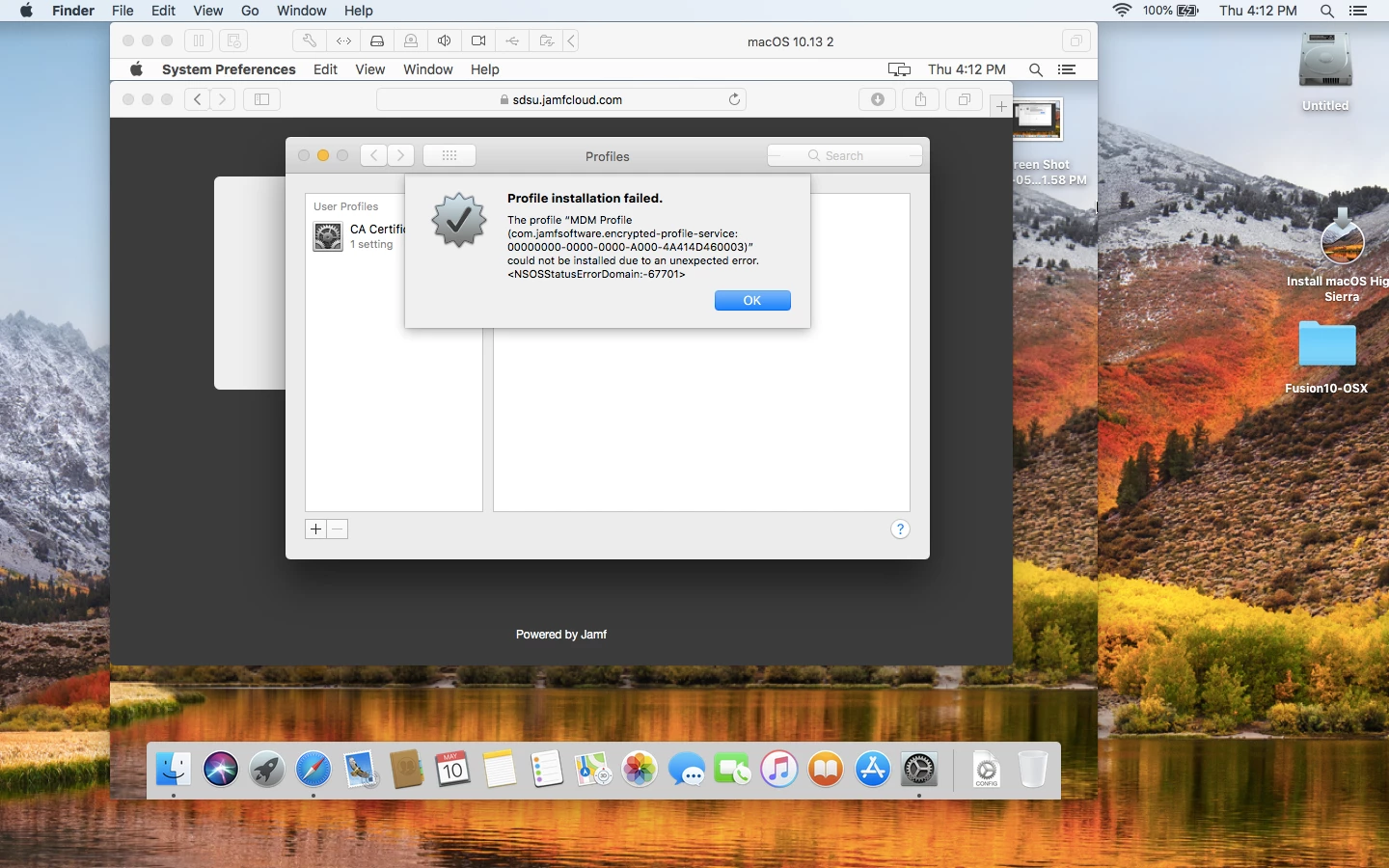
During enrollment via URL, my VM can't install the MDM profile. The attached error is displayed.

*Profile installation failed.

The profile "MDM Profile (com.jamfsoftware.encrypted-profile-service: 00000000-0000-0000-A000-4A414D460003)" could not be installed due to an unexpected error. <NSOSStatusErrorDomain:-67701>*

The error code seems to be defined as "An invalid record was encountered", but I'm not sure what to do with that...
14 replies

bentoms
Forum|alt.badge.img+35
  • Hall of Fame
  • May 21, 2018

see this from @emily :)


emily
Forum|alt.badge.img+26
  • Hall of Fame
  • May 21, 2018

@jtschaefer you need to set a hwmodel ID and make sure the VM is created with a serial number that doesn't include special characters. MDM won't work correctly if the profile is installed on a Mac without a valid (shipping) hardware model from Apple. You can check my blog post (that Ben posted above) for how to use vfuse for this, or you can create your VM and modify the vmx file within the virtual machine bundle manually before you boot it the first time. I personally recommend vfuse.


Forum|alt.badge.img+2
  • Author
  • New Contributor
  • May 22, 2018

That did it. Thanks!


Forum|alt.badge.img+19
  • Valued Contributor
  • October 10, 2018

I am having this issue but my VM is in vCenter.
Does anyone have any tips on setting the "hwmodel ID" and machine serial in vSphere?


Forum|alt.badge.img+10
  • Valued Contributor
  • October 12, 2018

Check in your JSS that there is not a "No Name" computer or some other device that is not enrolled correctly from the dates when you first tried to enroll the VM. In my situation the first time I tried to enroll my VM and it failed it created an incomplete computer record in the JSS named "No Name". After correctly setting the MAC address, hardware info, serial number, etc. in the VM config, the VM would not enroll until after I discovered the previously created incomplete record and deleted it. After that record was deleted the VM enrolled without issue.

~Scott


Forum|alt.badge.img+5
  • New Contributor
  • November 26, 2018

Something that helped me in going down this path (especially with Fusion 11) was to follow Received signal 11 and Using Templates from the vfuse wiki.


Forum|alt.badge.img+8

@captam3rica First creasting a autodmg with a mojave installer and then using vfuse and running the command that both should change serial and hardware type. No error appears, but when starting up the VM the serial and mac name is still not changed

How tried to do some manuel stuff in the .VMX file in vmware fusion, but no matter what I change it does not work

Running VMware fusion 10 and also tried with 11


Forum|alt.badge.img+1
  • New Contributor
  • May 6, 2019

I had no luck with this using VMware 11 when creating the vm file, error received: signal 11
Was anyone successful getting this to work with 10.4.4 and VMware 11.0.3?


dvasquez
Forum|alt.badge.img+16
  • Valued Contributor
  • December 4, 2019

This is great to know on my way to use vfuse.

Thanks @bentoms

Dominic


mark_mahabir
Forum|alt.badge.img+15
  • Jamf Heroes
  • December 6, 2019

@a.bautista Yes we've not really had a problem through multiple versions. All I do is add a line at the bottom of the .vmx file similar to:

serialNumber = hYtUInBGdWSc

i.e. a made up serial of 12 characters, none special and no quotes around them. I very rarely set a hwmodel.


donmontalvo
Forum|alt.badge.img+36
  • Hall of Fame
  • December 6, 2019

FWIW, to essentially sysprep a VMware virtual machine, usage:

/path/to/thisScript.sh /path/to/virtualMachine.vmwarevm/*.vmx

#!/bin/bash

VMXFILE="$1"

echo ""
echo "**********************************************************"
echo "IMPORTANT: To use this script, quit VMware Fusion first!!!"
echo "**********************************************************"
echo ""

echo "Enter your fake Serial Number for example 1234567891213."
read SERIALNUMBER

echo "Enter ModelIdentifier for example MacBookPro11,5 or iMacPro1,1"
read MODELIDENTIFIER

# Remove device specific crud

sed -i '' '/ethernet0.addressType/d' "$VMXFILE"
sed -i '' '/ethernet0.generatedAddress/d' "$VMXFILE"
sed -i '' '/ethernet0.generatedAddressOffset/d' "$VMXFILE"
sed -i '' '/uuid.bios/d' "$VMXFILE"
sed -i '' '/uuid.location/d' "$VMXFILE"
sed -i '' '/hw.model/d' "$VMXFILE"
sed -i '' '/serialNumber/d' "$VMXFILE"

# Add Model Identifier and Serial Number

echo "hw.model = $MODELIDENTIFIER" >> "$VMXFILE"
echo "serialNumber = $SERIALNUMBER" >> "$VMXFILE"

exit 0

Forum|alt.badge.img+6
  • Contributor
  • May 22, 2020

Doing a quick browse through these answers, I'm seeing a lot of mentions that you need to add a hardware model and a serial number to the vm, but I'm not seeing anyone say how to do it. For visibility, in VMWare Fusion 8:

In the vm library view, right click on the vm you want to add this information to, then hold option while the right click menu is open. This should give you the option to Show Config File in Editor. In the config file, add the lines

hw.model = "<insert hardware model here>"
serialNumber = "<insert serial number here>"

howie_isaacks
Forum|alt.badge.img+23
  • Esteemed Contributor
  • December 2, 2020

@aalberty I just switched to VMware Fusion from Parallels. Thanks for this tip. I have decided that Parallels is crap. It's crap coated crap with crap filling and it runs like crap on macOS Big Sur.


stephanpeterson
Forum|alt.badge.img+12

I'm seeing this same error but on physical hardware. It's happening post migration to Jamf Cloud. Any thoughts? I've got a ticket open with Jamf Support, but thought I'd ask here too.