Question

WPA2 Enterprise, EAP-TLS and 802.1x Computer certificate Big Sur

  • December 4, 2020
  • 31 replies
  • 214 views

Show first post

31 replies

Forum|alt.badge.img+4
  • New Contributor
  • June 16, 2021

This worked for us as well:
- Adding all required certificates in the chain to the Wi-Fi configuration profile.
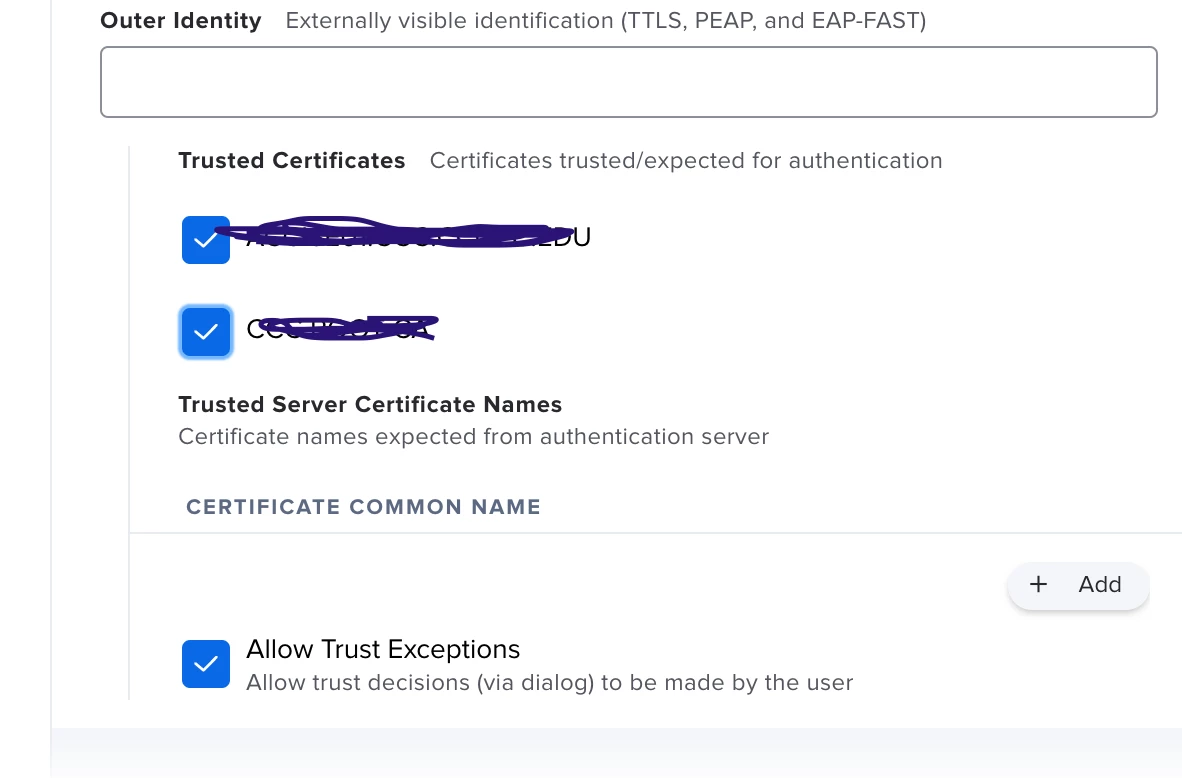
- Selecting each checkbox of the certificates in the Trust Tab of the Network Payload.

Some notes:
- Jamf AD CS Connector was already setup.
- Using TLS.
- The identity certificate was already selected from the the Identity Certificate pop-up menu.


Forum|alt.badge.img+12
  • Contributor
  • July 6, 2021

Is it best to create a new Wifi profile when a certificate expires or just update the payload in the current Config Profile? I have a cert expiring very soon and would like to know best practices. Affecting macOS and iOS configuration profiles. Thanks!


Hugonaut
Forum|alt.badge.img+15
  • Esteemed Contributor
  • August 3, 2021

Forum|alt.badge.img+1
  • New Contributor
  • August 23, 2021

I just discovered something new in the configuration profile that I had not seen before. There are check boxes for trusted certificates that were unchecked. Unclear whether this is a new JAMF Pro thing (10.29) or ?? If they were unchecked previously, why did they work in Catalina and not Big Sur. I am checking the boxes and redeploying to see iff it makes a difference. I will have to log into every Mac though as it will not get the new profile if not connected while logged out.


How do you make those check boxes appear? I only see {No applicable Certificate payload is configured] even though I have the AD Certificate filled out as part of this same Configuration Profile. 


MLBZ521
Forum|alt.badge.img+12
  • Valued Contributor
  • August 23, 2021

How do you make those check boxes appear? I only see {No applicable Certificate payload is configured] even though I have the AD Certificate filled out as part of this same Configuration Profile. 


You can't trust that AD certificate as that cert is the devices cert.

Trustable certs (i.e. those check boxes) appear after you've uploaded a cert manually into the Config Profile Certificates Payload.  e.g. The certificate chain is what you'd normally see here, for example, when the cert is signed by a third party or even internal CA that's not natively trusted.


Forum|alt.badge.img+1
  • New Contributor
  • August 23, 2021

You can't trust that AD certificate as that cert is the devices cert.

Trustable certs (i.e. those check boxes) appear after you've uploaded a cert manually into the Config Profile Certificates Payload.  e.g. The certificate chain is what you'd normally see here, for example, when the cert is signed by a third party or even internal CA that's not natively trusted.


I exported the Root certificate from my windows server certificate authority server. Exported the private key and included all certificates int he certification path as well. Then in my configuration profile I added a certificate payload and added this certificate. I still do not see any of the check boxes under Trusted Certificates as shown. Not sure what I am missing....there isn't exactly a manual written for this stuff. 🙂