
As an Apple Partner (I work for an Apple Premium Partner in Belgium) Managed Apple Accounts are a bit of a challenge. Last November we concluded our transition after a 2 year adventure. I’ll spare the details I cannot talk about and focus on what’s the same for everyone.
There generally are 5 parts of your Managed Apple Account quest:
1) Verify your domain
2) Lock your domain
3) Capture the domain
4) Federate with your Identity Provider
5) Provision new accounts
Before you get started with this, please know your why. Currently there are not that many reasons why you would absolutely - need - Managed Apple Accounts. Generally we only start the capture (and federation) part with customers of ours whom want to use Account Driven Enrollment (e.g for BYOD purposes). That being said we do advise any customer to verify and lock their domains to prevent issues in the future.
Step 1: Verify your domain
The first part is the easiest. You can add a domain in Apple Business Manager and you will be asked to verify it. In practice this means adding a TXT record to your DNS settings.
Step 2: Lock your domain
The second part is just as easy. By default anyone with a valid e-mail address (e.g awesome.colleague@lab9.be) can create a personal Apple account. By locking the domain we ensure that no new personal Apple accounts can be created with that domain name. This will not impact any existing personal Apple accounts already created.
There are some caveats to verifying and locking the domain:
Once you lock a domain, you cannot unlock it, only remove it.
Once you set up federation with an identity provider all future domains will automatically be locked.
Removing a domain will mean removing all Managed Apple Accounts in it.
Step 3: Capture the domain
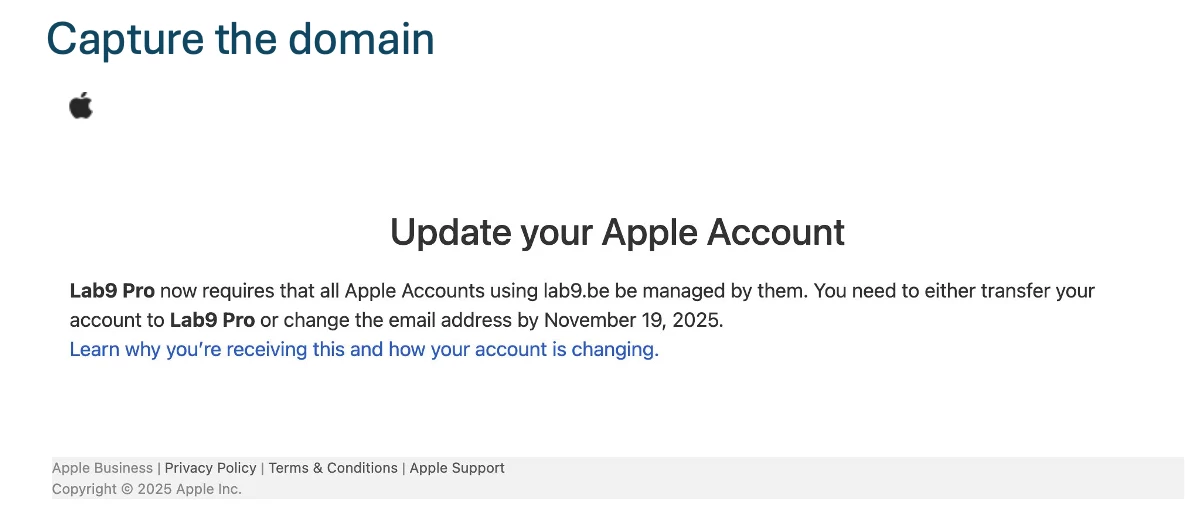
The most challenging (and often confusing) part of the Managed Apple Account transition is often the domain capture part.
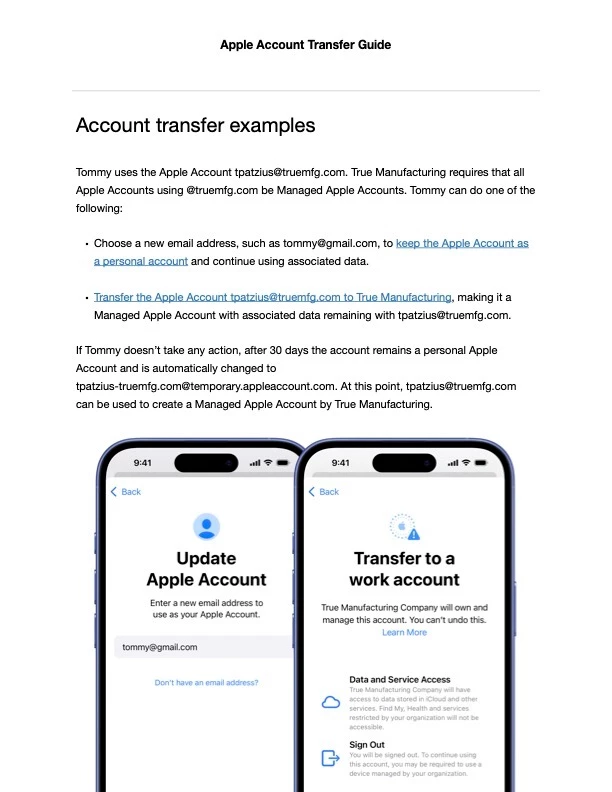
In practice, once you start the domain capture any existing personal Apple account will receive an e-mail (and an on-device notification) that your organization is claiming the domain and the existing accounts need to be changed within 30 days. Note, 30 days pass quickly.
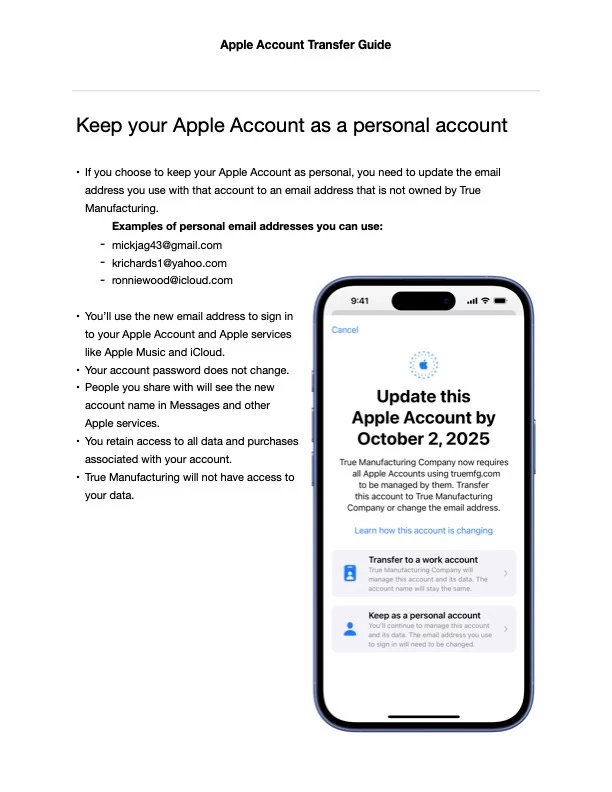
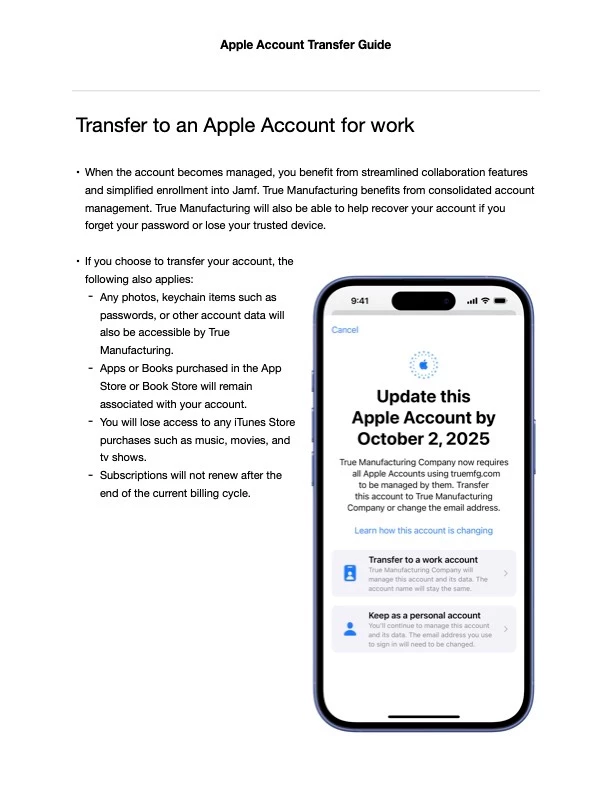
The end user will have two options. Either keeping the account as a personal Apple account and changing the name (read choosing a different e-mail address) OR converting the account to a Managed Apple account.
In Apple Business Manager you will be able to see a number of accounts found and how many have gone through the process. As of last year you can also see a list of accounts however this is not a complete list. I would highly advise to do a message trace on your mailserver (look for mails from appleid@apple.com) so you can communicate correctly.
So what do you need to know? Not every personal Apple account can just be migrated to a Managed account. Apple keeps a list (here) but generally:
- Accounts with Apple Cash cannot be converted to a Managed Apple account.
- Accounts with any balance cannot be converted to a Managed Apple account.
- Accounts with signed-in devices cannot be converted to a Managed Apple account. You’ll need to sign-out on these devices (and perhaps disable Stolen Device Protection to do so).
- Accounts with Family Sharing set up cannot be converted to a Managed Apple account.
- Accounts with a Recovery Contact set up cannot be converted to a Managed Apple account.
- Accounts with Health data present cannot be converted to a Managed Apple account.
Also, please note that
- App Store subscriptions bought via In-App purchases continue to work but will not renew.
- Apps and books will follow the account to managed (but do not become VPP licenses).
- iCloud services (such as Apple Music, Apple TV, Apple Fitness, …) do not follow the account.
- Migrating requires iOS 18 or macOS 15.1 or later.
- Personal data remaining in an account that is converted to Managed is now company owned.
What happens if that awesome colleague does nothing for 30 days? It’s good to know that the end user will receive ~4 reminders that action is required. If no action is taken the account will automatically be kept as a personal Apple account and renamed to accountname-companyname@temporary/appleaccount.com. That e-mail address can be changed afterwards.
Congratulations! If the capture process is completed the hardest part is behind you. There are two additional steps you can take.
Step 4: Federate with your Identity Provider
You can federate with your Identity Provider (e.g Microsoft Entra) and by thus let the end users log into their Managed Apple Accounts via a known sign-in method.
Step 5: Provision new accounts
You can enable a directory sync so new accounts are automatically provisioned when something changes on the Identity Provider side. That way you have little to no maintenance on your Managed Apple Accounts.
Recommendations
Recommendations before you get started (specifically with capturing the domain):
- Understand which accounts will be affected
You can utilize the list available in Apple Business Manager as a starting point.
- Communicate early and clearly.
- Explain to your end users:
- Why the change is happening.
- When the change will be happening.
- What data will be lost or retained.
- What they must do to prepare.
- How to back-up personal data if required.
- Decide which accounts MUST be converted to Managed
In many cases it is not necessary to convert an account to Managed and it can safely be kept as personal. Accounts that I would advise to always convert to managed:
- APNS certificates (know you can contact Apple to move the certificate from one account to another)
- Developer accounts
- Accounts with GSX access.
4. Prepare for post-conversion support. Depending on your setup end users might require support for:
- Signing in after the conversion
- Recovering data
- Understanding changes to iCloud features
Resources
Resources you can use:
- Apple’s list of Managed Apple Accounts limitations:https://support.apple.com/guide/apple-business-manager/axm171b3ee95/1/web/1
- Apple’s instructions for end users:
https://support.apple.com/102159 - Transfer Apple services:
https://support.apple.com/guide/apple-business-essentials/axm6603d9206/web - Video from MacSysAdmin about BYO at Jamf by Emily Kausalik:https://www.youtube.com/watch?v=PKe2HnYlbmE
P.S
I cannot publicly talk about our experience as an Apple partner but I’m open to discuss in private with any other Apple partners contemplating on starting this adventure. 😉