

A complete, step-by-step deployment guide - including macOS Onboarding and Jamf Connect
Author: Meir Elimelech
With contributions from: Omer Ninyo /
Why this guide exists – and who should read it
Jamf’s move to make Self Service+ mandatory for macOS has prompted many organizations to re-evaluate their deployment and enrollment workflows. While Jamf’s documentation covers the supported installation and migration paths, real-world environments often include a mix of enrollment models, identity integrations, and timing-sensitive workflows that are not always addressed in isolation.
This guide exists to provide a single, practical reference for migrating to Self Service+ across all common macOS scenarios — from brand-new enrollments to existing fleets, with or without Jamf Connect.
It is intended for Jamf administrators, partners, and consultants who want to understand not only how to deploy Self Service+, but when different approaches are appropriate. In particular, it highlights a critical, undocumented edge case affecting Jamf Pro macOS Onboarding, which can disrupt first-time enrollment if Self Service+ is enabled without considering enrollment timing and workflow dependencies.
Important terminology
In this article, macOS Onboarding means Jamf Pro macOS Onboarding (the built-in post-enrollment workflow that runs policies, configuration profiles, and packages immediately after enrollment). This is not Setup Assistant customization, Jamf Connect Login, or a general onboarding concept.
Quick path chooser
Use this to jump to the right section:
- Option 1 - New enrollments (ADE or UIE), no Jamf Connect requirement: Deploy Self Service+ via PKG (manual), keep macOS Onboarding safe
- Option 2 - New enrollments with Jamf Connect requirements: Deploy Self Service+ plus Jamf Connect together (PKG-based)
- Option 3 - Existing fleet migration (“day zero”): Install Self Service+ at scale without touching your enrollment flow. Should be used along with either Option 1 or Option 2 as an alignment measure for current enrolled devices.
The edge case we uncovered: Self Service+ global enablement can break macOS Onboarding
What breaks: When Self Service+ is enabled via Jamf Pro Settings (global enablement/migration path), macOS Onboarding can be bypassed, interrupted, or fail to complete for newly enrolled Macs.
What fixes it: Treat Self Service+ as a controlled package deployment, staged via enrollment workflows (PreStage for ADE, policy trigger for UIE). Avoid turning it on globally until you have validated your onboarding behavior.
Prerequisites
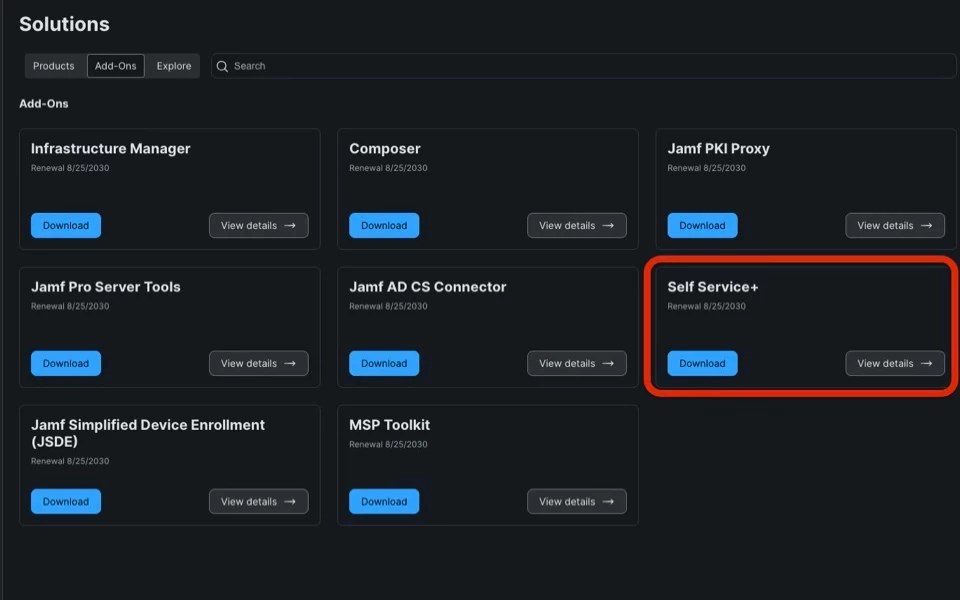
- Self Service+ installer package (PKG) available from Jamf Account / Add-ons
- Confirm your environment details:
- Enrollment methods in use: ADE, UIE, or both
- Whether you use Jamf Connect (Login, Menu Bar Password Sync, or both)
- Whether macOS Onboarding is enabled and actively used
- Decide whether you want to remove classic Self Service immediately or keep it temporarily
- Recommended: remove classic Self Service only when Self Service+ is confirmed present and stable
- Minimum Requirements:
- Jamf Pro 11.20 or later
- macOS 13 (Ventura) or later on managed Macs
- Self Service+ (current supported version)
- Jamf Connect 3.x or later, if Jamf Connect is part of your macOS deployment
For detailed and up-to-date compatibility information, refer to Jamf’s official documentation for Self Service+ and Jamf Connect.
This guide assumes the use of currently supported Jamf components and does not cover legacy or end-of-life versions.
Branding note:
Existing Self Service branding settings carry over to Self Service+. In most environments, no additional branding configuration is required as part of the migration.
Option 1 - Standard deployment for new enrollments
Use this if:
- You use macOS Onboarding
- You enroll via ADE and/or UIE
- You do not require Jamf Connect identity persistence as part of the first-run flow (or you handle identity separately)
Goal
- macOS Onboarding runs normally
- Self Service+ is installed early but does not interrupt onboarding
- Classic Self Service is removed cleanly
Step 1 - Download the Self Service+ PKG
- Download the Self Service+ installer package from Jamf Account (Add-ons)
- Upload the PKG to Jamf Pro (Packages)
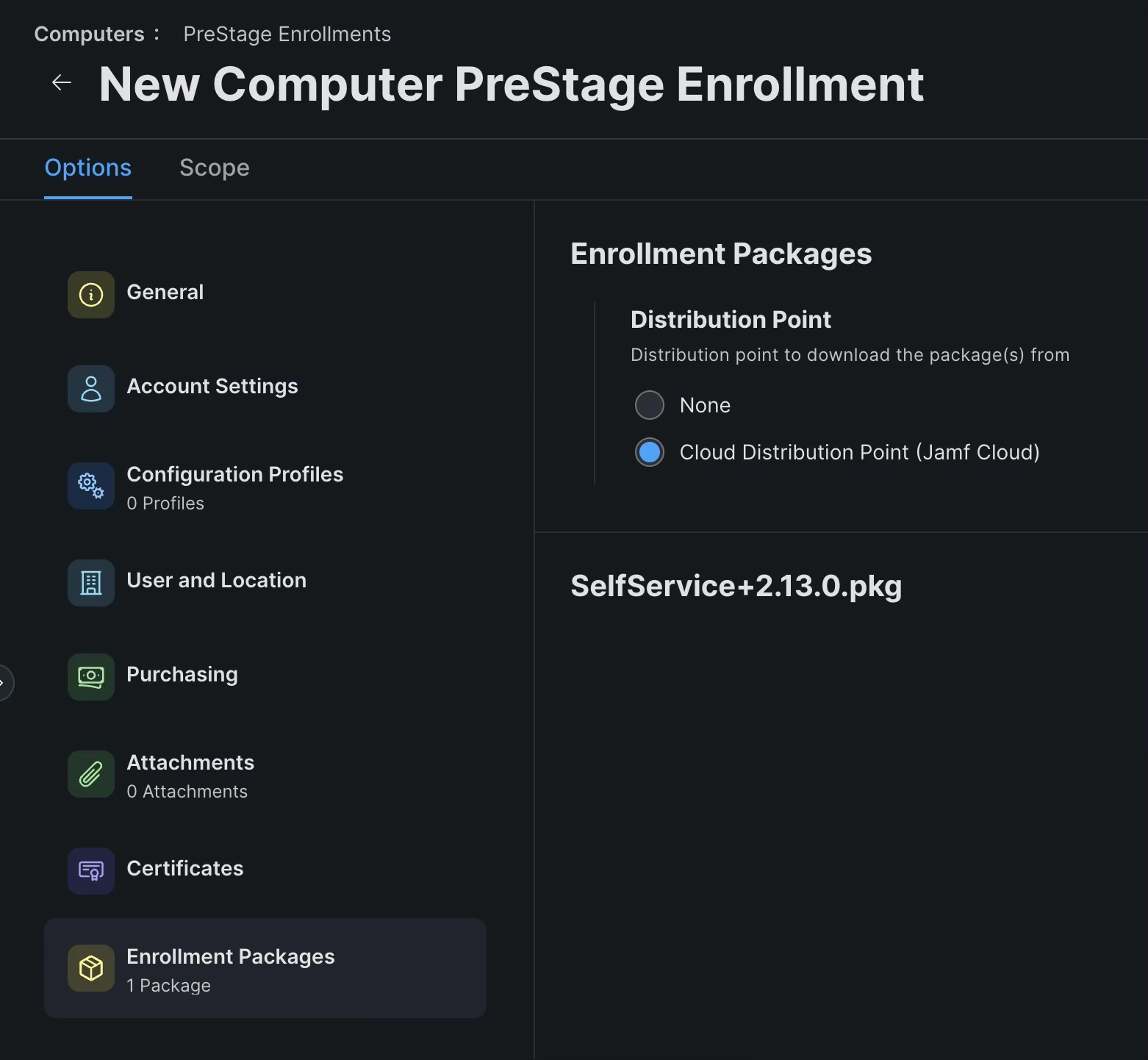
Step 2A - ADE: Add Self Service+ to PreStage Enrollment packages
- In Jamf Pro, open your macOS PreStage Enrollment
- Add the Self Service+ PKG to Enrollment Packages
- Save
Why this matters: PreStage staging installs Self Service+ during enrollment without relying on global enablement that can collide with macOS Onboarding.
Step 2B - UIE: Deploy Self Service+ via an enrollment-complete policy
If you enroll Macs via UIE (first-time enrollment without PreStage packages), use a policy approach.
- Create a policy: “Install Self Service+ (UIE new enrollments)”
- Trigger: choose the earliest reliable trigger in your workflow
- Common patterns: enrollment complete, check-in, recurring check-in (once per computer)
- Scope the policy to newly enrolled UIE Macs
- Use the best scoping signal you have (example patterns):
- Enrollment method indicator (if available in your environment)
- Enrollment date in the last X days
- A dedicated smart group populated during UIE onboarding
- Add the Self Service+ PKG to the policy
- Set execution frequency: Once per computer
- Save
Step 3 - Smart cleanup: remove classic Self Service only when both apps exist
This prevents breaking users who have not received Self Service+ yet.
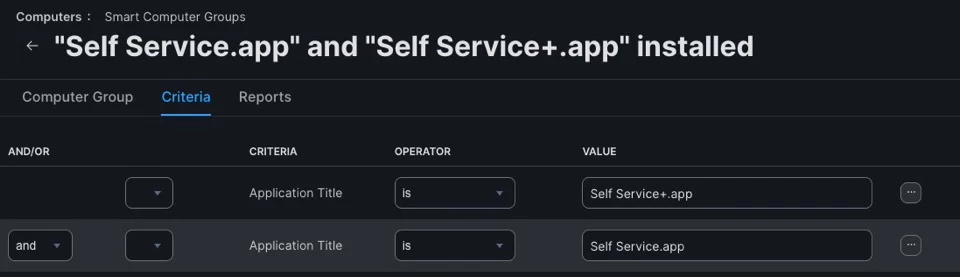
Step 3.1 - Create a Smart Group: “Has both Self Service and Self Service+”
- Create a Smart Computer Group
- Criteria example:
- Application Title has Self Service.app
- AND Application Title has Self Service Plus.app (or your exact app name as reported)
- Save
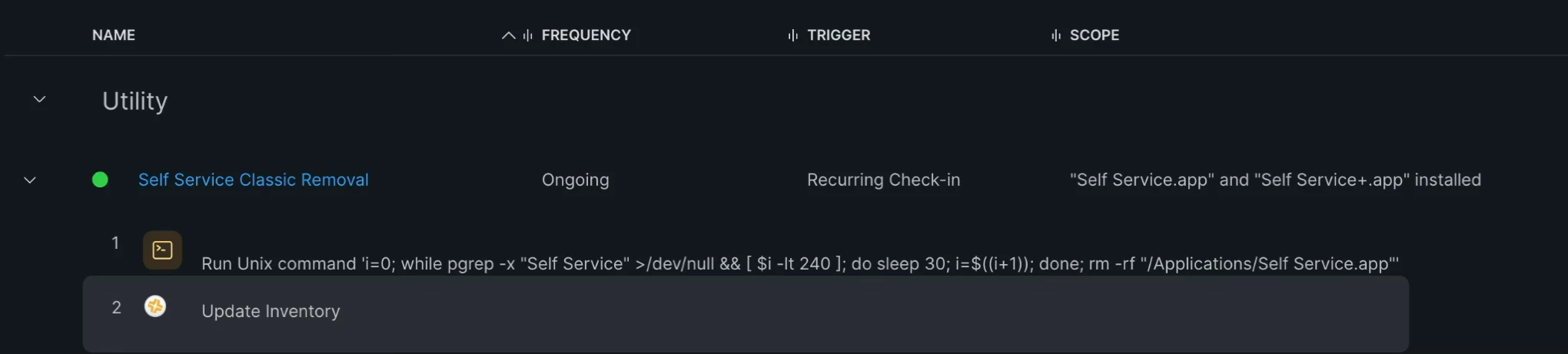
Step 3.2 - Create a cleanup policy: “Remove classic Self Service”
- Create a policy scoped to the Smart Group above
- Add a Files and Processes payload to remove the classic app:
- Add the following in the command field in order To avoid removing the classic Self Service app while it is still running or during macOS Onboarding, wait until the application is no longer running before removing it (with 2 hours timeout):
- i=0; while pgrep -x "Self Service" >/dev/null && [ $i -lt 240 ]; do sleep 30; i=$((i+1)); done; rm -rf "/Applications/Self Service.app"
- Alternatively, if you don’t worry about removing the old Self Service too early you can simply use the command:
- rm -rf "/Applications/Self Service.app"
- Add the following in the command field in order To avoid removing the classic Self Service app while it is still running or during macOS Onboarding, wait until the application is no longer running before removing it (with 2 hours timeout):
- Add Maintenance:
- Enable Update Inventory
- Execution frequency: Ongoing
- Save
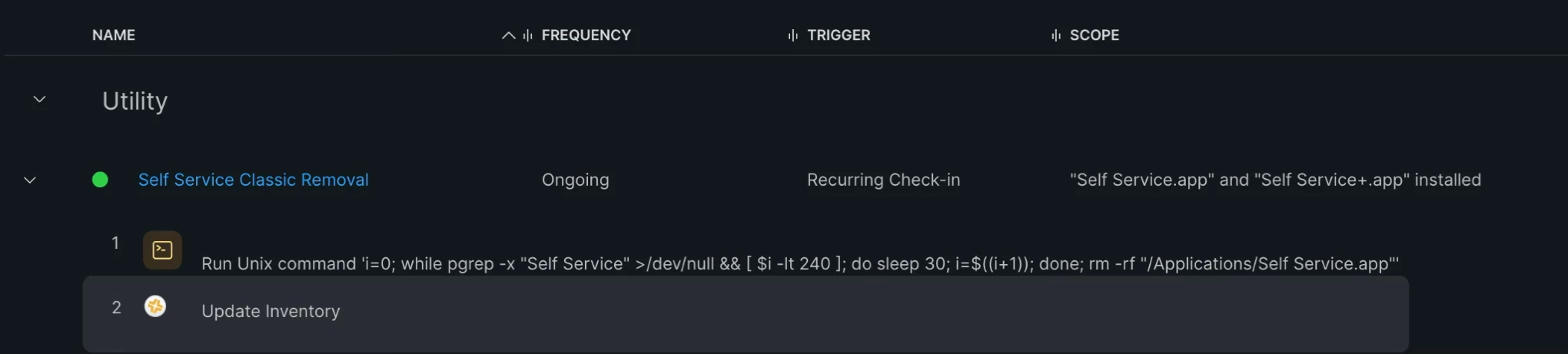
Why inventory update matters: it refreshes the application inventory so the Mac drops out of the Smart Group immediately after removal.
Why Ongoing? In environments that rely on macOS Onboarding, the legacy classic Self Service installation setting must remain enabled for new enrollments, which means Classic Self Service may reappear on already enrolled Macs at a later time (for example, following a Jamf Pro upgrade). Setting the removal policy to Ongoing ensures the classic app is automatically removed again whenever it reappears. Once Classic Self Service is fully deprecated and no longer installed by Jamf, the execution frequency no longer matters.
Note: Application titles are used in the examples above for clarity and consistency with the screenshots. In production environments, scoping based on Application Bundle ID is often more reliable, as bundle identifiers remain consistent across languages and versions. Always validate identifiers against live inventory data in your environment.
Validation checklist (Option 1)
On a newly enrolled Mac:
- macOS Onboarding UI appears and completes
- Required policies, profiles, and packages deploy as expected
- Self Service+ is installed and launches successfully
- Classic Self Service is removed only after Self Service+ exists
Option 2 - Integrated deployment for environments using Jamf Connect requirements
Use this if:
- You want the Self Service+ experience integrated with identity workflows
- You rely on Jamf Connect components for persistence, menu bar presence, or sign-in related workflows
- You still need macOS Onboarding to run correctly
Goal
- macOS Onboarding completes
- Self Service+ is deployed in a way that supports your Jamf Connect model
- Menu bar persistence and identity-related behavior is established predictably
Step 1 - Confirm required components
This option assumes Jamf Connect 3.x or later and an existing Jamf Connect Login deployment.
Common components in this scenario:
- Self Service+ PKG
- Jamf Connect Login PKG
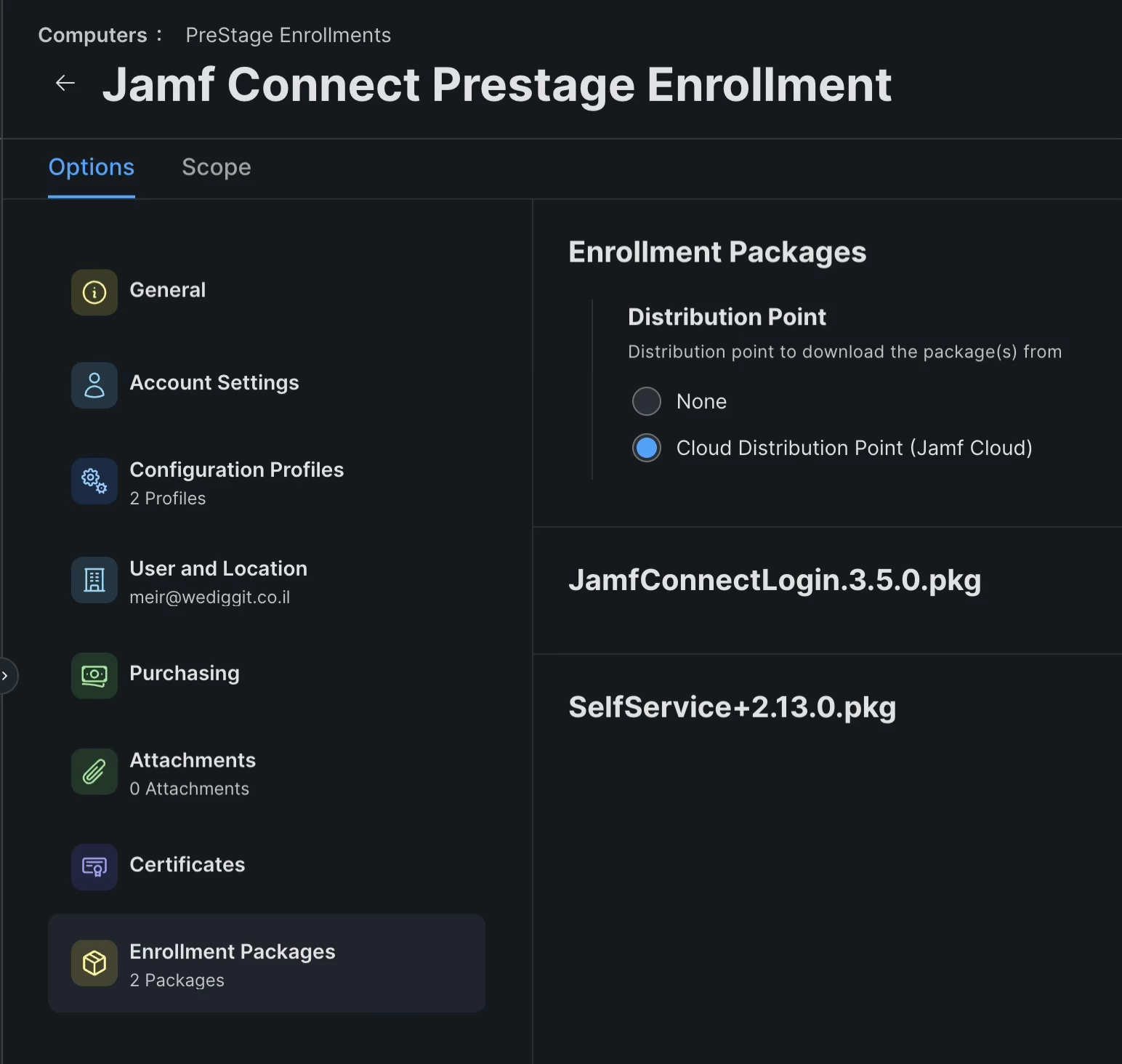
Step 2 - ADE: Stage packages together in PreStage
- In macOS PreStage Enrollment, add:
- Self Service+ package
- Jamf Connect Login package (if used)
- Ensure ordering matches your internal best practice (identity first vs app first - whichever your environment validates).
- Save
Step 3 - UIE: Deploy via policies
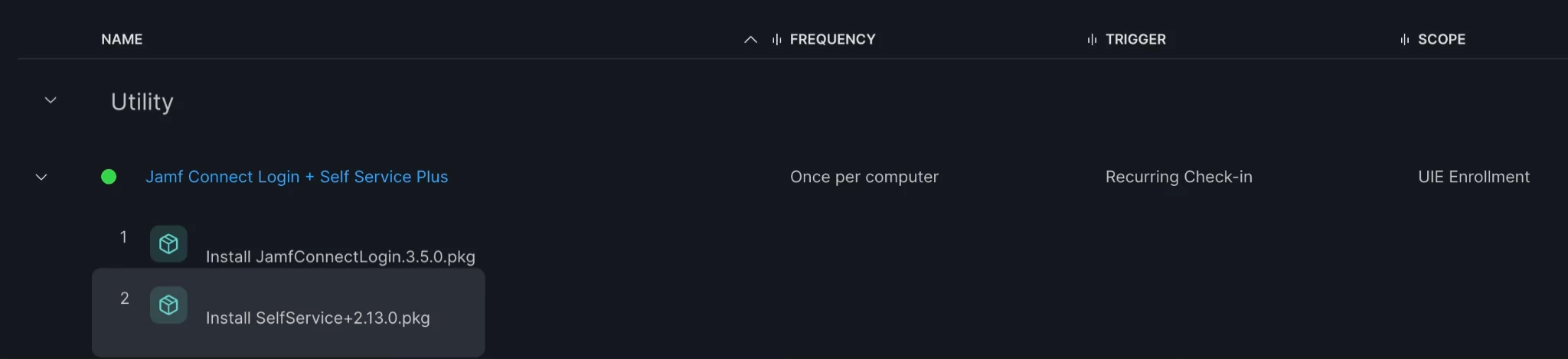
If UIE is used:
- Create a policy to deploy both Jamf Connect Login and Self Service+
- Control scope and frequency so both run once per computer
- Do not mix cleanup until Self Service+ is confirmed present
Step 4 - Smart cleanup: remove classic Self Service only when both apps exist (Same as in Option 1)
This prevents breaking users who have not received Self Service+ yet.
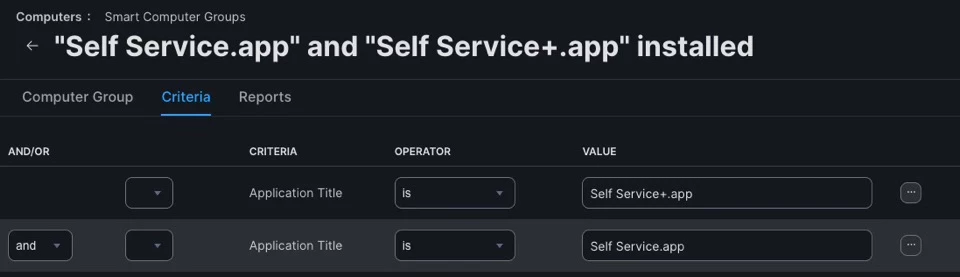
Step 4.1 - Create a Smart Group: “Has both Self Service and Self Service+”
- Create a Smart Computer Group
- Criteria example:
- Application Title has Self Service.app
- AND Application Title has Self Service Plus.app (or your exact app name as reported)
- Save
Step 4.2 - Create a cleanup policy: “Remove classic Self Service”
- Create a policy scoped to the Smart Group above
- Add a Files and Processes payload to remove the classic app:
- Add the following in the command field in order To avoid removing the classic Self Service app while it is still running or during macOS Onboarding, wait until the application is no longer running before removing it (with 2 hours timeout):
- i=0; while pgrep -x "Self Service" >/dev/null && [ $i -lt 240 ]; do sleep 30; i=$((i+1)); done; rm -rf "/Applications/Self Service.app"
- Alternatively, if you don’t worry about removing the old Self Service too early you can simply use the command:
- rm -rf "/Applications/Self Service.app"
- Add the following in the command field in order To avoid removing the classic Self Service app while it is still running or during macOS Onboarding, wait until the application is no longer running before removing it (with 2 hours timeout):
- Add Maintenance:
- Enable Update Inventory
- Execution frequency: Ongoing
- Save

Why inventory update matters: it refreshes the application inventory so the Mac drops out of the Smart Group immediately after removal.
Why Ongoing? In environments that rely on macOS Onboarding, the legacy classic Self Service installation setting must remain enabled for new enrollments, which means Classic Self Service may reappear on already enrolled Macs at a later time (for example, following a Jamf Pro upgrade). Setting the removal policy to Ongoing ensures the classic app is automatically removed again whenever it reappears. Once Classic Self Service is fully deprecated and no longer installed by Jamf, the execution frequency no longer matters.
Note: Application titles are used in the examples above for clarity and consistency with the screenshots. In production environments, scoping based on Application Bundle ID is often more reliable, as bundle identifiers remain consistent across languages and versions. Always validate identifiers against live inventory data in your environment.
Validation checklist (Option 2)
On a newly enrolled Mac:
- macOS Onboarding completes fully
- Jamf Connect behavior matches expected login/menu bar model
- Self Service+ is installed and persistent in the expected user context
- Classic Self Service is removed only when safe
Option 3 - Existing fleet migration (“day zero”) without disturbing new enrollment flows
Use this if:
- You already have a managed fleet
- You want Self Service+ deployed at scale
- You want to avoid any impact on macOS Onboarding for new enrollments
- You’ve already implemented either Option 1 or Option 2 for Onboarding new Enrollments
Goal
- Migrate existing devices safely
- Keep enrollment workflows isolated from fleet migration
- Remove classic Self Service cleanly
Step 1 - Create a Smart Group: “Needs Self Service+”
Example criteria:
- Does not have Self Service Plus.app
- AND is currently managed
- Optional: Enrollment date before a chosen cutoff (to separate from newly enrolled Macs)
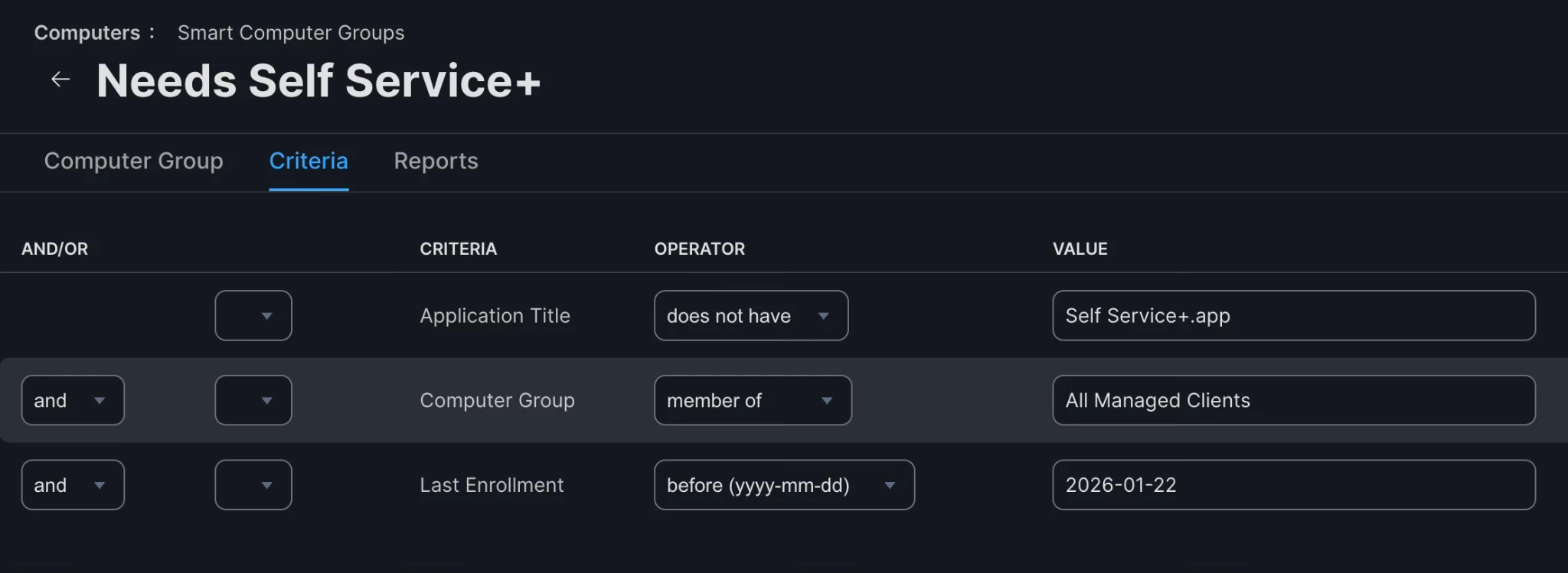
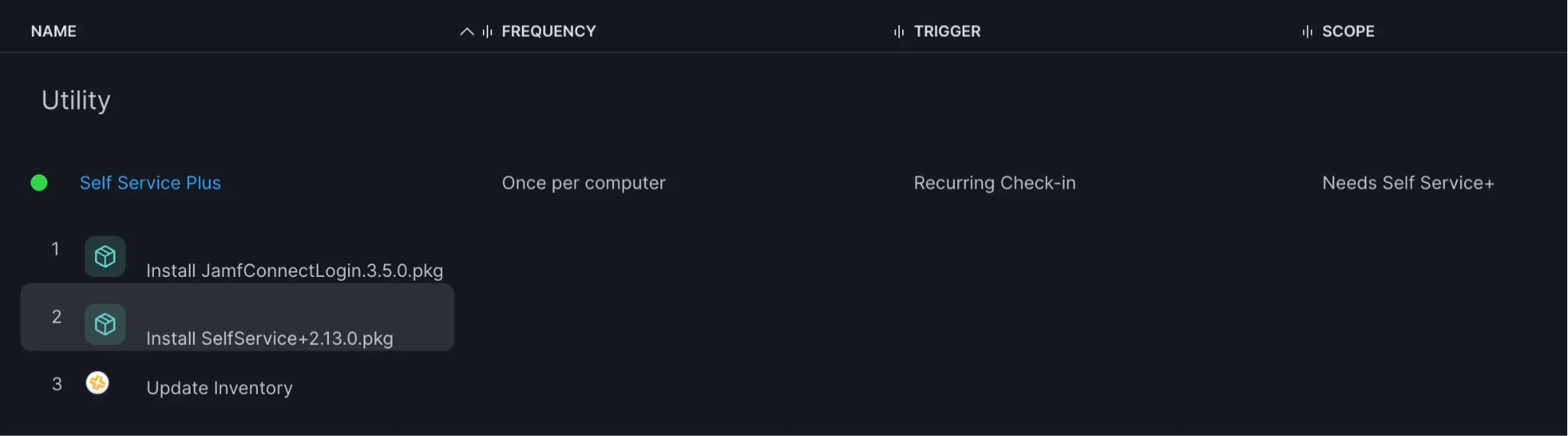
Step 2 - Create a migration policy: “Install Self Service+ (fleet)”
- Scope to the “Needs Self Service+” Smart Group
- Add Self Service+ PKG
- Execution frequency: Once per computer
- Add Maintenance: Update Inventory
- Save
Step 3 - Remove classic Self Service (only when both exist)
Reuse the same safe cleanup pattern from either Option 1 (Step 3) or Option 2 (Step 4):
- Smart Group: both apps exist
- Policy: remove classic app on ongoing basis + update inventory
Validation checklist (Option 3)
Across a sample of existing Macs:
- Self Service+ installs successfully
- Users can launch it reliably
- Classic Self Service is removed only after Self Service+ exists
- New enrollments remain unaffected (macOS Onboarding still works)
Troubleshooting notes
Self Service+ is installed but does not appear for the user
- Verify that the user has an active login session (Self Service+ does not present UI at the login window).
- Confirm that no restrictions or privacy controls prevent the app from launching.
- Check local logs for the Self Service+ process to confirm the app is starting correctly.
Why this matters:
This typically surfaces during first login scenarios or immediately after onboarding completes.
macOS Onboarding completes, but expected policies or apps are missing
- Verify that macOS Onboarding actually reached completion and was not interrupted.
- Review policy triggers used during onboarding and ensure they are compatible with the current Self Service+ deployment timing.
- Confirm that no cleanup or migration policies ran prematurely during onboarding.
Why this matters:
Most “partial onboarding” issues are timing-related, not configuration-related.
Classic Self Service keeps reappearing on already enrolled Macs
- This behavior is expected in environments where the legacy Self Service installation setting remains enabled for new enrollments.
- Ensure the removal policy is configured with an Ongoing execution frequency so the classic app is removed again whenever it reappears.
Why this matters:
This is not a failure state — it is the expected behavior until Classic Self Service is fully deprecated.
Unsure which Self Service deployment path applies to your environment
- Revisit the option selection section and confirm whether you are dealing with:
- New enrollments
- Existing managed Macs
- macOS Onboarding in active use
- Avoid mixing deployment logic between options.
Why this matters:
Most migration issues happen when steps from multiple options are combined unintentionally.
In most cases, issues encountered during Self Service+ migration are the result of timing or sequencing, not incorrect configuration. Reviewing execution order usually resolves the problem without structural changes.
Summary
Self Service+ migration can be simple — but only if you match the deployment method to your enrollment reality.
If you use macOS Onboarding, avoid relying on global enablement during first-time enrollment. Instead, deploy Self Service+ as a staged package and use an ongoing cleanup approach that preserves onboarding while ensuring the classic app is removed when no longer needed. With the three options above, you can cover every common environment with a single playbook.