Solved

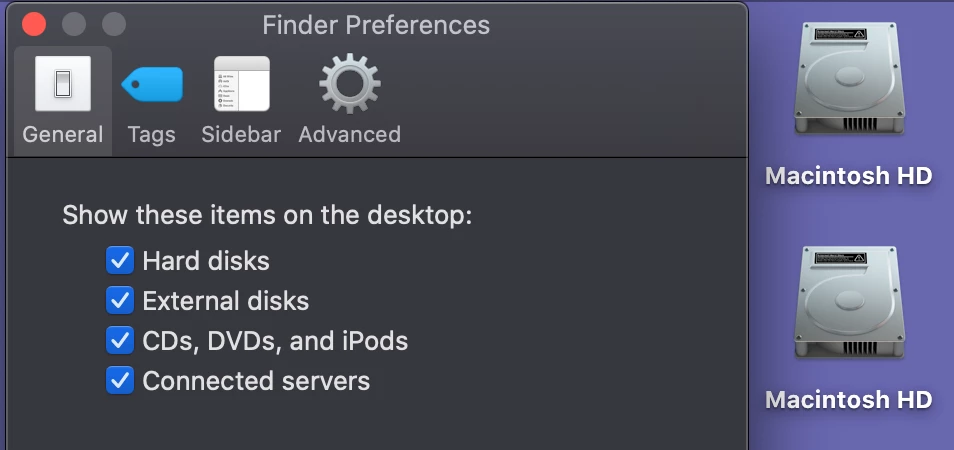
2 Macintosh HD icons in Catalina

  • July 29, 2020
  • 5 replies
  • 22 views

mvu
Forum|alt.badge.img+20

Hello!

When we run the CIS 10.15 hardening guide, the user sees 2 Macintosh HD icons on the desktop. I'm aware of the changes with Catalina on splitting System volume and Data volume.

At first I thought it had to do with the Jamf config profile/Finder payload that we use to show items on desktop. But even after I remove the config profile, 2 Macintosh HD icons remain.

Is anyone else seeing this? Are you using a simple script to re-hide one of the Macintosh HD icons?
Best answer by Anonymous

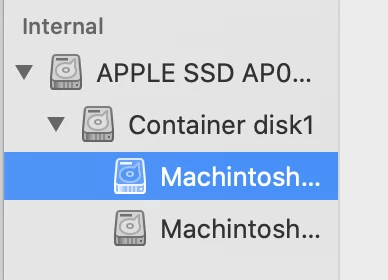
When erasing are you selecting Erase Volume Group? You may also change the View to show All Devices and erase the top level, usually named Apple SSD (this seems to work best on Internet Recovery or using a bootable USB).

5 replies

Forum|alt.badge.img+7

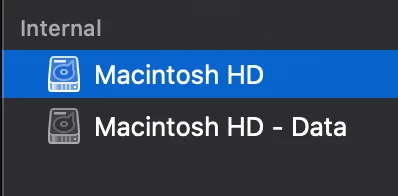
I would take a wild guess that with Catalina since it splits the disk into Macintosh HD and Macintosh HD - Data, the data drive was renamed and now shows. Open disk utility and see what it says.


mvu
Forum|alt.badge.img+20
  • Author
  • Jamf Heroes
  • July 30, 2020

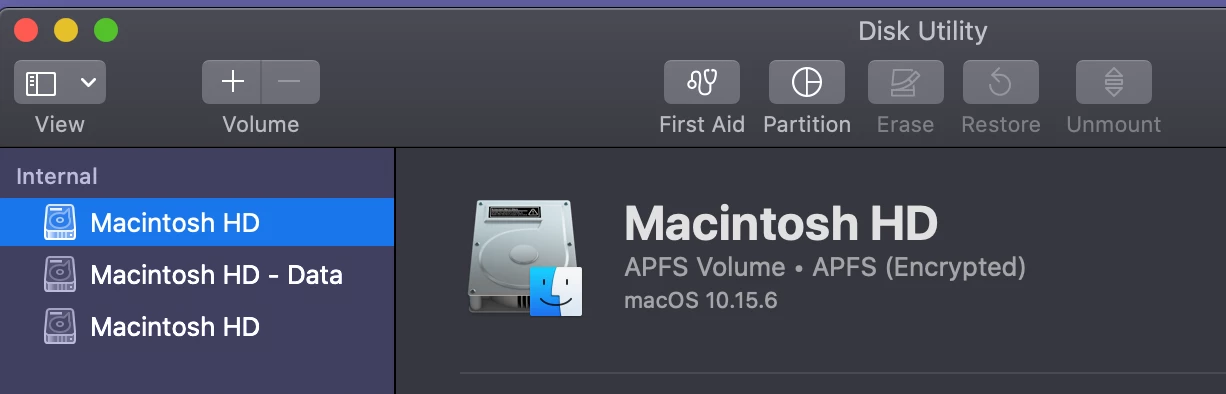
Here is what I see in Disk Utility...

When I tried to install macOS clean, I wiped all 3 hoping it'd clear back down to 2 (Macintosh HD, Macintosh HD - Data).


  • Answer
  • July 30, 2020

When erasing are you selecting Erase Volume Group? You may also change the View to show All Devices and erase the top level, usually named Apple SSD (this seems to work best on Internet Recovery or using a bootable USB).


Forum|alt.badge.img+10
  • Valued Contributor
  • July 30, 2020

When wiping a internal Drive I always select the "View" > "Show all Devices". This gets a view of the physical drive as well as any other drives, Container disk1, associated with it.


mvu
Forum|alt.badge.img+20
  • Author
  • Jamf Heroes
  • July 30, 2020

Thanks everyone. Showing All Devices and erasing the top level is working.