Solved

Background Login Items - Ventura

  • Oct 26, 2022 12:43 PM UTC
  • 29 replies
  • 1286 views

Forum|alt.badge.img+7

Trying to set up a config profile for this new feature set. I have used Jamf's example and Apple's example as starting points, but the radio buttons for the items I have set to be managed are still able to be turned off and do not say they are managed like the Jamf apps are.


Has anyone else had success in getting a config profile to work for this yet?

Best answer by Jason33

Use iMazing Profile Editor and this guide 

https://hammen.medium.com/managing-login-items-for-macos-ventura-e78d627f88b6 

View original

29 replies

Jason33
Forum|alt.badge.img+13
  • Honored Contributor
  • Answer
  • Oct 26, 2022 1:23 PM UTC

karthikeyan_mac
Forum|alt.badge.img+20

Service Management - Managed Login Items in iMazing Profile Editor will help to create the profile. 
"sudo sfltool dumpbtm" will list all the login items and details to add it in the profile.

Thanks


naschenbrenner
Forum|alt.badge.img+11

Here's what I got to finally work. Save the below as a .mobileconfig file, and then upload it to Jamf after updating your org name. You'll have to generate new PayloadUUID's with uuidgen in terminal if you use this as a template for other applications. 

<?xml version="1.0" encoding="UTF-8"?> <!DOCTYPE plist PUBLIC "-//Apple//DTD PLIST 1.0//EN" "http://www.apple.com/DTDs/PropertyList-1.0.dtd"> <plist version="1.0"> <dict> <key>PayloadContent</key> <array> <dict> <key>PayloadDisplayName</key> <string>Service Management - Managed Login Items</string> <key>PayloadIdentifier</key> <string>com.apple.servicemanagement.1ED2CC51-41E0-49EB-A8D1-E6B5C3A283CC</string> <key>PayloadType</key> <string>com.apple.servicemanagement</string> <key>PayloadUUID</key> <string>1ED2CC51-41E0-49EB-A8D1-E6B5C3A283CC</string> <key>PayloadVersion</key> <array> <dict> <key>Comment</key> <string>Zoom</string> <key>RuleType</key> <string>Label</string> <key>RuleValue</key> <string>us.zoom.ZoomDaemon</string> </dict> </array> </dict> </array> <key>PayloadDisplayName</key> <string>Zoom - Managed Background and Login Items</string> <key>PayloadIdentifier</key> <string>YOURORGHERE.87731DFF-DE49-482B-958F-0623F514D2AF</string> <key>PayloadType</key> <string>Configuration</string> <key>PayloadUUID</key> <string>87731DFF-DE49-482B-958F-0623F514D2AF</string> </dict> </plist>


Forum|alt.badge.img+7
  • Author
  • Contributor
  • Nov 1, 2022 11:46 AM UTC

I had never tried iMazing before, thank you both that suggested it! Holy crap this is going to make things easier


Forum|alt.badge.img+6
  • New Contributor
  • Nov 7, 2022 4:53 AM UTC

Here's what I got to finally work. Save the below as a .mobileconfig file, and then upload it to Jamf after updating your org name. You'll have to generate new PayloadUUID's with uuidgen in terminal if you use this as a template for other applications. 

<?xml version="1.0" encoding="UTF-8"?> <!DOCTYPE plist PUBLIC "-//Apple//DTD PLIST 1.0//EN" "http://www.apple.com/DTDs/PropertyList-1.0.dtd"> <plist version="1.0"> <dict> <key>PayloadContent</key> <array> <dict> <key>PayloadDisplayName</key> <string>Service Management - Managed Login Items</string> <key>PayloadIdentifier</key> <string>com.apple.servicemanagement.1ED2CC51-41E0-49EB-A8D1-E6B5C3A283CC</string> <key>PayloadType</key> <string>com.apple.servicemanagement</string> <key>PayloadUUID</key> <string>1ED2CC51-41E0-49EB-A8D1-E6B5C3A283CC</string> <key>PayloadVersion</key> <array> <dict> <key>Comment</key> <string>Zoom</string> <key>RuleType</key> <string>Label</string> <key>RuleValue</key> <string>us.zoom.ZoomDaemon</string> </dict> </array> </dict> </array> <key>PayloadDisplayName</key> <string>Zoom - Managed Background and Login Items</string> <key>PayloadIdentifier</key> <string>YOURORGHERE.87731DFF-DE49-482B-958F-0623F514D2AF</string> <key>PayloadType</key> <string>Configuration</string> <key>PayloadUUID</key> <string>87731DFF-DE49-482B-958F-0623F514D2AF</string> </dict> </plist>


Thanks! What is the Preference Domain assignment in this zoom example?


chrisB
Forum|alt.badge.img+7
  • Valued Contributor
  • Nov 11, 2022 2:24 PM UTC

Thanks! What is the Preference Domain assignment in this zoom example?


For "Managed Login Items" the preference domain is always

com.apple.servicemanagement


awjohnso
Forum|alt.badge.img+7
  • Contributor
  • Nov 23, 2022 5:13 PM UTC

Can't get this to work. I tried the profile created by naschenbrenner above. I changed the UUID codes and uploaded it to Jamf. It pushes out to the workstation, and the profile installs. However the toggles in LoginItems can be still changed. The computer I am testing with is Ventura 13.0.1. It was upgraded from the Beta... so maybe something is not working right? I also tried to add the team id, and the LabelPrefix:

<dict> <key>RuleType</key> <string>TeamIdentifier</string> <key>RuleValue</key> <string>BJ4HAAB9B3</string> </dict> <dict> <key>RuleType</key> <string>LabelPrefix</string> <key>RuleValue</key> <string>us.zoom</string> </dict>

 I will try to re-install the computer with Ventura 13.0.1 from scratch to see if this fixes the issue...


Forum|alt.badge.img+9
  • Contributor
  • Nov 29, 2022 11:55 PM UTC

Can't get this to work. I tried the profile created by naschenbrenner above. I changed the UUID codes and uploaded it to Jamf. It pushes out to the workstation, and the profile installs. However the toggles in LoginItems can be still changed. The computer I am testing with is Ventura 13.0.1. It was upgraded from the Beta... so maybe something is not working right? I also tried to add the team id, and the LabelPrefix:

<dict> <key>RuleType</key> <string>TeamIdentifier</string> <key>RuleValue</key> <string>BJ4HAAB9B3</string> </dict> <dict> <key>RuleType</key> <string>LabelPrefix</string> <key>RuleValue</key> <string>us.zoom</string> </dict>

 I will try to re-install the computer with Ventura 13.0.1 from scratch to see if this fixes the issue...


Hello,

Use the accepted solution mentioned above. It works really well and is very easy to create.  I was quite impressed with it. 


Forum|alt.badge.img+7
  • Contributor
  • Nov 30, 2022 9:29 PM UTC

Use iMazing Profile Editor and this guide 

https://hammen.medium.com/managing-login-items-for-macos-ventura-e78d627f88b6 


That article worked very well for me... except the last point, #18. On my test computer where I upgrade from macOS 12 to macOS 13, the "Managed Login Items - Jamf Apps" is pushed immediately, but not my custom defined "Managed Login Items". Mine gets pushed only after the computer checks-in, and I scoped it out as per the article #18 (Smart Group with a Profile Identifier of com.jamf.servicemanagement.backgroundapps). 

I do have some users who would go look at what they can disable immediately after the upgrade, so I'm concerned about that. Any suggestions?


scottb
Forum|alt.badge.img+18
  • Valued Contributor
  • Dec 12, 2022 9:06 PM UTC

Here is the Profile info from using Robert Hammen's info.  Used iMazing Profile Editor to build it and then upload it.  Works great...no more notifications.  Just scoped to enrollment for Smart Group "macOS 13."


<?xml version="1.0" encoding="UTF-8"?> <!DOCTYPE plist PUBLIC "-//Apple//DTD PLIST 1.0//EN" "http://www.apple.com/DTDs/PropertyList-1.0.dtd"> <plist version="1.0"> <dict> <key>PayloadContent</key> <array> <dict> <key>NotificationSettings</key> <array> <dict> <key>BundleIdentifier</key> <string>com.apple.BTMNotificationAgent</string> <key>NotificationsEnabled</key> <false/> </dict> </array> <key>PayloadIdentifier</key> <string>com.apple.notificationsettings.12c05d0d-6231-4621-9ac6-a781a626951b</string> <key>PayloadType</key> <string>com.apple.notificationsettings</string> <key>PayloadUUID</key> <string>12c05d0d-6231-4621-9ac6-a781a626951b</string> <key>PayloadVersion</key> <integer>1</integer> </dict> </array> <key>PayloadDescription</key> <string>Disable Background Task Management Notifications</string> <key>PayloadDisplayName</key> <string>Disable Background Task Management Notifications</string> <key>PayloadIdentifier</key> <string>com.apple.notificationsettings.5ea4543d-f0fe-4f19-9e5f-7fab2051b712</string> <key>PayloadScope</key> <string>System</string> <key>PayloadType</key> <string>Configuration</string> <key>PayloadUUID</key> <string>5ea4543d-f0fe-4f19-9e5f-7fab2051b712</string> <key>PayloadVersion</key> <integer>1</integer> </dict> </plist>


Forum|alt.badge.img+9
  • Contributor
  • Dec 13, 2022 9:41 PM UTC

@scottb Thanks for sharing your solution Scott.  A general question regarding your solution and Robert Hammen. Once we deploy the Disable Notifications to our fleet will it block ALL Notifications from any software or just the titles related to the Managed Logins?
I already have notifications disabled for Qualys, Forescout, FireEye etc.  So wondering if I need to make more changes.

Thanks 


scottb
Forum|alt.badge.img+18
  • Valued Contributor
  • Dec 13, 2022 10:31 PM UTC

@scottb Thanks for sharing your solution Scott.  A general question regarding your solution and Robert Hammen. Once we deploy the Disable Notifications to our fleet will it block ALL Notifications from any software or just the titles related to the Managed Logins?
I already have notifications disabled for Qualys, Forescout, FireEye etc.  So wondering if I need to make more changes.

Thanks 


@pueo - did you block Notifications or did you lock down those with Agents/Daemons (login)?

The one above will silence 'em all, and you don't (AFAIK) have to alter it.  The one I made to lockdown the Login items I need to update as I add new Team Identifiers to the list.  The profile above will stop you from being told about new Login Items being added...

Similar, but different items...


Forum|alt.badge.img+9
  • Contributor
  • Dec 13, 2022 11:18 PM UTC

@scottb 

For the apps I mentioned I used Notification and the specific Bundle ID to block them.

You say the one above will silence them all.  Is that ALL notifications for ALL Apps or just  New Login Items as mentioned in the last line. It was not clear to me.


MrRoboto
Forum|alt.badge.img+9
  • Valued Contributor
  • Dec 14, 2022 5:59 PM UTC

Login Item management is not built into the latest Jamf Pro version? We should continue to use Robert Hammen's solution? 


jbutler47
Forum|alt.badge.img+14
  • Valued Contributor
  • Dec 20, 2022 3:37 PM UTC

To block the "Managed Login Items Added" notification, use this simple procedure:


  • Create a new Configuration Profile
    • Set to Computer level
  • Select the Notifications payload
    • Leave App Name blank
    • Enter "com.apple.btmnotificationagent" into the Bundle ID field
    • Select Disable for Critical alerts
    • Select Disable for Notifications
  • Scope to a test machine to test
  • Save Profile


jbutler47
Forum|alt.badge.img+14
  • Valued Contributor
  • Dec 20, 2022 3:40 PM UTC

Another way to block the "Managed Login Items Added" notification is to:


  • Create a new Configuration Profile
  • Set to Computer Level
  • Select Notifications payload
  • Skip App Name field, leave it blank
  • Enter "com.apple.btmnotificationagent" for the Bundle ID
  • Select Disable for Critical Alerts
  • Select Disable for Notifications
  • Scope to test machine(s)
  • Save Profile


MacJunior
Forum|alt.badge.img+9
  • Valued Contributor
  • Jan 18, 2023 2:22 PM UTC

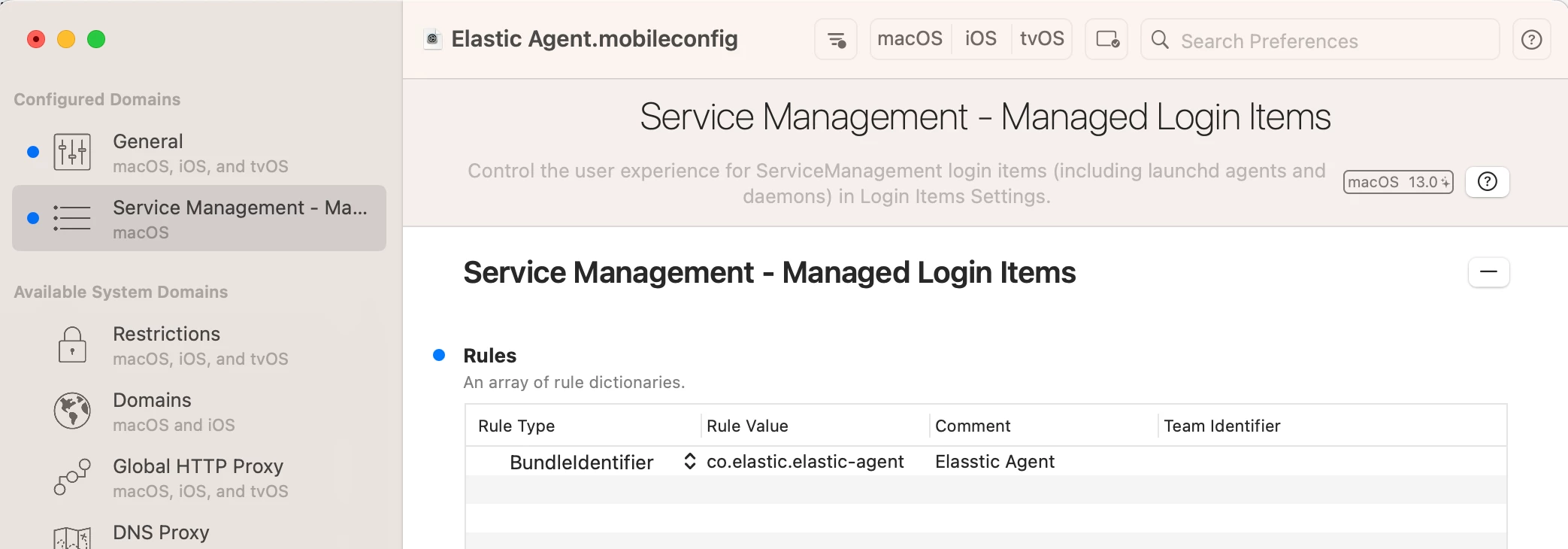
I'm trying to grey out elastic-agent in the login items in Ventura but it still doesn't work!

after running this command "sudo sfltool dumpbtm" I got this about Elastic agent : 

#15:

                 UUID: F8A306A3-45BB-4B2B-A1CE-DD5824BB6D7A

                 Name: elastic-agent

       Developer Name: (null)

                 Type: legacy daemon (0x10010)

          Disposition: [enabled, allowed, visible, notified] (11)

           Identifier: co.elastic.elastic-agent

                  URL: file:///Library/LaunchDaemons/co.elastic.elastic-agent.plist

      Executable Path: /usr/local/bin/elastic-agent

           Generation: 1

    Parent Identifier: Unknown Developer


I built a profile like this one below but it still doesn't work ! any tips please?


Forum|alt.badge.img
  • New Contributor
  • Jan 20, 2023 4:35 PM UTC

Another way to block the "Managed Login Items Added" notification is to:


  • Create a new Configuration Profile
  • Set to Computer Level
  • Select Notifications payload
  • Skip App Name field, leave it blank
  • Enter "com.apple.btmnotificationagent" for the Bundle ID
  • Select Disable for Critical Alerts
  • Select Disable for Notifications
  • Scope to test machine(s)
  • Save Profile


This works great for turning it off for all apps. What if I want to do if for one? Our security wants us to install the Rapid7 agent and I can't figure out how to do this just for that. Can you help?

Thanks!


chrisB
Forum|alt.badge.img+7
  • Valued Contributor
  • Jan 24, 2023 9:57 AM UTC

I'm trying to grey out elastic-agent in the login items in Ventura but it still doesn't work!

after running this command "sudo sfltool dumpbtm" I got this about Elastic agent : 

#15:

                 UUID: F8A306A3-45BB-4B2B-A1CE-DD5824BB6D7A

                 Name: elastic-agent

       Developer Name: (null)

                 Type: legacy daemon (0x10010)

          Disposition: [enabled, allowed, visible, notified] (11)

           Identifier: co.elastic.elastic-agent

                  URL: file:///Library/LaunchDaemons/co.elastic.elastic-agent.plist

      Executable Path: /usr/local/bin/elastic-agent

           Generation: 1

    Parent Identifier: Unknown Developer


I built a profile like this one below but it still doesn't work ! any tips please?


Change the "Rule Type" from "BundleIdentifier" to "Label" and use the name of the plist without suffix ("co.elastic.elastic-agent") as the "Rule Value".


Forum|alt.badge.img+1
  • New Contributor
  • Feb 13, 2023 7:40 PM UTC

This works great for turning it off for all apps. What if I want to do if for one? Our security wants us to install the Rapid7 agent and I can't figure out how to do this just for that. Can you help?

Thanks!


You can still allow notifications per app, this just turns off the notification that a background item was added.


MacJunior
Forum|alt.badge.img+9
  • Valued Contributor
  • Feb 14, 2023 7:28 AM UTC

Actually it worked by choosing LabelPrefix as the rule type and the value is co.elastic


dlondon
Forum|alt.badge.img+14
  • Honored Contributor
  • Feb 21, 2023 8:49 AM UTC

Looks like Managed Login Items is a section in Jamf Pro in the built in Configuration Profiles section


Forum|alt.badge.img+1
  • New Contributor
  • Feb 21, 2023 6:25 PM UTC

Looks like Managed Login Items is a section in Jamf Pro in the built in Configuration Profiles section


That's correct if you're using Jamf 10.42+

Prior to 10.42 you won't have that section available and will have to create your own config profile per the discussions in this thread.


karthikeyan_mac
Forum|alt.badge.img+20

@bootrec We had the same problem and ended up using a startup policy with a script to update inventory if the macOS is Ventura and scope the profiles to macOS Ventura smart group.

Thanks.


#!/bin/bash # # Run recon if the Mac is running macOS Ventura. # IFS='.' read osvers_major osvers_minor osvers_dot_version <<< "$(/usr/bin/sw_vers -productVersion)" if [[ ${osvers_major} -eq 13 ]]; then echo "macOS Ventura $osvers_major.$osvers_minor.$osvers_dot_version" jamf recon else echo "Device not running macOS Ventura. Inventory update not required at startup" fi


SMR1
Forum|alt.badge.img+13
  • Valued Contributor
  • Mar 2, 2023 7:46 PM UTC

I created the below, but I'm still getting the background notification message.

  • Create a new Configuration Profile
    • Set to Computer level
  • Select the Notifications payload
    • Leave App Name blank
    • Enter "com.apple.btmnotificationagent" into the Bundle ID field
    • Select Disable for Critical alerts
    • Select Disable for Notifications
  • Scope to a test machine to test
  • Save Profile