Question

Block native macOS applications from Jamf School MDM

  • May 18, 2026
  • 9 replies
  • 139 views

vegard
Forum|alt.badge.img+3

Hi.

We’re using Jamf School as MDM (so please do not tell me all the wonderful things available in Pro 😅 ).

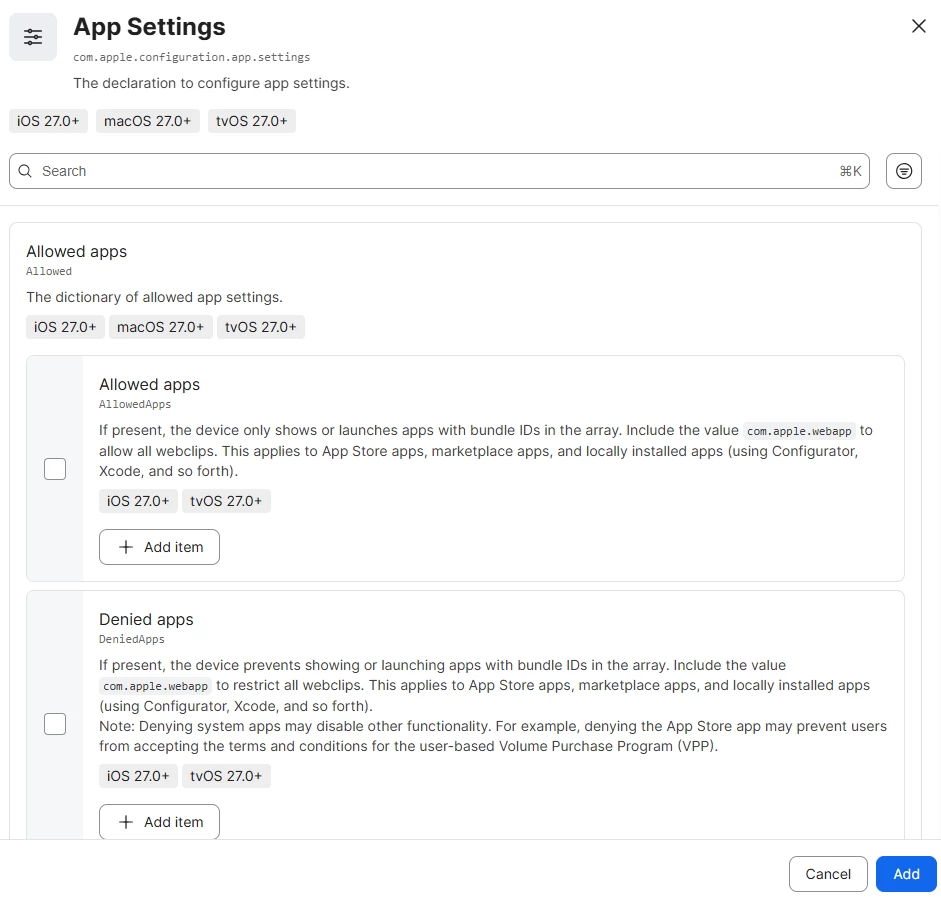
Setting up MacBook Neo’s as new student devices. We want to block applications as: FaceTime, iMessage, Phone, iPhone mirroring during enrollment. As of today the only “half ass” solution is the “Safelist and Blocklist” payload, but this is deprecated : 
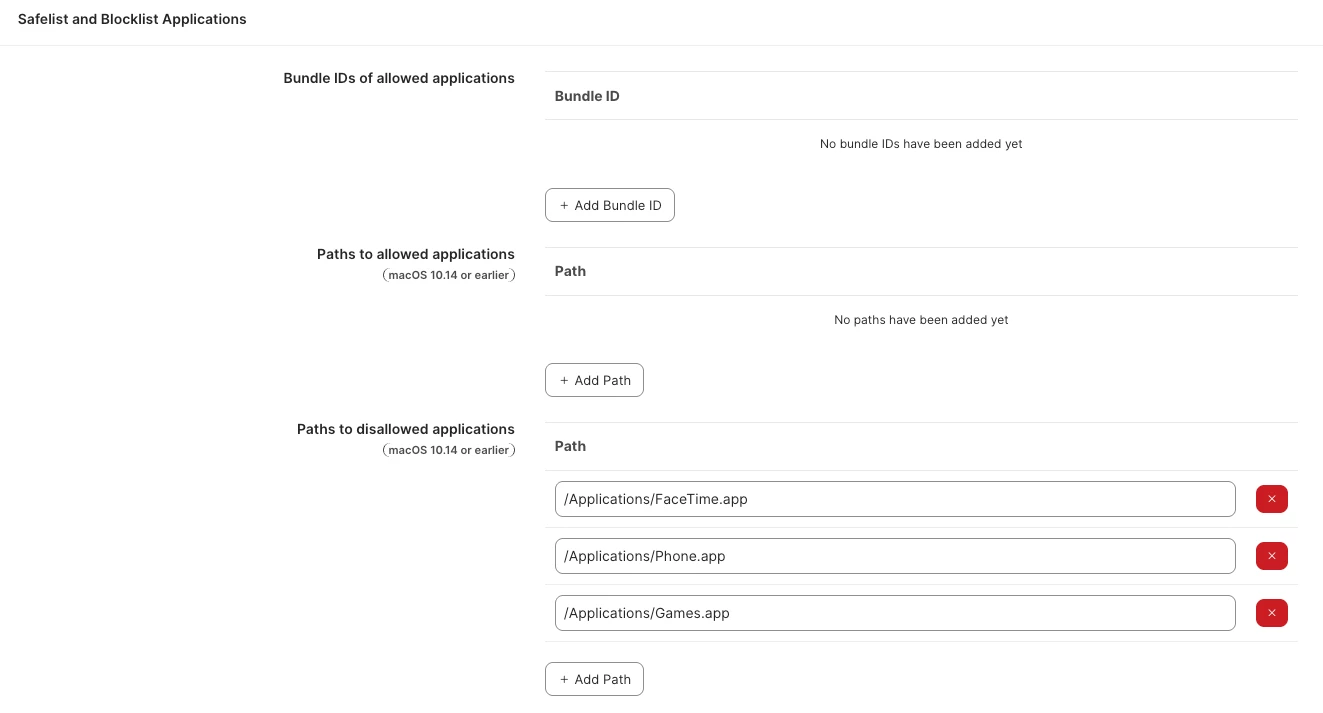
 

Are there any other good solutions for getting this to work?

9 replies

MusicCityMac
Forum|alt.badge.img+15
  • Jamf Heroes
  • May 18, 2026

You should be using a Restrictions Profile to block the apps and settings you don’t want the students to have access to.

Using iMazing Profile Editor is my preferred way of creating these, so I can test them on a device before uploading them to the Jamf console.


vegard
Forum|alt.badge.img+3
  • Author
  • Contributor
  • May 18, 2026

Thank you for the tip ​@MusicCityMac, but I still have a tough time figuring out how to do this for native apps on macOS 26.xx. Could you point me to the exact place where this type of restriction is configured? 


MusicCityMac
Forum|alt.badge.img+15
  • Jamf Heroes
  • May 19, 2026

Thank you for the tip ​@MusicCityMac, but I still have a tough time figuring out how to do this for native apps on macOS 26.xx. Could you point me to the exact place where this type of restriction is configured? 

Are you doing this through the console or using iMazing Profile Editor? 


vegard
Forum|alt.badge.img+3
  • Author
  • Contributor
  • May 19, 2026

Tried both.


MusicCityMac
Forum|alt.badge.img+15
  • Jamf Heroes
  • May 19, 2026

Ok, I was thinking about this through the wrong lens, that’s my fault, sorry about that.

If you log in to Jamf School and click Computers, do you see Content Management?

If you do, look for Restricted Software, which should be the fourth item down, and click on it. There, you can add apps to block. Click on the New Button in the upper right side of the window and fill out your parameters, Name, Site, Process Name, and what actions you want to happen if the app is launched.

The great thing about using a Restricted Software Record is that you can delete the application in question, send a notification email if the restricted software is launched, and display a message to the user explaining why something is restricted.
 

Also, the apps you mentioned are tied to an Apple Account. You may want to block the use of personal Apple accounts on school-owned devices and only allow Managed Apple Accounts, which you can set up for Faculty, Staff, and Students in Apple Business.

Hope this helps!


vegard
Forum|alt.badge.img+3
  • Author
  • Contributor
  • May 19, 2026

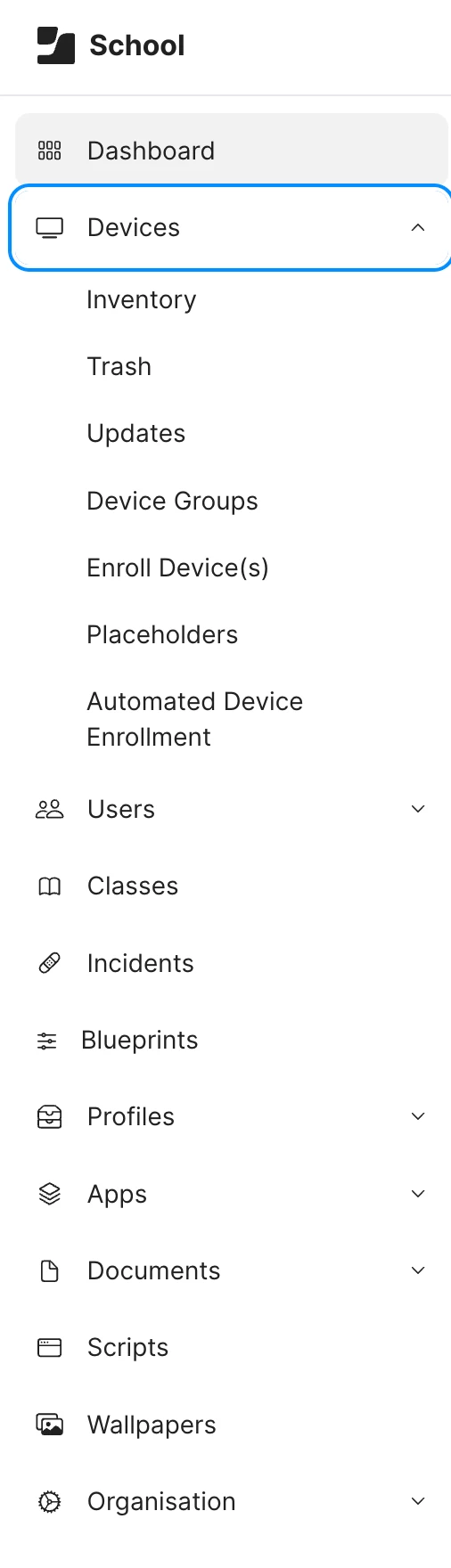
Is this something you actually see in your Jamf School setup?!
I see only this, and no mention of what you’re referring to. Are you sure this isn’t a Pro function only?


MusicCityMac
Forum|alt.badge.img+15
  • Jamf Heroes
  • May 19, 2026

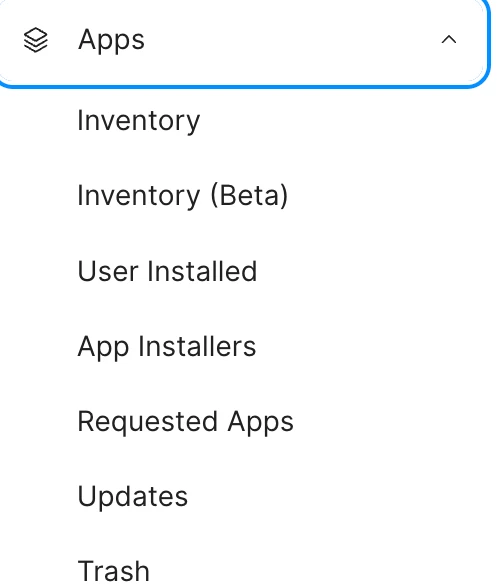
I don’t have access to Jamf School, and you may be right; it may be a Pro-only function, but I do see that you have a separate category for Apps. Have you checked whether there is a restricted category under there?


vegard
Forum|alt.badge.img+3
  • Author
  • Contributor
  • May 19, 2026

Ok. I think what you’re referring to is Pro only. The apps section has no such functionality I’m afraid.


MusicCityMac
Forum|alt.badge.img+15
  • Jamf Heroes
  • May 19, 2026

@atomczynski11 do you use Jamf School, and if you do, could you jump in and offer some advice?