Question

Configuring Global HTTP proxy for macOS

  • March 20, 2025
  • 4 replies
  • 781 views

Forum|alt.badge.img+15

Hello,

Looking for a way to configure the Global HTTP proxy via Jamf Pro for macOS. The "Global HTTP Proxy" payload is only available for 'Devices' in JamfPro. 

We previously pushed a proxy pac URL setting that restricts browsing if not signed in to VPN via a script from macmule that uses the networksetup command. We found that this method doesn't restrict Safari and only restricts Chrome. After a chat with Apple Support, it appears that we need to use the Global HTTP proxy method for it to apply to Safari. 

Has anyone deployed a "global HTTP proxy" configuration to macOS devices via Jamf Pro?

Thank you!

Thank you

 

4 replies

agungsujiwo
Forum|alt.badge.img+10
  • Contributor
  • March 21, 2025

Hi @debrat ,

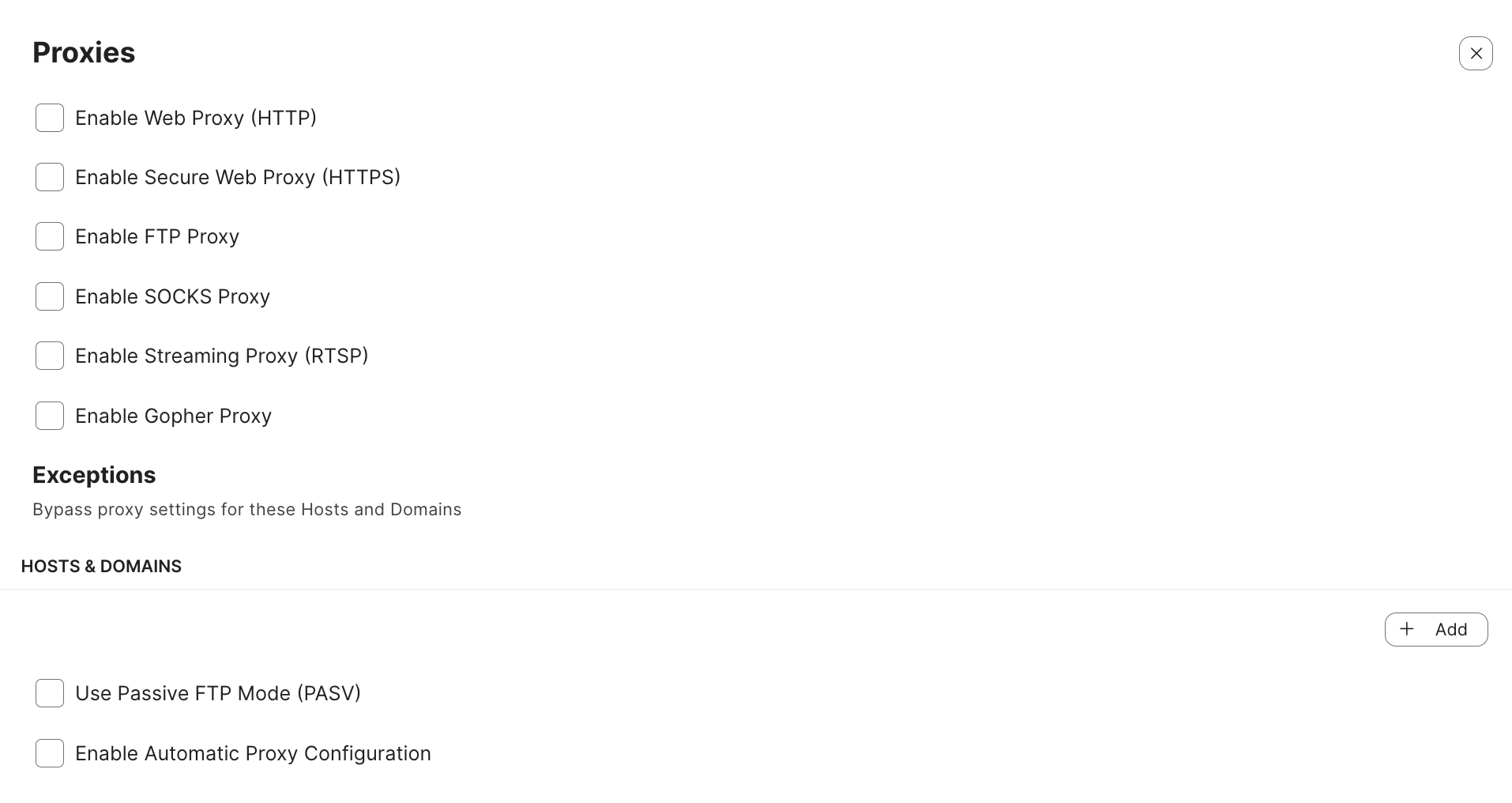
Here's what I found in Jamf Pro, Configuration Profile > Proxy settings:

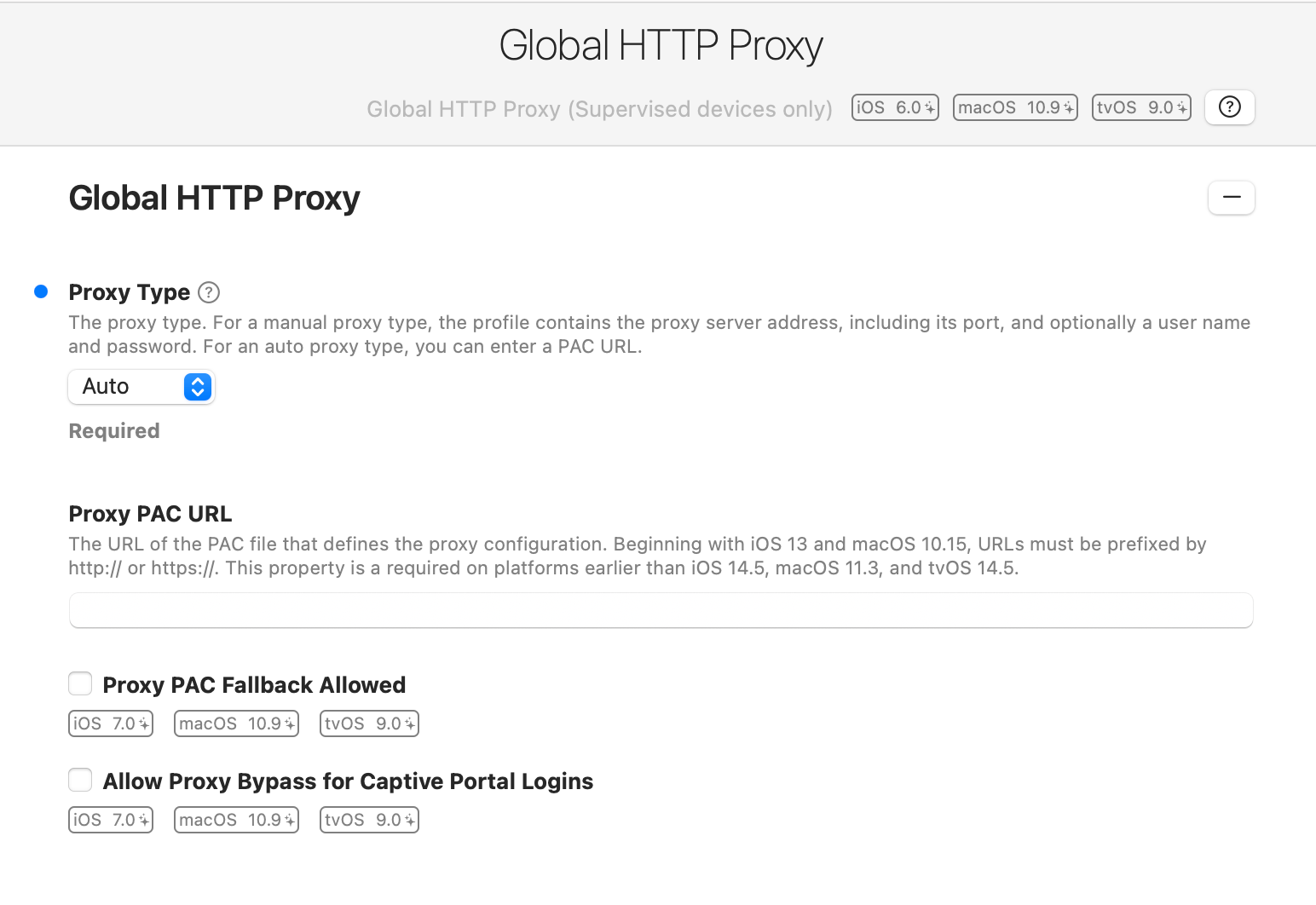
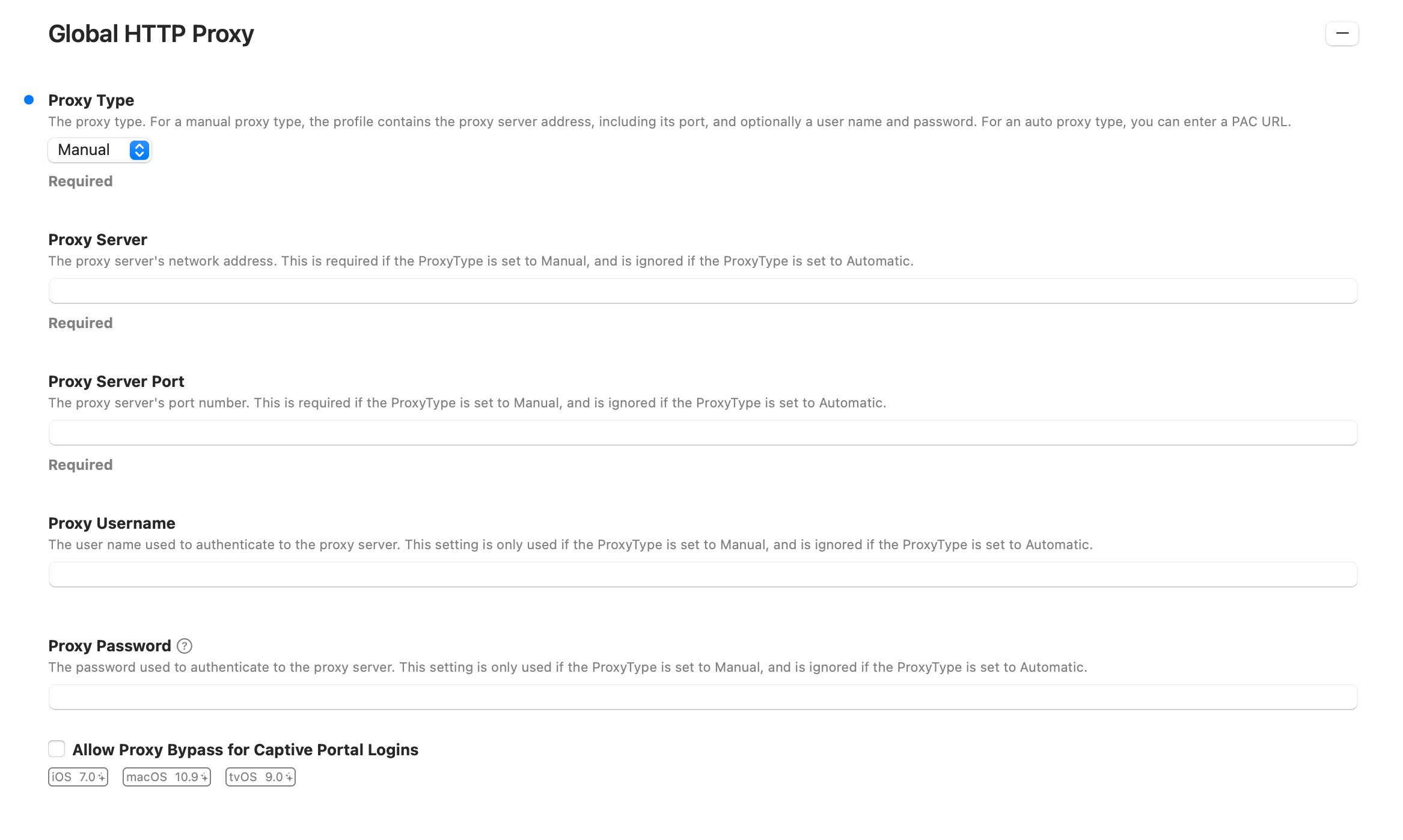
and additional settings from the app iMazing Profile Editor to create a profile :

note: if you want to run it on all users, select Payload Scope > System.
I'm not sure if this meets your needs, but hopefully, it's close.


Forum|alt.badge.img+15
  • Author
  • Contributor
  • March 21, 2025

Thanks for the suggestions @agungsujiwo. Appears that the proxy payload for macOS is the system configuration type of proxy and not a global http proxy. I was also advised to use the network payload but that applies to specific network interfaces/SSIDs. I also tried to create a global HTTP proxy in iMazing but nothing appears in the profile when the file is uploaded to JamfPro. 


agungsujiwo
Forum|alt.badge.img+10
  • Contributor
  • March 21, 2025

Thanks for the suggestions @agungsujiwo. Appears that the proxy payload for macOS is the system configuration type of proxy and not a global http proxy. I was also advised to use the network payload but that applies to specific network interfaces/SSIDs. I also tried to create a global HTTP proxy in iMazing but nothing appears in the profile when the file is uploaded to JamfPro. 


Sometimes, I create a configuration profile using iMazing Profile Editor under the Payload Scope: System, selecting Target Device Type > Mac. I test it manually on a Mac by installing the profile via double-click > Install > Enter credentials.

To verify if it works:

  1. Open System Settings > Proxy and check if the options are grayed out with the message: This setting has been configured by a profile.
  2. Check the PLIST files in:
    • /Library/Managed Preferences
    • /Library/Managed Preferences/"AccountUser"
      to confirm if the configuration profile is present.
  3. Use Terminal commands for further verification:
     
    networksetup -getautoproxyurl Wi-Fi
    networksetup -getautoproxyurl Ethernet
    scutil --proxy
    defaults read /Library/Preferences/SystemConfiguration/com.apple.airport.preferences | grep Proxy

If the profile does not work during manual testing, do not upload it to Jamf. Only proceed with the setup and upload to Jamf if it works correctly.


Forum|alt.badge.img+16
  • Contributor
  • July 8, 2026

Thanks for the suggestions @agungsujiwo. Appears that the proxy payload for macOS is the system configuration type of proxy and not a global http proxy. I was also advised to use the network payload but that applies to specific network interfaces/SSIDs. I also tried to create a global HTTP proxy in iMazing but nothing appears in the profile when the file is uploaded to JamfPro. 

Sometimes, I create a configuration profile using iMazing Profile Editor under the Payload Scope: System, selecting Target Device Type > Mac. I test it manually on a Mac by installing the profile via double-click > Install > Enter credentials.

To verify if it works:

  1. Open System Settings > Proxy and check if the options are grayed out with the message: This setting has been configured by a profile.
  2. Check the PLIST files in:
    • /Library/Managed Preferences
    • /Library/Managed Preferences/"AccountUser"
      to confirm if the configuration profile is present.
  3. Use Terminal commands for further verification:
     
    networksetup -getautoproxyurl Wi-Fi
    networksetup -getautoproxyurl Ethernet
    scutil --proxy
    defaults read /Library/Preferences/SystemConfiguration/com.apple.airport.preferences | grep Proxy

If the profile does not work during manual testing, do not upload it to Jamf. Only proceed with the setup and upload to Jamf if it works correctly.

I’ll add a me too to the list of people wanting to know why this payload is missing in Jamf Pro.

@agungsujiwo this is a system scope profile/payload. Installing it outside of an MDM isn’t possible. Doing the double-click > Install in System Settings will only work for user scoped profiles. 

@debrat If you upload an unsigned profile to Jamf Pro it will attempt to read the contents of it and if possible “build” out a gui representation of it. If it doesn’t support or poorly supports the payload it will appear as blank when in reality the contents of the uploaded profile are still partially intact. What I have often found with unsigned profiles and non-implemented or poorly implemented payloads is that you’ll check the plist and the settings are completely opposite to what was set; so false when it’s true, etc.

What you need to do is sign the profile then Jamf Pro can’t read the contents and will simply deliver the mobileconfig to its scoped destination untouched. The problem with that is if you use a PAC url that has variables in it like $EMAIL for instance. Since Jamf Pro can’t read the profile it can’t inject anything into it like replacing $EMAIL with an actual email address. Win some lose some.

I realize this is a year old thread, but I’m dealing with this right now. Switching filtering solutions (I’m K-12) and instead of simply putting the filter’s DNS addresses in the forwarders of my DNS servers I’m filtering the device. The PAC url uses a variable to ensure my students and staff don’t have to login. iOS is fine, but macOS is another story. The Proxies payload killed Chrome, but mostly works for Safari.