Solved

Corporate Desktop Wallpaper

  • May 15, 2024
  • 5 replies
  • 754 views

Forum|alt.badge.img+5

Hello again. I'm seeing a lot of older posts about this that are not relevant to Sonoma; most posts are from years ago. This is a 2 part question: I want to upload a Corporate image to be used for Desktop Wallpaper. I'll need this to be built into the "image" we use for MacBooks.

2nd question, once picture is installed in the right folder, all I need to do is use the the "Lock Desktop Picture" setting in Restrictions and add the file path, correct? 

Any help is greatly appreciated. 

JAMF Pro

Sonoma 14.4.1

MacBook Pro

 

Best answer by AJPinto

This is one of the processes that has not changed in a very long time, your old data is likely totally relevant. 

You need to package your image and deploy it with a Policy. Then make a Configuration Profile to force the image as the wallpaper.

Step 1: Package the image.

  1. Source your image
  2. Place your image in a working directory like /Library/Desktop Pictures
  3. Use Jamf Composer to build a package for your image.
  4. Upload the package to Jamf.

Step 2: Deploy the image.

  1. Add the package created in step 1 to a Policy.
  2. Scope the policy to all desired devices.
  3. Frequency to one per device.
  4. Trigger on enrollment (or whatever works best for you).

Step 3: Enforce the wallpaper with a Configuration Profile.

  1. Restrictions Configuration Profile > functionality tab
  2. Check the box Lock desktop picture
  3. Define the path to the image from step on in Desktop Picture Path.
  4. Scope and deploy the Configuration Profile.

Note: If the Configuration Profile installs before the Policy with the image, the wallpaper will be set when the device reboots. 

5 replies

AJPinto
Forum|alt.badge.img+26
  • Legendary Contributor
  • Answer
  • May 15, 2024

This is one of the processes that has not changed in a very long time, your old data is likely totally relevant. 

You need to package your image and deploy it with a Policy. Then make a Configuration Profile to force the image as the wallpaper.

Step 1: Package the image.

  1. Source your image
  2. Place your image in a working directory like /Library/Desktop Pictures
  3. Use Jamf Composer to build a package for your image.
  4. Upload the package to Jamf.

Step 2: Deploy the image.

  1. Add the package created in step 1 to a Policy.
  2. Scope the policy to all desired devices.
  3. Frequency to one per device.
  4. Trigger on enrollment (or whatever works best for you).

Step 3: Enforce the wallpaper with a Configuration Profile.

  1. Restrictions Configuration Profile > functionality tab
  2. Check the box Lock desktop picture
  3. Define the path to the image from step on in Desktop Picture Path.
  4. Scope and deploy the Configuration Profile.

Note: If the Configuration Profile installs before the Policy with the image, the wallpaper will be set when the device reboots. 


Forum|alt.badge.img+5
  • Author
  • Contributor
  • May 15, 2024

Thank you very much for these steps. Big help here! 


Forum|alt.badge.img+5
  • Author
  • Contributor
  • May 17, 2024

This is one of the processes that has not changed in a very long time, your old data is likely totally relevant. 

You need to package your image and deploy it with a Policy. Then make a Configuration Profile to force the image as the wallpaper.

Step 1: Package the image.

  1. Source your image
  2. Place your image in a working directory like /Library/Desktop Pictures
  3. Use Jamf Composer to build a package for your image.
  4. Upload the package to Jamf.

Step 2: Deploy the image.

  1. Add the package created in step 1 to a Policy.
  2. Scope the policy to all desired devices.
  3. Frequency to one per device.
  4. Trigger on enrollment (or whatever works best for you).

Step 3: Enforce the wallpaper with a Configuration Profile.

  1. Restrictions Configuration Profile > functionality tab
  2. Check the box Lock desktop picture
  3. Define the path to the image from step on in Desktop Picture Path.
  4. Scope and deploy the Configuration Profile.

Note: If the Configuration Profile installs before the Policy with the image, the wallpaper will be set when the device reboots. 


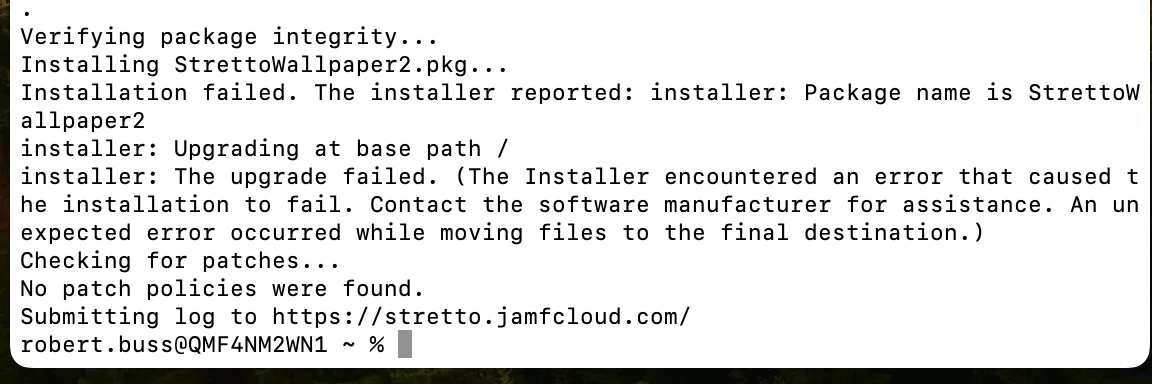
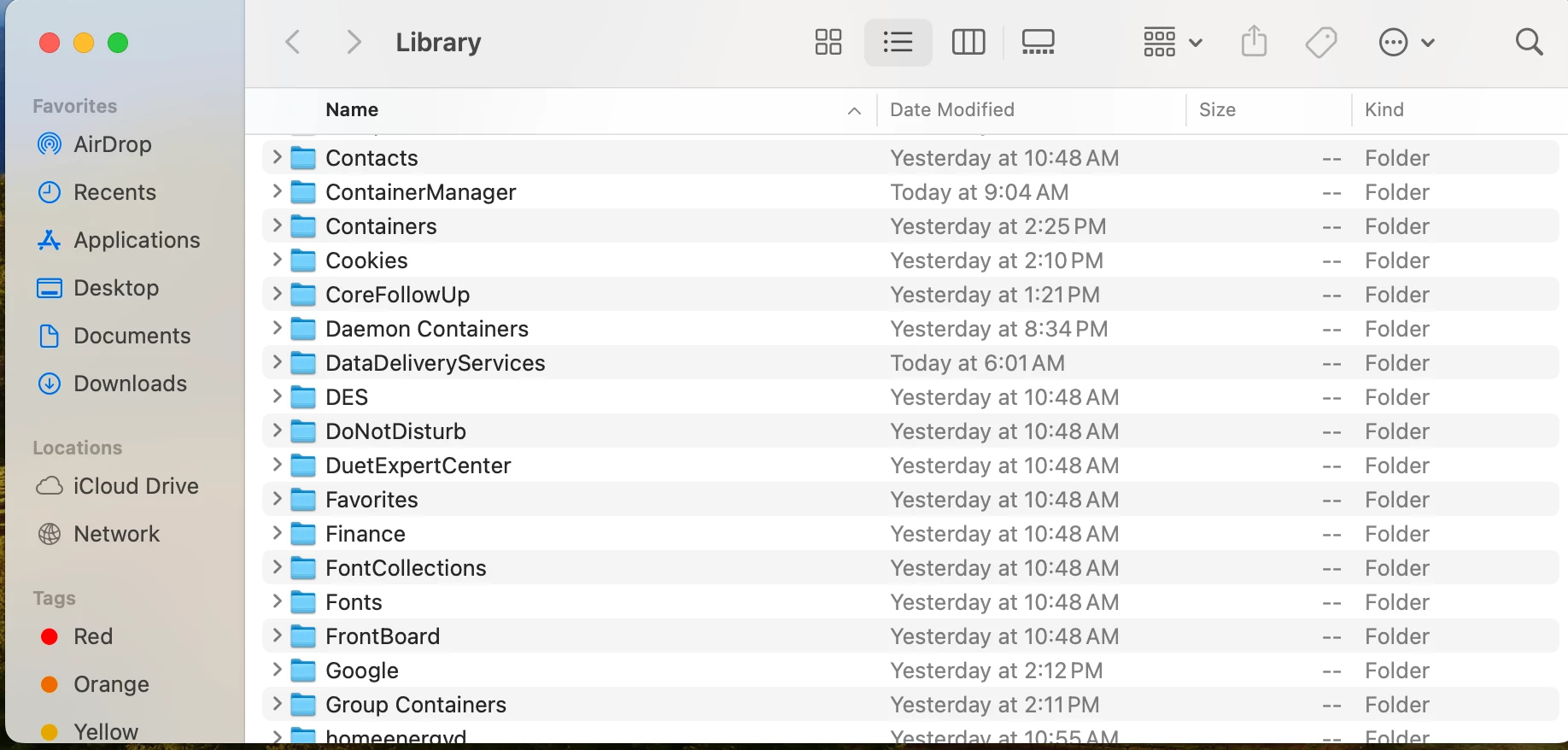
I was able to follow the directions noted above. When I enroll a device it does not kick in. Then I ran sudo jamf policy and received this error. It doesn't look like /Library/Desktop Pictures loaded. 


@AJPinto wrote:

This is one of the processes that has not changed in a very long time, your old data is likely totally relevant. 

You need to package your image and deploy it with a Policy. Then make a Configuration Profile to force the image as the wallpaper.

Step 1: Package the image.

  1. Source your image
  2. Place your image in a working directory like /Library/Desktop Pictures
  3. Use Jamf Composer to build a package for your image.
  4. Upload the package to Jamf.

Step 2: Deploy the image.

  1. Add the package created in step 1 to a Policy.
  2. Scope the policy to all desired devices.
  3. Frequency to one per device.
  4. Trigger on enrollment (or whatever works best for you).

Step 3: Enforce the wallpaper with a Configuration Profile.

  1. Restrictions Configuration Profile > functionality tab
  2. Check the box Lock desktop picture
  3. Define the path to the image from step on in Desktop Picture Path.
  4. Scope and deploy the Configuration Profile.

Note: If the Configuration Profile installs before the Policy with the image, the wallpaper will be set when the device reboots. 


MultiSiggloo
Forum|alt.badge.img+5
  • New Contributor
  • April 1, 2025

Another solution is to use Armin Briegel's "desktoppr" to help with this. It makes your life easier :)
https://github.com/scriptingosx/desktoppr


redleh
  • New Contributor
  • May 11, 2026

Hi,

After doing a lot of reading and experimenting I recommend another approach because setting using the restrictions settings will also set settings from the other tabs which in our case conflicted with other scripts and settings pushed in different ways.

The simplest and up to date way to set this up (because there is one Apple setting that is deprecated but still works) is the following:

  1. Package in Jamf using Jamf composer with similar instructions as above. I just recommend another folder like /Users/Shared/Wallpaper/yourimage.png for example.
  2. Create a new profile with payload Application & Custom Settings. Then go to the Upload section and add a preference domain:
    com.apple.desktop
    with his Property List:
    <?xml version="1.0" encoding="UTF-8"?>
    <!DOCTYPE plist PUBLIC "-//Apple//DTD PLIST 1.0//EN" "http://www.apple.com/DTDs/PropertyList-1.0.dtd">
    <plist version="1.0">
    <dict>
        <key>override-picture-path</key>
        <string>/Users/Shared/Wallpaper/yourimage.png</string>
    </dict>
    </plist>
  3. Then add a second preference domain:
    com.apple.applicationaccess
    with this Property List:
    <?xml version="1.0" encoding="UTF-8"?>
    <!DOCTYPE plist PUBLIC "-//Apple//DTD PLIST 1.0//EN" "http://www.apple.com/DTDs/PropertyList-1.0.dtd">
    <plist version="1.0">
    <dict>
        <key>allowWallpaperModification</key>
        <false/>
    </dict>
    </plist>

    These will work perfectly and set up the background AFTER the login and for the lock screen. But if you restart it will default to a random built-in image for that MacBook. I haven’t been able to override this not even with Jamf Connect settings, from what I read it has to do with Apple System Integrity Protection which would require going to recovery mode to disable, too much hassle.