Question

Enable any settings that can prevent download of unwanted and/or malicious software

  • March 5, 2026
  • 5 replies
  • 117 views

Forum|alt.badge.img

From a security finding our Infosec team has task us with finding a way to “Enable any settings that can prevent download of unwanted and/or malicious software”.   has anyone been able to prevent downloading in Safari and Chrome? 

5 replies

Chubs
Forum|alt.badge.img+24
  • Jamf Heroes
  • March 5, 2026

Remove admin/elevation rights.  Done.

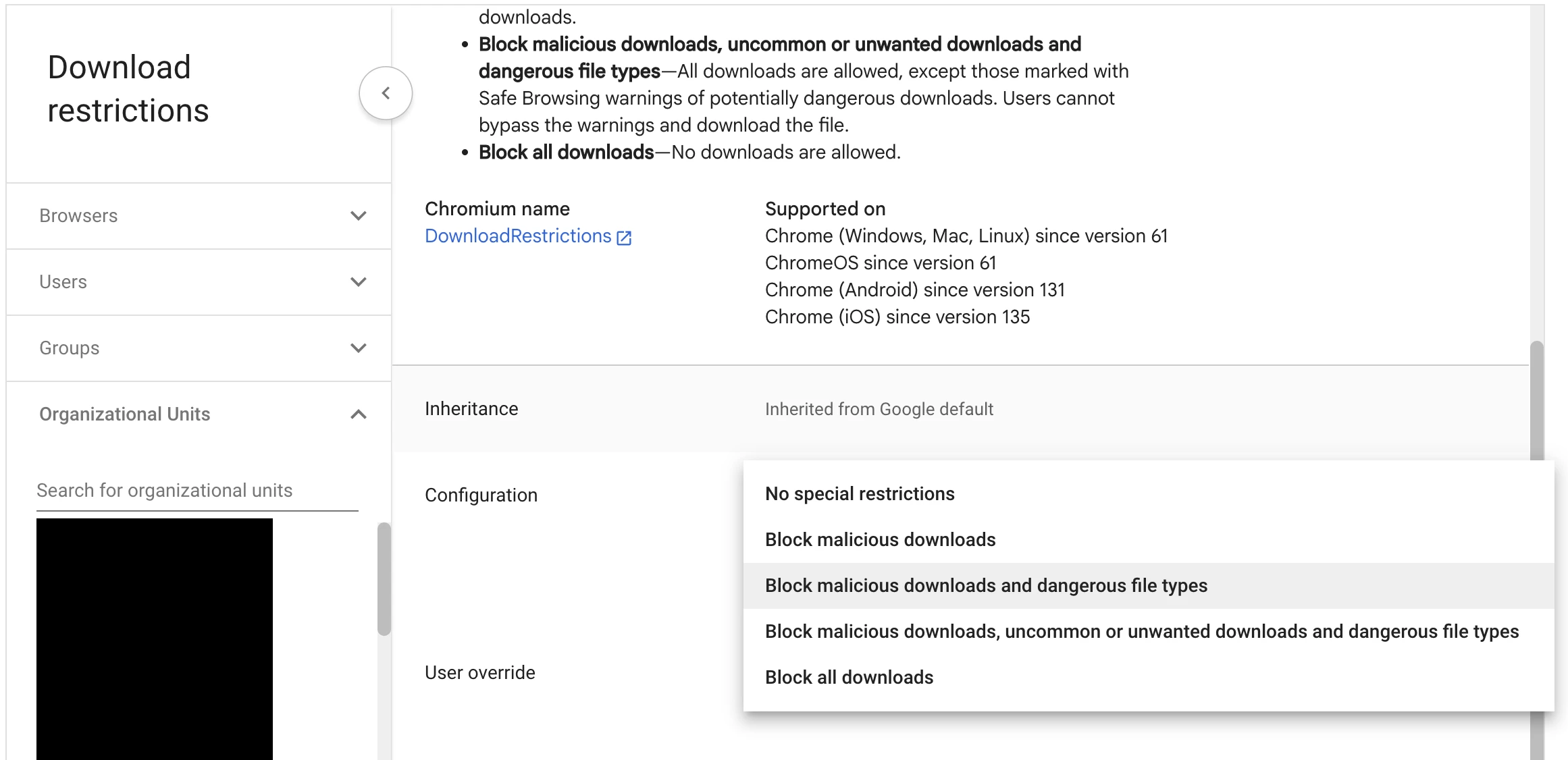
In a nutshell, you can stop downloads inside of chrome by denying it using a policy...I can’t remember the plist right off hand but it’s here in CEC:


Forum|alt.badge.img+8
  • Contributor
  • March 5, 2026

Doesn’t prevent the download but can prevent the execution.


mickgrant
Forum|alt.badge.img+12
  • Contributor
  • March 5, 2026

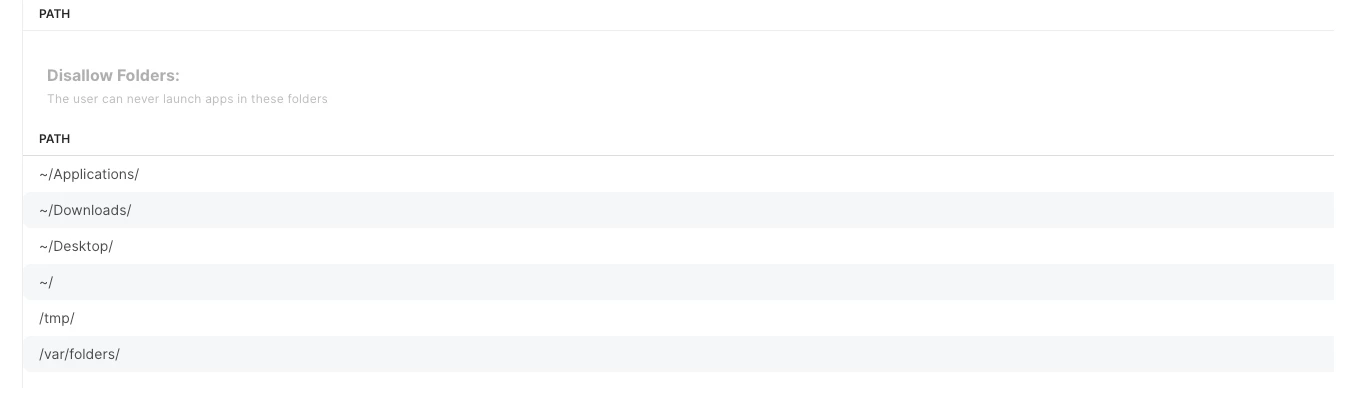
We had an Issue where even without admin rights there are a lot of applications that were installing in the user space and didnt not require admin access at all so we blocked any applicaion running in the user space, and well as some other folders within our restriction profile


Forum|alt.badge.img
  • Author
  • New Contributor
  • March 17, 2026

I was able to accomplish what our security team wanted by doing the following I found online.  Be I am using integer value 2.  This is based off DownloadRestictions from Chrome Enterprise


Step 1: Create the Configuration Profile in Jamf Pro

  1. Log in to Jamf Pro.
  2. Navigate to Computers > Configuration Profiles.
  3. Click New.
  4. In the General payload, give the profile a name (e.g., "Chrome - Download Restrictions - Level 1").


Step 2: Configure the Application & Custom Settings Payload

  1. Click on the Application & Custom Settings payload.
  2. Click Configure (or Add).
  3. Choose the Upload File method (or External Applications if you have the Chrome bundle already set up).
  4. Set the Preference Domain to: com.google.Chrome
  5. Upload a .plist file or paste the following XML/JSON configuration: 


PLIST Configuration (XML):


xml

<dict>
<key>DownloadRestrictions</key>
<integer>1</integer>
</dict>


Note: Setting <integer>1</integer> specifically blocks malicious downloads and dangerous file types as requested. 


Step 3: Scope and Save the Profile

  1. Click the Scope tab.
  2. Add the target computers or smart groups to receive the policy.
  3. Click Save.


How to Verify the Policy

Once the policy is deployed, you can verify it on the client machine:

  1. Open Google Chrome.
  2. Type chrome://policy in the address bar.
  3. Search for DownloadRestrictions and ensure it is set to 1

Forum|alt.badge.img+2
  • New Contributor
  • March 18, 2026

I’ve had to answer this exact “can we just stop downloads?” question a few times, and the (annoying) reality is: there isn’t a single MDM checkbox that reliably prevents all downloads in Safari + Chrome.

What usually works better is layering controls:
- Web/content filtering (block known bad categories / file-hosting / newly-registered domains, etc.).
- Endpoint protection (to catch the stuff that still lands).
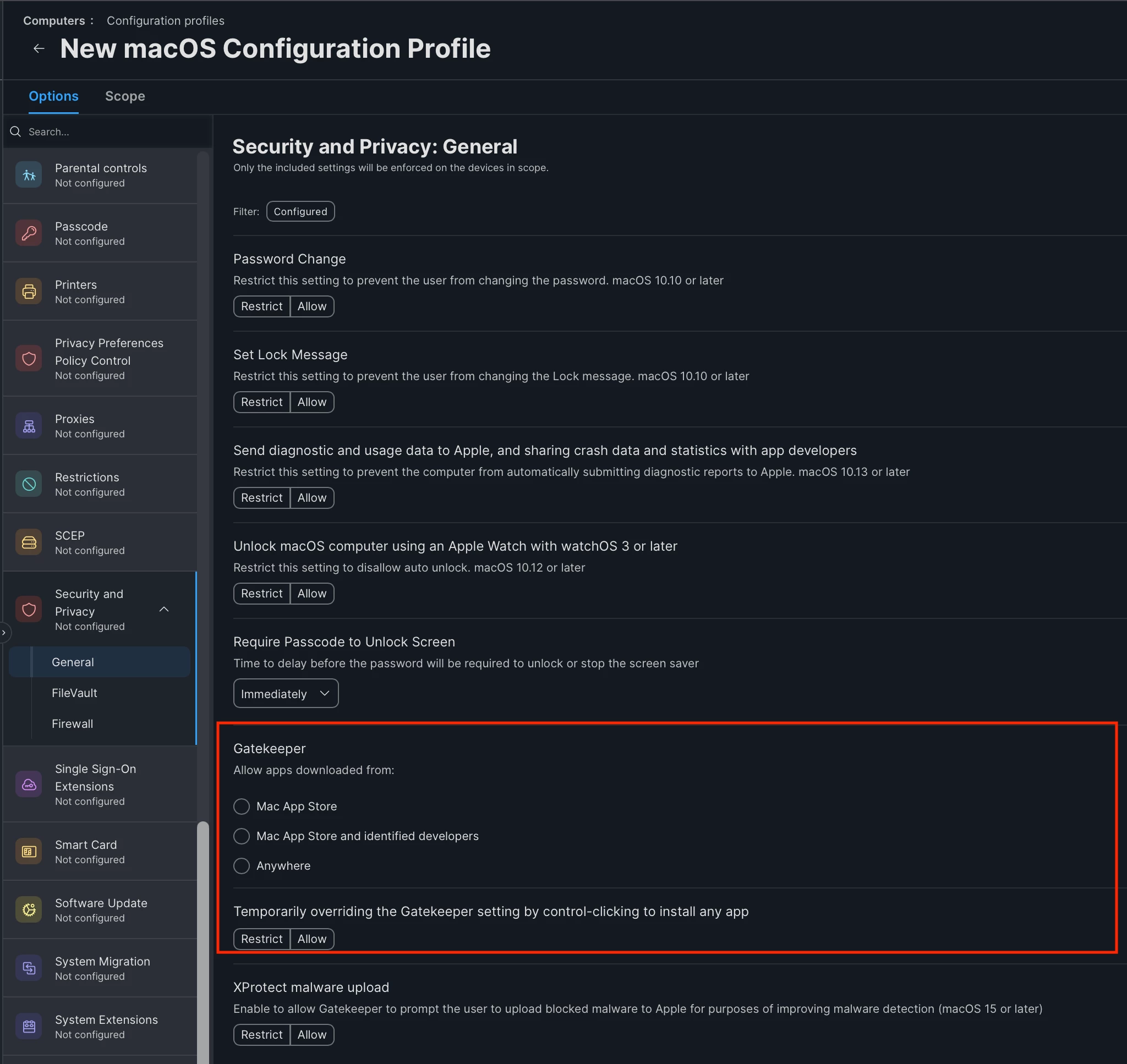
- Keep Gatekeeper/notarization checks enforced and don’t train users to bypass prompts.
- If your goal is specifically “stop installing random apps”, focus on controlling *execution/install* vs the download itself (managed installs via Self Service, deny unmanaged apps, etc.).

If you’re evaluating options that take a “block risky domains/apps at the source” approach, this is the overview I point people at:
Shadow IT – Manage Blocklist Key Features