Question

HTTPS Distribution Point Stopped Working

  • April 15, 2026
  • 2 replies
  • 38 views

Forum|alt.badge.img+8

Hello,


I’m hoping someone has some insight into this issue. I have two internal distribution points that run on Mac minis. They have both been up and running for several years. Recently, one of them stopped working after I renewed the SSL certificate. I accidentally let the certificate expire by less than a day. Now, after renewing the certificate, I can’t get it to serve files over HTTPS anymore. 


Here’s what I have done so far:

- Renewed the certificate several times

- Verified that the certificate information is correct and matches what is listed in Jamf

- Verified that the setting in my httpd.conf and http-ssl.conf files

- Restarted Apache (multiple times)

- Restarted the DP that is not working

- Compared the settings of the DP that is working with the one that is not

-re-entered the password for the jamfread account in Jamf and on the passwords file on the DP

- Pasted the link for one of the files that fails to download into a browser window and confirmed that I can access and download the file over HTTPS with the jamfread account and password.


Here is the error I get when trying to download a file from the affected DP using a Jamf policy:


Error: Package was not successfully downloaded. -1200

Could not connect to the HTTP server to download VLC3.0.3.pkg.


Any advice or troubleshooting steps you may have are greatly appreciated.

2 replies

talkingmoose
Forum|alt.badge.img+36
  • Community Manager
  • April 16, 2026

A couple of questions:

  1. What certificate authority signed your server certificate? Is it’s certificate installed on your computers?
  2. What happens if you attempt to use a web browser to connect and download using one of your production computers showing the problem? This will likely show you the problem.

Forum|alt.badge.img+8
  • Author
  • Contributor
  • April 16, 2026

talkingmoose - Thanks for the reply.


I used Jamf built-in certificate authority to sign the certificate. Here’s the steps I used. 

  1. Use Apple Remote Desktop or VNC to connect to the Jamf distribution point.
  2. Open Terminal and run the following commands to generate a new CSR file.
    1. sudo openssl req -out /etc/apache2/ssl/server.csr -newkey rsa:2048 -nodes -keyout /etc/apache2/ssl/private.key -config /etc/apache2/ssl/certconfig.cnf
      1. provide the following answers at each prompt
        1. Country
        2. State
        3. City
        4. Organization
        5. FQND of the server
    2. cat /etc/apache2/ssl/server.csr
  3. Copy the output of the last command starting with -----BEGIN CERTIFICATE REQUEST----- and ending with -----END CERTIFICATE REQUEST-----
  4. Open Jamf Pro using the web browser on the distribution point.
  5. Navigate to Jamf Pro Settings > Global Management > PKI Certificates > Management Certificate Template
  6. Under Built-in CA select Create Certificate from CSR
  7. Paste the contents of the csr file you generated in Terminal into the box.
  8. Click on the dropdown menu and select Web Server Certificate
  9. Click Create
  10. Locate the certificate using Finder (in the Downloads folder by default)
  11. Rename the certificate “server.pem”
  12. Using Finder, navigate to /etc/apache/ssl
    1. Delete the current server.pem file
    2. Copy the newly generated server.pem file to that location
  13. Restart Apache
    1. In Terminal run sudo apacheclt restart

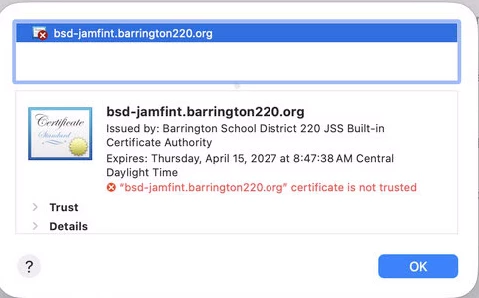
When attempting to access the URL for one of the packages from one of my test computers I did receive a certificate error. Here’s the screenshot.

Should I be using a third party authority to sign the cert? I’m not sure how to resolve this issue. My other signed the same way works just fine. Thoughts?


!-->