

Question

Invalid password for supervision identity following Jamf Pro Documentation 11.1.0

  • January 10, 2024
  • 9 replies
  • 52 views

PE14_2
Forum|alt.badge.img+7

Hi all,

Following instructions https://learn.jamf.com/bundle/jamf-pro-documentation-current/page/Supervision_Identities.html

at the point where I need to need to import the certificate into Keychain I get an error password incorrect:


  1. Double-click the supervision identity ( .p12) file.
  2. When prompted, select the System keychain from the Keychain menu and click the Add button.
  3. Enter the local administrator password.
  4. Enter the password for the .p12 identity certificate.

Any idea how to solve this?
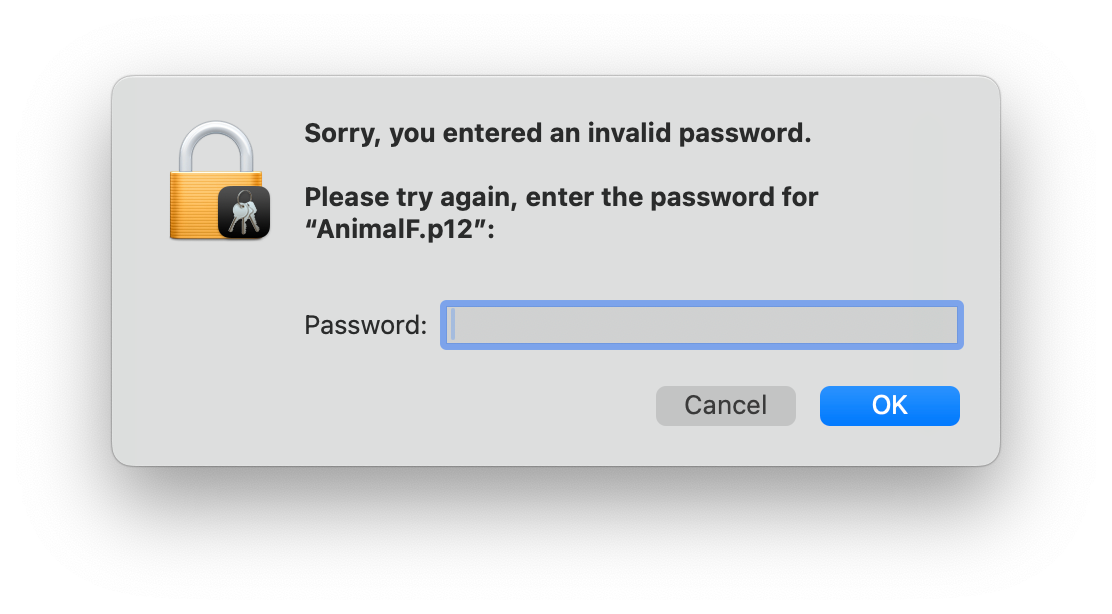
9 replies

Edgardo
Forum|alt.badge.img
  • New Contributor
  • January 10, 2024

I am having the same problem. I test opening the p12 file on a windows computer and the password works. But on MacOs its showing wrong password.


JennyGarland
Forum|alt.badge.img+5
  • New Contributor
  • January 10, 2024

In the same boat with wrong password on MacOS.


PE14_2
Forum|alt.badge.img+7
  • Author
  • Valued Contributor
  • January 11, 2024

So I did a test with Firefox and I can import the certificate with the password in Firefox so the password is correct.

"If you have Firefox installed on your Apple Mac, then you could launch Firefox ---> preferences --> Privacy & Security (scroll down to "Security" section) --> click "View Certificates" -->  select "Your Certificates" --> then click "Import" (select your p.12 file)"


PE14_2
Forum|alt.badge.img+7
  • Author
  • Valued Contributor
  • January 11, 2024

Update:

So in Firefox I select the Certificate (see above)  and then click on Backup, then give the certificate the same name (different location) and when it ask for an password I give it the same password I used in Jamf (at Device management) (use the .p12 name)  import this in keychain with the password and it works.. Certificate is in the keychain - The only thing I need to do is at Trust "When using this certificate -> Always trust"  -> need to test it Apple Configurator to be continued


PE14_2
Forum|alt.badge.img+7
  • Author
  • Valued Contributor
  • January 11, 2024

I try above with but I did not select Always Trust but it seems to work now.


PE14_2
Forum|alt.badge.img+7
  • Author
  • Valued Contributor
  • January 11, 2024

It works


farverk
Forum|alt.badge.img+6
  • Contributor
  • February 29, 2024

Just tried this with Firefox 123.0 and Jamf Pro 11.2.1 and I get an error in FF "Failed to create the PKCS #12 backup file for unknown reasons."


PE14_2
Forum|alt.badge.img+7
  • Author
  • Valued Contributor
  • March 1, 2024

Forum|alt.badge.img+6
  • Contributor
  • April 17, 2024

So I did a test with Firefox and I can import the certificate with the password in Firefox so the password is correct.

"If you have Firefox installed on your Apple Mac, then you could launch Firefox ---> preferences --> Privacy & Security (scroll down to "Security" section) --> click "View Certificates" -->  select "Your Certificates" --> then click "Import" (select your p.12 file)"


Great worked for me after following your instruction and appending the .p12 name. Thanks!