

See my reply to my own post below...I was interested in seeing the difference between the volume license build and the Office 365 build of MS Office 2016. Was referred to Rich's post. Had read it it and was insightful, but wanted to understand Microsoft's logic in creating this weird installer. I think I get it now and posted my findings below. Basically, I figured out how the com.microsoft.office.licensingV2.plist file is generated during installation in the GUI.
- Home
- Community
- Get Support
- General Discussions
- Office 2016 Volume Installer findings
Question
Office 2016 Volume Installer findings
- September 9, 2015
- 166 replies
- 718 views
166 replies

 +36
+36- Hall of Fame
- November 22, 2015
Number 2 is not required with a volume license, and not supported if required. We never had to sign into anything on our volume license. Maybe you are on 365?
--https://donmontalvo.com
 +9
+9- Valued Contributor
- November 22, 2015
@donmontalvo No, I ran this loaded into JSS, and part of an imaging config. I was just testing it out.
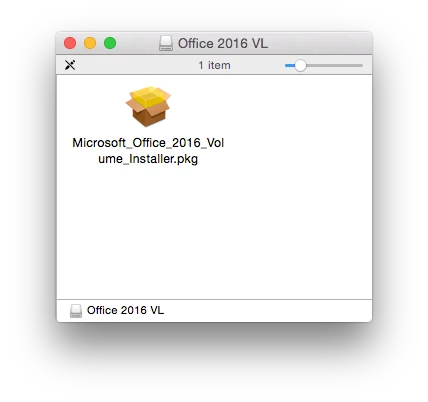
I think that what you guys are saying is to just install it right off the desktop once manually to capture that license plist.
 +14
+14- Contributor
- November 22, 2015
I think that what you guys are saying is to just install it right off the desktop once manually to capture that license plist.Yup! Capture as a .pkg
 +12
+12- Valued Contributor
- November 22, 2015
Keep in mind that capturing the licensing file from one machine and redistributing it to other computers is what Microsoft would refer to as "non-supportable," and may at some point no longer work. The next update to the VL version of Office, version 15.17, is due in December, and is said to include a package that administrators can distribute to the machines they administer to correctly generate the license file in such a way that is supportable.
If you aren't already there, you definitely want to join #microsoft-office on the MacAdmins Slack. Paul Bowden, an engineer with Microsoft, has been an active participant recently, and he has provided a ton of very useful information regarding Office 2016, not to mention been receptive to suggestions that the Mac administrator community have had about ways to make Office easier on administrators.
+9- Valued Contributor
- November 22, 2015
Sorry for being slow. I found this thread when I searched for a comparison between volume installer and 365 installer.
I just didn't know there were all these issues with this installer that people were getting worked up about (and Office 2011 for that matter). I've been deploying 2011 for a number of years, and the most annoying thing is that Office Assistant coming up post-install when a user launches it. Now, I know I could've made it skip that with a hack.
So this thread is basically about the same thing.
+12- Valued Contributor
- November 22, 2015
@itupshot Sort of. With the volume licensing version of Office 2016, the installer attempts to launch the "Microsoft Office Setup Assistant.app" as the current user. If that fails (say, if you have an administrator trying to run the installer silently in the background, for example), the licensing file never gets created, and the software defaults to Office 365 licensing mode (versus site licensing). So, if you are in an organization that doesn't use Office 365, that's a major problem, as users wouldn't even be able to use Office in that state.
As I mentioned upthread, though, Microsoft is making some changes to the VL installer with the December release. They're spinning out the Volume Licensing into it's own installer, allowing administrators to more easily deploy Office 2016 silently. Stay tuned for more on that.
+9- Valued Contributor
- November 22, 2015
@blackholemac So, in the end, the bigger package that you created contains your choices.xml and the com.microsoft.office.licensingV2.plist just loose in there?
I thought of putting the latter in a DMG created with Composer along with plists that disable the "first-run" windows according to the blog that @calumhunter referenced. I tested those plists last night, and it worked to skip those screens. So, I thought of a Composer DMG that places the plists right after the Office installer. However, from your example, I suppose I can just include them within this bigger package, and use a postinstall script to move them to the right location.
The difference in my company's environment is that we are, in fact, upgrading to Office 365 with all the bells and whistles. So, I can't fiddle too much with the installer.
I just want our VL to be set, and then when the users first launch Outlook (because it's the first thing they always launch), they (or IT) can enter their account creds so they can use our company's new Office 365 service. What I'm wondering is if one logs into Office 365 on one app (like Outlook), it'll pass the info to all the apps so they don't have to enter that again.
I also don't want the AutoUpdate to install since IT will handle updates via JSS. So I want to get rid of this from popping up when they first run one of the apps:
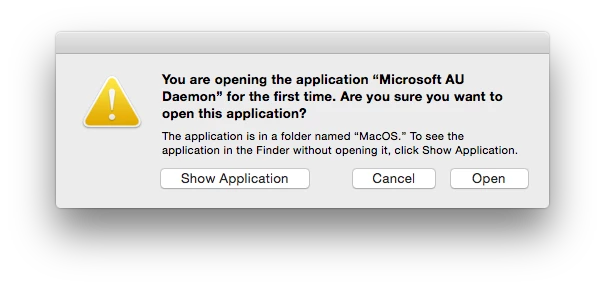
Someone else referenced an article that discusses how to get rid of it, so I'll follow those instructions.
+9- Valued Contributor
- November 22, 2015
Sorry I missed your post there. I took so long typing mine that I didn't see yours until mine posted and refreshed the page.
I used our VL installer, and ran it once to generate the licensing plist. Great!
When I added the "skip first-run windows" plists according to the article referenced upthread, I still got the following window in Outlook, which is OK because we will be moving to Office 365 anyway: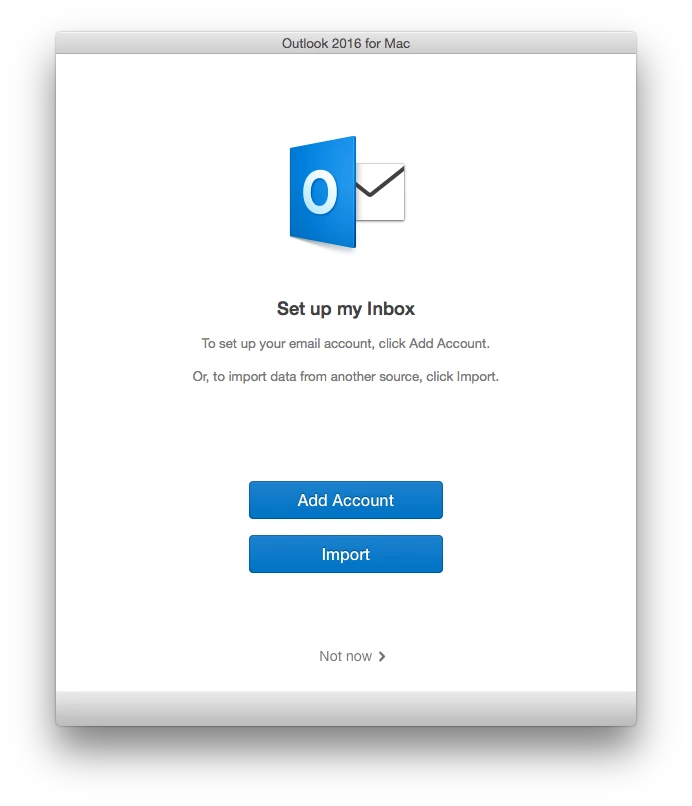
However, this is the only window I want users (or IT) to see initially so they can just log into Office 365, and get to work. I'm hoping this one dialog will set it for all Office apps.
 +10
+10- New Contributor
- November 23, 2015
You should not capture and redistribute the com.microsoft.office.licensingV2.plist plist
Although a number of us have been doing this for a long time.
It is unsupported by MS, and has the potential to break.
Instead, you should generate the licence on each machine by running the all volume licence package included in the VLSC Office 2016 package.
This all volume licence package will be available with the 15.17 version of Office 2016 released in December.
Until then, you can easily extract the all volume licence package from your office 2016 installer you obtained from the VLSC site. Combine this "serializer" with the latest full suite package from MS's site and you have an up to date VL install. ie. install the 15.16 Office 2016 package, then run the serialised package to create the licensing plist file.
I have the details on my blog here:
https://themacwrangler.wordpress.com/2015/11/17/fun-with-microsoft-office-2016/
+9- Valued Contributor
- November 23, 2015
How exactly are you generating the "choices.xml" file? Did you just make a plain text file in TextEdit or TextWrangler with the extension .xml?
I think the problem that @lkrasno and myself are running into is that maybe it's not properly formatted.
I followed the instructions in the post referenced by @bpavlov, where the author generated a whole new "choices" plist, and checked that it was a valid plist using the command:
$ plutil -lint /path/to/file.plistIt seemed like it checked out for me. In my file, I only want to exclude:
com.microsoft.autoupdate
com.microsoft.licensing.volume
Then, I created a composite PKG in Composer like the one you created with the Volume Installer, the choices.xml, the licensingV2.plist, and your postinstall script. I also added plists that make the applications skip the "first-run" windows. I then deployed this package as part of an imaging configuration with Casper Imaging to my test computer.
Once the machine rebooted after imaging, I checked that the plists were in the right location, and they were. However, AutoUpdate still installed. So, when I launched Excel, it skipped the "first-run," but I got that annoying warning:
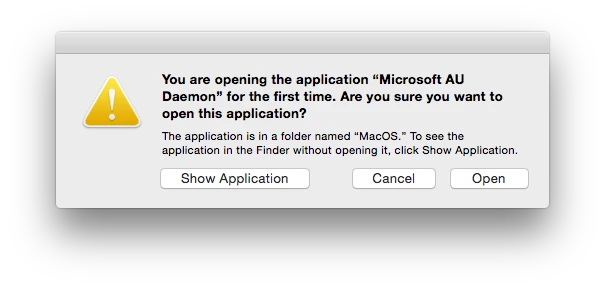
So, now I'm wondering what happened there. Why did AutoUpdate still install?
Now, I'm going to try making a simple "choices.xml" file with TextWrangler, based on your example of only the array:
<array>
    <string>com.microsoft.autoupdate</string>
    <string>com.microsoft.licensing.volume</string>
</array>
Since you said that even by only doing this, it'll keep those two packages from being installed. So, I'm just saving my TextWrangler file as "choices.xml" and not adding any headers as you suggested. We'll see what happens.
@georgecm12 I understand that there may be a new VL installer in the horizon that may solve these issues, but I may need to have an installer ready before that one is released. That's why I'm trying to figure this stuff out. I really don't have the time to join some chat app.
+10- New Contributor
- November 23, 2015
all the information you want for what you are trying to do is in the #microsoft-office channel on the macadmins slack site.
+9- Valued Contributor
- November 23, 2015
I just read your blog. So, basically, you're saying to use the installer from the 365 Portal (which I also have), but extract the volume license package from the VL installer, and run them in sequence.
Will the AutoUpdate install as part of this method? If so, how do we stop the AutoUpdate from installing this way? Will I still have to bundle a "choices.xml" file with the suite installer?
I don't want my users to get that "Microsoft AU Daemon" warning, and any prompts that there's an update available. They don't have admin privileges, and will only get annoyed. We handle that for them in the background.
Which now begs the question, can the new updaters run silently in the background even if the app is running?
+9- Contributor
- November 23, 2015
To avoid my users seeing the "Microsoft AU Daemon", I've just been installing the update .pkg's for each app (latest downloads are here then I install the volume licensing .plist afterwards. The update .pkg's are full installers for each app. Saves having to mess around with a choices.xml file.
+10- New Contributor
- November 23, 2015
Correct. That will give you the latest version suite 15.16 and it will be Volume licenced. All in one hit.
The 15.16 suite package is about 1.3Gb. Where as if you deployed each app update which is a full installer minus licensing you'd be looking at deploying about 4.5-4.8gb.
No, it will still install the auto update app. You need to craft a choices XML plist that will omit that installer package.
First create your choices xml that deselects the MAU, which should look like this
<?xml version="1.0" encoding="UTF-8"?>
<!DOCTYPE plist PUBLIC "-//Apple//DTD PLIST 1.0//EN" "http://www.apple.com/DTDs/PropertyList-1.0.dtd">
<plist version="1.0">
<array>
     <dict>
        <key>attributeSetting</key>
        <integer>0</integer>
        <key>choiceAttribute</key>
        <string>selected</string>
        <key>choiceIdentifier</key>
        <string>com.microsoft.autoupdate</string>
    </dict>
</array>
</plist>
Then you can install with the following command:
sudo installer -pkg ~/Desktop/Microsoft_Office_2016_Installer.pkg -applyChoiceChangesXML ~/Desktop/no_mau.xml -target /That will install the office package but it will apply the choice changes xml and deselect the MAU package.
I would not update the app if it is running. Potential data loss for my users would be far too much of a concern. I would probably stage that update so that it only gets installed when the machine is at the login window, or the app is not running. Probably throw a dialog message up to users while updating those apps to let them know its happening if you must do it while they are logged in.
- Author
- Honored Contributor
- November 23, 2015
To all:
Sorry I haven't been active this weekend. Anyway, this post has gotten lots of hits since I last looked at it.
So, a couple of thoughts to bring up. This is one of those I wish I could just post my package. Right now it works really well for me. One change I have made since the original post...sorry. Right now my CTO is the only one with access to the MS VLSC. I have a deal where I only bother him once every couple of months to get a download. In the meantime, I studied the Office 365 package and found that they are exactly identical in all but name and one single package, the Office15_all_volume_licensing.pkg. What I have taken to doing is to use the Office 365 package that is freely downloadable and plugging in com.microsoft.office.licensingV2.plist where it is supposed to go. That suppresses the activation prompts...not all setup assistants, but the licensing prompts.
Anyway, I created a new package like the one shown below:
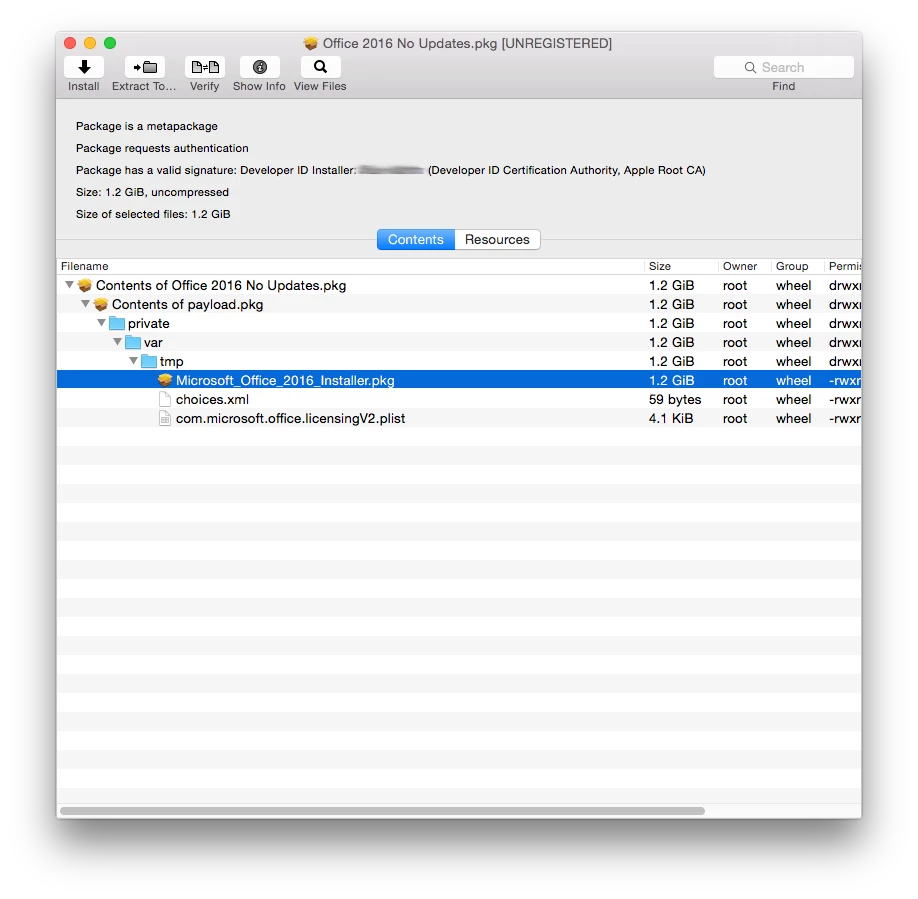
I created a postinstall script like the one shown below:
#!/bin/sh
installer -pkg /private/var/tmp/Microsoft_Office_2016_Installer.pkg -target / -applyChoiceChangesXML /private/var/tmp/choices.xml

rm -R -f /private/var/tmp/Microsoft_Office_2016_Installer.pkg

rm -R -f /private/var/tmp/choices.xml

mv -f /private/var/tmp/com.microsoft.office.licensingV2.plist /Library/Preferences/com.microsoft.office.licensingV2.plist

chown root:wheel /Library/Preferences/com.microsoft.office.licensingV2.plist

exit 0
Finally my choices.xml is the one shown below exactly. My only goal was to suppress the AutoUpdater on mine. I don't need to suppress the licensing as I am using the Office 365 version as my base but using the com.microsoft.office.licensingV2.plist as my license. This does work for our environment and gets a complete copy of Office 2016 installed.
<array>
    <string>com.microsoft.autoupdate</string>
</array>
The following command is what I use to view the available choices for any package.
sudo installer -pkg /path/to/Microsoft_Office_2016_Installer.pkg -showChoicesXML -target /I then use the technique that MS themselves used for older installers to generate the choices.xml file: http://www.officeformachelp.com/office/administration/deployment/command-line/
My resulting file was the one contained above.
Hopefully this helps someone else because it has been verified to work here daily...I feel like the guy out in left-field at the moment. Rarely am I the one that things work for. Anyway, that being said, I totally welcome anything from the Microsoft team resembling a better, more admin-friendly installer. These type of tricks are typically reserved for hopeless packages.
I actually gave up on trying to understand the volume licensing package after @calumhunter 's post much earlier in this thread. I worried that copying a volume licensing .plist from machine to machine may not be the most supported. I very much welcome the command-line based serializer package that is planned for December that I learned about on other posts. Luckily, the com.microsoft.office.licensingV2.plist file could very easily be deleted from deployed machines and command line serialization could easily replace it...but only after strong testing internally.
Please let me know how I can help. I will note that OneNote does still require an Office 365 account...the app itself is designed that way. It cannot run strictly locally because all OneNote files are saved to an Office 365 account.
blackholemac
+9- Valued Contributor
- November 23, 2015
@plawrence I was thinking that route, too. But as @calumhunter said, it'd be a much bigger deployment.
@calumhunter I will experiment with that method today.
Regarding future updates: With my current Office 2011 environment, I'm able to package suite updates in Composer with a "NoQuit.xml" that allows the update to run silently even if the target computer is running the apps. If/When they quit and relaunch the apps, it's now the updated one. It has worked great for us. We haven't seen issues. I was just wondering if I could do the same with these new individual update installers.
+9- Valued Contributor
- November 23, 2015
@blackholemac Thanks for sharing your method. On my tests today, I think I will use a hybrid approach of your and @calumhunter's method since they overlap. I think I'm finally getting a grip on this.
As far as OneNote, my company is upgrading to Office 365 soon, which is why there's an urgency now to get the installer for these apps squared away. Once we transition, my users can use their new company-supplied Office 365 accounts to use OneNote if they choose to use it.
The only package I want to exclude from my installation is the AutoUpdater.
I'd rather not use just the plain Office 365 suite installer because it'll pop up too many things when we launch an app. So, this hybrid method of using it in conjunction with the Volume License pkg separately, a choices.xml, and suppress "first-run" plists seems like it'll work for what I want to accomplish: Only one login window when IT/users launch Outlook to get started. This way, the end user (or IT) can enter the user's account once, and boom! We're off to the races.
+9- Valued Contributor
- November 23, 2015
Great! Now I can't check against the "choices.xml" doc I made. I get the following error when I do the command -showChoicesAfterApplyingChangesXML:
installer -pkg /private/var/tmp/Microsoft_Office_2016_Installer.pkg -showChoicesAfterApplyingChangesXML /private/var/tmp/uchoices.xml
installer: Error -target parameter required
Usage: installer [-help] [-dominfo] [-volinfo] [-pkginfo] [-allowUntrusted] [-dumplog]
                 [-verbose | -verboseR] [-vers] [-config] [-plist]
                 [-file <pathToFile>] [-lang <ISOLanguageCode>] [-listiso]
                 [-showChoicesXML] [-applyChoiceChangesXML <pathToFile>]
                 [-showChoicesAfterApplyingChangesXML <pathtoFile>]
                 -pkg <pathToPackage>
                 -target <[DomainKey|MountPoint]>
What am I missing now?
EDIT: Sorry, I figured it out. Ugh.

- Contributor
- November 23, 2015
@itupshot are you creating an office 2016 installation that installs Office 2016 based on this? Creating a zipped up package of the Office2016.pkg and choices.xml then using a script to kick off the install ?
installer -pkg /private/var/tmp/Microsoft_Office_2016_Installer.pkg -applyChoiceChangesXML /private/var/tmp/uchoices.xml
i've done this in the past with Office2011 but changed to using composer because I wanted the users not to see all those prompts when opening Word/Excel/Powerpoint.
are you seeing those same prompts with Office 2016 when opening Word, excel, ppoint?
there is 3 of them, here is 2 that i remember --- Colorful or Classic look --- get started etc...
+10- New Contributor
- November 23, 2015
@tcandela, you can disable the prompts with config profiles
http://macops.ca/disabling-first-run-dialogs-in-office-2016-for-mac/
- Contributor
- November 24, 2015
@calumhunter - i read the article. How would i exactly do this in the JSS when creating a 'configuration profile'? what payload is used ? do i add this line; for each application (word, excel, power point)
sudo defaults write /Library/Preferences/com.microsoft.Word kSubUIAppCompletedFirstRunSetup1507 -bool true
- Contributor
- November 24, 2015
@calumhunter for testing, from a command prompt, i simple did
sudo defaults write /Library/Preferences/com.microsoft.Word kSubUIAppCompletedFirstRunSetup1507 -bool true
sudo defaults write /Library/Preferences/com.microsoft.Excel kSubUIAppCompletedFirstRunSetup1507 -bool true
sudo defaults write /Library/Preferences/com.microsoft.PowerPoint kSubUIAppCompletedFirstRunSetup1507 -bool true
how would i do this using Configuration Profile policy ?
+10- New Contributor
- November 25, 2015
I like to use MCX To Profile
Heres an example config profile
It does the following things:
- Removes the first run dialog boxes.
- Sets MAU to fetch updates manually.
- Disables Sending of Telemetry data to MS
- Disable What's New Outlook (15.15)
- Disable What's New OneNote (15.15)
- Disable What's New PowerPoint (15.15)
- Disable What's New Word (15.15)
- Disable What's New Excel (15.15)
+9- Valued Contributor
- November 25, 2015
Hi folks, something didn't work in my last test.
I followed the steps from @calumhunter and @blackholemac as follows:
- I expanded the Office_2016_Volume_Installer to a folder on the Desktop
- Flattened only the "Office15_all_volume_licensing.pkg" into a new file called "Office_2016_VL_serializer.pkg"
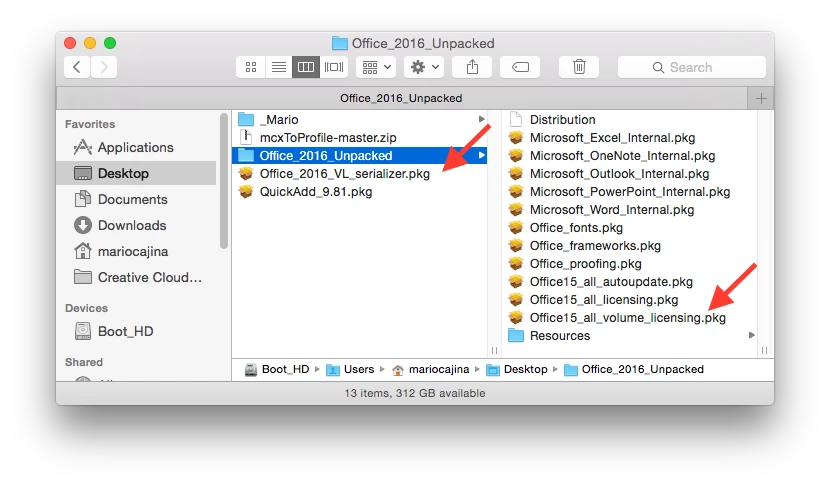
Created my "uchoices.xml" with only the lines:
<array>
<string>com.microsoft.autoupdate</string>
</array>
I created an "office_with_choices.plist" file by issuing the command:
installer -pkg /private/var/tmp/Microsoft_Office_2016_Installer.pkg -showChoicesAfterApplyingChangesXML /private/var/tmp/uchoices.xml -target / > ~/Desktop/office_with_choices.plist- I generated a file with the original package's choices with the command:
sudo installer -showChoiceChangesXML -pkg /private/var/tmp/Microsoft_Office_2016_Installer.pkg -target / > ~/Desktop/office_choices.plist I then compared the differences,
diff -C5 ~/Desktop/office_choices.plist ~/Desktop/office_with_choices.plistand got the output:
*** /Users/admin/Desktop/office_choices.plist   2015-11-25 11:49:04.000000000 -0600
--- /Users/admin/Desktop/office_with_choices.plist  2015-11-23 12:16:10.000000000 -0600

*** 138,148 ****
    <key>choiceIdentifier</key>
    <string>com.microsoft.autoupdate</string>
</dict>
<dict>
    <key>attributeSetting</key>
!       <integer>1</integer>
    <key>choiceAttribute</key>
    <string>selected</string>
    <key>choiceIdentifier</key>
    <string>com.microsoft.autoupdate</string>
</dict>
--- 138,148 ----
    <key>choiceIdentifier</key>
    <string>com.microsoft.autoupdate</string>
</dict>
<dict>
    <key>attributeSetting</key>
!       <integer>0</integer>
    <key>choiceAttribute</key>
    <string>selected</string>
    <key>choiceIdentifier</key>
    <string>com.microsoft.autoupdate</string>
</dict>
It seems like it's done correctly.
I fired up Composer and placed the Office 365 installer ("Microsoft_Office_2016_Installer.pkg") into a new package with my "uchoices.xml" file and my "skip first-run" plists.
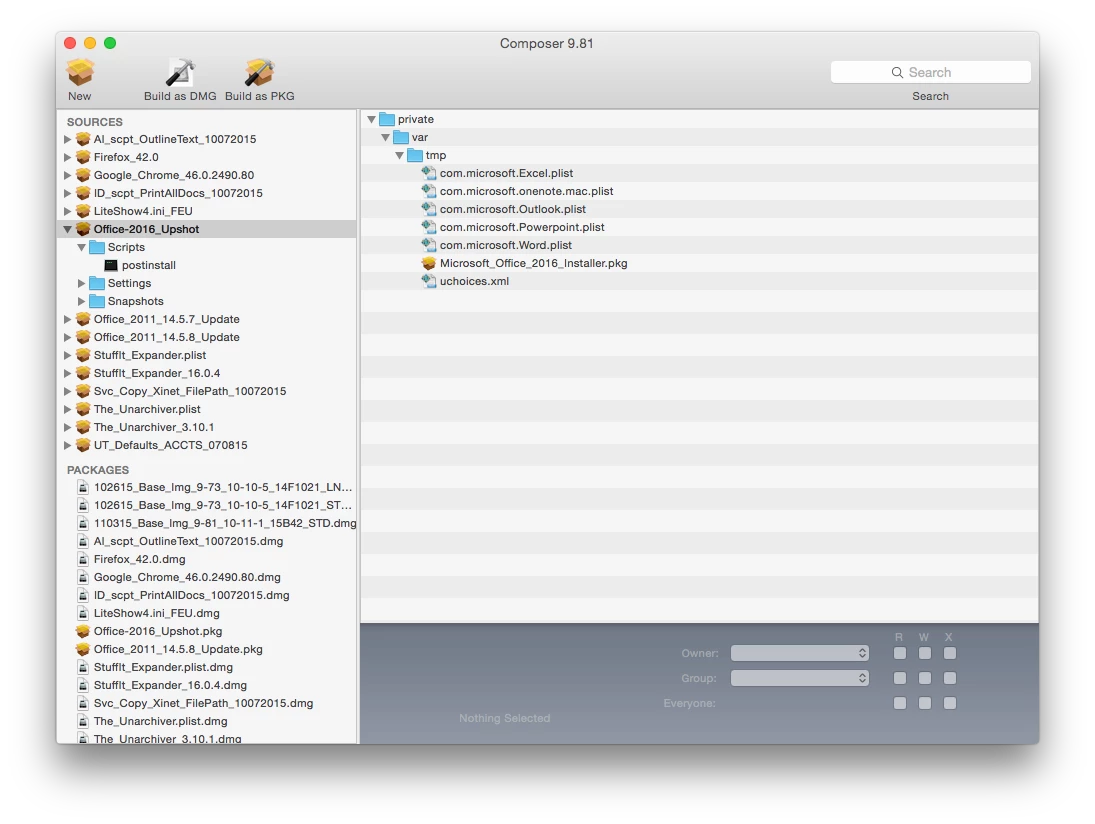
- Included this postinstall script based on @blackholemac's:
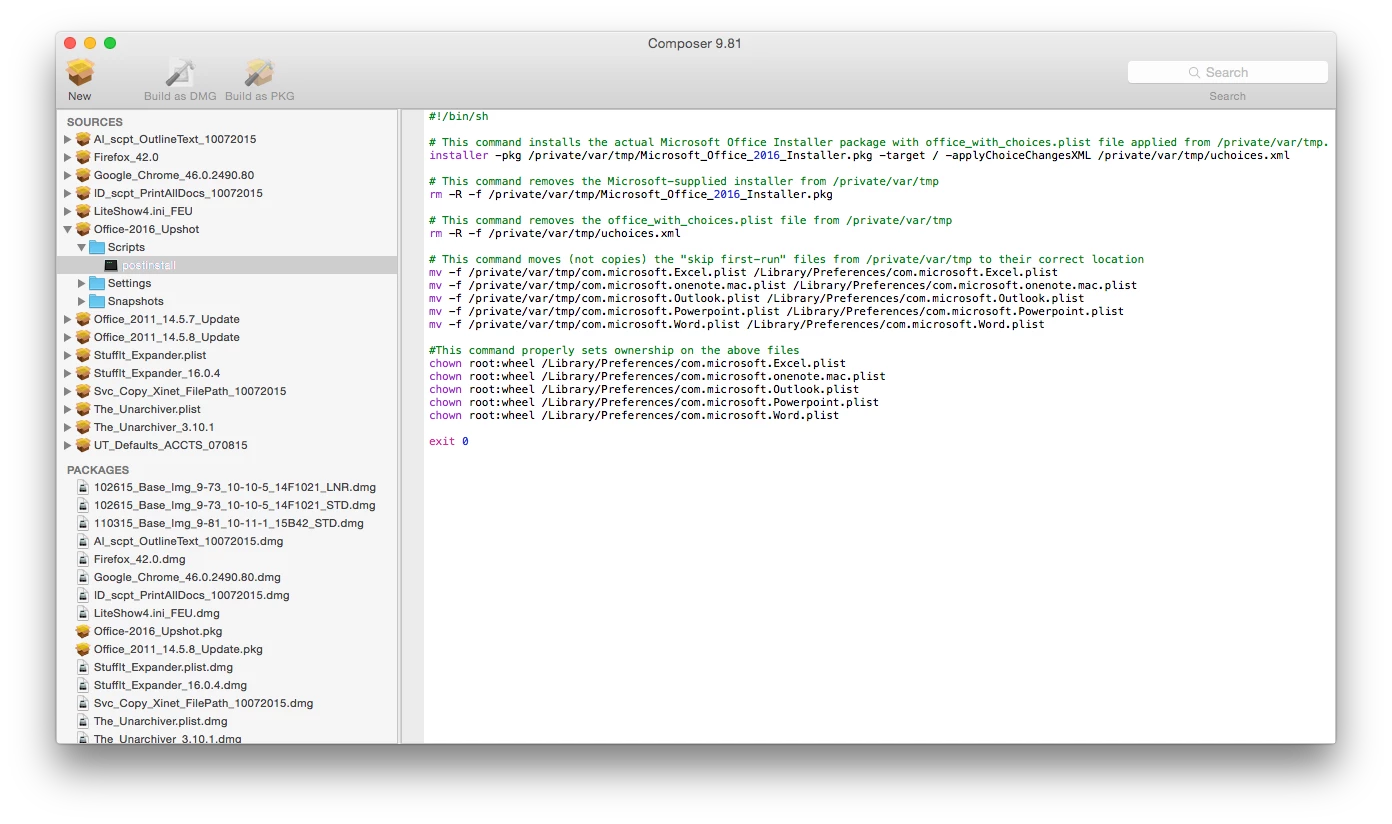
- I loaded the resulting package into Casper Admin with the "Office_2016_VL_serializer.pkg" I made in Step 2. According to @calumhunter, the serializer should follow the main package.
- Fired up my test Mac mini, and tried to deploy the pair as part of a configuration:
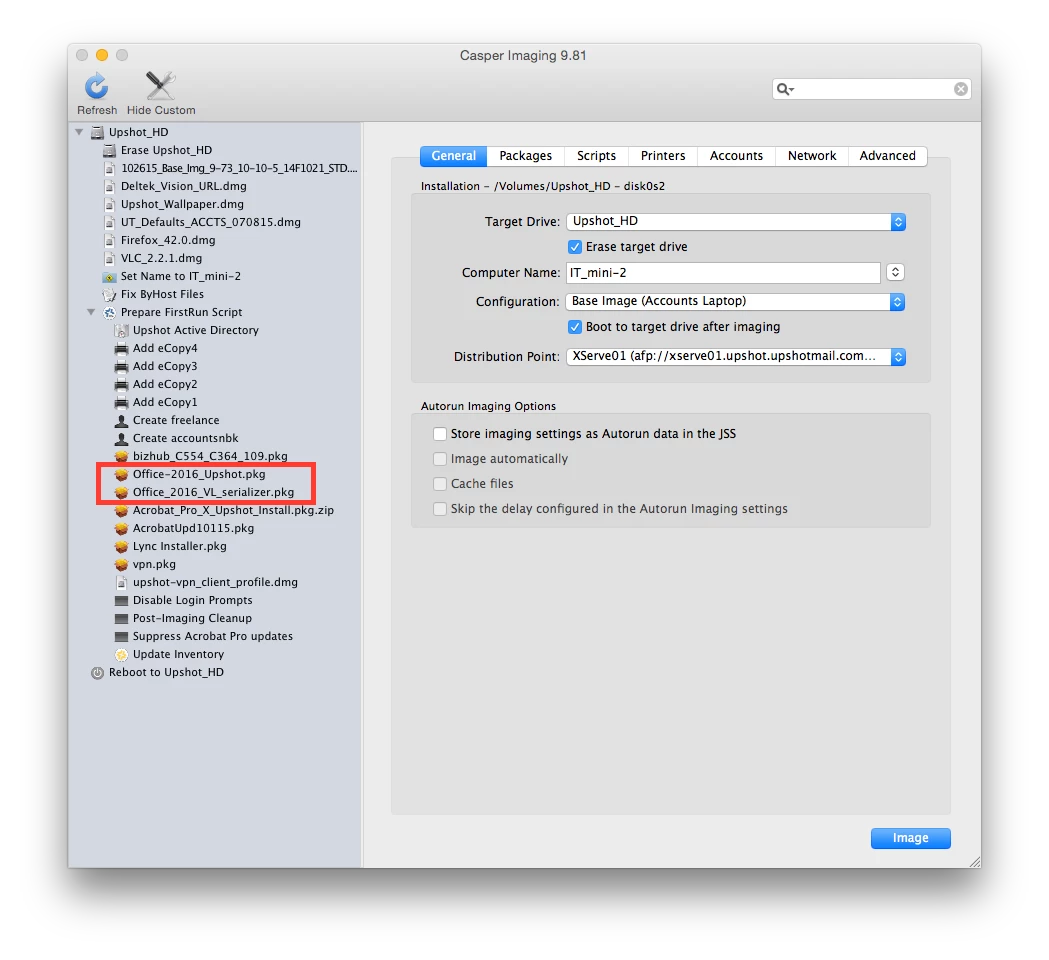
OK, so after the machine finished doing the installations, the main apps installed, and my "skip first-run" plists were placed. BUT, I found the following: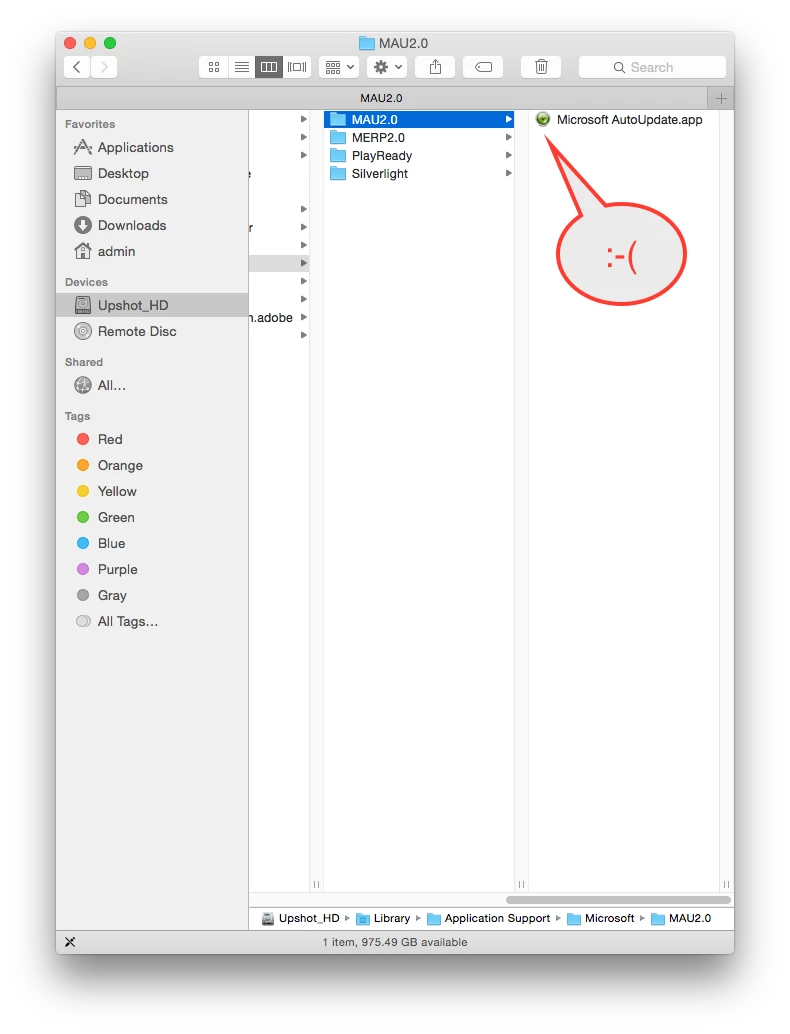
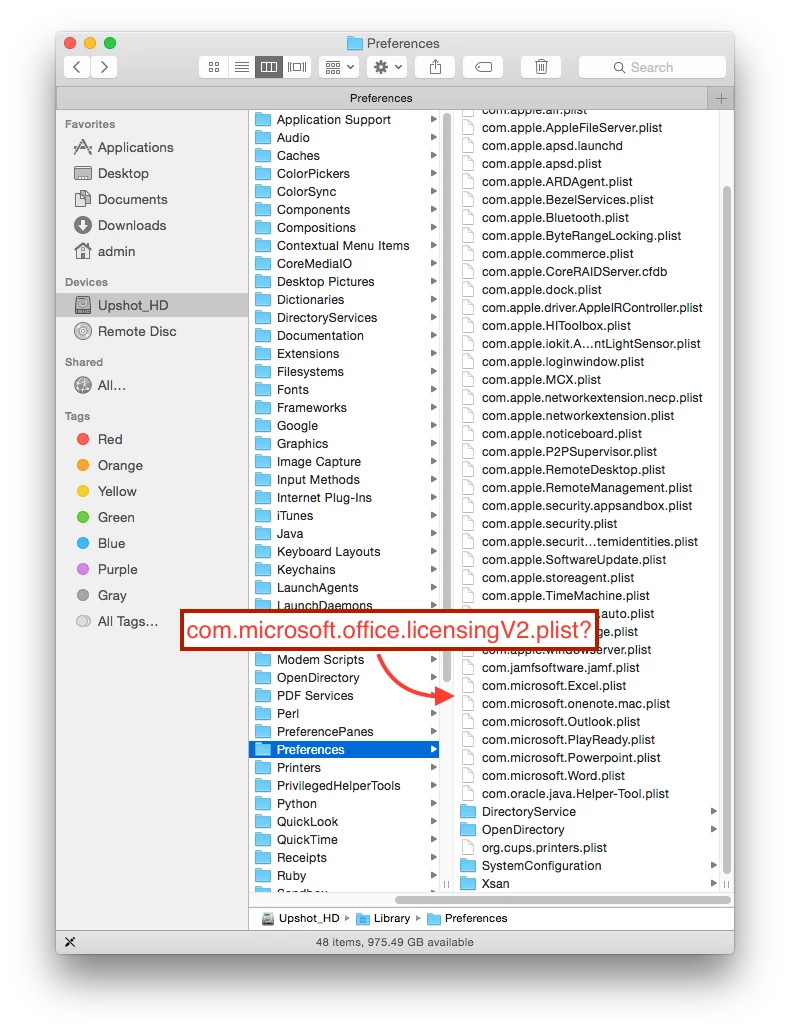
Any ideas of where I went wrong?
- Author
- Honored Contributor
- December 1, 2015
@calumhunter Sighs...I think we all hate this installer! Being that I don't personally have access to the VLSC, could you please post when the new December installer drops. Our CTO is the only one here with access, and I don't wish to keep bugging him more than I have to.
I wish I personally had time to troubleshoot @itupshot as I do sincerely wish to help, but I'm thinking we all need to regroup and reinvestigate after the new installer package drops. Maybe some reduced head banging will come of the new installer.
blackholemac
Enter your E-mail address. We'll send you an e-mail with instructions to reset your password.
Scanning file for viruses.
Sorry, we're still checking this file's contents to make sure it's safe to download. Please try again in a few minutes.
OKThis file cannot be downloaded
Sorry, our virus scanner detected that this file isn't safe to download.
OK