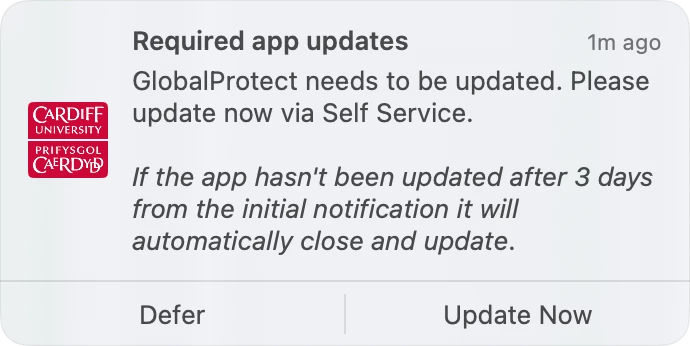


If we want to use Jamf’s built-in Patch Management notifications to let clients know about new patches as they become available in Self Service, they will receive a notification for each patch title as their Macs come into scope for each patch policy. That’s not really a big deal if we only push out one or two patches at a time, but say after Patch Tuesday… yikes! That can easily result in a string of notifications which can get pretty annoying.
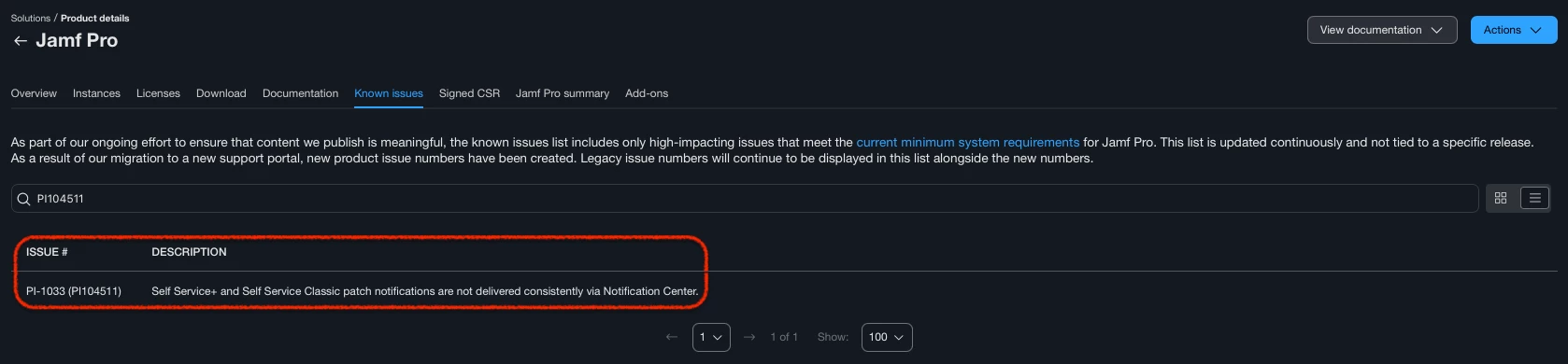
Additionally, there may be situations where notifications do not behave as we would expect, such as with PI104511, which can result in Self Service notifications not consistently appearing in the Notification Center when they are scheduled to do so, resulting in unpatched apps quitting unexpectedly when they reach their install deadline. This is where we found ourselves and why we built our own patch notification workflow. It leverages jamfHelper and a Smart Computer Group to send our clients one notification each day while patches are available for their Macs. This gives them plenty of lead time to install the patches as it suits their schedules before we force the updates to run.
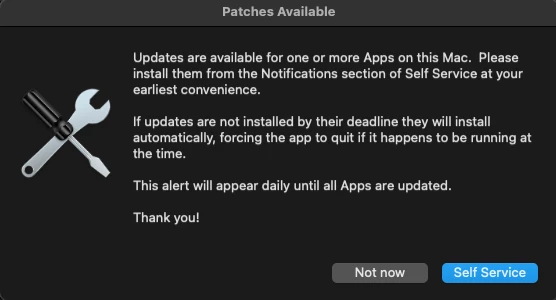
The script (available at the end of this post) works like this. It first runs a check to see who the current user is. If the current user is root (i.e. no accounts are actually logged into the Mac) then the script exits quietly and writes to the log that no users are currently logged in. If the current user is not root then our “Hey, patches are available!” alert pops up.
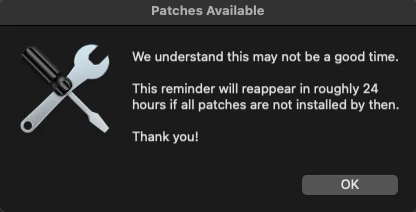
The alert has two buttons: “Self Service” and “Not now.” If our client clicks “Self Service,” Self Service will open directly to the Notifications tab, where all available app patches will be presented for them to view and install. If they click “Not now”, a second window pops up saying we understand this may not be a good time, and we’ll bug you again tomorrow if patches are still pending. This second window isn’t really necessary, but we’re trying to be juuust annoying enough to encourage our clients to go ahead and install those patches.
Now let’s get our workflow happening. First, upload the notification script into Jamf. Second, turn off notifications for each of the Self Service Patch Policies we’ll include in this workflow. We want clients to see our one custom notification, not be inundated with a ton of individual patch notifications when the PI gets fixed! Third, build a Smart Computer Group. We’re using one that looks something like this:
|
AND/OR |
|
CRITERIA |
OPERATOR |
VALUE |
|
|
|
|
Computer Group |
member of |
Staff |
|
|
and |
( |
Patch Reporting: Audacity |
less than |
3.1.3.0 |
|
|
or |
|
Patch Reporting: Google Chrome |
less than |
103.0.5060.114 |
|
|
or |
|
Patch Reporting: Microsoft Word 365/2019 |
less than |
16.63.22071301 |
) |
Our actual Smart Group is much longer than this, and yours probably will be too. Just be sure all the Patch Reporting titles are enclosed within the parentheses and use “or” for the and/or option.
Yes, there is an option to set the Value for Patch Reporting titles in our Smart Group to “Latest Version” but we don’t want to use that here. If Jamf’s patch database is updated with a new version, but we don’t have that latest patch tested and deployed yet, then clients will start receiving notifications that patches are ready but won’t actually see anything in Self Service.
Finally, create a Policy scoped to our new Smart Group, which runs the notification script via the Scripts payload. Use a trigger of “Recurring Check-in” and an Execution Frequency of “Once every day.” You can also set a Client-Side Limitation to not run outside your normal business hours to make sure the script doesn’t run overnight when the client is less likely to see it.
When new patches are ready to deploy, we’ll update our Patch Policies accordingly and then edit our Smart Group with the new version numbers for all the titles we’re releasing. If I have a whole batch of patches, I like to get them all tested and ready for release then deploy them all at once, so I only have to edit my Smart Group the one time for all those titles.
As I mentioned at the top of this post, I came up with this solution because we saw inconsistencies with Self Service notifications due to a product issue. However, after building and testing this solution, I thought it felt much more elegant to just have the one notification per day regardless of how many patch titles are available at the time. I think we’re going to stick with it even after the product issue is resolved. It does mean a little more work on my end to update that Smart Group when new patches are available, but I think it’s worth it for the client-side experience.
Patches Available Script
#!/bin/sh

# Written by Thom Martin for the College of Social & Behavioral Sciences at the University of Arizona.

#########################################
########### SETTING VARIABLES ###########
#########################################

# EDIT THESE ITEMS TO CUSTOMIZE YOUR ALERTS

# Notification window title
title="Patches Available"
# Path for icon to display in alerts
alertIcon="/System/Library/CoreServices/CoreTypes.bundle/Contents/Resources/ToolbarCustomizeIcon.icns"
# Initial Alert message. Carriage returns within the quotation marks will translate to carriage returns in the message.
PatchAlert="Updates are available for one or more Apps on this Mac.  Please install them from the Notifications section of Self Service at your earliest convenience.

If updates are not installed by their deadline they will install automatically, forcing the app to quit if it happens to be running at the time.

This alert will appear daily until all Apps are updated.

Thank you!"
# Patch Declined message.  Carriage returns within the quotation marks will translate to carriage returns in the message.
PatchDeclined="We understand this may not be a good time.

This reminder will reappear in roughly 24 hours if all patches are not installed by then.

Thank you!"

# DO NOT EDIT BELOW THIS POINT WITHOUT TESTING FIRST

# Get current console user for launching Self Service
consoleuser=`ls -l /dev/console | cut -d " " -f4`
# JamfHelper shortcut
jamfHelper="/Library/Application Support/JAMF/bin/jamfHelper.app/Contents/MacOS/jamfHelper"
# current user check
currentUser=$(stat -f "%Su" /dev/console)

#########################################
################ SCRIPT #################
#########################################

# If current user is NOT root, run the JamfHelper patch notification.
if [[ $currentUser != root ]]; then
  buttonResponse=$("$jamfHelper" -windowType utility -title "Patches Available" -description "$PatchAlert" -icon "$alertIcon" -button1 "Self Service" -button2 "Not now" -defaultButton "1" -cancelButton "2")
# If user clicks Self Service, open Self Service to the Notifications tab.
  if [[ "$buttonResponse" == 0 ]]; then
    su - "${consoleuser}" -c 'open "jamfselfservice://content?action=notifications"'
# If user clicks "Not Now" display "We understand" notification.
	else
		"$jamfHelper" -windowType utility -title "Patches Available" -description "$PatchDeclined" -icon "$alertIcon" -button1 "OK"
  fi
# If current user IS root, write "No user currently logged in." to the log.
else echo "No user currently logged in."
fi