
Mac Apps, App Installers, Jamf Apps, Jamf App Catalog… whatever name you know it by, the feature found in your Jamf Pro server at Computers – Mac apps – Jamf App Catalog is a great tool for deploying and patching many commonly used Apps which aren’t available through Apple’s App Store. For the sake of clarity, I will refer to them as App Installers for the remainder of this post.
App Installers do have some caveats which are documented here. Being aware of those is well and good, but even the most experienced admins can make mistakes. Jamf Pro will not alert you if you have done something like overlapped scopes for different deployments of the same App Installer title.
If this occurs, that App Installer will likely cease to recalculate its deployment as more Macs are added to the Computer Group it is scoped to. If you toggle the “stuck” app’s deployment off and back on again, it’ll force it to recalculate and the Macs it was missing will begin to receive it.
This overlapping scope behavior is not limited to the offending App Installer, however. When one App Installer’s deployment recalculation “locks up” because of overlapping scopes, it can cause other App Installers which do not have any scoping issues to also stop recalculating. Currently the only way for a Jamf admin to know this has occurred is either if someone reports expected apps are not installing, or if that admin just happens to be comparing App Installer deployment numbers to Smart Computer Group memberships.
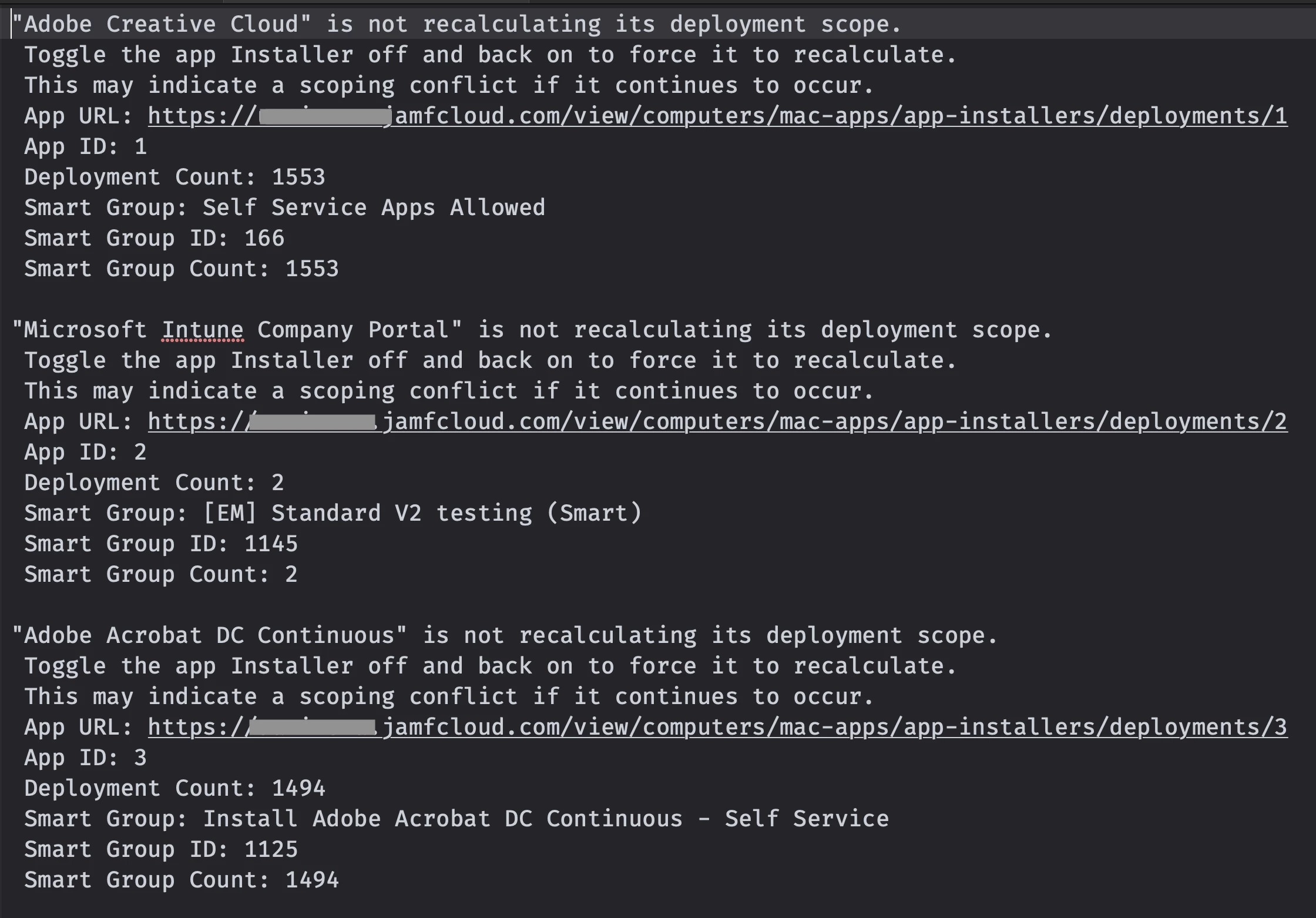
This led me to write a script which can be run periodically as an App Installer “health check”. It will scan all the App Installers currently configured on your Jamf Pro server, calculate how many Macs Jamf Pro thinks should be in each deployment, grab the number of Macs in the Smart Group that each App Installer is scoped to, then compare the two numbers. Any App Installers whose numbers do not match will be written in a report to your Desktop for review. That report looks something like this:
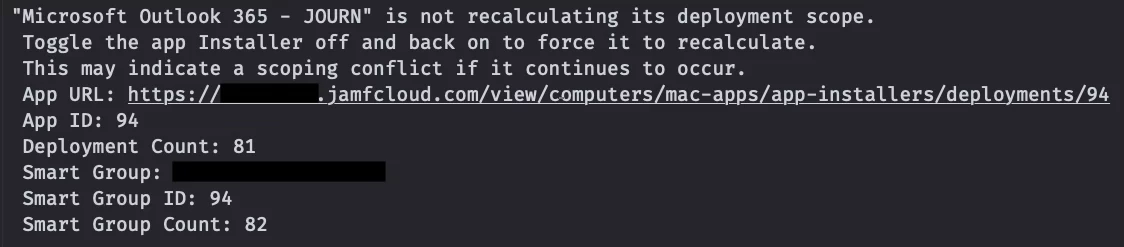
In this example, Jamf Pro thinks this copy of an Outlook installer is scoped to 81 Macs (Deployment Count) but there are 82 Macs in the Smart Group it is scoped to (Smart Group Count). Toggling this title off and back on will force the Deployment Count to update to 82.
There does not appear to be an API endpoint to toggle the deployment of offending App Installers, but at least this gives us a list of titles which need a kickstart as well as insight into possible overlapping scopes.
Get the script at https://github.com/3panman/scripts/blob/main/JamfAppsCheck-Sanitized.zsh
Before running this script, you’ll need to set up a few things:
- In Jamf Pro:
- Create an API role with “Read Smart Computer Groups” and “Read Mac Applications” privileges
- Create an API Client with the above API Role assigned to it and document its Client ID and Client Secret.
- On the Mac running the script
- Install jq if you do not already have it – available at https://jqlang.org/
- Install jq if you do not already have it – available at https://jqlang.org/
- In the script
- Paste your API Client ID between the quotes in line 23
- Paste your API Client Secret between the quotes in line 24
- Edit line 25 with your Jamf Pro server URL
- Optionally, edit the directory path in line 43 if you would like the report to go somewhere other than your Desktop folder
Potential gotcha: Running this script right after a new Mac has been enrolled could output false mismatches while Jamf is working on recalculating all the things. If you get an output of App Installers which you think should be okay, give it a few minutes before running the script again to confirm.
Special thanks to