Question

Proper way to install Adobe Creative Cloud package?

  • August 21, 2020
  • 32 replies
  • 320 views

Show first post

32 replies

stephaniemm77
Forum|alt.badge.img+5

@Robb Hello Rob, Adobe has changed a lot of things since that article.

In "https://docs.jamf.com/technical-papers/jamf-pro/adobe-creative-cloud/9.0/Deploying_Adobe_Creative_Cloud_for_Enterprise.html"

Note: For Creative Cloud 2019 apps or later, you must use the Adobe Admin Console instead of Creative Cloud Packager to create the installer package. For more information, see the following documentation from Adobe:

https://helpx.adobe.com/enterprise/kb/apps-not-available-in-ccp.html
https://helpx.adobe.com/enterprise/using/package-apps-admin-console.html
https://helpx.adobe.com/enterprise/package/user-guide.html

Basically:
1. Log into the Adobe Dashboard.
2.Create the package(s) you want to deploy.
3. Download the package(s), you will have a file <yourAppName>_<yourAppLanguage>_MAC_Downloader.dmg.
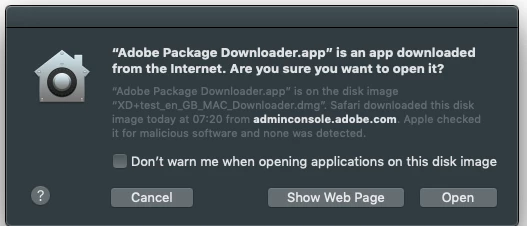
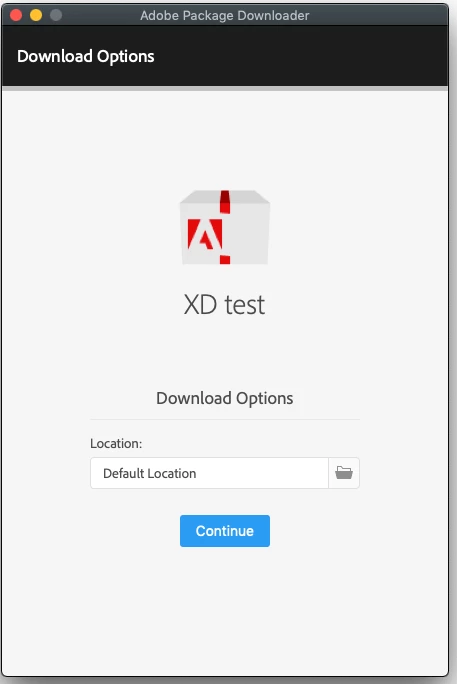
4. Into that Downloader.dmg you will have an app named Adobe Package Downloader.app, run it, accept the prompt...


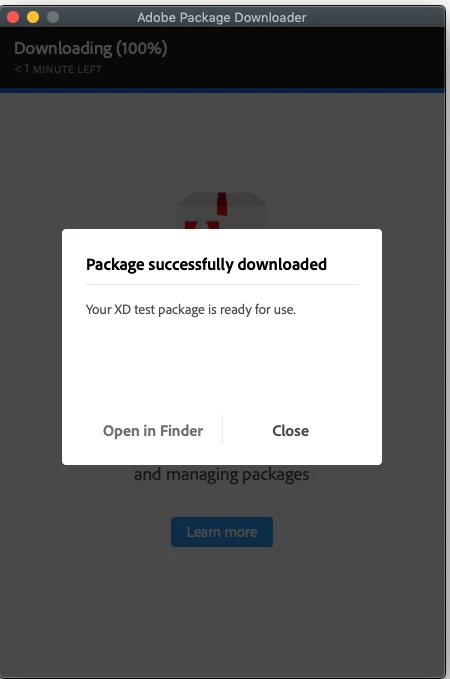
5. That app will then download a zip file with the installer package (I know, Adobe....)


6. Once you have that (into your Downloads folder), unzip it.


7. Into the unzipped folder you will have a Build and Exceptions folder and a <yourAppName>.ccp file.
7.1 Upload the <yourAppName>_Install.pkg from Build folder into Jamf.
8. Create the Jamf policy for deployment.

Sit back and relax until the next Adobe version of the app is out...

I hope this helps.
We had a lot of the manual steps scripted, life is far too short for that many clicks!

Regards,


I know this is an old thread, but when I uploaded it into Jamf Admin it creates a .zip file so I am not sure where to go from there.


Forum|alt.badge.img+10
  • Contributor
  • May 17, 2022

I know this is an old thread, but when I uploaded it into Jamf Admin it creates a .zip file so I am not sure where to go from there.


@stephaniemm77 I know it seems weird, but Jamf knows it is a package, so you can treat it like a package. You should be able just to add it to a policy to deploy or use Jamf Remote. 


stephaniemm77
Forum|alt.badge.img+5

@stephaniemm77 I know it seems weird, but Jamf knows it is a package, so you can treat it like a package. You should be able just to add it to a policy to deploy or use Jamf Remote. 


yeah I'm trying it now I uploaded it to Jamf Admin, deploying using Jamf Pro deploying it cached installed. Thank you. 


Forum|alt.badge.img+5
  • Contributor
  • May 17, 2022

yeah I'm trying it now I uploaded it to Jamf Admin, deploying using Jamf Pro deploying it cached installed. Thank you. 


check out my message at very bottom reply


Forum|alt.badge.img+6
  • New Contributor
  • August 20, 2022

The zip method seems kind of weird for me. I created the package on Adobe Admin Console. After download and extracting, I moved the "zip PKG" to /private and then added the zip/pkg to a new package on Composer with 755 permissions applied down the line. I included a post install script:


#!/bin/sh installer -pkg "/private/Adobe-InDesign-17.2-Universal_Install.pkg" -target / sleep 2 rm -rf /private/Adobe-InDesign-17.2-Universal_Install.pkg exit 0


Then created the PKG and uploaded to Jamf Pro / policy


This worked perfectly! Thank you!


Forum|alt.badge.img+6
  • Contributor
  • August 26, 2022

The zip method seems kind of weird for me. I created the package on Adobe Admin Console. After download and extracting, I moved the "zip PKG" to /private and then added the zip/pkg to a new package on Composer with 755 permissions applied down the line. I included a post install script:


#!/bin/sh installer -pkg "/private/Adobe-InDesign-17.2-Universal_Install.pkg" -target / sleep 2 rm -rf /private/Adobe-InDesign-17.2-Universal_Install.pkg exit 0


Then created the PKG and uploaded to Jamf Pro / policy


Your workflow was similar to mine, but here is what I did.

  1. Created a managed  Adobe package in Adobe Admin console. I made two packages because Jamf couldn't do more that 30 GB of an upload, so I split them up.
  2. Downloaded the DMG file from Adobe.
  3. Downloaded the ZIP file from the DMG.
  4. Extracted the ZIP file.
  5. Copy and pasted that extracted folder into /private/var/jamf.
  6. Dragged and dropped that location "/private/var/jamf/Adobe", or wherever you wanted to put it, into Composer to create the package source.
  7. Expanded the Composer source so that it showed the scripts folder and added a post-install shell script with the following commands.


#!/bin/sh installer -pkg "path to Adobe installer.pkg" -target / sleep 2 rm -rf "path to Adobe installer.pkg" exit 0​


  • Saved the Composer package as a package and uploaded that into Jamf.
  • Created a Jamf policy to install the uploaded package.

Forum|alt.badge.img+7
  • Valued Contributor
  • October 18, 2023

I can confirm zipping it up manually before uploading it works!

I'm about to try all the other Adobe apps now.


Yup wow, just manually zipping the pkg file worked. i have no words...